
Home > Power Platform Migration Process > Preparation
Download this articlePreparation
Before the migration, you need to identify what object types you want to migrate. See the Supported and Unsupported List.
1. Create a Fly for Power Platform app profile, or service account and app profile with required permissions
To connect Fly to your Power Platform environment, create a Fly for Power Platform app profile with required permissions, or create a service account and app profile with the required permissions in AvePoint Online Services. Refer to Required Permissions to check the required permissions for Power Platform Migration.
If your users have Multi-Factor Authentication (MFA) enabled or your tenant has the conditional access policy enabled, you can use the Fly App for Power Platform only to perform migrations.
2. Provision all necessary users/groups in the destination tenant
Fly does not automatically create new users/groups in Microsoft 365. There are different ways to add new Microsoft 365 users/groups:
-
Adding users individually. See instructions here.
-
Adding users in bulk. See instructions here.
-
Adding users via PowerShell. See instructions here.
-
Synchronizing users from local Active Directory to Microsoft 365 via Microsoft Entra Sync or Microsoft Entra connect. See instructions here.
3. Provision all necessary external users in the destination tenant
You can export the external users and import them into the destination tenant before the migration by downloading and running the PowerShell scripts.
4. Build the inventory on your source Power Platform environment
Inventory is the list of data you want to migrate from the source environment to the destination environment. The inventory report helps you understand the size and complexity of the migration.
-
Numbers of Power Apps/Power Automate flows
-
Connection types and corresponding connection users used by the Power Apps/Power Automate flows
Refer to the PowerShell cmdlets about how to build the inventory.
5. Set up required settings in your destination Power Platform environment
Flows
-
To ensure a successful import and consistent Power Platform connection between the source and destination, use the destination service account or the consent user of Fly for Power Platform app profile to create connections in the destination with the same user and the same type as the source connections in advance. (You can refer to the How to create an end user’s connection for the destination service account or the consent user of Fly for Power Platform app profile? section below for detailed steps.)
For example, end user A creates a flow in the source using an Office 365 Outlook connection of the user A. You may get different migration results of the flow based on the following situations:
-
If the destination service account or the consent user of Fly for Power Platform app profile has an Office 365 Outlook connection of user A, Fly will create the flow in the destination using that connection. The trigger and action parameters in the destination flow will be the same as the source flow.
-
If the destination service account or the consent user of Fly for Power Platform app profile does not have any Office 365 Outlook connections of user A, Fly will create the flow in the destination using a connection of the destination service account or the consent user of Fly for Power Platform app profile. The trigger and action parameters in the destination flow will be different from the source flow.
Refer to the following steps to solve this problem:
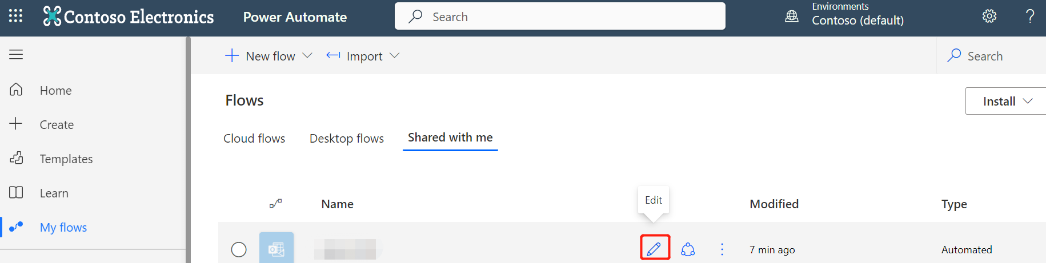
Go to the My flows page using user A.
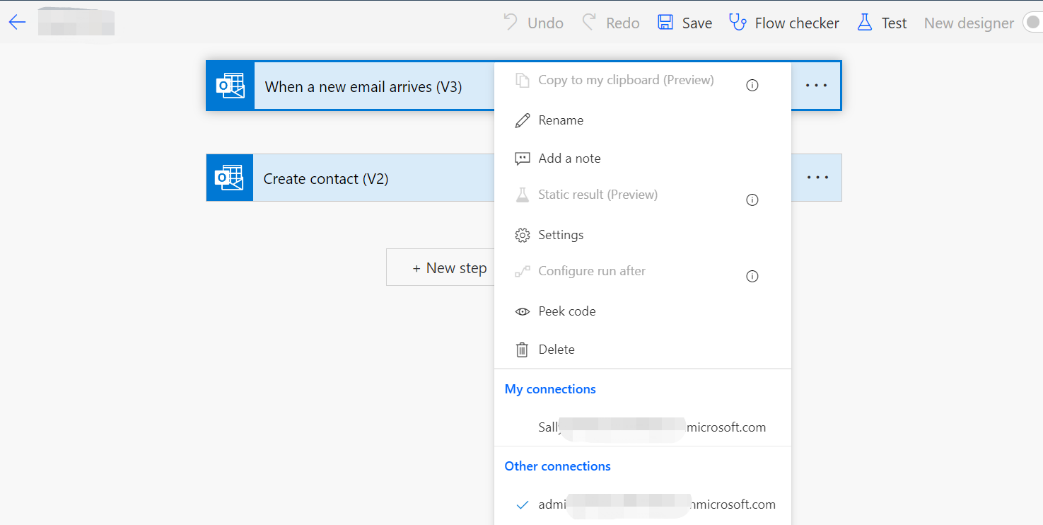
Edit the flow to change the connection of the destination service account or the consent user of Fly for Power Platform app profile to user A’s connection.
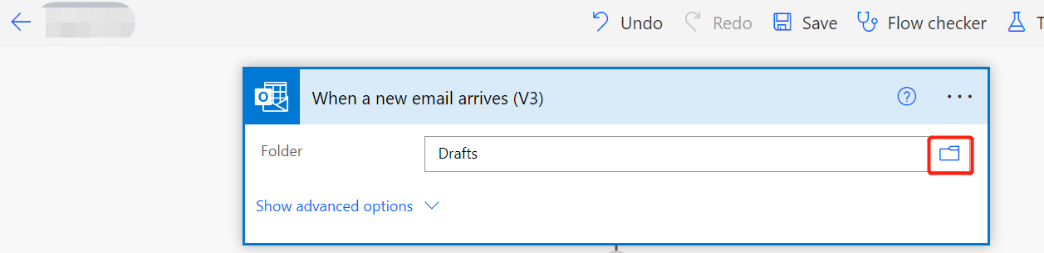
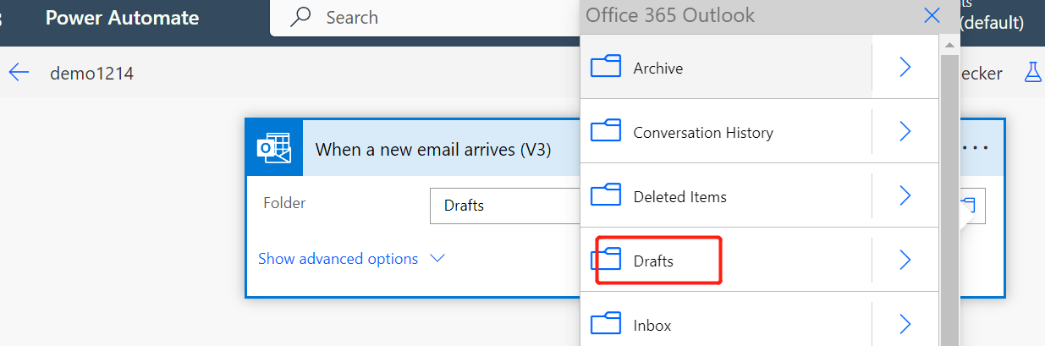
Change the parameters to the same as the source.
 NOTE
NOTEIn this way, the flow’s owner is the destination service account or the consent user of Fly for Power Platform app profile.
-
-
Make sure the objects configured in the source trigger/action parameters can be found in the destination. For example:
-
If the parameters are configured with a site collection and a list, the destination must have a site collection with the same relative URL as the source site collection and has a list with the same title as the source list.
NOTEIf the destination does not have a SharePoint site collection with the same relative URL, you can configure a site mapping for the source site collection in the migration policy.
-
If the parameters are configured with a Team and a channel, the destination must have a Team with the same email address as the source Team and has a channel with the same name as the source channel.
NOTEIf the destination does not have a Team with the same email address, you can configure a Team mapping for the source Team in the migration policy.
-
If the parameter is configured with an Exchange mailbox folder, the destination mailbox must have a folder with the same name as the source folder.
-
Apps
-
To ensure a successful import and consistent Power Platform connection between the source and destination, use the destination service account or the consent user of Fly for Power Platform app profile to create connections with the same user and same type as the source connections in advance. You can refer to the How to create an end user’s connection for the destination service account or the consent user of Fly for Power Platform app profile? section below for detailed steps.
For example, if end user A creates an app in the source using a SharePoint Online connection of the user A and the destination service account or the consent user of Fly for Power Platform app profile has a SharePoint Online connection of user A, Fly will create the app in the destination using that connection. (After the migration, user A needs to manually allow the connection for the app in the destination if the app is accessed the first time. This is a requirement from Microsoft.)
-
Make sure the objects configured in the source trigger/action parameters can be found in the destination.
For example, if the parameters are configured with a site collection and a list, the destination must have a site collection with the same relative URL as the source site collection and has a list with the same title as the source list.
NOTEIf the destination does not have a SharePoint site collection with the same relative URL, you can configure a site mapping for the source site collection in the migration policy.
-
The destination Power Platform connection user must have permissions to the parameters configured in the app.
-
If the apps are associated with flows, make sure your migration also meet the requirements mentioned in the Flows section.
-
How to create an end user’s connection for the destination service account or the consent user of Fly for Power Platform app profile?
-
Log in to the Power Automate or Power Apps platform using the destination service account or the consent user of Fly for Power Platform app profile.
-
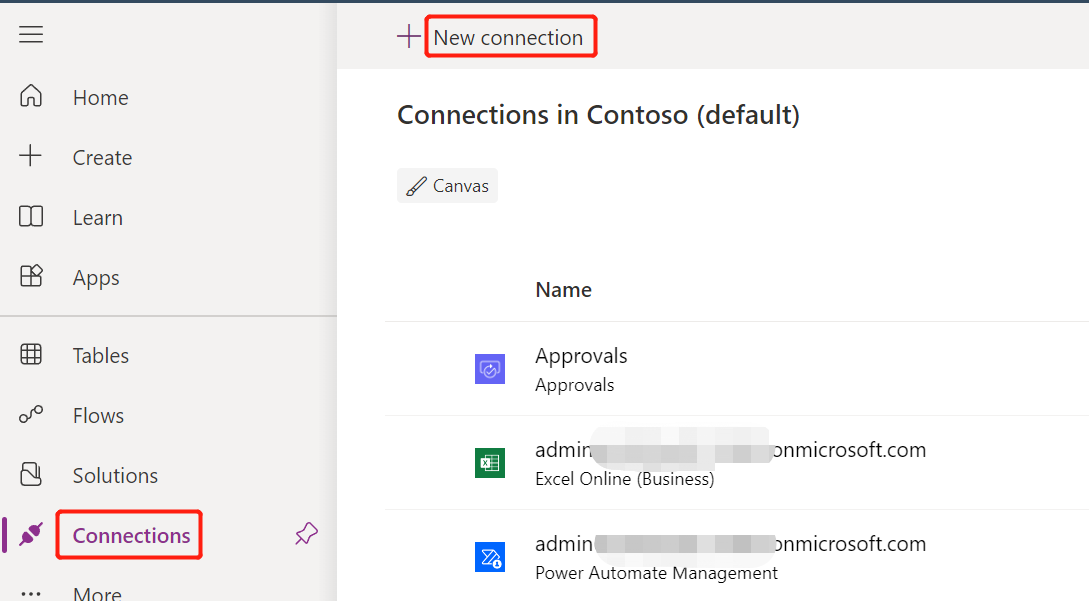
Click Connections in the left navigation, and click New connection.
-
Select a connection type.
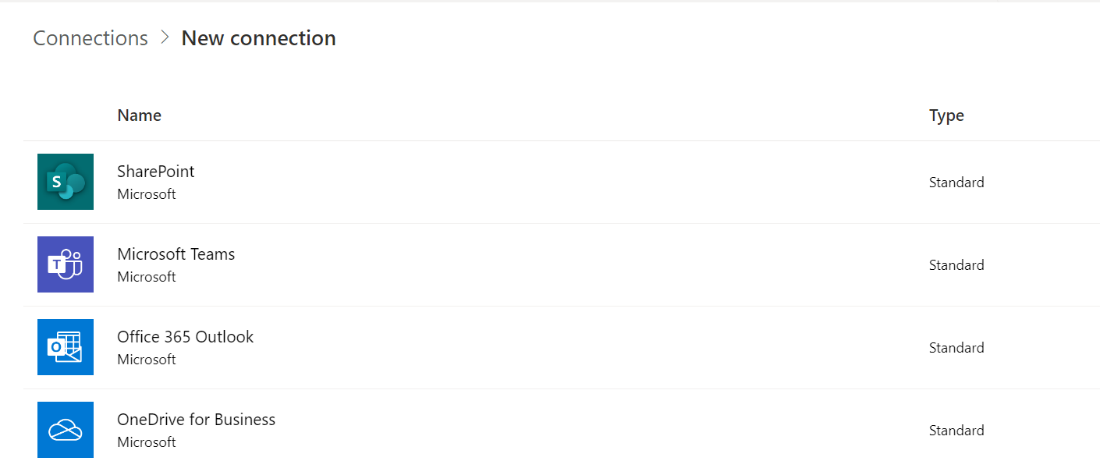
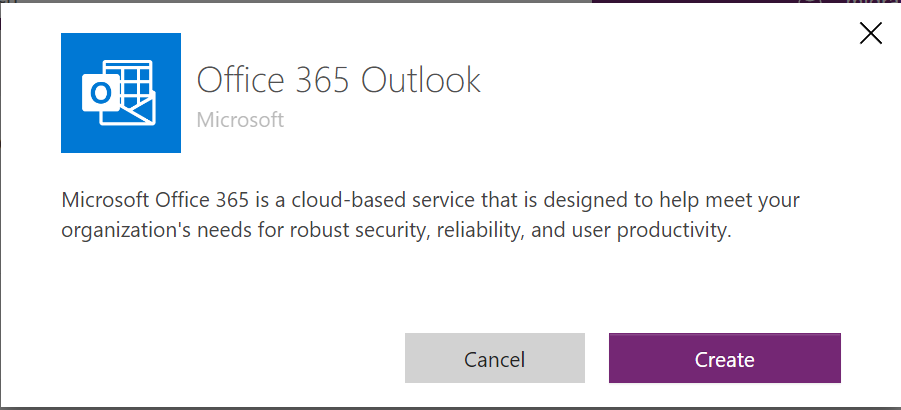
For example, Office 365 Outlook.
-
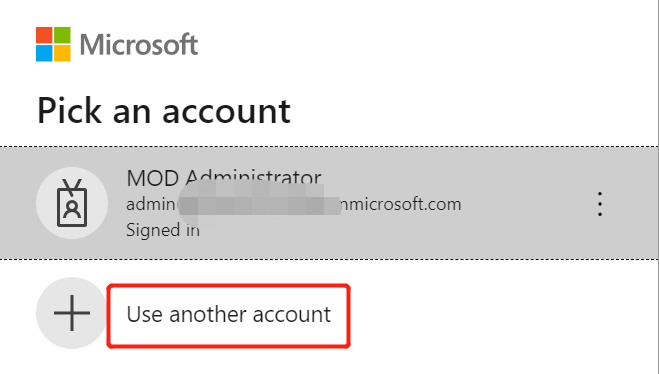
Select Use another account and sign in with the end user of the connection.
6. Create source and destination connections
Refer to Create a Connection to connect to your source and destination Power Apps/Power Automate flows.
7. Design the migration policy
A Power Platform migration policy allows you to configure conflict resolution, user mapping, Power Platform connection mapping, site mapping, Team mapping, and other options for Power Platform Migration. Refer to Create a Migration Policy for details.
8. Plan a Pilot run
We recommend that you do a pilot run for the following purposes:
-
Get familiar with the Fly interface and understand the whole migration process.
-
Discover and resolve any potential issues before production migration.
-
Understand the throttling situation in case content size is large, and then try to resolve with the destination.
A pilot migration should be as close to the wave migration as possible and involve all steps that any wave will involve.
Refer to Run Migrations to Migrate Objects for details.