Home > Exchange Online Backup and Restore > Back Up Your Exchange Online Data
Download this articleBack Up Your Exchange Online Data
Exchange Online Backup and Restore offers full and incremental backup capabilities for Exchange Online mailboxes and Microsoft 365 groups’ mailboxes, enabling you to build backup plans and schedules that focus on frequently backing-up high priority data to improve operations and storage efficiency. To back up your Exchange Online Data:
Launch Exchange Online Backup and Restore
To launch Exchange Online Backup and Restore, complete the following steps:
-
Log into AvePoint Online Services and navigate to Classic DocAve Backup.
-
Click Exchange Online Backup & Restore to launch this module.
Configure Auto Discovery
Prior to building backup plans in Exchange Online Backup and Restore in Classic DocAve Backup, you must register the objects in your Microsoft 365 environment.
If you want to scan and add Microsoft 365 objects, navigate to AvePoint Online Services > Auto discovery and configure registration profiles. For details, refer to Manage Auto Discovery.
Auto Discovery provides the service account profile and app profile authentication methods to scan objects. If you choose the app profile authentication method to scan objects, the app token within the app profile will be used to back up or manage data. However, this method has some limitations on data and functionalities. For details about the limitations, refer to Appendix A - SharePoint Online Data Types and Appendix B - Supported and Unsupported Functionalities..
Perform a Backup
There are several ways to configure and perform an Exchange Online backup. Once you select the content you want, you can run backups using either Ad Hoc Backup or the Plan Builder.
Ad Hoc backups are a quick, easy way to run a backup as needed. They back up the selected content immediately without scheduling, using Default Settings configured just before running the backup.
The Plan Builder, however, allows you to define and refine the type, schedule, and other options for a backup so you can set it and forget it.
Run an Ad Hoc Backup
Ad Hoc backups are a quick, easy way to run a backup as needed. They back up the selected content immediately without scheduling, using Default Settings configured just before running the backup.
To perform an Ad Hoc Backup, follow the steps below:
-
Launch Exchange Online Backup and Restore. For more information, see Launch Exchange Online Backup and Restore.
-
On the ribbon, in the Backup tab, click Ad Hoc Backup.
-
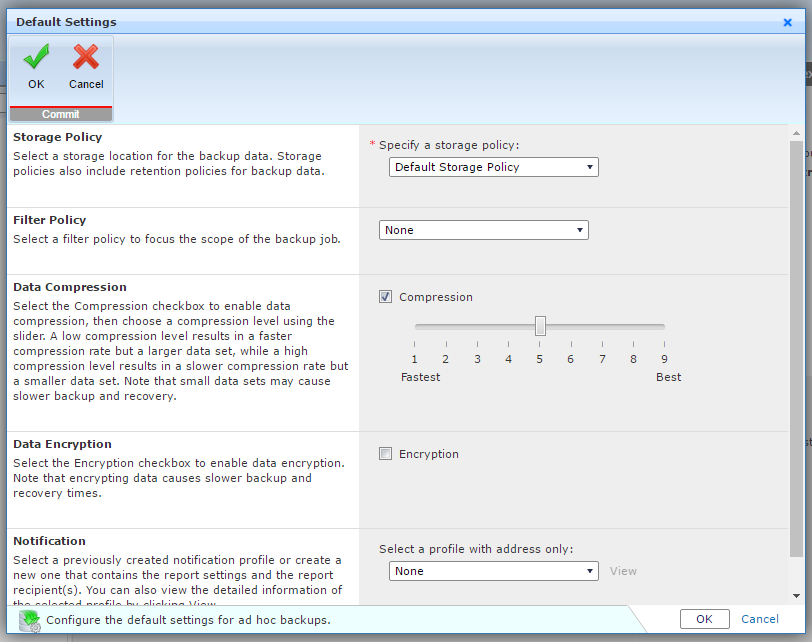
Select Default Settings. The Default Settings page will appear.
-
Configure the options on the Default Settings page. On this page, you can choose the storage and filter policies, as well as other options for your Ad Hoc backups.
-
Click OK. The Default Settings page will close.
-
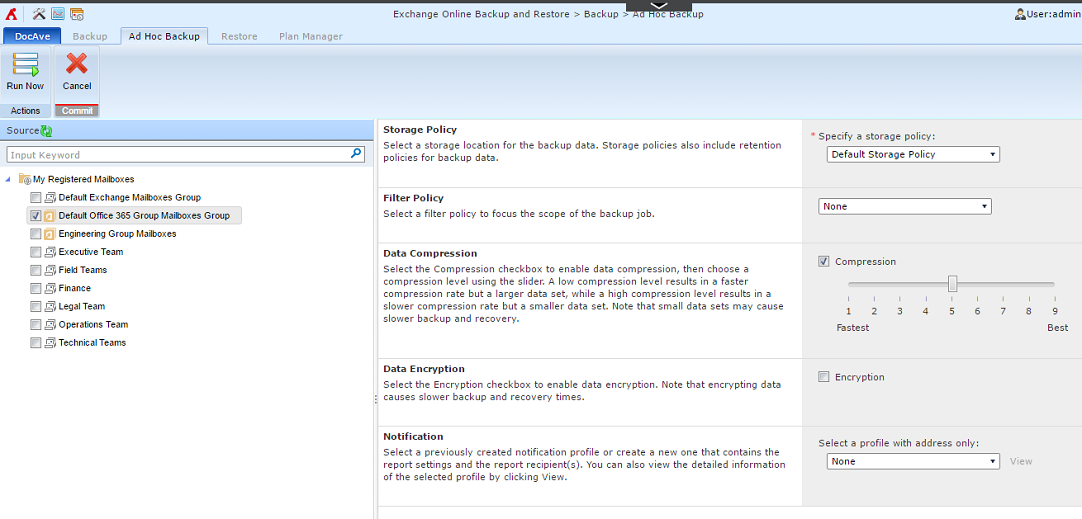
Select the objects you would like to back up from the scope tree on the left panel.
-
On the ribbon, in the Backup tab, click Ad Hoc Backup, and then select Ad Hoc Backup. The default settings will appear in the right panel.
-
Click Run Now on the ribbon.
-
After you click Run Now, the Ad Hoc Backup will be added to the job queue. To view the details about the backup job’s progress, click Job Monitor on the ribbon. Note that the Date Range for backup jobs in Job Monitor is Last 30 Days by default.
Create a Backup with the Plan Builder
The Plan Builder allows you to define and refine the schedule, the type of backup (Full or Incremental), or if you want to use the Predefined Schemes features.
When configuring a backup plan, there are two backup types: Full or Incremental.
-
Full Backups – Back up all of the selected data each time a backup is performed. Unlike incremental backups, all full backup files are independent of one another and do not have any dependencies on other backup data files. Additionally, since each of the backups is comprehensive, full backup jobs take the longest to complete of the available options.
-
Incremental Backups – Back up only the content that has been updated since the last backup, drastically reducing the size of the backup file created.
To create a backup plan, follow the steps below:
-
Launch Exchange Online Backup and Restore. For more information, see Launch Exchange Online Backup and Restore.
-
Select the objects you would like to back up from the scope tree on the left panel.
-
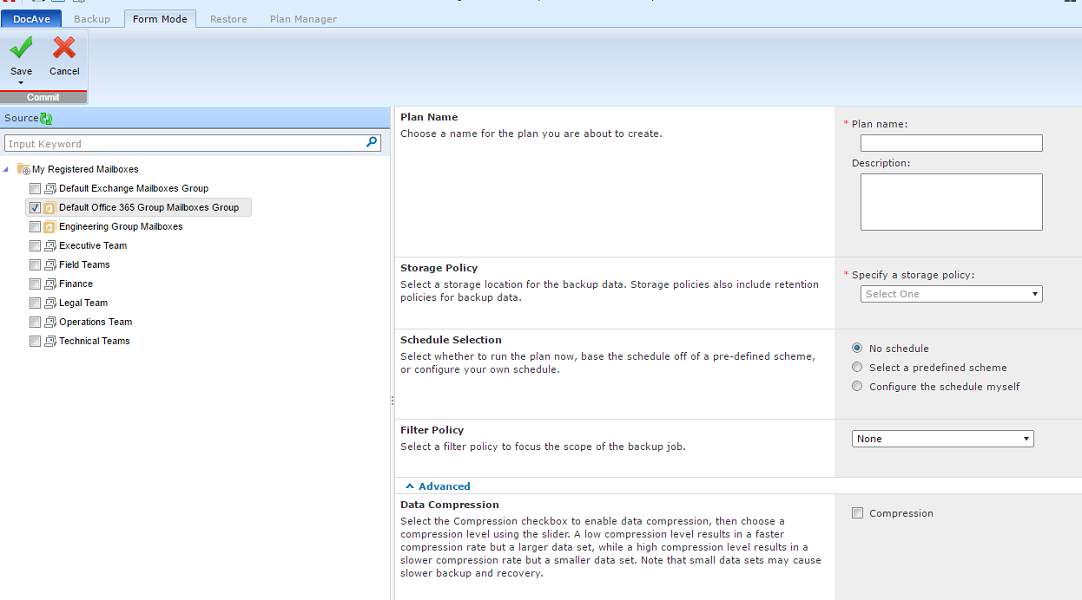
On the ribbon, in the Backup tab, click Plan Builder. The Plan Builder will appear on the right panel.
-
Enter a Plan Name.
-
Select a Storage Policy from the drop-down list.
-
Select a schedule type. You can choose:
-
No Schedule – Select this option if you want to run this backup manually without creating a schedule for it.
-
Select a predefined scheme – Select this option to choose between two out-of-the-box schedules: Weekly and Monthly. The Weekly scheme performs a full backup every Saturday and incremental backups every day except Saturday. The Monthly scheme performs a full backup every four weeks starting at the Start Time you configured and incremental backups every day.
You can click on the items in the schedule summary box to edit the schedule.
-
Configure the schedule myself – Select this option to configure a customized schedule, and run the backup job by schedule. Click Add Schedule to set up a schedule.
-
-
Select a Filter Policy.
-
Click Advanced. The advanced backup options will appear. These settings are optional. Here you can choose the data compression and encryption types as well as the notification profile.
If you want to enable data encryption and need to create a security profile, refer to the Create a Security Profile section in AvePoint Cloud Management User Guide.
-
Click OK, and select either:
-
OK, which adds the job to the schedule
-
OK and Run Now, which immediately runs the backup by adding it to the job queue.
-
-
After the backup job plan has been created, you can edit, delete, test run, run, and view its details in the Plan Manager.
Manage Your Backup Plans
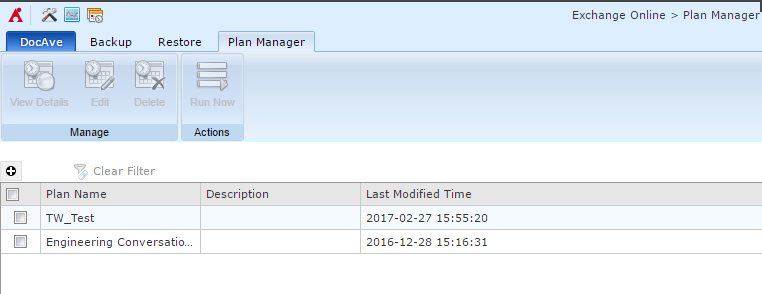
After creating a backup plan, you can edit, delete, test run, run, and view its details in the Plan Manager. Navigate to the Plan Manager, by selecting the Plan Manager tab on the ribbon.
To manage a plan or view its details, select the plan name. The View Details page will appear.