
Home > Google > Configure Custom Google App Profiles (Recommended) > Create a Custom Google App > Step 3: Configure OAuth Scopes
Export to PDFStep 3: Configure OAuth Scopes
You can refer to the instructions below to configure scopes:
-
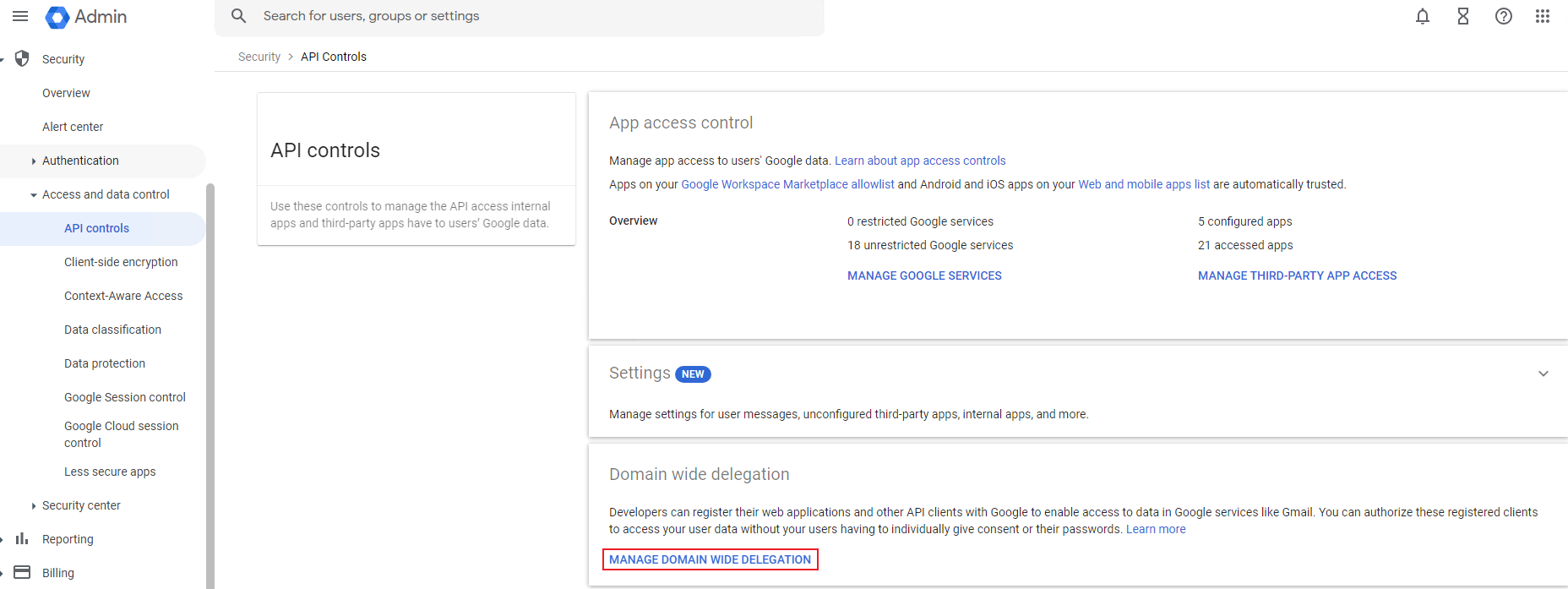
Go to , and then navigate to Security > Access and data control > API controls.
-
Click MANAGE DOMAIN WIDE DELEGATION.
-
Click Add new.
-
Add the client ID and OAuth scopes. After you finish the configuration, click AUTHORIZE.
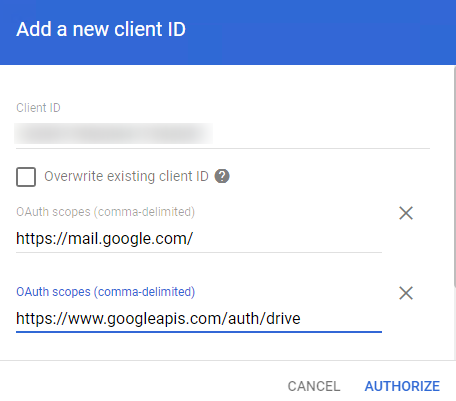
Note the following:
-
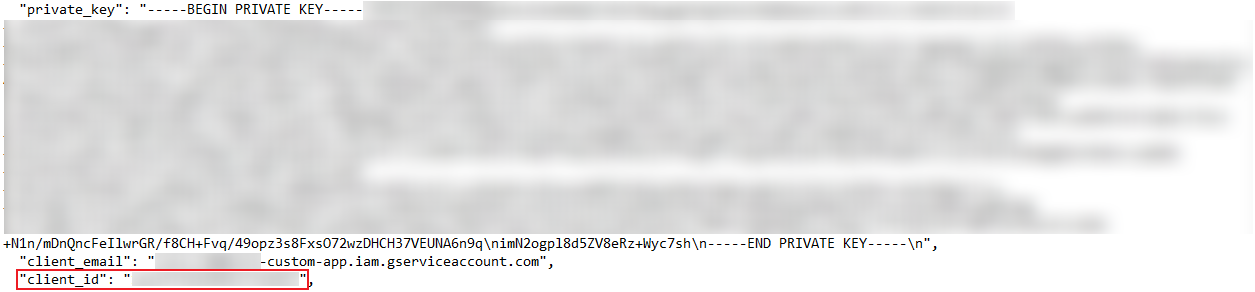
To get the client ID, you can open the private key file (downloaded when you Create a Service Account), or go to the Credentials page.
-
The configured scopes should be the same as the scopes added to the app. You can add required permission scopes to a custom Google app by referring to the following sections:
-
Fly
-
Gmail migration: and
-
Google Drive migration: and
-
*Note: You must add the permission scopes that are exactly required. For example, the https://www.googleapis.com/auth/drive.readonly scope cannot be replaced by the https://www.googleapis.com/auth/drive scope. It is recommended that one custom Google app is configured for one service only.
-
-
After you finish configuring scopes for the custom Google app, go to AvePoint Online Services and navigate to Management > App management to create an app profile and consent to the custom Google app. For more details, refer to the Consent to Custom Google Apps section.