
Home > Google > Configure Custom Google App Profiles (Recommended) > Create a Custom Google App > Step 1: Create a New Project and Enable APIs
Export to PDFStep 1: Create a New Project and Enable APIs
Refer to the instructions below to create a new project and enable APIs. Note the following:
Create a New Project (Optional)
Follow the steps below to create a new project:
-
Go to .
-
Click the current resource.
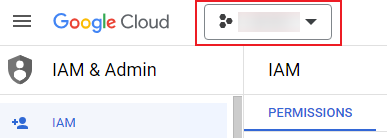
-
Click New project.
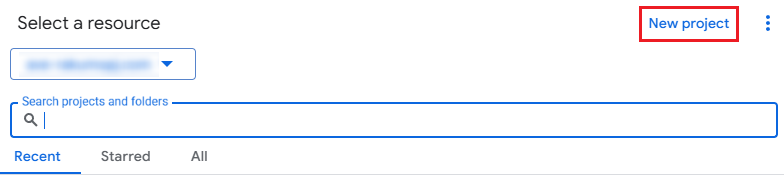
-
Complete the Project name, Organization, and Location fields.
-
Click Create.
Enable APIs
Follow the steps below to enable Google APIs:
-
Go to the .
-
Click the current resource to expand the projects list, and then select the project you want to use.
*Note: The user that can enable APIs for a project must be the project owner.
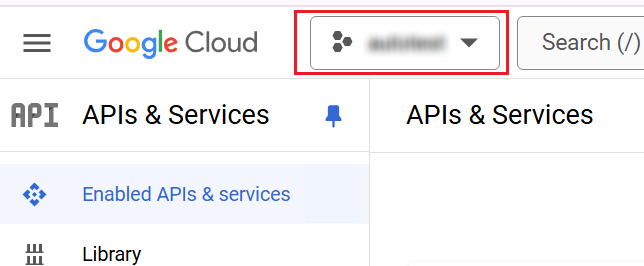
-
Click Enable APISand services.

-
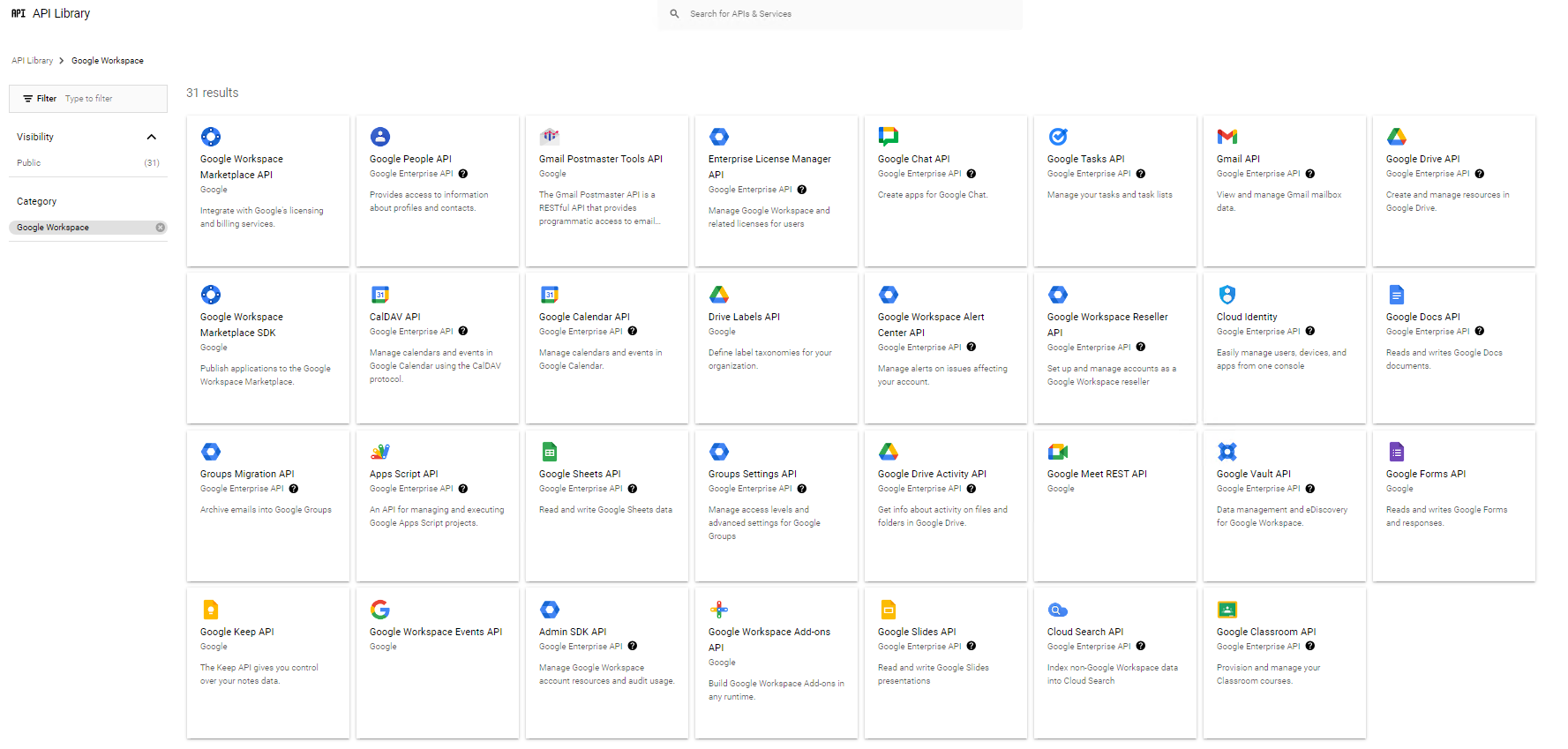
The API library page appears.
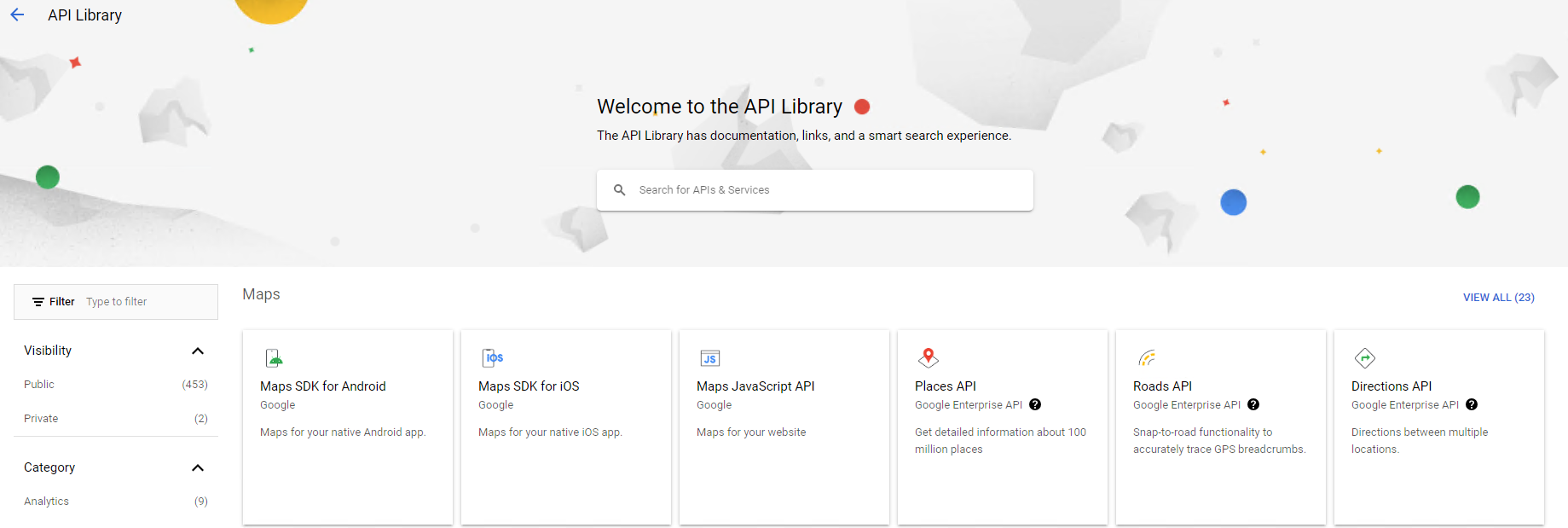
-
Search for and enable APIs that are required by your services. Refer to the following links to view required APIs.
-
Fly
-
Gmail migration: and
-
Google Drive migration: and
-
-
-
Click the API that you want to enable, and then click Enable.
