
Home > SharePoint Related Codes
Download this articleSharePoint Related Codes
SP-ActiveFeatureError
Issue:
The feature failed in the migration with the following error:
- SP-ActiveFeatureError
Details:
The error indicates that the site collection feature or site feature cannot be activated in the destination. This error may be caused by the following reasons:
-
The destination feature does not exist in the destination since the source and destination site templates are different.
-
The destination SharePoint site collection or site is unstable.
Recommendations:
Check if the source and destination site templates are the same.
-
If they are in the same template, try to activate the feature manually in the destination, and then rerun the migration job.
-
If they are different, check if the feature is supported for the destination site collection or site. If yes, you can try to activate the feature manually in the destination and rerun the migration job. If no, you can ignore this error.
SP-AlertFailed
Issue:
The object has been migrated but has the following error:
- SP-AlertFailed
Details:
An error occurred while migrating the alert of the object.
Recommendations:
Check the comments of the failed alert in the migration report. After you fix the errors, run a "Retry error objects" migration job to migrate the alert.
SP-AlertFolderPathMisMatch
Issue:
The user alert is skipped in the migration with the following information:
- SP-AlertFolderPathMisMatch
Details:
The folder URL in the user alert is different from the current folder URL.
Recommendations:
Contact Support and provide the migration mapping information and job ID for assistance.
SP-AnonymousSharedLinkFailedOnIBSetting
Issue:
The shared link failed in the migration with the following error:
- SP-AnonymousSharedLinkFailedOnIBSetting
Details:
The share link is of the Anyone type and the Information barriers setting is enabled for the destination site collection or OneDrive site. In this case, the shared link cannot be created in the destination.
Recommendations:
Choose one of the following options to resolve this issue:
-
Disabled the Information barriers setting for the destination site collection or OneDrive site and run an incremental or "Retry error objects" migration job to resolve this issue. Then, you can enable the Information barriers setting for the destination site collection or OneDrive site.
-
If you do not want to disable the Information barriers setting for the destination site collection or OneDrive site, you can ignore this error in Fly to hide this error from the migration report.
SP-AnyoneSharelinkSetPasswordWarning
Issue:
The shared link is skipped in the migration with the following error:
- SP-AnyoneSharelinkSetPasswordWarning
Details:
Shared links with passwords configured are not supported in the migration.
SP-APIMaintenance
Issue:
The object failed in the migration with the following error:
- SP-APIMaintenance
Details:
The error indicates that Microsoft is currently performing maintenance.
Recommendations:
Rerun the migration job when the maintenance is completed.
SP-AppInstallationTimeout
Issue:
The app failed in the migration with the following error:
- SP-AppInstallationTimeout
Details:
Timed out while installing the app to the destination.
Recommendations:
Check whether the app is successfully installed in the destination list/library.
-
If the app is successfully installed, you can ignore this error.
-
If the app is marked as failed for the installation, you can remove the app from the destination, and then manually install the app or rerun the migration job to install the app using Fly.
SP-AppNotUsedInDestinationTenant
Issue:
The app failed in the migration with the following error:
- SP-AppNotUsedInDestinationTenant
Details:
The app failed to be installed in the destination since it has not been installed in the destination before.
Recommendations:
Manually install the app to the destination, and rerun the migration job.
SP-AppOnlyCannotCreateOneDrive
Issue:
The OneDrive site failed in the migration with the following error:
- SP-AppOnlyCannotCreateOneDrive
Details:
The OneDrive site cannot be created in the destination using the app profile only.
Recommendations:
Add a service account/delegated app profile to your destination connection or manually create the OneDrive site in the destination, and rerun the migration job.
SP-AppOnlyCannotInstallApp
Issue:
The app failed in the migration with the following error:
- SP-AppOnlyCannotInstallApp
Details:
The app cannot be installed to the destination using the app profile only.
Recommendations:
Add a service account to your destination connection or manually install the app to the destination, and run the migration job.
SP-AppOnlyCannotMigrateNintexForm
Issue:
The Nintex form failed in the migration with the following error:
- SP-AppOnlyCannotMigrateNintexForm
Details:
Nintex forms cannot be migrated if you only use the app profile authentication to connect to the destination.
Recommendations:
Provide a service account/delegated app profile for the destination connection, and rerun the migration job.
SP-AppOnlyCannotMigrateNintexWorkflow
Issue:
The Nintex workflow failed in the migration with the following error:
- SP-AppOnlyCannotMigrateNintexWorkflow
Details:
Nintex workflows cannot be migrated if you only use the app profile authentication to connect to the destination.
Recommendations:
Provide a service account/delegated app profile for the destination connection, and rerun the migration job.
SP-AppOnlyCreateGroupSiteFailedByRestAPI
Issue:
The site collection failed in the migration with the following error:
- SP-AppOnlyCreateGroupSiteFailedByRestAPI
Details:
An error returned from the Microsoft API while creating the site collection in the destination. This error occurs when all the following situations are met:
-
The destination is a Microsoft 365 Government GCC High tenant in the U.S. Government environment.
-
The source language is not English.
-
You only use the app profile authentication to connect to the destination.
Recommendations:
Add a service account/delegated app profile for the destination connection and run an incremental or "Retry error objects" migration job. If the error persists, you can manually create a site collection in the destination and rerun the migration job.
SP-AppOnlyNotSupport
Issue:
The object failed in the migration with the following error:
- SP-AppOnlyNotSupport
Details:
Automate rules cannot be migrated using the Fly app profile.
Recommendations:
Use a service account or delegated app profile to migrate automate rules.
SP-AppOnlyUnsupportedSiteTemplate
Issue:
The site failed in the migration with the following error:
- SP-AppOnlyUnsupportedSiteTemplate
Details:
The site is created using the Team site template in the destination. The mapped destination template cannot be used to create the site if you only use the app profile authentication to connect to the destination.
Recommendations:
This is not an error, and we just want to make you aware that the site template may need to change. There are two options to create the site in the destination with your original site template:
-
Create the site using Fly. Delete the site from the destination SharePoint admin center (and also from the Deleted sites page), provide a service account/delegated app profile in the destination connection, and rerun the migration job.
-
Delete the site from the destination and manually create it with your original site template.
SP-AuthorOrModifiedByIsSPGroup
Issue:
The object failed in the migration with the following error:
- SP-AuthorOrModifiedByIsSPGroup
Details:
The author or modified user of the object is a SharePoint group. In this case, the object cannot be migrated due to Microsoft API limitations.
Recommendations:
Configure a user mapping in the migration policy to map the source SharePoint group to an existing destination user, and rerun an incremental or "Retry error objects" migration job.
SP-AzureImportDatabaseError
Issue:
The object failed in the migration with the following error:
- SP-AzureImportDatabaseError
Details:
The error occurs in the following situations:
-
Situation 1: SharePoint Online has indicated activity is too high in the environment.
-
Situation 2: An object with the same unique ID with the source object already exists in a different list, library, or recycle bin of the destination site collection. In this case, Fly cannot migrate the object to your desired location due to Microsoft API limitations.
Recommendations:
For situation 2, delete the destination object to the second-stage recycle bin and delete it from the second-stage recycle bin. Then, run an incremental or "Retry error objects" migration job to resolve this issue.
SP-AzureImportDataConflictCheckout
Issue:
The item failed in the migration with the following error:
- SP-AzureImportDataConflictCheckout
Details:
An item using the same name/unique ID already exists in the destination and is also checked out.
Recommendations:
Check in the destination item, and rerun the migration job.
SP-AzureImportDataConflictLabel
Issue:
The item failed in the migration with the following error:
- SP-AzureImportDataConflictLabel
Details:
An item using the same name/unique ID already exists in the destination and is also applied with a retention label.
Recommendations:
Change the retention label of the destination item to None, and rerun the migration job.
SP-AzureImportDataConflictLocked
Issue:
The file failed in the migration with the following error:
- SP-AzureImportDataConflictLocked
Details:
The file has been migrated to the destination in previous migrations and is locked for editing by a destination user. In this case, Fly cannot migrate the file to the destination.
Recommendations:
Ask the destination user to close the file, and run an incremental or "Retry error objects" migration job to resolve this issue.
SP-AzureImportDataConflictRelationship
Issue:
The item failed in the migration with the following error:
- SP-AzureImportDataConflictRelationship
Details:
An item using the same name/unique ID already exists in the destination, and cannot be overwritten since it is associated with a Lookup column that has the Relationship setting enabled in the destination.
Recommendations:
Disable the Relationship setting of the destination Lookup column, and rerun the migration job.
SP-AzureImportDataConflicts
Issue:
The object failed in the migration with the following error:
- SP-AzureImportDataConflicts
Details:
An object with the same unique ID as the source object already exists in a different list/library of the destination site collection. In this case, Fly cannot move the destination object to your current desired location due to Microsoft API limitations.
-
What is an object unique ID?
Every object in SharePoint has a unique ID as the object property and data identifier, and this unique ID cannot be duplicated within a site collection.
Fly leverages Microsoft Migration API in the high speed migration job. The migration API will migrate and keep the source unique ID of the data to the destination.
-
Why do I get this error code?
The most common case you get the error code is that you migrated the source data to a location (a list, library, or subsite) in the destination with a previous migration job. Then, you try to migrate the same source data to a different location (a list, library, or subsite) in the same destination site collection.
The data in the second migration job will fail since its unique ID is recognized as a conflict with the data migrated in the first migration job.
Recommendations:
Delete the destination object to the second-stage recycle bin and delete it from the second-stage recycle bin. Then rerun the migration job.
SP-AzureImportDataConflictUniqueValue
Issue:
The item failed in the migration with the following error:
- SP-AzureImportDataConflictUniqueValue
Details:
A destination column using the same name as the source column has the Enforce unique values setting enabled, and there is a destination item using the same column value as this source item.
Recommendations:
Update the column value of the source or destination item to a different one or make sure the Enforce unique values setting of the source column is disabled, and rerun the migration job.
SP-AzureImportDataExceedsStorageLimit
Issue:
The object failed in the migration with the following error:
- SP-AzureImportDataExceedsStorageLimit
Details:
The object failed to be migrated to the destination since the total size of the destination site will exceed the allowed storage limit.
Recommendations:
Increase the storage limit for the destination site or delete several documents/items from the destination site, and rerun the migration job.
SP-AzureImportDuplicateData
Issue:
The folder failed in the migration with the following error:
- SP-AzureImportDuplicateData
Details:
A folder with the same unique ID as the source folder already exists in a list/library/recycle bin of a destination subsite. In this case, Fly cannot move the destination folder to your current desired location due to Microsoft API limitations.
Recommendations:
Here are two options to resolve this issue:
-
Delete the destination folder to the second-stage recycle bin and delete it from the second-stage recycle bin. Then rerun the migration job.
-
Directly move the existing destination folder to your desired list/library.
SP-AzureImportDuplicatedFolder
Issue:
The folder failed in the migration with the following error:
- SP-AzureImportDuplicatedFolder
Details:
A folder with the same unique ID as the source folder already exists in a different list or the recycle bin of the destination site collection. In this case, Fly cannot move the destination folder to your current desired location due to Microsoft API limitations.
Recommendations:
Delete the destination duplicate folder to the second-stage recycle bin and delete it from the second-stage recycle bin. Then rerun the migration job.
SP-AzureImportFailed
Issue:
The object failed in the migration with the following error:
- SP-AzureImportFailed
Details:
The parent folder of the destination object cannot be found when the job imports this object.
Recommendations:
Check and make sure the parent folder of destination object exists and rerun the migration job.
SP-AzureImportFileCheckedOut
Issue:
The file failed in the migration with the following error:
- SP-AzureImportFileCheckedOut
Details:
In a previous migration, the file has been migrated to a different location in the same destination site collection of your current desired location. Fly will move the destination file to your current desired location in this migration first, and then process the file based on the conflict resolution you selected in the migration policy. In this case, Fly cannot move the destination file to your current desired location since the destination file is checked out.
Recommendations:
Check if the destination file is checked out and resolve this issue based on the situations below:
-
If the destination file is checked out and there are updates in the source file, you can check in the destination file and rerun the migration job to migrate the source file. If there is no update in the source file, you can check in and move the destination file to your desired location.
-
If the destination file is checked in and there are updates in the source file, you can rerun the migration job to migrate the source file. If there is no update in the source file, you can directly move the destination file to your desired location.
If the error persists, contact Support and provide the job ID to analyze the error.
SP-AzureImportFileOrFolderNameTooLong
Issue:
The folder failed in the migration with the following error:
- SP-AzureImportFileOrFolderNameTooLong
Details:
The folder name has exceeded the limit of 400 characters and cannot be migrated due to Microsoft API limitations.
Recommendations:
Choose one of the following options and then run an incremental or "Retry error objects" migration job to resolve this issue:
-
Rename the source folder or move the folder to its parent container to shorten the folder URL.
-
Rename the destination container of the folder or move the container to its parent container to shorten the folder URL.
-
Configure a folder mapping to map the source folder to an existing destination folder.
SP-AzureImportInstable
Issue:
The file/folder/item failed in the migration with the following error:
- SP-AzureImportInstable
Details:
Failed to migrate the object due to unstable Microsoft Migration API.
Recommendations:
Run a "Retry error objects" migration job later to resolve this issue. If the error persists, contact Support and provide the migration mapping information and job ID to analyze the error.
SP-AzureImportJobCanceled
Issue:
The item failed in the migration with the following error:
- SP-AzureImportJobCanceled
Details:
An unknown error occurred while migrating the source data.
Recommendations:
Try running the migration job later. If this issue persists, contact Support and provide the migration mapping information and job ID to analyze the error.
SP-AzureImportJobCanceledByItemOccurredFatalError
Issue:
The object failed in the migration with the following error:
- SP-AzureImportJobCanceledByItemOccurredFatalError
Details:
An error occurred while migrating another object (Object A) in the same package to the destination.
Recommendations:
Navigate to Projects > Project mappings > View migration report > Migration error tab in Fly to view the error object (Object A) in the Migration errors section. Make sure the error object (Object A) can be migrated to the destination and then run an incremental or "Retry error objects" migration job to migrate the current object (Object B).
SP-AzureImportJobCanceledWhenExceedFailedCountLimit
Issue:
The object failed in the migration with the following error:
- SP-AzureImportJobCanceledWhenExceedFailedCountLimit
Details:
The number of error objects in the same package of the current object exceeds Microsoft's failure limit.
Recommendations:
Navigate to Projects > Project mappings > View migration report > Migration error tab in Fly to view the error objects in the Migration errors section. Make sure the error objects can be migrated to the destination and then run an incremental or "Retry error objects" migration job to resolve this issue.
SP-AzureImportJobFailedCauseByErrorCountNotMatch
Issue:
The object failed in the migration with the following error:
- SP-AzureImportJobFailedCauseByErrorCountNotMatch
Details:
The number of errors recorded in the import job log is inconsistent with the number reported by the SharePoint Migration API.
Recommendations:
Rerun the migration job later to resolve this issue. If the error persists, contact Support and provide the migration mapping information and job ID to analyze the error.
SP-AzureImportJobTimeout
Issue:
The item failed in the migration with the following error:
- SP-AzureImportJobTimeout
Details:
The Azure import job has tried to run for some time but cannot start since SharePoint Online has no response, and Fly considers the job to be timed out.
The default timeout period is 30 minutes. If SharePoint Online has no response, Fly will request the Azure import job again and wait 30 minutes more; if SharePoint Online still has no response, Fly will cancel the Azure import job.
Recommendations:
Rerun the migration job. If the error persists, contact Support for assistance.
SP-AzureImportServerBusy
Issue:
The object failed in the migration with the following error:
- SP-AzureImportServerBusy
Details:
SharePoint Online has indicated activity is too high in the environment.
Recommendations:
Rerun the migration job later. If this issue persists, contact Support and provide the migration mapping information and job ID to analyze the error.
SP-BackupFileByRestFailed
Issue:
The file failed in the migration with the following error:
- SP-BackupFileByRestFailed
Details:
Fly cannot download the source file using the SharePoint REST API.
Recommendations:
Navigate to Projects > Project mappings > View migration report > Migration error tab in Fly to view the comment of the failed file in the Migration errors section. Try using the REST API query reported in the comment to manually download the file.
-
If the file can be downloaded, run an incremental or "Retry error objects" migration job to resolve this issue.
-
If the file cannot be downloaded, manually download the source file and upload it to the destination.
SP-BackupShareLinkFailed
Issue:
The object has been migrated but has the following error:
- SP-BackupShareLinkFailed
Details:
The source object has been shared with others. You run a "Migrate permissions only" job to migrate the permissions of the shared link, but the source object cannot be retrieved while migrating the shared link.
Recommendations:
Check if the object exists in the source.
-
If the object does not exist in the source, you can ignore this error.
-
If the object exists in the source, rerun the "Migrate permissions only" job to resolve this issue. If this issue persists, contact Support and provide the screenshot of the source object and job ID to analyze the error.
SP-BlockingWebPartFileBecauseDenyPermission
Issue:
The file failed in the migration with the following error:
- SP-BlockingWebPartFileBecauseDenyPermission
Details:
The error indicates that the file containing web parts is blocked by the destination site collection with the Deny permission applied.
Recommendations:
Manually remove the Deny permission from the destination site collection using PowerShell to unblock the file. You can also provide a destination app profile or a service account with the SharePoint Administrator role to automatically remove the permission during the migration. Then rerun the migration job.
SP-CalculatedFormulaFieldFound
Issue:
The calculated column failed in the migration with the following error:
- SP-CalculatedFormulaFieldFound
Details:
The column related to the formula field of the calculated column does not exist in the destination.
Recommendations:
Make sure the column related to the formula field of the calculated column exists in the destination, and run a "Retry error objects" migration job to resolve this issue.
SP-CalculatedRelatedColumnNotSupportFormulas
Issue:
The object failed in the migration with the following error:
- SP-CalculatedRelatedColumnNotSupportFormulas
Details:
The associated column of the Calculated column cannot be used in formulas in the destination.
Recommendations:
Map the source column to a destination column that can be used in the Calculated column and then run a "Retry error objects" migration job.
SP-CalendarViewSettingRelatedlistNotFound
Issue:
The calendar view has been migrated but has the following error:
- SP-CalendarViewSettingRelatedlistNotFound
Details:
The list related to the calendar overlay settings failed in the migration since it does not exist in the destination.
Recommendations:
Make sure the related list has been migrated to the destination, and run an incremental or "Retry error objects" migration job to resolve this issue.
SP-CanNotMoveObjBetweenFormsDirectoryAndDocumentLibrary
Issue:
The file/folder/item failed in the migration with the following error:
- SP-CanNotMoveObjBetweenFormsDirectoryAndDocumentLibrary
Details:
Due to Microsoft API limitations, objects in the source built-in Forms folder cannot be migrated to the destination document library.
Recommendations:
Manually download the objects from the source built-in Forms folder, and then upload the objects to the destination document library.
SP-CanNotUpdateHiddenProperty
Issue:
The object failed in the migration with the following error:
- SP-CanNotUpdateHiddenProperty
Details:
The error indicates that the hidden property for the column cannot be migrated due to API limitations.
SP-ChangeFieldTypeError
Issue:
The column failed in the migration with the following error:
- SP-ChangeFieldTypeError
Details:
A column in the destination shares the same name as the source column, but they have different types. The destination column type (e.g. Lookup) cannot be overwritten by the source column type (e.g. Single line of text).
Recommendations:
To migrate the source column to the destination, consider deleting the destination column if it is no longer needed. Then, "Retry error objects" migration job.
SP-ChangeFileTypeError
Issue:
The file failed in the migration with the following error:
- SP-ChangeFileTypeError
Details:
The source PPTX file size exceeds 2 GB and has multiple versions and only the first version of the PPTX file can be migrated due to Microsoft API limitations. To migrate all versions of the file, Fly will automatically convert the source file type to BAT during the migration, and then convert the migrated file type to PPTX in the destination. However, an unknown error occurs while converting the migrated file type to PPTX in the destination.
Recommendations:
Contact Support and provide the job ID to analyze the error.
SP-ChoicesCountExceedLimit
Issue:
The Choice column failed in the migration with the following error:
- SP-ChoicesCountExceedLimit
Details:
The source Choice column contains too many choices, or the length of a source choice is too long. Due to API limitations, such Choice columns cannot be migrated.
Recommendations:
Here are two options to resolve this issue:
-
If you configure column mapping for the source Choice column, check if the mapped Choice column exists in the destination.
-
If the mapped Choice column exists in the destination, copy the source choices to the destination Choice column.
-
If the mapped Choice column does not exist in the destination, manually create the column, copy the source choices to the destination, and rerun the migration job.
-
-
If you do not configure column mapping for the source Choice column, check if there is a destination Choice column with the same name as the source Choice column.
-
If such a Choice column exists in the destination, copy the source choices to the destination Choice column.
-
If such a Choice column does not exist in the destination, manually create the column, copy the source choices to the destination, and rerun the migration job.
-
Then, the column values can be automatically applied to the migrated objects.
SP-ColumnCountExceedsLimit
Issue:
The column failed in the migration with the following error:
- SP-ColumnCountExceedsLimit
Details:
The column failed to be created in the destination since the number of destination columns will exceed Microsoft’s allowed limit.
Recommendations:
To create the column during the migration, you can delete some columns that are not needed from the destination first, and rerun the migration job.
SP-ColumnMissingWarning
Issue:
The view has been migrated but has the following error:
- SP-ColumnMissingWarning
Details:
The columns of the view failed in the migration. It may occur in the following situations:
-
Situation 1: An error occurred while migrating the columns.
-
Situation 2: The Site and list columns option is not selected in the migration policy.
Recommendations:
-
For situation 1, navigate to Projects > Project mappings > View migration report > Migration error tab in Fly to view the error details in the comments of the columns in the Migration errors section, and resolve the errors according to the details. Then rerun the migration job.
-
For situation 2, select the Site and list columns option in the migration policy, or manually create the columns for the view in the destination, and rerun the migration job.
SP-ColumnValueMissingDueToColumnFailed
Issue:
The folder/item/file has been migrated but has the following error:
- SP-ColumnValueMissingDueToColumnFailed
Details:
This error indicates that the column value of the folder/item/file is missing in the destination. The error may occur in the following situations:
-
If you have selected to migrate the site and list columns in the migration policy, but the column failed in the migration job.
-
If you have not selected to migrate the site and list columns in the migration policy, and there is no corresponding column with the same internal name in the destination.
Recommendations:
Here are two options to resolve this issue:
-
If you have selected to migrate columns in the migration policy, check the migration status of the corresponding column and make sure the column is successfully migrated, and then rerun the migration job.
-
If you have not selected to migrate columns in the migration policy, you can configure the migration policy to migrate columns in the migration or manually add the corresponding column in the destination, and then rerun the migration job.
SP-ColumnValueMissingWarning
Issue:
The column value failed in the migration with the following error:
- SP-ColumnValueMissingWarning
Details:
The error may occur in the following situations:
-
Situation 1: An unknown error occurs while migrating the column value.
-
Situation 2: Any column value mapping of columns (such as Choice, Date and Time, Lookup, etc.) is incorrect. Such as:
-
The destination column value configured in the mapping does not exist.
-
The column value is invalid in the destination. For example, the source Date and Time column value is a time (1/2/2022 0:00), but the mapped destination value is not a time.
-
Recommendations:
-
For situation 1, contact Support and provide job logs to analyze the error.
-
For situation 2, check and update the column value mapping in the migration policy and rerun the migration job. If the column value mapping is correct, contact Support and provide the migration mapping information and job ID to analyze the error.
SP-ColumnValueNotMatchColumnType
Issue:
The object failed in the migration with the following error:
- SP-ColumnValueNotMatchColumnType
Details:
The value in a built-in column is invalid for its corresponding built-in column in the destination. For example, you change a source built-in column type from Date and Time to Single line of text, while the destination mapped column for the source column is still of the Date and Time type. In this case, the source column value will be invalid for the destination mapped column.
Recommendations:
Compare the source and destination column types, change the destination column type to the same type as the source column, and run an incremental or "Retry error objects" migration job to resolve this issue.
SP-ConfigurationUnknownError
Issue:
The configuration failed in the migration with the following error:
- SP-ConfigurationUnknownError
Details:
An unknown error occurs while migrating the configuration to the destination.
Recommendations:
Contact Support and provide the migration mapping information and job ID to analyze the error.
SP-ConflictWebHiddenItem
Issue:
The folder/file failed in the migration with the following error:
- SP-ConflictWebHiddenItem
Details:
This error occurs when you have configured to migrate hidden objects in the migration policy. In the migration, Fly will find the corresponding destination object with the same relative URL as the source object. However, there is a hidden object with the same relative URL but a different object level from the source object in the destination.
Recommendations:
Here are two options to resolve this issue:
-
If you want to keep both the source and destination objects, rename any one of the source/destination objects, and rerun the migration job.
-
If you want to keep the source object only, manually delete the destination object, and rerun the migration job.
SP-ContentTypeParentIsUnavailable
Issue:
The content type failed in the migration with the following error:
- SP-ContentTypeParentIsUnavailable
Details:
The error occurs in the following situation:
The content type in the destination list shares the same parent content type as the source list, but it has a different name. In SharePoint, a site content type can only be added to a list once.
Recommendations:
To resolve the error, choose one of the following solutions:
-
Rename the destination list content type to be the same as the source list content type.
-
Replace the destination content type in the current type mapping with the exact one that exists in the destination list.
After implementing either of these solutions, rerun a "Retry error objects" migration job.
SP-ContentTypeWarning
Issue:
The object has been migrated but has the following error:
- SP-ContentTypeWarning
Details:
An error occurred while migrating the content type of the object.
Recommendations:
Navigate to Projects > Project mappings > View migration report > Migration error tab in Fly to view the failed content type in the Migration errors section. After you fix the error of the content type, run a "Retry error objects" migration job to migrate the object.
SP-ConvertModernUIFailed
Issue:
The site failed in the job with the following error:
- SP-ConvertModernUIFailed
Details:
This error occurs when Fly fails to disable the site collection or site level classic site feature in the destination and the site cannot be converted to modern in the job.
Recommendations:
Contact Support and provide job logs to analyze the error.
SP-ConvertPageFailed
Issue:
The page failed in the job with the following error:
- SP-ConvertPageFailed
Details:
The source classic page cannot be converted to modern page by APIs.
Recommendations:
Contact Support and provide job logs to analyze the error.
SP-ConvertPageTypeNotSupport
Issue:
The page failed in the job with the following error:
- SP-ConvertPageTypeNotSupport
Details:
Only Wiki pages and Web Part pages can be converted to modern pages due to API limitations. This error occurs when the source page type is not supported.
SP-ConvertPublishingPageFailed
Issue:
The page failed in the job with the following error:
- SP-ConvertPublishingPageFailed
Details:
Publishing pages cannot be converted to modern pages in the same site due to API limitations.
SP-CreateGroupSiteTimeOut
Issue:
The group failed in the migration with the following error:
- SP-CreateGroupSiteTimeOut
Details:
The error indicates that the duration to create the group in the destination during the migration exceeds the duration allowed by Fly.
Recommendations:
Check to make sure if the group exists in the destination. If the group exists in the destination, rerun the migration job to migrate the data from the source group. If the group does not exist in the destination, rerun the migration job to create the group during the migration. If this issue persists, contact Support and provide the migration mapping information and job ID to analyze the error.
SP-CreatePreservationHoldLibraryError
Issue:
The list failed in the migration with the following error:
- SP-CreatePreservationHoldLibraryError
Details:
You configure the IsSkipPreservationHoldLibrary=false customized feature string in the migration policy to migrate the Preservation Hold Library, but the Preservation Hold Library does not exist in the destination. In this case, Fly cannot create it in the destination due to API limitations.
Recommendations:
Here are two options to resolve this issue:
-
If you do not want to migrate the Preservation Hold Library, you can remove the IsSkipPreservationHoldLibrary=false customized feature string from the migration policy and run an incremental or "Retry error objects" job.
- If you want to migrate the Preservation Hold Library, make sure the library exists in the destination, and run an incremental or "Retry error objects" job. Refer to How retention works for SharePoint and OneDrive for how to create the library and more details about the library. Note that the data in the library may not work after the migration.
SP-CreateSiteFatalError
Issue:
The site collection failed in the migration with the following error:
- SP-CreateSiteFatalError
Details:
An unknown error occurred while creating the site collection in the destination.
Recommendations:
Try to manually create the site collection in the destination SharePoint admin center.
-
If the site collection can be created, run a full migration job to resolve this issue. If the error persists, contact Support and provide the migration mapping information and job ID to analyze the error.
-
If the site collection cannot be created, contact Microsoft for assistance.
SP-CreateSiteTimeout
Issue:
The site collection failed in the migration with the following error:
- SP-CreateSiteTimeout
Details:
The error occurs when the destination site collection does not exist and the creation of the site collection has not been completed in 5 minutes due to an unknown error.
Recommendations:
Check if the site collection is created in the destination.
-
If the site collection is created in the destination, run a full migration job to resolve this issue.
-
If the site collection is not created in the destination, try to manually create the site collection in the destination SharePoint admin center.
-
If the site collection can be created, run a full migration job to resolve this issue.
-
If the site collection cannot be created, contact Microsoft for assistance.
-
SP-DeleteObjectFailed
Issue:
The object failed in the migration with the following error:
- SP-DeleteObjectFailed
Details:
This error occurs if you have enabled synchronize deletion in the migration, but the file/item cannot be deleted in the destination.
Recommendations:
Check if the file or item can be deleted manually in the destination.
SP-DeleteObjectNotFound
Issue:
The object failed in the migration with the following error:
- SP-DeleteObjectNotFound
Details:
This error occurs if you have enabled synchronize deletion in the migration, but the files/items to be deleted cannot be found in the destination using the unique ID.
Recommendations:
Check if the file or item exists in the destination.
SP-DestinationDisableEditInFileAnyOneShareLink
Issue:
The shared link failed in the migration with the following error:
- SP-DestinationDisableEditInFileAnyOneShareLink
Details:
The source file link is shared with anyone with the edit permission, but the destination file cannot be shared with anyone with the edit permission.
Recommendations:
Navigate to SharePoint admin center > Policies > Sharing, and update the Files setting in the Choose expiration and permissions options for Anyone links section to View and edit. Then, run a "Retry error objects" migration job to resolve this issue.

SP-DestinationDisableEditInFolderAnyOneShareLink
Issue:
The shared link failed in the migration with the following error:
- SP-DestinationDisableEditInFolderAnyOneShareLink
Details:
The source folder link is shared with anyone with the edit permission, but the destination folder cannot be shared with anyone with the edit permission.
Recommendations:
Navigate to SharePoint admin center > Policies > Sharing, and update the Folders setting in the Choose expiration and permissions options for Anyone links section to View, edit, and upload. Then, run a "Retry error objects" migration job to resolve this issue.

SP-DestinationItemCanNotBeModified
Issue:
The object failed in the migration with the following error:
- SP-DestinationItemCanNotBeModified
Details:
An error occurred while overwriting the destination object.
Recommendations:
Try manually editing the destination object. If the object can be edited, run an incremental or "Retry error objects" migration job to resolve this issue.
SP-DestinationItemNotFoundInPermissionOnlyJob
Issue:
The permission failed in the migration with the following error:
SP-DestinationItemNotFoundInPermissionOnlyJob
Details:
You run a "Migrate permissions only" job to only migrate permissions for folders/files but the corresponding folder/file does not exist in the destination site.
Recommendations:
Run a full or incremental job to migrate the folders and files with their permissions. If the folders and files are migrated but their permissions fail in the migration, you can run a "Migrate permissions only" job again.
SP-DestinationSiteIsNotAppCatalog
Issue:
The file failed in the migration with the following error:
SP-DestinationSiteIsNotAppCatalog
Details:
The app catalog is not enabled for the destination site collection. In this case, the file cannot be migrated. Refer to Use the site collection app catalog for details.
Recommendations:
Enable the app catalog for the destination site collection, and run an incremental or "Retry error objects" migration job to resolve this issue.
SP-DestinationUrlIsList
Issue:
The object failed in the migration with the following error:
- SP-DestinationUrlIsList
Details:
The destination object URL is a list URL, but the configured object level is not a list.
Recommendations:
Make sure the object URL matches the object level, and run an incremental or "Retry error objects" migration job to resolve this issue.
SP-DestinationUrlIsSubSite
Issue:
The object failed in the migration with the following error:
- SP-DestinationUrlIsSubSite
Details:
The destination object URL is a site URL, but the configured object level is not site.
Recommendations:
Make sure the object URL matches the object level, and run an incremental or "Retry error objects" migration job to resolve this issue.
SP-DestinationUserSignInBlocked
Issue:
The object failed in the migration with the following error:
- SP-DestinationUserSignInBlocked
Details:
The destination user is blocked from signing in.
Recommendations:
Choose one of the following options to resolve this issue:
-
Go to the Microsoft 365 admin center to unblock the user and run an incremental or "Retry error objects" migration job to resolve this issue.
-
If you do not want to unblock the destination user, configure a user mapping to map the source user to an active destination user, and run an incremental or "Retry error objects" migration job to resolve this issue.
SP-DiscoverChildFailed
Issue:
The container failed in the migration with the following error:
- SP-DiscoverChildFailed
Details:
The container is created in the destination, but the objects of this container cannot be retrieved and migrated due to networking issues. To indicate that you may need to rerun the migration to migrate the objects of this container, Fly marked the container as Failed.
Recommendations:
Rerun the migration job to migrate the objects of this container. If the error persists, contact Support for assistance.
SP-DomainUserGroupEnsureError
Issue:
The user/group failed in the migration with the following error:
- SP-DomainUserGroupEnsureError
Details:
The error indicates that the user/group cannot be added to the destination site collection. It may occur in the following situations:
-
The destination user/group may be a dead account or disabled, or with other issues. Therefore, the user/group cannot be added to the destination site collection.
-
An API issue may occur when adding users/groups to the destination site collection.
Recommendations:
Make sure the destination user/group is an active account. Then, you can try adding the user/group manually to the destination site collection. If the user/group cannot be added to the destination site collection, you can contact Microsoft for more information. If the user/group can be added to the destination site collection, rerun the migration job.
SP-DomainUserGroupNotFoundError
Issue:
The user/group failed in the migration with the following error:
- SP-DomainUserGroupNotFoundError
Details:
The error indicates that no mapped user/group can be found in the destination.
Recommendations:
Make sure there is a mapped user/group in the destination. If not, you can configure a user/group mapping to map the user/group to an existing user/group in the destination.
SP-DownloadFileContentTimeOut
Issue:
The file failed in the migration with the following error:
- SP-DownloadFileContentTimeOut
The error occurs when the duration to download the source file during the migration exceeds the duration allowed by Fly.
Recommendations:
- Contact Support and provide the migration mapping information and job ID to analyze the error.
SP-DuplicateConflictView
Issue:
The view failed in the migration with the following error:
- SP-DuplicateConflictView
Details:
Another source view has already been migrated to the destination view with the same title or URL as the current view in this migration.
Recommendations:
Modify the title and URL of the destination view to be the same as that of the source successfully migrated view, and rerun the migration job to migrate the failed view.
SP-DuplicateUPNPrefix
Issue:
The user failed in the migration with the following error:
- SP-DuplicateUPNPrefix
Details:
This error occurs when there are multiple domains in the destination tenant, and there are multiple users with the same user principal name prefix as the source user in the destination. If you do not configure a user mapping for the source user, Fly cannot map the source user to a destination user.
Recommendations:
Configure a user mapping for the source user in the migration policy, and rerun the migration job.
SP-EEEUserCannotAssignPermission
Issue:
The list has been migrated but has the following error:
- SP-EEEUserCannotAssignPermission
Details:
The source list is shared with the Everyone except external users group. Fly cannot migrate the permissions of the group due to Microsoft API limitations.
Recommendations:
Try to manually assign a permission to the Everyone except external users group of the destination list.
-
If you can assign the permission to the group, contact Support and provide the screenshot of the object in the environment, migration mapping information, and job ID to analyze the error.
-
If you cannot assign the permission to the group, refer to Workaround provided by Microsoft for details.
SP-EnforceUniqueValueWarning
Issue:
The column has been migrated but has the following error:
- SP-EnforceUniqueValueWarning
Details:
Failed to update the Enforce unique values setting of the destination column to Yes. The destination column contains duplicate values.
Recommendations:
If you do not care about this issue, you can ignore the error.
If you care about this error, modify the destination column values to make sure there is no duplicate values. Then, run an incremental or "Retry error objects" migration job to resolve this issue.
SP-ExceedViewThreshold
Issue:
The column is skipped in the migration with the following error:
- SP-ExceedViewThreshold
Details:
The Enforce unique values setting of the destination column cannot be updated with the source setting since the number of destination list items has exceeded 5000. This is due to API limitations.
SP-ExternalUserMapFailedOrEnsureFailed
Issue:
The user failed in the migration with the following error:
- SP-ExternalUserMapFailedOrEnsureFailed
Details:
The external user or the mapped user configured for the external user in user mappings cannot be added to the destination. This error occurs in the following situations:
-
Situation 1: The external user/mapped user cannot be found in the destination.
-
Situation 2: It is not possible to add users to the destination due to the destination settings.
Recommendations:
For situation 1, here are three options to resolve this issue:
-
If you configure a user mapping for the external user, try manually adding the mapped user to the destination and run an incremental or "Retry error objects" migration job to resolve this issue.
-
If you do not configure a user mapping for the external user, try manually adding the external user to the destination, and run an incremental or "Retry error objects" migration job to resolve this issue.
-
If the error persists, contact Support and provide the migration mapping information and job ID to analyze the error.
SP-ExternalUserNoEmailFailed
Issue:
The external user failed in the migration with the following error:
- SP-ExternalUserNoEmailFailed
Details:
The external user does not have an email address and cannot be migrated.
Recommendations:
Configure a user mapping for the external user and enable the User principal name prefix property in the migration policy to map the user to an existing destination user. Then, run an incremental or "Retry error objects" migration job to resolve this issue.
SP-ExternalUserNotExist
Issue:
The user failed in the migration with the following error:
- SP-ExternalUserNotExist
Details:
The user is an external user and does not exist in the destination, or the mapped user of the source external user does not exist in the destination.
Recommendations:
Refer to the following steps to resolve this issue:
-
Navigate to Users > Guest users in Microsoft 365 admin center of the destination site collection.
-
Click Add a guest user. The New user page appears in a new tab.

-
Select Invite user and complete the user’s information.
Make sure the invited user’s email address is the same as that of the source external user or the mapped user of the source external user.
-
Click Invite to invite the guest user.
-
Run an incremental or "Retry error objects" migration job.
SP-FailedContainerNotCompleteInStopJob
Issue:
The object failed in the migration with the following error:
- SP-FailedContainerNotCompleteInStopJob
Details:
The previous migration job of the object failed, and the current migration job of the object was stopped before all data in the object was migrated to the destination.
Recommendations:
Choose one of the following options to resolve this issue:
-
Run an incremental or "Retry error objects" migration job for the object and do not stop the job during the migration.
-
Create a new mapping for the object in the current project and run a full migration job for the mapping to migrate the object.
SP-FailedUserCauseWorkflowWarning
Issue:
The workflow has been migrated but has the following error:
- SP-FailedUserCauseWorkflowWarning
Details:
The owner of the Nintex workflow or the user in the action of the Nintex workflow does not exist in the destination.
Recommendations:
Navigate to Projects > Project mappings > View migration report > Migration error tab in Fly to view the failed owner or user in the comment of the Nintex workflow in the Migration errors section. Configure a user mapping to map the owner or user to an existing destination user, and rerun the migration job.
SP-FileBrokenFailed
Issue:
The file failed in the migration with the following error:
- SP-FileBrokenFailed
Details:
The error may occur when the source file is broken.
Recommendations:
Manually download the source file and upload it to the destination.
-
If the file can be downloaded and uploaded, select the Overwrite conflict resolution in the migration policy and rerun the migration job. If the error persists, contact Support and provide the migration mapping information and job ID to analyze the error.
-
If the file cannot be downloaded or uploaded, contact Microsoft for assistance.
SP-FileExistInOtherSite
Issue:
The file failed in the migration with the following error:
- SP-FileExistInOtherSite
Details:
The file already exists in a subsite of the destination site collection.
Recommendations:
Manually delete the destination file to the second-stage recycle bin and delete it from the second-stage recycle bin. Then, run an incremental or "Retry error objects" migration job to resolve this issue.
SP-FileNameIsOccupiedByOtherFile
Issue:
The file failed in the migration with the following error:
- SP-FileNameIsOccupiedByOtherFile
Details:
The updated source file name is currently being used by a destination object.
Recommendations:
-
Rename the source file to a different name, and then run an incremental or "Retry error objects" migration job to resolve this issue.
-
Delete the destination object with the same relative path as the source file, and then run a "Retry error objects" migration job to resolve this issue.
-
Add the customized feature RemoveConflictingFileBeforeOverwrite=true to the migration policy, and then run a "Retry error objects" migration job to resolve this issue. For more details, refer to Customized Features for SharePoint Online/OneDrive Migration.
SP-FolderNameIsOccupiedByOtherFolder
Issue:
The folder failed in the migration with the following error:
- SP-FolderNameIsOccupiedByOtherFolder
Details:
A folder with the same relative URL as the source folder already exists in the destination.
Recommendations:
Choose one of the following options to resolve this issue:
-
For a migration job, run an incremental or "Retry error objects" migration job. If the error persists, contact Support and provide the migration mapping information and job ID to analyze the error.
-
For an Aviator job, delete or rename the destination folder and run a "Retry error objects" job.
SP-FolderRelatedListNotExistInDestination
Issue:
The folder failed in the migration with the following error:
- SP-FolderRelatedListNotExistInDestination
Details:
The source images in the Image type column of a list are stored in a folder named the ID of the related list in the Site Assets library. This error occurs when the list related to the folder does not exist in the destination.
Recommendations:
To resolve this issue and ensure that all lists related to such folders in the Site Assets library can be successfully migrated, run a site collection or site level migration job.
SP-FlowCanNotRestoreInSPSubJob
Issue:
The flow failed in the migration with the following error:
- SP-FlowCanNotRestoreInSPSubJob
Details:
You select the Power Apps (customize list forms) option in the migration policy and run a SharePoint migration job to migrate a list that contains a Power Automate flow. The permissions required by SharePoint are insufficient to migrate the Power Automate flow. In this case, the flow cannot be migrated.
Recommendations:
Choose one of the following options to resolve this issue:
-
Select an app profile for Power Platform for the source and destination SharePoint Online connections and run an incremental or "Retry error objects" migration job.
-
Run a Power Platform migration job to migrate the Power App that contains the Power Automate flow. Refer to User Guide for permissions required by Power Platform.
SP-GatewayTimeoutWhenBackupFile
Issue:
The object failed in the migration with the following error:
- SP-GatewayTimeoutWhenBackupFile
Details:
Network connection timed out while migrating the object.
Recommendations:
Run an incremental or "Retry error objects" migration job later to resolve this issue. If this issue persists, contact Support and provide the migration mapping information and job ID to analyze the error.
SP-GeoLocationError
Issue:
The group site failed in the migration with the following error:
- SP-GeoLocationError
Details:
The destination custom app/service account does not have sufficient permissions. In this case, the group site collection cannot be created in the destination.
Recommendations:
Make sure the custom app/service account has sufficient permissions and rerun the migration job. Refer to Required Permissions for details.
SP-GetHiddenItemError
Issue:
The folder/file failed in the migration with the following error:
- SP-GetHiddenItemError
Details:
This error occurs when you have selected to migrate hidden objects in the migration policy. It indicates that an error occurred when Fly checks if there is a hidden object with the same relative URL as the source hidden object in the destination site.
Recommendations:
Contact Support and provide job logs to analyze the error.
SP-GetListError
Issue:
The list failed in the migration with the following error:
- SP-GetListError
Details:
An unknown error occurs while migrating the list.
Recommendations:
Check if the list can be opened in the source. If it can be opened, contact Support and provide the migration mapping information and job ID to analyze the error. If it cannot be opened, some errors may exist in the source list. Fly does not migrate lists with errors.
SP-GroupAlreadyExist
Issue:
The site collection failed in the migration with the following error:
- SP-GroupAlreadyExist
Details:
A group with the same mailnickname already exists in the destination. In this case, the group cannot be created in the destination, and the site collection connected to the group cannot be created either.
Recommendations:
Here are two options to resolve this issue:
-
Update the destination URL to an existing destination site collection URL, and run a "Retry error objects" migration job to resolve the issue.
-
If you do not want to modify the project mapping, contact Support and provide the migration mapping information and job ID for assistance.
SP-GroupOwnerSkipped
Issue:
The group site is skipped in the migration with the following error:
- SP-GroupOwnerSkipped
Details:
The owner of the group connected to the site is a hidden group, and the group owner will not be migrated.
SP-GroupSiteUrlNotMatch
Issue:
The Group site failed in the migration with the following error:
- SP-GroupSiteUrlNotMatch
Details:
While migrating a Group site, Fly will first create a Microsoft 365 Group and then create the site. However, the created site URL is different from the customized URL in the migration mapping. This issue may occur in the following situations:
-
The configuration for Site creation > Create team sites under setting at the tenant level determines whether new team sites are created under the "/sites/" or "/teams/" path. For instance, if the setting is configured to use /teams/, any newly created Group site will have a URL that includes /teams/. If a customized destination URL is set to /sites/ instead, this discrepancy will lead to an error during the creation process.
-
If a site URL is already occupied by a site, the creation of a new Group site may add a suffix (0 or 1) to the URL to avoid conflicts.
Recommendations:
You can check if the setting of the tenant matches the customized destination URL.
Here are two options to resolve this issue:
-
Update the destination URL to an existing destination site URL in the migration mapping, and run a "Retry error objects" migration job to resolve the issue.
-
Create the destination site manually, and rerun the migration job.
SP-HasInvalidVersion
Issue:
The item version failed in the migration with the following error:
- SP-HasInvalidVersion
Details:
Due to API imitations, the file version cannot be downloaded from the source, and Fly cannot migrate it.
Recommendations:
Refer to the Google documentation to manually set source file all versions as “Keep Forever” and rerun the migration job.
SP-HistoryVersionNotUnique
Issue:
The object failed in the migration with the following error:
- SP-HistoryVersionNotUnique
Details:
This error occurs when duplicate versions are found in the source. Fly will remove the duplicate version and only one version is migrated.
Recommendations:
Make sure each version is uniquely defined for the source item.
SP-HoldItemCanNotBeModified
Issue:
The item failed in the migration with the following error:
- SP-HoldItemCanNotBeModified
Details:
The error occurs when the destination hold cannot be deleted. Holds must be released, which in turn, releases all items managed by this hold. To release a hold, select View Properties on this hold and then click to release the hold. This action will release any items managed by that hold, followed by deleting the hold.
SP-ImportUserToGroupSiteExceed
Issue:
The user failed in the migration with the following error:
- SP-ImportUserToGroupSiteExceed
Details:
This error indicates that the number of owners exceeds the limit of the associated destination Microsoft 365 Group. Due to Microsoft API limitations, the number of group owners cannot exceed 100.
Recommendations:
You can remove the source owners, or map them to the destination users to ensure the total number of destination group owners does not exceed 100, then rerun the migration job.
SP-ImportUserToGroupSiteExternal
Issue:
The user failed in the migration with the following error:
- SP-ImportUserToGroupSiteExternal
Details:
The user is an external user to the destination and cannot be added as the destination Microsoft 365 Group owner due to Microsoft API limitations.
Recommendations:
Configure a user mapping to map this user to a valid destination user, and rerun the migration job.
SP-InstallNintexWorkFlowFailed
Issue:
The Nintex workflow failed in the migration with the following error:
- SP-InstallNintexWorkFlowFailed
Details:
The Nintex workflow failed to be installed in the destination in this migration.
Recommendations:
Manually install the Nintex workflow in the destination and rerun the migration job.
SP-InterceptUrlDescription
Issue:
The object has been migrated but has the following error:
- SP-InterceptUrlDescription
Details:
The destination URL alternative text has exceeded 255 characters after the migration. Since at most 255 characters of the alternative text can be kept in SharePoint Online, the exceeding characters have been truncated.
Recommendations:
Choose one of the following options to resolve this issue:
-
Modify to make sure the alternative text of the source URL does not exceed 255 characters.
-
If you configure a URL mapping to map the source URL to a destination URL, make sure the destination URL do not exceed 255 characters.
Then, run an incremental or "Retry error objects" migration job to resolve this issue.
SP-InvalidCurrencyValue
Issue:
The item has been migrated but has the following error:
- SP-InvalidCurrencyValue
Details:
The item's Currency column value failed to be migrated due to the invalid destination column value. The error may occur when the source column value is invalid, or the destination value configured in the column value mapping of the migration policy is invalid.
Recommendations:
Make sure the source column value is valid or update the column value mapping to map the source column value to a number, and then rerun the migration job.
SP-InvalidFolderName
Issue:
The folder failed in the migration with the following error:
- SP-InvalidFolderName
Details:
The error indicates that the source folder name ends with "_.000". In this case, the folder cannot be migrated due to Microsoft API limitations.
Recommendations:
Modify the source folder name and run an incremental or "Retry error objects" migration job to resolve this issue.
SP-InvalidLabelUsed
Issue:
The sensitivity label failed in the migration with the following error:
- SP-InvalidLabelUsed
Details:
The type of the sensitivity label is Let user assign permissions when they apply the label. Sensitivity labels of this type cannot be applied to the migrated object due to Microsoft limitations.
Recommendations:
Modify the label mapping to map the source sensitivity label to a destination sensitivity label of the Assign permissions now type, and run an incremental or "Retry error objects" migration job to resolve this issue.
SP-InvalidNumberValue
Issue:
The item has been migrated but has the following error:
- SP-InvalidNumberValue
Details:
The item's Number column value failed to be migrated due to the invalid destination column value. The error may occur when the source column value is invalid, or the destination value configured in the column value mapping of the migration policy is invalid.
Recommendations:
Make sure the source column value is valid or update the column value mapping to map the source column value to a number, and then rerun the migration job.
SP-InvalidParentFolderName
Issue:
The folder failed in the migration with the following error:
- SP-InvalidParentFolderName
Details:
The error indicates that the parent folder of the source folder name ends with "_.000". In this case, the folder cannot be migrated due to Microsoft API limitations.
Recommendations:
Rename the parent folder of the source folder and run an incremental or "Retry error objects" migration job to resolve this issue.
SP-InvalidSiteTemplate
Issue:
The site collection was successful in the migration but appended with the following information:
- SP-InvalidSiteTemplate
Details:
The site collection is created using the Team site template in the destination. The information is only a warning to make you aware the site template may need to change. The case may occur as follows:
You only use the app profile for the destination, and the site template of the source site collection is not supported to create the destination site collection due to API limitations. Then, Fly uses the Team site template to create the site collection in the destination.
SP-InvalidURLValue
Issue:
The item has been migrated but has the following error:
- SP-InvalidURLValue
Details:
The item's Hyperlink/Image column value failed to be migrated due to the invalid destination column value. The error may occur when the URL length in the column value exceeds 255 characters, or the column value is invalid.
Recommendations:
Check the following, and rerun the migration job.
-
Make sure the source column value is invalid.
-
Make sure the value configured in the column value mapping or URL mapping of the migration policy is invalid.
-
Make sure the length of the destination URL configured in the URL mapping is less than 255 characters.
SP-InvalidWebTemplate
Issue:
The site was successful in the migration but appended with the following information:
- SP-InvalidWebTemplate
Details:
The site is created using the Team site template in the destination. The information is only a warning to make you aware the site template may need to change. The case may occur as follows:
You only use the app profile for the destination, and the site template of the source site is not supported to create the destination site due to API limitations. Then, Fly uses the Team site template to create the site in the destination.
SP-IRMNotAcceptFiles
Issue:
The file failed in the migration with the following error:
- SP-IRMNotAcceptFiles
Details:
The error may occur when the source file does not support Information Rights Management (IRM) or the file is supported by the destination IRM settings, so the destination library with IRM settings enabled does not allow this type of file.
Recommendations:
If you want to migrate the file to the destination, you can manually disable the IRM settings of the destination library. Then select the Skip container level conflict resolution to rerun the migration.
SP-ItemAttachmentFailedWarning
Issue:
The item has been migrated but has the following error:
- SP-ItemAttachmentFailedWarning
Details:
An error occurred while migrating the attachment of the item.
Recommendations:
Check the comments of the failed attachment in the migration report. After you fix the errors, run a "Retry error objects" migration job to migrate the item.
SP-ItemURLTooLong
Issue:
The item failed in the migration with the following error:
- SP-ItemURLTooLong
Details:
The error indicates that the file path of the item exceeds the SharePoint character length limits.
-
What are the SharePoint character length limits?
The entire file path, including the file name, cannot exceed 400 characters for SharePoint Online and OneDrive. The limit applies to the combination of the folder path and file name. Refer to File name and path lengths for more information.
-
Which part of the file URL is calculated as character length?
-
If the file URL in SharePoint is:
https://www.contoso.com/sites/marketing/documents/Shared%20Documents/Promotion/Some%20File.xlsx. The character length limit applies tosites/marketing/documents/Shared%20Documents/Promotion/Some%20File.xlsx. -
If the file URL in OneDrive is
https://contoso-my.sharepoint.com/personal/meganb_contoso%20_com/_layouts/15/onedrive.aspx?id=%2Fpersonal%2Fmeganb%5Fcontoso%5Fcom%2FDocuments%2FContracts%2FVendor%20Quotations/Some%20File.xlsx. The character length limit applies topersonal/meganb_contoso_com/Documents/Contracts/Vendor Quotations/Some File.xlsx.
-
Recommendations:
Here are two options to resolve this issue:
-
Rename the source file or folder with a shorter name or move the source file or folder to the upper folder, and then rerun the migration job.
-
Map the source file or folder to the root folder of the destination library in a separate migration project.
SP-LackPermissionRestorePowerPlatform
Issue:
The Power App failed in the migration with the following error:
- SP-LackPermissionRestorePowerPlatform
Details:
There is no available app profile for Power Platform configured for the source or destination. To migrate Power Apps, an app profile for Power Platform is required.
Recommendations:
Create an app profile for Power Platform for both source and destination and refer to the Required Permissions user guide to grant your app profile, service account, or delegated app profile with required permissions. Then, rerun the migration job. If the error persists, contact Support and provide the migration mapping information and job ID to analyze the error.
SP-LargeFileRestoreFailed
Issue:
The file failed in the migration with the following error:
- SP-LargeFileRestoreFailed
Details:
This file size exceeds 2 GB and has multiple versions. In this case, the file cannot be migrated to the destination due to API limitations.
Recommendations:
Configure the SpecialFileTypes=" " customized feature string and enter the file type of the source file as the string value in the migration policy. For example, SpecialFileTypes=pptx. Then, you can rerun the migration job. If this issue persists, contact Support and provide the migration mapping information and job ID to analyze the error.
SP-LibraryOccupyWebURL
Issue:
The site failed in the migration with the following error:
- SP-LibraryOccupyWebURL
Details:
The error indicates that the URL of the site is used by a library in the destination.
Recommendations:
Delete the destination library, and rerun the migration job.
SP-ListHasBeenMappedInCurrentJob
Issue:
The list failed in the migration with the following error:
- SP-ListHasBeenMappedInCurrentJob
Details:
This error occurs when two source lists match the same destination list based on the different rules like the screenshot shown below.

Recommendations:
Check if there are differences between the columns, content types, and views of the source list A and list B.
-
If you do not care about the differences, delete the data from the destination list and delete the data from the destination recycle bin and second-stage recycle bin.
-
If you care about the differences, delete the destination list and then delete the list from the destination recycle bin and second-stage recycle bin.
Then, refer to the following steps to resolve this issue:
-
Modify the destination list name to the name of the source list A.
-
Manually create a list with the same name as the source list B in the destination.
-
Clear the mapping reports of the mappings for list A and list B.
-
Run a full migration job to try again.
SP-ListPowerAppsFormDestinationSALackPermission
Issue:
The form failed in the migration with the following error:
- SP-ListPowerAppsFormDestinationSALackPermission
Details:
The destination service account does not have sufficient permissions to migrate Power Apps used to customize list forms.
Recommendations:
Make sure the service account has sufficient permissions and rerun the migration job. Refer to Required Permissions for details.
SP-ListPowerAppsFormNoServiceAccountWarning
Issue:
The list has been migrated but has the following error:
- SP-ListPowerAppsFormNoServiceAccountWarning
Details:
You may only use the app profile authentication for the source or destination to migrate Power Apps that are used to customize list forms in this list. In this case, Power Apps that are used to customize list forms cannot be migrated due to API limitations.
Recommendations:
Make sure you have configured service accounts with the required permissions for the source and destination connections, and Multi-Factor Authentication (MFA) is disabled for the service account users. Then, rerun the migration job to resolve the issue.
SP-ListPowerAppsFormSourceSALackPermission
Issue:
The form failed in the migration with the following error:
- SP-ListPowerAppsFormSourceSALackPermission
Details:
The source service account does not have sufficient permissions to migrate Power Apps used to customize list forms.
Recommendations:
Make sure the service account has sufficient permissions and rerun the migration job. Refer to Required Permissions for details
SP-ListPowerAppsFormSubJobTimeoutWarning
Issue:
The list has been migrated but has the following error:
- SP-ListPowerAppsFormSubJobTimeoutWarning
Details:
Timed out while migrating the Power App used to customize the list form in this list. It may occur in the following situations:
-
You do not have sufficient subscriptions for Power Platform objects (Power Apps/Power Automate flows).
-
An unknown error occurred while migrating the Power App used to customize the list form.
Recommendations:
Make sure you have sufficient subscriptions for Power Platform objects (Power Apps/Power Automate flows) and rerun the migration job later. If this issue persists, contact Support and provide the migration mapping information and job ID to analyze the error.
SP-ListPowerAppsFormWarning
Issue:
The list has been migrated but has the following error:
- SP-ListPowerAppsFormWarning
Details:
The Power App that is used to customize the list form in the list failed in the migration.
Recommendations:
Find the failed app based on the app ID in the Migration errors section, and refer to the error details about the app. Resolve the error of the app, and rerun the migration job to resolve this issue.
SP-ListTemplateNotExistInTargetWeb
Issue:
The list failed in the migration with the following error:
- SP-ListTemplateNotExistInTargetWeb
Details:
The list failed to be migrated since the list template mapped for the list does not exist in the destination.
Recommendations:
Configure a list template mapping to map the source list template to an existing destination template, and rerun the migration job.
SP-ListTemplateNotExistInTargetWebDueToFeature
Issue:
The list failed in the migration with the following error:
- SP-ListTemplateNotExistInTargetWebDueToFeature
Details:
The list failed to be migrated. The list template of this list cannot be found in the destination since the related feature (e.g. SharePoint Server Publishing feature) is not activated in the destination parent site.
Recommendations:
Activate the related feature in the destination parent site, and rerun the migration job.
SP-ListUrlExist
Issue:
The list failed in the migration with the following error:
- SP-ListUrlExist
Details:
The error may occur when the relative URL of the list is used by a subsite in the destination. In this case, the list cannot be created in the destination.
Recommendations:
Check if the relative URL of the list is used by a destination subsite.
-
If the URL of the list is used by a destination subsite, configure a URL mapping in the migration policy to map the source list to a destination list, and rerun the migration job.
-
If the URL of the list is not used by a destination subsite, contact Support and provide the migration mapping information and job ID to analyze the error.
SP-ListUrlTemplateNotMatch
Issue:
The list failed in the migration with the following error:
- SP-ListUrlTemplateNotMatch
Details:
The list/library failed to be migrated since lists cannot be migrated to libraries, and libraries cannot be migrated to lists.
Recommendations:
Update the migration mapping to migrate the source list to a destination list or migrate the source library to a destination library, and rerun the migration job.
SP-LookupDestListColumnNotFound
Issue:
The column failed in the migration with the following error:
- SP-LookupDestListColumnNotFound
Details:
The column related to the Lookup column does not exist in the destination.
Recommendations:
Here are two options to resolve this issue:
-
If the list related to the Lookup column has been migrated before or the destination has a list with the same relative URL and name as the source related list, manually create a column with the same internal name as the source related column in the destination list, and rerun the migration job. If the error persists, contact Support and provide the migration mapping information and job ID to analyze the error.
-
If the migration job is run on the site collection or site level, contact Support and provide the migration mapping information and job ID to analyze the error.
SP-LookupDestListNotFound
Issue:
The column failed in the migration with the following error:
- SP-LookupDestListNotFound
Details:
This error occurs when the list related to the Lookup column does not exist in the destination site collection.
Recommendations:
Make sure the related list exists in the destination.
SP-LookupLinkDataNotFoundInSource
Issue:
The item has been migrated but has the following error:
- SP-LookupLinkDataNotFoundInSource
Details:
The linked list of the item's Lookup column value does not exist in the source.
Recommendations:
You can verify the cause of this issue by referring to the following steps:
-
Go to the source and find the Lookup column.
-
Check the list related to the column and find the list ID.
-
Check the reported ID in the error comment. If the ID reported is exactly the linked list’s ID, it indicates that the linked list does not exist in the source.
Here are two options to resolve this issue:
-
Configure a new value for the source item's Lookup column, and run a "Retry error objects" migration job to resolve this issue.
-
If you want to ignore this issue, configure IsIgnoreLookupLinkDataNotFoundInSource=true customized feature string in the migration policy to not report the errors. Then, you can run a "Retry error objects" migration job.
SP-MaxRetryCauseObjectWarning
Issue:
The site collection/site/list has been migrated but has the following error:
- SP-MaxRetryCauseObjectWarning
Details:
This error indicates that the object's settings (workflows, columns, content types) failed due to throttling errors.
Recommendations:
We recommend that you reduce the number of jobs running simultaneously. You can rerun the jobs at off-peak hours.
SP-MIPAccessDeniedError
Issue:
The file failed in the migration with the following error:
- SP-MIPAccessDeniedError
Details:
The error may occur in the following situations:
-
Situation 1: The source service account/app profile does not have sufficient permissions to the file.
-
Situation 2: The sensitivity label applied to the source file does not exist in the source tenant.
Recommendations:
-
For situation 1, make sure the source service account/app profile has sufficient permissions to the file and rerun the migration job. Refer to Required Permissions for details.
-
For situation 2, select the No label in source, or migrate files with source label to destination option in the migration policy to keep the source label to the destination and rerun the migration job.
SP-MIPCannotMapNotAdhocLabelToAdhocLabel
Issue:
The file failed in the migration with the following error:
- SP-MIPCannotMapNotAdhocLabelToAdhocLabel
Details:
The file cannot be migrated since there is the destination sensitivity label cannot be applied. It occurs when the source label does not have the Let users assign permissions when they apply the label encryption option selected for the Assign permissions now or let users decide? setting, but the mapped destination label has this option selected.
Recommendations:
Make sure the option selected for the Assign permissions now or let users decide? setting of the source and destination labels are the same.
SP-MIPFailedToBackupContent
Issue:
The file failed in the migration with the following error:
- SP-MIPFailedToBackupContent
Details:
An unknown error occurs while removing the source sensitivity label from the file or applying the sensitivity label to the migrated file in the destination.
Recommendations:
Contact Support and provide the migration mapping information and job ID to analyze the error.
SP-MIPLabelNotExist
Issue:
The site was successful in the migration but appended with the following information/the file failed in the migration with the following error:
- SP-MIPLabelNotExist
Details:
The error may occur as follows:
You want to apply a destination sensitivity label to the destination file/site by selecting Apply same label in the destination or configuring a label mapping for the file/site in the migration policy. However, the destination sensitivity label defined in the migration policy does not exist, and therefore cannot be applied to the file/site.
Recommendations:
Here are two options to resolve this issue:
-
Create the sensitivity label in the destination with the matching name and settings from the source, and rerun the migration job.
-
Configure a sensitivity label mapping to map the source sensitivity label to an existing destination sensitivity label, and rerun the migration job.
SP-MIPLabelScopeNotMatch
Issue:
The object has been migrated but has the following error:
- SP-MIPLabelScopeNotMatch
Details:
Failed to apply the sensitivity label to the object. The object is not in the scope of the destination label.

Recommendations:
Configure a sensitivity label mapping to map the label to a destination label that contains the object. Then, run a "Retry error objects" migration job.
SP-MIPNotSupport
Issue:
The file failed in the migration with the following error:
- SP-MIPNotSupport
Details:
The destination sensitivity label cannot be applied to the migrated file. It is because the file size exceeds 6 GB and Fly cannot apply sensitivity labels to files whose sizes exceed 6 GB due to API limitations.
SP-MIPOperationError
Issue:
The document failed in the migration with the following error:
- SP-MIPOperationError
Details:
An unknown error occurs while removing the source sensitivity label from the document or applying the destination sensitivity label to the document.
Recommendations:
Contact Support and provide the migration mapping information and job ID to analyze the error.
SP-MIPServiceAccountIsNotSuperUser
Issue:
The file failed in the migration with the following error:
- SP-MIPServiceAccountIsNotSuperUser
Details:
This error occurs when the source or destination service account/consent user of delegated app profile does not have the super user role to manage sensitivity labels.
Recommendations:
Assign the super user role to both source and destination service accounts/consent users of delegated app profiles. Refer to Assign service account as super user for details. Then rerun the migration job.
SP-MIPServiceDisabled
Issue:
The object failed in the migration with the following error:
- SP-MIPServiceDisabled
Details:
Fly failed to remove the sensitivity label because the IRM/sensitivity label service is disabled or unavailable in the source tenant.
Recommendations:
Verify that the IRM or MIP service is enabled in the source tenant.
If the issue persists, contact your tenant administrator for support.
SP-MissingPrefixSuffix
Issue:
The group site failed in the migration with the following error:
- SP-MissingPrefixSuffix
Details:
The name of the destination group site collection does not meet the requirements of your organization's group naming policy configured in the Microsoft Entra admin center. In this case, the group site collection cannot be created in the destination.
Recommendations: Delete the group naming policy or manually create the group site collection in the destination, and rerun the migration job.
SP-MissingTaxonomyHiddenList
Issue:
The managed metadata column failed in the migration with the following error:
- SP-MissingTaxonomyHiddenList
Details:
The TaxonomyHiddenList list used to store values of managed metadata columns does not exist in the destination. This error may occur in the following situations:
-
The destination site collection is newly created. The TaxonomyHiddenList list does not exist in newly created site collections.
-
The TaxonomyHiddenList list does not exist during the migration, but it exists now.
Recommendations:
Check if the TaxonomyHiddenList list exists in the destination by accessing the URL:
https://YourSiteUrl/Lists/TaxonomyHiddenList
-
If you can access the list via the URL, run an incremental or "Retry error objects" migration job to resolve this issue.
-
If you cannot access the list via the URL, create a managed metadata column in the destination to create a TaxonomyHiddenList list in the destination, and rerun the migration job.
SP-MMSLinkDataNotFoundInSource
Issue:
The object was migrated in the migration with the following error:
- SP-MMSLinkDataNotFoundInSource
Details:
This error occurs when the object is migrated, but the value of the object’s Managed Metadata column cannot be found in the source.
Recommendations:
Check the value of the column. If the related term does not exist, add an existing term as the column value, and then rerun the migration job. Or you can ignore this error.
SP-ModernPageAuthorNotExist
Issue:
The object failed in the migration with the following error:
- SP-ModernPageAuthorNotExist
Details
The modern page author does not exist in the destination. Errors will occur when users edit the page in the destination and save the page.
Recommendations:
Configure a user mapping for this user, then rerun the migration job.
SP-MultiGeoTenantGroupNickNameOccupied
Issue:
The site failed in the migration with the following error:
- SP-MultiGeoTenantGroupNickNameOccupied
Details:
This error occurs when the mailnickname used to create the Microsoft 365 Group connected to the site is occupied by an existing destination group.
Recommendations:
Manually create the site in the destination or update the mailnickname of the existing destination group to a different one, and then rerun the migration job.
SP-MultiWarning
Issue:
The object failed in the migration with the following error:
- SP-MultiWarning
Details:**
The object has been migrated, but errors exist in the object's settings (columns, content types, permissions, etc.).
Recommendations:
Navigate to Projects > Project mappings to download a migration report with object details. Check the comments of all error settings. After you fix the errors, run a "Retry error objects" migration job to migrate the object.
SP-M365GroupNotFound
Issue:
The group failed in the migration with the following error:
- SP-M365GroupNotFound
Details:
No destination group can be mapped based on the email address prefix and display name.
Recommendations:
Configure a user mapping for the source group or a domain mapping in the migration policy. Then, run an incremental or "Retry error objects" migration job to resolve this issue.
SP-NameContainsSpecialCharacters
Issue:
The content type failed in the migration with the following error:
- SP-NameContainsSpecialCharacters
Details:
The content type failed to be migrated since the content type name contains invalid characters.
Recommendations:
Configure a content type mapping to map the source content type to a destination content type whose name does not contain invalid characters, or rename the source content type. Then rerun the migration job.
SP-NavigationTermSetNotFound
Issue:
The site collection has been migrated but has the following error:
- SP-NavigationTermSetNotFound
Details:
Failed to migrate the managed navigation of the site collection. The term set used by the managed navigation does not exist in the destination.
Recommendations:
Make sure the Managed metadata service checkbox is selected in the migration policy and the app profile or service account configured in the destination connection has sufficient permissions to create term groups and term sets. Refer to Permissions for Destination SharePoint Online for details.
If this issue persists, contact Support, and provide the migration mapping information and job ID to analyze the error.
SP-NintexFormInvalidLicense
Issue:
The content type has been migrated but has the following error:
- SP-NintexFormInvalidLicense
Details:
The Nintex form created for the content type failed to be installed in the migration since the destination Nintex Forms for Office 365 app has not been activated.
Recommendations:
Use a valid subscription to activate the destination Nintex Forms for Office 365 app, and run a "Retry error objects" migration job.
SP-NoPermissionUpdateSiteLabel
Issue:
The object failed in the migration with the following error:
- SP-NoPermissionUpdateSiteLabel
Details:
The destination service account/app profile does not have sufficient permissions to manage sensitivity labels for the destination site collection.
Recommendations:
Refer to Required Permissions to assign the required permissions to the service account/app profile, and run an incremental migration job or a "Retry error objects" migration job to resolve this issue.
SP-NoPowerPlatformAppInConnectionInDestinationWarning
Issue:
The object has been migrated but has the following error:
- SP-NoPowerPlatformAppInConnectionInDestinationWarning
Details:
Failed to create the Power Apps related to the object in the destination since you did not configure an app profile for Power Platform in the destination connection.
Recommendations:
Ensure an app profile for Power Platform is configured in the destination connection and rerun the migration job.
SP-NoPowerPlatformAppInConnectionInSourceWarning
Issue:
The object has been migrated but has the following error:
- SP-NoPowerPlatformAppInConnectionInSourceWarning
Details:
Failed to create the Power Apps related to the object in the destination since you did not configure an app profile for Power Platform in the source connection.
Recommendations:
Ensure an app profile for Power Platform is configured in the source connection and rerun the migration job.
SP-NoRMSTechnologies
Issue:
The file has been migrated but has the following error:
- SP-NoRMSTechnologies
Details:
The file is encrypted with a password. In this case, Fly cannot process the Rights Management Service templates or sensitivity labels of the file.
Recommendations:
If sensitivity labels are applied to the source file, after the migration, you can manually remove the source sensitivity label using the source account and then apply destination sensitivity labels to the file using the destination account.
If you want to ignore this issue, configure IsIgnoreNoRMSTechnologies=true customized feature string in the migration policy to not report the errors. Then, you can run a "Retry error objects" migration job.
SP-NotEnableGuestSetting
Issue:
The user failed in the migration with the following error:
- SP-NotEnableGuestSetting
Details:
The external user exists in the destination, but destination objects are not allowed to be shared with external users. This error may occur in the following situations:
-
For a SharePoint Online migration, the External file sharing setting configured for the destination site collection is Only people in your organization.
-
For a OneDrive migration, the Let people outside your organization access your site checkbox in the Sharing setting for the destination OneDrive is not selected.
Recommendations:
-
For a SharePoint Online migration, refer to the following steps to resolve this issue:
-
Navigate to SharePoint admin center > Sites > Active sites.
-
Click a site name and click the OneDrive tab.
-
In the External file sharing section, select any option other than Only people in your organization.

-
Click Save to save your configuration.
-
Rerun the migration job.
-
-
For a OneDrive migration, refer to the following steps to resolve this issue:
-
Navigate to Microsoft 365 admin center > Users > Active users.
-
Click the display name of a user and click the OneDrive tab.
-
Click Manage external sharing in the Sharing section.
-
Select the Let people outside your organization access your site checkbox and select any option as the screenshot shown below.
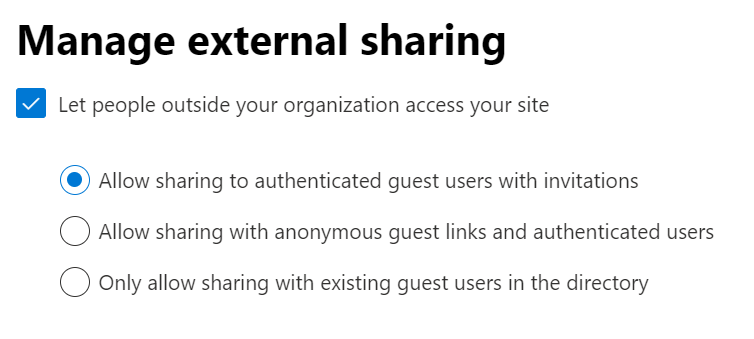
-
Click Save to save your configuration.
-
Rerun the migration job.
-
SP-NoTitleViewCauseListWarning
Issue:
The list has been migrated but has the following error:
- SP-NoTitleViewCauseListWarning
Details:
Failed to migrate the view title of the list since the source view does not have a title. Fly cannot migrate such views due to Microsoft API limitations. If you want to hide this error from the migration report, you can ignore this error in Fly.
SP-NotSupport
Issue:
The object failed in the migration with the following error:
- SP-NotSupport
Details:
The object is not supported in SharePoint Online.
SP-NotSupportCharacterInSiteUrl
Issue:
The object failed in the migration with the following error:
- SP-NotSupportCharacterInSiteUrl
Details:
Failed to create the site collection in the destination since the site collection URL contains invalid characters.
Recommendations:
Make sure the destination site collection URL does not contain special characters other than underscores (_), dashes (-), single quotes ('), periods (.), or start or end with a period (.). Then, run a "Retry error objects" migration job to resolve this issue.
SP-NotSupportListTemplate
Issue:
The list failed in the migration with the following error:
- SP-NotSupportListTemplate
Details:
The error may occur when the template of the source list is not a built-in template in SharePoint Online. In this case, the list cannot be migrated.
Recommendations:
Go to https://{webUrl}/_api/web/Lists/GetByTitle('{listTitle}')/basetemplate to check if the list template is a built-in template in SharePoint Online. Note that you need to replace the web URL and list title based on the source site and list information. For example, https://domain.sharepoint.com/sites/app/_api/web/Lists/GetByTitle('A')/basetemplate.
-
If the template is a built-in template, the template ID will be displayed as the screenshot shown below. Then, you can contact Support and provide the migration mapping information, screenshot of the check results, and job ID to analyze the error.

-
If the template is not a built-in template, you can ignore the error.
SP-NotSupportWebTemplateInCommunicationSite
Issue:
The object failed in the migration with the following error:
- SP-NotSupportWebTemplateInCommunicationSite
Details:
In a modern Communication site, subsites in certain templates cannot be created.
Recommendations:
Here are two options to resolve this issue:
-
Configure a template mapping for the unsupported subsite.
-
Create a destination subsite manually in the destination using a supported template.
SP-ObjectGetError
Issue:
The object failed in the migration with the following error:
- SP-ObjectGetError
Details:
The error indicates that an exception occurs when Fly retrieves the object information you configured in the migration mapping of the project.
Recommendations:
Make sure the object information you configured in the migration mapping is correct, and the object can be accessed normally.
SP-ObjectHasBeenMapped
Issue:
The object failed in the migration with the following error:
SP-ObjectHasBeenMapped
Details:
There is already an object exists in the destination, which has the same relative URL but a different unique ID as the source object, or has the same unique ID but a different relative URL as the source object.
Recommendations:
If you want to migrate the source object, choose one of the following options to resolve this issue:
-
Delete the destination existing object and run a "Retry error objects" migration job.
-
Configure the RemoveConflictingFileBeforeOverwrite=true customized feature string in the migration policy to back up and delete the destination conflicting file and run a "Retry error objects" migration job.
-
If you want to keep the destination object, you can ignore this error.
SP-ObjectNoPermissionDetail
Issue:
The object failed in the migration with the following error:
- SP-ObjectNoPermissionDetail
Details:
The error indicates that the current service account/app profile account does not have sufficient permissions to the object.
Recommendations:
Make sure that the current service account/app profile account has sufficient permissions to the object. Refer to Required Permissions for more information.
SP-ObjectNotFound
Issue:
The object failed in the migration with the following error:
- SP-ObjectNotFound
Details:
This error occurs when the object you configured in the migration mapping of the project does not exist.
Recommendations:
Make sure the object information you configured in the migration mapping is correct, and the object can be accessed normally.
SP-ObjectNotSupportDelete
Issue:
The object failed in the migration with the following error:
- SP-ObjectNotSupportDelete
Details:
This error occurs if you have enabled synchronize deletion in the migration. This feature is only available for files and items. The current object is not a file or item, so the deletion cannot be synchronized.
SP-ObjectSaveConflict
Issue:
The object failed in the migration with the following error:
- SP-ObjectSaveConflict
Details:
An API issue occurred while migrating the source object to the destination.
Recommendations:
Check if the folder exists in the destination based on the destination URL configured in the project mapping.
-
If the folder exists, run an incremental or "Retry error objects" migration job later to resolve this issue.
-
If the folder does not exist, manually create the folder in the destination and run an incremental or "Retry error objects" migration job later to resolve this issue.
If this issue persists, contact Support and provide the migration mapping information and job ID to analyze the error.
SP-ObjectUnsupport
Issue:
The object failed in the migration with the following error:
- SP-ObjectUnsupport
Details:
The error indicates that the migration of the object is not supported by Fly.
SP-OneDriveCannotActivateSitePublishingFeature
Issue:
The list failed in the migration with the following error:
- SP-OneDriveCannotActivateSitePublishingFeature
Details:
The SharePoint Server Publishing Infrastructure feature of the destination OneDrive site cannot be activated.
Recommendation:
Manually activate the feature in the destination, and rerun the migration job. If the error occurs when activating the feature, you can contact Microsoft for assistance.
SP-OneDriveChangeDomainNotFound
Issue:
The OneDrive site failed in the migration with the following error:
- SP-OneDriveChangeDomainNotFound
Details:
This error occurs after you have changed the domain for the migration mappings. The OneDrive site cannot be found after the change.
Recommendations:
After the domain change of the OneDrive site, it takes some time for Microsoft 365 to return the new URL. You can wait for about two hours, and verify the mappings in Fly first. If the mappings are ready for the migration, rerun the job to try again.
SP-OneDriveGetError
Issue:
The OneDrive site failed in the migration with the following error:
- SP-OneDriveGetError
Details:
The error indicates that an exception occurs when Fly retrieves the OneDrive site you configured in the migration mapping of the project.
Recommendations:
Contact Support for assistance.
SP-OneDriveNotFound
Issue:
The OneDrive site failed in the migration with the following error:
- SP-OneDriveNotFound
Details:
This error may occur when the OneDrive site cannot be retrieved in the following situations:
-
The source OneDrive site does not exist.
-
The OneDrive site cannot be accessed.
Recommendations:
Make sure the source OneDrive site already exists and can be accessed by the service account/consent user of delegated app profile.
SP-OneDriveSiteToSiteCollection
Issue:
The OneDrive site failed in the migration with the following error:
- SP-OneDriveSiteToSiteCollection
Details:
OneDrive sites cannot be migrated to SharePoint Online site collections that do not exist.
Recommendations:
Here are two options to resolve this issue:
-
If you want to continue running the SharePoint Online migration job, make sure the destination SharePoint Online site collection exists, and rerun the migration job.
-
You can also run a OneDrive migration job to migrate the source OneDrive site to a OneDrive site.
SP-OneDriveUserNotFound
Issue:
The OneDrive site failed in the migration with the following error:
- SP-OneDriveUserNotFound
Details:
- This error occurs when the OneDrive user you configured in the migration mapping of the project does not exist in the tenant.
Recommendations:
Check if the OneDrive user in the migration mapping is correct, and make sure the user exists in the tenant.
SP-O365GroupNotFoundByUserMapping
Issue:
The object failed in the migration with the following error:
- SP-O365GroupNotFoundByUserMapping
Details:
You have configured a user mapping for the source group. However, the destination group configured in the user mapping cannot be found.
Recommendations:
Update the user mapping to make sure the mapping information is correct, and the configured destination group does exist in the destination.
SP-OrganizationAssetsSiteNotConfigured
Issue:
The object failed in the migration with the following error:
- SP-OrganizationAssetsSiteNotConfigured
Details:
This error occurs when a font package cannot be applied to the site because the Organization Assets site or library is not configured or has been removed.
Recommendations:
Contact your SharePoint administrator to configure the Organization Assets site and library.
SP-ParentBuildInContentTypeNotExist
Issue:
The content type failed in the migration with the following error:
- SP-ParentBuildInContentTypeNotExist
Details:
The parent content type of the source content type is a built-in content type and does not exist in the destination.
Recommendations:
Check if the templates of the source and destination site collection are the same.
-
If the templates are the same, check if the Site collection and site features option is selected in the migration policy.
-
If the option is deselected, run a full migration job to resolve this issue.
-
If the option is selected, contact Support and provide the migration mapping information and job ID to analyze the error.
-
-
If the templates are different, contact Support and provide the migration mapping information and job ID to analyze the error.
SP-ParentFolderNotExist
Issue:
The folder failed in the migration with the following error:
- SP-ParentFolderNotExist
Details:
The error occurs when the parent folder of the folder does not exist in the destination.
Recommendations:
Check the URL of the folder in the comment of the mapping by navigating to the Projects > Project mappings > View mapping report > Migration error page in the Fly interface. Make sure the parent folder of the folder has been migrated to the destination before, or manually create the parent folder in the destination, and rerun the migration job.
SP-ParentFolderUrlIsNotMatchedWithCurrentObject
Issue:
The object failed in the migration with the following error:
- SP-ParentFolderUrlIsNotMatchedWithCurrentObject
Details:
The source and destination languages may be different. In this case, the parent folder relative URL of the source object is different from that of the destination object. Therefore, Fly cannot migrate the object to the destination.
Recommendations:
Check if the source and destination languages are the same. If the languages are the same, check if the relative URLs of the source and destination libraries are the same.
-
If the relative URLs are the same, contact Support and provide the migration mapping information and job ID to analyze the error.
-
If the relative URLs are different, delete the destination library, add the IsExtendedLanguageSupport=true customized feature in the migration policy to map the source language to the destination language, and run an incremental or "Retry error objects" migration job to resolve this issue.
SP-PeopleMetadataSetAsDefaultUserWarning
Issue:
The object has been migrated but has the following error:
- SP-PeopleMetadataSetAsDefaultUserWarning
Details:
The metadata user of the object does not exist in the destination, and has been replaced with the destination default user.
Recommendations:
Here are two options to resolve the issue:
-
If you want to replace the metadata user as the destination default user, you can ignore this error.
-
If you do not want to replace the metadata user as the destination default user, configure a user mapping to map the user to an existing destination user, and run a “Retry error objects” migration job.
SP-PeopleMetadataSetAsPlaceHolderWarning
Issue:
The object has been migrated but has the following error:
- SP-PeopleMetadataSetAsPlaceHolderWarning
Details:
This error occurs when the Modified by and Created by users of the object do not exist in the destination and are replaced with placeholder users.
Recommendations:
Here are two options to resolve the issue:
-
If you want to keep the users as placeholder users, add the IsReportPlaceHolder=false customized feature in the migration policy to not report the errors when the Modified by and Created by users are replaced with placeholder users. Then, you can run a "Retry error objects" migration job.
-
If you do not want to replace the users with placeholder users, configure user mappings to map the users to existing destination users. If you have configured user mappings for the users, make sure the information you configured is correct. Then, you can run a "Retry error objects" migration job.
SP-PermissionFailedInPermissionOnlyJob
Issue:
The object’s permissions failed in the migration with the following error:
- SP-PermissionFailedInPermissionOnlyJob
Details:
An error occurred while migrating the permissions (user/group) of the object.
Recommendations:
Refer to the following steps to resolve the issue:
-
Check the missing permissions (user/group) of the migrated object in the destination.
-
Check to make sure there are correct user mappings configured for the users/groups or there are auto-mapping options (User principal name prefix and/or Display name) are enabled in the migration policy.
-
Provide the screenshots of the information above and job ID and contact Support for assistance.
SP-PermissionLevelMissInDestination
Issue:
The user/group failed in the migration with the following error:
- SP-PermissionLevelMissInDestination
Details:
Permission levels, such as Full Control, Design, and Edit, refer to a set of permissions that allow specific users or groups to perform certain actions. Refer to Permission levels for more details. Fly migrates permission levels only in the site collection level jobs. The error occurs when the migration is not a site collection level job and the source permission levels are not migrated to the destination.
Recommendations:
Here are two options to resolve this issue:
-
Run a migration job to migrate the parent site collection to ensure the permission levels are migrated, and then rerun the migration job to migrate the user/group.
-
Create permission levels with the same name as the source permission levels, and then rerun the migration job. You can view the failed permission level names in the comment for the error code named SP-UnderWebLevelJobPermissionLevelMissInDestination.
SP-PermissionMissingWarning
Issue:
The permission failed in the migration with the following error:
- SP-PermissionMissingWarning
Details:
Users/groups with the permission to the object failed in the migration, or an unknown error occurs while migrating the permission.
Recommendations:
Here are two options to resolve this issue:
-
If the users/groups with the permission to the object failed in the migration, configure user mappings in the migration policy to map the users/groups to existing destination users/groups, and rerun the migration job.
-
If the permission failed in the migration, contact Support and provide the migration mapping information and job ID to analyze the error.
SP-PermissionOnlyTopContainerNotExist
Issue:
The object failed in the migration with the following error:
- SP-PermissionOnlyTopContainerNotExist
Details:
The object failed to be migrated since the destination object configured in the migration mapping does not exist.
Recommendations:
Make sure the destination object mapped for the source object already exists before the migration, and rerun the migration job.
SP-PermissionUnknownError
Issue:
The permission failed in the migration with the following error:
- SP-PermissionUnknownError
Details:
An unknown error occurs while migrating the permission to the destination.
Recommendations:
Check the missed permission by comparing the source and destination user/group, and contact Support and provide the migration mapping information and job ID to analyze the error.
SP-PrivateToSharedChannelDataConflict
Issue:
The object failed in the migration with the following error:
- SP-PrivateToSharedChannelDataConflict
Details:
The private channel containing the content is mapped to a shared channel and the Migrate channel folders, standalone files, and customized folders in the Documents library option is enabled on the channel mapping page. During the migration, the content is moved up and its new path conflicts with other content.
Recommendations:
Rename the current content in the source channel folder and run a "Retry error objects" migration job, or rename its conflicting content outside the source channel folder and run a full migration job.
SP-PreservationHoldLibraryItemsCannotBeChanged
Issue:
The item failed in the migration with the following error:
- SP-PreservationHoldLibraryItemsCannotBeChanged
Details:
There is an item with the same property as the source item in the destination Preservation Hold Library, which cannot be modified or deleted due to Microsoft API limitations. In this case, Fly cannot migrate the source item.
Recommendations:
We recommend you ignore items with this error or change value of the IsSkipPreservationHoldLibrary=false customized feature string configured in the migration policy to true and rerun the migration job. You can also contact AvePoint Support and provide the migration mapping information and job ID to get the migration logs, and then contact Microsoft for assistance.
SP-PreviewRelatedNotFoundWarning
Issue:
The page has been migrated but has the following error:
- SP-PreviewRelatedNotFoundWarning
Details:
The preview image of the page failed in the migration since it does not exist in the destination. This error may occur in the following situations:
-
Situation 1: The preview image is not within the migration scope.
-
Situation 2: The preview image is migrated after the related page has been migrated.
Recommendations:
Refer to the following steps to check if the preview image exists in the destination:
-
Access the page and click Page details on the page.

-
In the Page details panel, right-click the image and click Copy image address/Copy image link to copy the URL. The copied URL will be as the screenshot shown below.

-
Delete characters after driveItem of the copied URL, and access the new URL to get the path to the preview image.

-
Access the URL to check if the preview image exists.

If the preview image exists, run a "Retry error objects" migration job to resolve this issue. If the error persists, contact Support and provide the migration mapping information and job ID to analyze the error.
If the preview image does not exist, make sure the preview image has been migrated to the destination and run a "Retry error objects" migration job for the page to resolve this issue.
SP-PublishingFeatureIsNotEnabled
Issue:
The site failed in the migration with the following error:
- SP-PublishingFeatureIsNotEnabled
Details:
The template of the site is Publishing Site with Workflow. To migrate such sites, the Publishing Site with Workflow feature must be activated in the destination site collections. In this case, the feature is deactivated in the destination site collection.
Recommendations:
Activate the SharePoint Server Publishing Infrastructure feature in the destination site collection and rerun the migration job.
SP-PublishingListTemplateMapToOther
Issue:
The publishing library was migrated with the following information:
- SP-PublishingListTemplateMapToOther
Details:
This error appears when you enable the MapPublishingToCommunicationSite=true customized feature in the migration policy and the publishing list template has been mapped to other appropriate templates under the Communication site in the migration.
Recommendations:
You can configure a template mapping in the migration policy for the migration job to map the source template to a desired template.
SP-ReplaceCopilotParameterFailed
Issue:
The object was migrated in the migration with the following error:
- SP-ReplaceCopilotParameterFailed
Details:
The Copilot agent file was migrated, but the sourced object of it cannot be found in the destination.
Recommendations:
Check the source Copilot agent file and make sure the sourced object is migrated to the destination, then rerun the migration job to fix this issue.
SP-RestoreChannelFolderFailedDueToTeamsChannelFailed
Issue:
The folder failed in the migration with the following error:
- SP-RestoreChannelFolderFailedDueToTeamsChannelFailed
Details:
The related channel of the folder failed in Teams migration.
Recommendations:
Check the comments of the failed channel folder in the Teams migration report. After you fix the errors, run a "Retry error objects" migration job to migrate the folder.
SP-RestoreEmptySharedLinkWithoutUser
Issue:
The shared link has been migrated but has the following error:
- SP-RestoreEmptySharedLinkWithoutUser
Details:
This error indicates that the users shared with the link cannot be found in the source or destination due to the following situations:
-
The source users have been blocked or deleted in the SharePoint admin center.
-
The users do not exist in the destination tenant.
Recommendations:
-
Check the source users shared with the link in the SharePoint admin center. If the users are all blocked or deleted, shared the link with active users and rerun the migration job.
-
If the users do not exist in the destination tenant, configure user mappings to map the source users to existing destination users in the migration policy and rerun the migration job.
-
If your issue does not match any of the above situations, contact Support and provide the screenshots of the shared link and shared users, migration mapping information, and job ID to analyze the error.
SP-RestoreImageTagsValueCauseItemError
Issue:
The folder/item/file has been migrated but has the following error:
- SP-RestoreImageTagsValueCauseItemError
Details:
This error indicates that the Image Tags column value of the object failed in the migration. It may occur in the following situations:
-
There is no Image Tags column in the destination.
-
An error occurred when assigning the value to the column in the destination. For example, the Image Tags column is invisible in the destination.
Recommendations:
-
Contact Support and provide the migration mapping information and job ID to analyze the error.
-
If the Image Tags column already exists in the destination, refer to Microsoft article to make sure the column is visible in the destination. Then, select to migrate managed metadata service in the migration policy and rerun the migration job.
SP-RestoreNintexFormListNotFound
Issue:
The Nintex form failed in the migration job with the following error:
- SP-RestoreNintexFormListNotFound
Details:
The Nintex form failed since the form control related to the Nintex form failed in the same migration job. In this case, the Nintex form control refers to a list (Example: A). The list (Example: B) related to the list A does not exist in the destination.
Recommendations:
You can check the content type of the Nintex form and the URL of the list B in the comment of the mapping by navigating to the Projects > Project mappings > View mapping report > Migration error page in the Fly interface. Make sure the list B has been migrated to the destination, or manually create the list B in the destination, and rerun the migration job.
SP-RestoreNintexFormPostFailed
Issue:
The Nintex form failed in the migration with the following error:
- SP-RestoreNintexFormPostFailed
Details:
The Nintex form failed since the form control related to the Nintex form failed in the same migration job. The value of the Nintex form control or the term group, term set, or term related to the Nintex form control does not exist in the destination.
Recommendations:
You can check the content type of the Nintex form, and check which value or term group/term set/term in the comment of the mapping by navigating to the Projects > Project mappings > View mapping report > Migration error page in the Fly interface. Make sure the corresponding value exists in the destination and rerun the migration job.
Fly can migrate the corresponding value in the same migration job. If the value is a term set and only used in the Nintex form control, you need to configure the TermSetIdsCanNotBeSearched customized feature in the migration policy to migrate the term set. Refer to Customized Features for SharePoint Online/OneDrive Migration for configuration details.
SP-RestoreSharedLinkFailed
Issue:
The shared link failed in the migration with the following error:
- SP-RestoreSharedLinkFailed
Details:
The error may occur in the following situations:
-
The source shared link is blocked by the destination site collection when the source shared link is shared to anyone, but the external sharing setting of the destination site collection is not Anyone.
-
An unknown error occurs while migrating the source shared link shared to new and existing guests, existing guests only, or only people in your organization.

Recommendations:
Here are two options to resolve this issue:
-
If the source shared link is blocked by the destination site collection, check to make sure the external sharing setting of the destination site collection is Anyone and rerun the migration job.
-
If the source shared link failed due to an unknown error, contact Support and provide the migration mapping information and job ID to analyze the error.
SP-RestoreSharedLinkFailedCauseContainerWarning
Issue:
The object has been migrated but has the following error:
- SP-RestoreSharedLinkFailedCauseContainerWarning
Details:
An error occurred while migrating the shared link of the object. The error may occur in the following situations:
-
Situation 1: The user shared with the link does not exist in the destination.
-
Situation 2: The shared link is shared with anyone, but the External sharing setting configured for the destination site collection is not Anyone.
Recommendations:
- For situation 1, configure user mapping in the migration policy to map the user to an existing destination user, and rerun the migration job.
For situation 2, make sure the External sharing setting configured for the destination site collection is Anyone, and rerun a "Retry error objects" migration job.
SP-RestoreSharedLinkFailedCauseItemError
Issue:
The item failed in the migration with the following error:
- SP-RestoreSharedLinkFailedCauseItemError
Details:
The error indicates that the item’s shared link failed in the migration.
Recommendations:
Navigate to Projects > Project mappings > View mapping report > Migration error in Fly to view the comment of the shared link in the Migration errors section. After you fix the error of the shared link, rerun the migration job to migrate the item.
SP-RMSProtectionLackOwnerError
Issue:
The object is skipped in the migration with the following error:
- SP-RMSProtectionLackOwnerError
Details:
Failed to map the source Rights Management Service owner to a destination user based on the configured mapping properties or the destination does not have a service account. You can check the Rights Management Service owner using PowerShell. Refer to Get-FileStatus for details.
Recommendations:
Choose one of the following options to resolve this issue:
-
Configure a user mapping to map the source owner to an existing destination user and run a "Retry error objects" migration job.
-
Configure a service account for the destination connection and run a "Retry error objects" migration job. In this case, Fly will add the service account as the destination Rights Management Service owner during the migration.
SP-RuleColumnMissing
Issue:
The object failed in the migration with the following error:
- SP-RuleColumnMissing
Details:
The rule has been migrated, but some columns used in the rule cannot be found in the destination.
Recommendations:
Check and make sure the column used in the rule exists in the destination. If not, you need to create the column in the destination or update the rule with an existing column. Then, rerun the migration job.
SP-RuleFailed
Issue:
The object failed in the migration with the following error:
- SP-RuleFailed
Details:
The object has been migrated, but the automate rule of the object cannot be migrated.
Recommendations:
Contact Support and provide the migration mapping information and job ID to analyze the error.
SP-RuleLimitExceeded
Issue:
The object failed in the migration with the following error:
- SP-RuleLimitExceeded
Details:
The destination has reached its maximum rule limit of 15 and the automate rule cannot be migrated.
Recommendations:
Check the existing rules and delete some of them if possible. Then, rerun the migration job.
SP-RuleSrcUserNotFound
Issue:
The object failed in the migration with the following error:
- SP-RuleSrcUserNotFound
Details:
The source user/group configured in the automate rule cannot be found in the source tenant or there are multiple matches.
Recommendations:
Check the user/group in the rule.
-
If the user/group exists in the source tenant, configure a user mapping and rerun the migration job.
-
If the user/group does not exist in the source tenant, update the rule to configure an available user/group, and then rerun the migration job.
SP-RuleUserOrGroupNotFound
Issue:
The object failed in the migration with the following error:
- SP-RuleUserOrGroupNotFound
Details:
The user/group configured in the automate rule cannot be found in the destination.
Recommendations:
Check the user mapping and find options for users and groups and make sure the source user/group is mapped to destination correctly. Then, rerun the migration job.
SP-SameUrlButDifferentBaseTypeOfSameTitleLists
Issue:
The list failed in the migration with the following error:
- SP-SameUrlButDifferentBaseTypeOfSameTitleLists
Details:
This error occurs when there are multiple lists with the same name as the source list. In this case, Fly will find the mapped destination list using the name, relative URL, and basetype. However, there is no destination list with the same name, relative URL, and basetype as the source list, and the list cannot be created in the destination since there is a list with the same name and relative URL, but a different basetype in the destination.
Recommendations:
You can delete the destination list or rename destination lists to make sure there is only one destination list with the same name, and rerun the migration job. Or you can configure a list level migration mapping to directly migrate the source list to a specific destination list.
SP-SameUrlButDifferentTitleOfSameTitleLists
Issue:
The list failed in the migration with the following error:
- SP-SameUrlButDifferentTitleOfSameTitleLists
Details:
This error occurs when there are multiple lists with the same name as the source list. In this case, Fly will find the mapped destination list using the name, relative URL, and basetype. However, there is no mapped destination list with the same name, relative URL, and basetype as the source list, and the list cannot be created in the destination since there is a list with the same relative URL, but different name in the destination.
Recommendations:
You can delete the destination list or rename destination lists to make sure there is only one destination list with the same name, and rerun the migration job. Or you can configure a list level migration mapping to directly migrate the source list to a specific destination list.
SP-SecurityGroupNotFound
Issue:
The group failed in the migration with the following error:
- SP-SecurityGroupNotFound
Details:
No destination group can be mapped based on the email address prefix and display name.
Recommendations:
Configure a user mapping for the source group or a domain mapping in the migration policy. Then, run an incremental or "Retry error objects" migration job to resolve this issue.
SP-SecurityGroupNotFoundByDomainMapping
Issue:
The group failed in the migration with the following error:
- SP-SecurityGroupNotFoundByDomainMapping
Details:
You have configured a domain mapping for the source group. However, no corresponding group can be found in the destination.
Recommendations:
Check the domain mapping to make sure the mapping information is correct, and a corresponding destination group does exist. Optionally, you can configure a valid user mapping for the source group. Then, rerun the migration job.
SP-SecurityGroupNotFoundByUserMapping
Issue:
The group failed in the migration with the following error:
- SP-SecurityGroupNotFoundByUserMapping
Details:
You have configured a user mapping for the source group. However, the destination group configured in the user mapping cannot be found.
Recommendations:
Update the user mapping to make sure the mapping information is correct, and the configured destination group does exist in the destination.
SP-SecurityUnknownError
Issue:
The user/group failed in the migration with the following error:
- SP-SecurityUnknownError
Details:
An unknown error occurs while migrating the user/group to the destination.
Recommendations:
Configure a user mapping to map the source user/group to an existing destination user/group, and rerun the migration job. If the error persists, contact Support for assistance.
SP-ServiceAccountIsNotSiteAdminInTeamsSubJob
Issue:
The site collection failed in the migration with the following error:
- SP-ServiceAccountIsNotSiteAdminInTeamsSubJob
Details:
The service account/consent user of delegated app profile may not be the Site Collection Administrator of the team site.
Recommendations:
Check whether the service account is the Site Collection Administrator of the team site.
-
If the service account is the Site Collection Administrator of the team site, wait a moment and rerun the migration job.
-
If the service account is not the Site Collection Administrator of the team site, add the service account as the Site Collection Administrator to the team site, and rerun the migration job.
SP-SharedLinkDestNotFoundUserFailed
Issue:
The shared link failed in the migration with the following error:
- SP-SharedLinkDestNotFoundUserFailed
Details:
The error may occur when the user shared with the link does not exist in the destination.
Recommendations:
Configure user mapping in the migration policy to map the user to an existing destination user, and rerun the migration job.
SP-SharedLinkDestNotFoundUserWarning
Issue:
The shared link has been migrated but has the following error:
- SP-SharedLinkDestNotFoundUserWarning
Details:
The user shared with the link cannot be found in the destination.
Recommendations:
Navigate to Projects > Project mappings > View mapping report > Migration error in Fly to view the failed user in the Migration errors section, and check if the user exists in the destination.
-
If the user exists, configure a user mapping in Settings > Migration policies > Mappings to map the user to an existing destination user, or configure the mapping properties to allow Fly to retrieve the user in the destination.
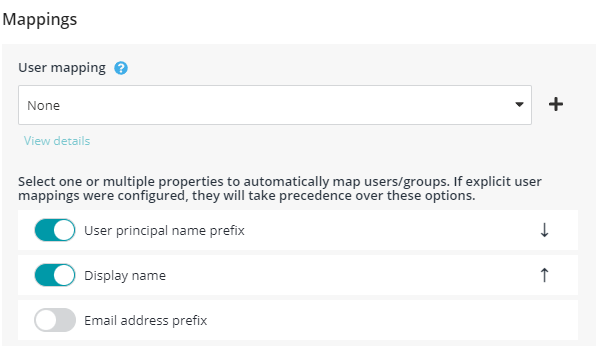
-
If the user does not exist, you can map the user to a placeholder user in the destination to resolve the issue.
SP-SharedLinkDestUserMapToEmptyWarning
Issue:
The shared link failed in the migration with the following error:
- SP-SharedLinkDestUserMapToEmptyWarning
Details:
The users shared with the link were skipped in the migration since there are no destination users configured for these users in the user mapping.
SP-SharedLinkFailedByExpired
Issue:
The object has been migrated but has the following error:
- SP-SharedLinkFailedByExpired
Details:
The shared link expiration date is earlier than the current date, so the shared link of the object cannot be migrated.
Recommendations:
Check and update the source shared link to make sure the expiration date is later than the current date, and then run a "Retry error objects" migration job to resolve this issue.
SP-SharedLinkFailedBySiteFeature
Issue:
The shared link failed in the migration with the following error:
- SP-SharedLinkFailedBySiteFeature
Details:
The error may occur when the Limited-access user permission lockdown mode feature is activated in the destination site collection. In this case, the folder cannot be shared in the destination.
Recommendations:
Check if the Limited-access user permission lockdown mode feature is activated in the destination site collection. If the feature is activated, deactivate the feature and rerun the migration job. If the feature is deactivated, contact Support and provide the screenshot of the deactivated feature, migration mapping information, and job ID to analyze the error.
SP-SharedLinkNoUserFailed
Issue:
The shared link failed in the migration with the following error:
- SP-SharedLinkNoUserFailed
Details:
The error indicates that the users shared with the source link are all removed.
Recommendations:
Here are two options to resolve this issue:
-
If you want to migrate the shared link to the destination, you can share the link with the users you want to share and rerun the migration job.
-
If you do not want to migrate the shared link to the destination, you can delete the source shared link. Otherwise, the shared link will fail again in the next migration job.
SP-SharedLinkSettingNotChooseAnyOne
Issue:
The shared link is skipped in the migration with the following information:
- SP-SharedLinkSettingNotChooseAnyOne
Details:
The shared link is shared with anyone, but the External sharing setting configured for the destination site collection is not Anyone.
Recommendations:
Make sure the External sharing setting configured for the destination site collection is Anyone, and rerun a "Retry error objects" migration job. If the error persists, contact Support and provide the screenshot of the destination site collection External sharing setting, and job ID to analyze the error.
SP-SharePointGroupMemberFailedWarning
Issue:
The group has been migrated but has the following error:
- SP-SharePointGroupMemberFailedWarning
Details:
An error occurred while migrating the members of the group.
Recommendations:
Check the comments of the failed members in the migration report. After you fix the errors, run a "Retry error objects" migration job to migrate the members.
SP-ShareWithYouFailedCauseItemWarning
Issue:
The object has been migrated but has the following error:
- SP-ShareWithYouFailedCauseItemWarning
Details:
The destination user of the source shared with user has been blocked in the destination.
Recommendations:
Navigate to Projects > Project mappings > View migration report > Migration error tab in Fly to view the failed user in the Migration errors section. Unblock the user in the destination and rerun the migration job.
SP-ShortcutLinkReplacementWarning
Issue:
The folder/file has been migrated but has the following error:
- SP-ShortcutLinkReplacementWarning
Details:
The shortcut file has been migrated, but the shortcut URL was not replaced.
Recommendations:
Check whether the shortcut URL is valid. You can configure a custom URL mapping to map the URL to a valid one or contact Support and provide the file content to analyze the error.
SP-SiteCollectionDataExceedStorageLimit
Issue:
The object failed in the migration with the following error:
- SP-SiteCollectionDataExceedStorageLimit
Details:
The object failed to be migrated to the destination since the total size of the destination site will exceed the allowed storage limit.
Recommendations:
You can increase the storage limit for the destination site, delete several documents/items from the destination site or empty the data not needed from the recycle bin, and rerun the migration job.
SP-SiteEnableIB
Issue:
The site failed in the migration with the following error:
- SP-SiteEnableIB
Details:
The Information barriers setting is enabled for the source or destination site collection. Fly cannot migrate data from/to such site collections due to Microsoft API limitations.
Recommendations:
Here are two options to resolve this issue:
-
Disable the Information barriers setting for the source or destination site collection and run an incremental or "Retry error objects" migration job. After the migration, you can enable the Information barriers setting for the source or destination site collection based on your needs.
-
Only use the service account in the source or destination connection. Make sure the service account can access the source or destination site collection with the Information barriers setting enabled and run an incremental or "Retry error objects" migration job.
SP-SiteSharingSettingWarning
Issue:
The site has been migrated but has the following error:
- SP-SiteSharingSettingWarning
Details:
An error occurred while migrating the Site sharing settings of the site. The error may occur when the Site sharing settings of the source site contain specific emails and you do not configure user mappings for these specific users in the migration policy.
Recommendations:
Check if the Site sharing settings of the source site contain specific emails.
-
If the settings contain emails, make sure you have configured user mappings to map these users to existing destination users. Then, run an incremental or "Retry error objects" migration job to resolve this issue.
-
If the settings do not contain emails, run an incremental or "Retry error objects" migration job to resolve this issue.
If the error persists, contact Support and provide the migration mapping information and job ID to analyze the error.
SP-SkipByContainerResolutionPolicy
Issue:
The object is skipped in the migration with the following information:
- SP-SkipByContainerResolutionPolicy
Details:
The container level conflict resolution configured in the migration policy is Skip.
SP-SkipByContentResolutionPolicy
Issue:
The object is skipped in the migration with the following information:
- SP-SkipByContentResolutionPolicy
Details:
The content level conflict resolution configured in the migration policy is Skip.
SP-SkipByCustomFeature
Issue:
The object is skipped in the migration with the following information:
- SP-SkipByCustomFeature
Details:
You configure the IsSkipGroupHomePage=true customized feature string in the migration policy. The object is skipped based on the configured customized feature during the migration.
Recommendations:
If you do not care about this issue, you can ignore the error.
If you care about this issue, remove the IsSkipGroupHomePage=true customized feature string from the migration policy. This error will be ignored in later migration jobs.
SP-SkipByFileLevelJob
Issue:
The object is skipped in the migration with the following information:
- SP-SkipByFileLevelJob
Details:
The migration is a file level job and the object is not included in the migration scope of this job.
SP-SkipByFolderLevelJob
Issue:
The list is skipped in the migration with the following information:
- SP-SkipByFolderLevelJob
Details:
The migration is a folder level job and the list is not included in the migration scope of this job.
SP-SkipByIncrementalOrRetryFailed
Issue:
The object is skipped in the migration with the following information:
- SP-SkipByIncrementalOrRetryFailed
Details:
The migration is an incremental job or "Retry error objects" job, and the object is not included in the migration scope of this job.
SP-SkipBySpecialLogic
Issue:
The object is skipped in the migration with the following information:
- SP-SkipBySpecialLogic
Details:
The object is skipped due to customizations on the source object that would create issues in the destination.
SP-SkipChannelFolder
Issue:
The channel folder is skipped in the migration with the following information:
- SP-SkipChannelFolder
Details:
The properties and columns of channel folders cannot be migrated due to Microsoft API limitations. The files and subfolders in channel folders can be migrated. You can ignore the error.
SP-SkipConvertPage
Issue:
The page is skipped in the job with the following information:
- SP-SkipConvertPage
Details:
The page is already a modern page, or it has been converted in a previous job.
SP-SkipDueToParentFailed
Issue:
The object failed in the migration with the following error:
- SP-SkipDueToParentFailed
Details:
The current object failed since the object’s parent failed in the migration due to unknown reasons.
Recommendations:
Resolve the failures in the parent of the current object by referring to the parent’s error details, and rerun the migration job to migrate the current object.
SP-SkipDueToViewTitleEmpty
Issue:
The view is skipped in the migration with the following information:
- SP-SkipDueToViewTitleEmpty
Details:
The name of the view is empty. In this case, the view cannot be migrated.
Recommendations:
Contact Support and provide the migration mapping information and job ID for assistance.
SP-SkipPublishingFeatureByCustomFeature
Issue:
The site feature was skipped in the migration with the following information:
- SP-SkipPublishingFeatureByCustomFeature
Details:
This error appears when you enable the MapPublishingToCommunicationSite=true customized feature in the migration policy and the publishing feature is skipped in the migration. Microsoft announced that publishing site template creation and publishing features were deprecated after July 2025, and the publishing feature will not be migrated in migrations.
SP-SourceEmailIsEmpty
Issue:
The user failed in the migration with the following error:
- SP-SourceEmailIsEmpty
Details:
The error occurs when the source user does not have a mailbox and you only enable the Email address prefix mapping property in the migration policy to map the user based on the email address prefix.
Recommendations:
Make sure the user has a mailbox, or enable the user principal name prefix and/or display name mapping properties in the migration policy, and rerun the migration job.
SP-SPObjectIncorrectInput
Issue:
The object failed in the migration with the following error:
- SP-SPObjectIncorrectInput
Details:
The object URL does not match the object level configured in the migration mapping. Example of this issue: the object level is a list, but the URL provided is a site collection.
Recommendations:
Check the migration mapping, and make sure the object URL matches the selected object level.
SP-SPObjectMaxRetry
Issue:
The object failed in the migration with the following error:
- SP-SPObjectMaxRetry
Details:
The error indicates that your request may have been throttled by Microsoft 365 due to frequent requests.
Recommendations:
We recommend that you reduce the number of jobs running simultaneously. You can rerun the jobs at off-peak hours.
SP-SPUserNoLicense
Issue:
The site failed in the migration with the following error:
- SP-SPUserNoLicense
Details:
The site failed to be created in the destination using the Visio Process Repository template since the destination service account does not have the SharePoint (Plan 2) license.
Recommendations:
Make sure the destination service account has the SharePoint (Plan 2) license, and rerun the migration job.
SP-StartTokenNotFound
Issue:
The incremental migration of site collections/sites/lists/folders failed with the following error:
- SP-StartTokenNotFound
Details:
The incremental migration job only migrates newly created or modified source data within 60 days since the last migration job due to API limitations. The error occurs when the incremental migration job is run 60 days or more after the last migration job.
Recommendations:
We recommend that you run a full migration job to migrate the source newly created or modified data.
SP-SubSiteCreationFailedDueToInvalidUrl
Issue:
The subsite failed in the migration with the following error:
- SP-SubSiteCreationFailedDueToInvalidUrl
Details:
The subsite cannot be created in the destination due to SharePoint API limitations. This error may occur when the length of the subsite URL exceeds the SharePoint allowed limit.
Recommendations:
Try creating the subsite in the destination and run an incremental or "Retry error objects" migration job to resolve this issue.
SP-SubSiteURLExceedsMaximumLength
Issue:
The subsite failed in the migration with the following error:
- SP-SubSiteURLExceedsMaximumLength
Details:
The length of the subsite URL exceeds the SharePoint character limits. In this case, the subsite cannot be created in the destination.
Recommendations:
Shorten the subsite URL to less characters and run a full or incremental migration job to resolve this issue.
SP-TargetListDisableAttachment
Issue:
The attachment failed in the migration with the following error:
- SP-TargetListDisableAttachment
Details:
The attachment failed to be migrated since the Attachments to list items setting is disabled for the destination list.
Recommendations:
Enable attachments for the destination list, and rerun the migration job.
SP-TargetRecycleBinHasSameUrlSiteCollection
Issue:
The site collection failed in the migration with the following error:
- SP-TargetRecycleBinHasSameUrlSiteCollection
Details:
The site collection failed to be migrated since there is a site collection of the same URL in the destination SharePoint admin center.
Recommendations:
Restore or delete the destination site collection on the Deleted sites page in the destination SharePoint admin center, and rerun the migration job.
SP-TargetSiteCollectionDoesNotHaveSourceRetentionLabel
Issue:
The object has been migrated but has the following error:
- SP-TargetSiteCollectionDoesNotHaveSourceRetentionLabel
Details:
There is no retention label in the destination using the same name that can be applied to the object.
Recommendations:
Make sure there is a retention label in the destination using the same name as the source, and publish the retention label to the destination site, and rerun the migration job.
SP-TargetSiteReadOnly
Issue:
The object failed in the migration with the following error:
- SP-TargetSiteReadOnly
Details:
The error may occur when the destination site collection is set as read only with the Site Collection Closure setting enabled. In this case, source objects cannot be migrated to this site collection.
Recommendations:
Navigate to Site Settings > Site Policies of the destination site collection to check if the Site Collection Closure setting is enabled.

-
If the setting is enabled, disable it and rerun the migration job.
-
If the setting is disabled, contact Support and provide the migration mapping information, the screenshot of the Site Collection Closure setting, and job ID to analyze the error.
SP-TargetTenantDisableSubsiteCreationForAllSites
Issue:
The subsite failed in the migration with the following error:
- SP-TargetTenantDisableSubsiteCreationForAllSites
Details:
The subsite failed to be migrated since the subsite creation is disabled in the destination SharePoint admin center.
Recommendations:
Refer to the following steps to resolve this issue:
-
Navigate to SharePoint admin center, click Settings in the left panel, and click classic settings page at the bottom of the page.

-
Select the Enable subsite creation for all sites option in the Subsite creation section to enable the subsite creation for the destination.

-
Click OK to save the configurations.
-
Rerun the migration job.
SP-TargetWebHasConflictListButDifferentTemplate
Issue:
The list/library failed in the migration with the following error:
- SP-TargetWebHasConflictListButDifferentTemplate
Details:
The list/library failed to be migrated since a list/library with the same URL/title already exists in the destination but uses a different list template from the source.
Recommendations:
Update the URL/title of the source or destination list/library to a different URL/title, and rerun the migration job.
SP-TaskCanceledWhenBackupFile
Issue:
The file failed in the migration with the following error:
- SP-TaskCanceledWhenBackupFile
Details:
Your request has been throttled by Microsoft 365 since the file size is too large or the file has too many versions.
Recommendations:
Configure a document version filter and add the DownloadThreadTimeOutOneWeek=true customized feature string in the migration policy. Then, run an incremental or "Retry error objects" migration job to resolve this issue. If the error persists, contact Support and provide the migration mapping information and job ID to analyze the error.
SP-TenantDataExceedStorageLimit
Issue:
The object failed in the migration with the following error:
- SP-TenantDataExceedStorageLimit
Details:
The error indicates that the total size of the destination tenant will exceed the allowed storage limit after the migration.
Recommendations:
Increase the storage limit for the destination tenant in SharePoint admin center or delete several objects from the destination tenant, and rerun the migration job.
SP-TenantDisableWorkflow
Issue:
The object has been migrated but has the following error:
- SP-TenantDisableWorkflow
Details:
Failed to migrate the workflow related to the source object. The Workflow feature is disabled for the destination site collection.
Recommendations:
Microsoft will gradually retire SharePoint 2013 workflow. Refer to SharePoint 2013 workflow retirement for details. Based on this, check if the Workflow feature can be activated for the destination. If it can be manually activated, activate the feature and run an incremental or "Retry error objects" migration job to resolve this issue.
SP-TermSetNotFound
Issue:
The item failed in the migration with the following error:
- SP-TermSetNotFound
Details:
Failed to migrate the Managed Metadata column since the term set used by the column cannot be found in the destination.
Recommendations:
Here are two options to resolve this issue:
-
Select the Managed metadata service option in the migration policy, and rerun the migration job.
-
Manually create the same term set structure as the source in the destination, and rerun the migration job.
SP-TooManyUniquePermissionItems
Issue:
The item failed in the migration with the following error:
- SP-TooManyUniquePermissionItems
Details:
The number of items with unique permissions in the list exceeds Microsoft’s allowed limit. Refer to Microsoft troubleshooting – share/break inheritance for details.
Recommendations:
Deselect the Content option in the Permissions section of the migration policy. Then, run a “Retry error objects” migration job for the page to resolve this issue.
SP-TooManyVersions
Issue:
The object failed in the migration with the following error:
- SP-TooManyVersions
Details:
The number of object versions exceeds Microsoft’s allowed limit of 5000.
Recommendations:
Configure document/item version filters for the object in the migration policy and run a "Retry error objects" migration job to resolve this issue.
SP-TopLevelObjectFailedCauseByJobStop
Issue:
The object failed in the migration with the following error:
- SP-TopLevelObjectFailedCauseByJobStop
Details:
The migration job has been stopped. To make sure the object can be migrated in the next migration job, the migration of the current object has been marked as Failed.
Recommendations:
Check to make sure the storage of destination site collection is sufficient, and rerun the migration job.
SP-UnableToShareWithExternal
Issue:
The object failed in the migration with the following error:
- SP-UnableToShareWithExternal
Details:
The source data is shared with a user, and the user is mapped to an external user in the destination. However, the data cannot be shared to an external user in the destination due to API limitations.
Recommendations:
Review the source data. If the source data is shared with a user, ensure this user is mapped to a normal user in the destination, or enable the external sharing in the destination.
SP-UnavailableCredential
Issue:
The object failed in the migration with the following error:
- SP-UnavailableCredential
Details:
This error occurs when the service account/consent users of delegated app profile does not have the site collection administrator role.
Recommendations:
You can assign the site collection administrator role to the service account, or you can use an app profile in your tenant. Then you can rerun the migration job.
SP-UnderWebLevelJobPermissionLevelMissInDestination
Issue:
The object has been migrated but has the following error:
- SP-UnderWebLevelJobPermissionLevelMissInDestination
Details:
Failed to migrate the permission level used by the object. The permission level is configured at the site collection level, while the migration is a folder/list level job. In this case, the permission level cannot be migrated since it is not included in the migration scope of this job.
Recommendations:
Choose one of the following options to resolve this issue:
-
Manually create a permission level that is the same as the source permission level in the destination site collection. Then, run an incremental or "Retry error objects" migration job to resolve this issue.
-
Migrate the source permission level in a new site collection/site level migration job first and then run an incremental or "Retry error objects" migration job to migrate the object.
SP-UnknownError
Issue:
The object failed in the migration with the following error:
- SP-UnknownError
Details:
An unknown error occurs while migrating the object to the destination.
Recommendations:
Contact Support and provide the migration mapping information and job ID to analyze the error.
SP-UnKnownFileStorage
Issue:
The file failed in the migration with the following error:
- SP-UnknownFileStorage
Details:
The error may occur in the following situations:
-
There is no available storage in the destination tenant or site collection.
-
An unknown storage error occurs while importing the file to the destination during the migration.
Recommendations:
Make sure the storage of both destination tenant and site collection is sufficient, and rerun the migration job. If this issue persists, contact Support and provide the migration mapping information and job ID to analyze the error.
SP-UnknownStorageError
Issue:
The file failed in the migration with the following error:
- SP-UnknownStorageError
Details:
An unknown storage error occurred while downloading the file.
Recommendations:
Run an incremental or "Retry error objects" migration job to try again. If this issue persists, contact Support and provide the migration mapping information and job ID to analyze the error.
SP-UnknownWarning
Issue:
The object has been migrated but has the following error:
- SP-UnknownWarning
Details:
The object's configuration/setting/permission failed in the migration. For example, a list has been migrated, but the public view of the list failed. Then this warning will appear for indication.
Recommendations:
According to the failed setting type in the warning message, find the related failed configurations/settings/permissions of the current object in the Migration errors section, and then contact Support for assistance.
SP-UnsupportedWebpartType
Issue:
The web part failed in the migration with the following error:
- SP-UnsupportedWebpartType
Details:
The web part type is not supported in the destination.
SP-UnsupportPublishingWebPartInModernSite
Issue:
The web part failed in the migration with the following error:
- SP-UnsupportPublishingWebPartInModernSite
Details:
This error appears when you enable the MapPublishingToCommunicationSite=true customized feature in the migration policy and the Publishing web part cannot be migrated since it is not supported in the destination Communication site.
SP-URLExceedsMaximumLength
Issue:
The object failed in the Google Drive migration with the following error:
- SP-URLExceedsMaximumLength
Details:
The object URL length in the destination exceeds the SharePoint character limits.
Recommendations:
Select Move up folders and files or configure one or multiple character limits to shorten the object URL in the migration policy, and run an incremental or "Retry error objects" migration job to resolve this issue.
SP-URLExceedsMaximumLengthAfterMoveUpToRootFolder
Issue:
The object failed in the Google Drive migration with the following error:
- SP-URLExceedsMaximumLengthAfterMoveUpToRootFolder
Details:
The object URL length in the destination still exceeds the SharePoint character limits after moving it up to the root folder.
Recommendations:
Configure one or multiple character limits to shorten the object URL in the migration policy, and run an incremental or "Retry error objects" migration job to resolve this issue.
SP-URLRedirect
Issue:
The site collection failed in the migration with the following error:
- SP-URLRedirect
Details:
The source/destination site collection URL has been changed.
Recommendations:
Update the site collection URL in the project mapping to the same one as the current site collection URL, and rerun a full migration job to resolve this issue.
SP-UsedFreeContainerTimeOut
Issue:
The file failed in the migration with the following error:
- SP-UsedFreeContainerTimeOut
Details:
The Microsoft Azure container that stores the source file expired during the migration.
Recommendations:
Rerun the migration job later.
SP-UserFindOptionsNotConfigured
Issue:
The user failed in the migration with the following error:
- SP-UserFindOptionsNotConfigured
Details:
There is no user mapping configured, and no auto-mapping option (User Principal Name Prefix, Display Name, or Email Address Prefix) enabled in the migration policy.
Recommendations:
Create a user mapping to map the source user to an existing destination user, or enable at least one auto-mapping option in the migration policy. Then rerun the migration job.
SP-UserMapToEmpty
Issue:
The user is skipped in the migration with the following information:
- SP-UserMapToEmpty
Details:
There is no destination user configured for the user in the user mapping.
SP-UserNameTooLongError
Issue:
The user failed in the migration with the following error:
- SP-UserNameTooLongError
Details:
The user's display name has exceeded 121 characters. In this case, the user cannot be migrated based on the Display name mapping property due to Microsoft API limitations.
Recommendations:
Configure a user mapping to map the source user to an existing destination user. Then, run a "Retry error objects" migration job to resolve this issue.
SP-UserNotFound
Issue:
The user failed in the migration with the following error:
- SP-UserNotFound
Details:
No destination user can be mapped based on the configured mapping property, and you do not configure a user mapping or domain mapping in the migration policy.
Recommendations:
Choose one of the following options, and then run an incremental or "Retry error objects" migration job to resolve this issue:
-
Configure a user mapping for the source user or a domain mapping in the migration policy.
-
Configure multiple mapping properties to allow Fly to retrieve the mapped user in the destination.
SP-UserNotFoundByDomainMapping
Issue:
The user failed in the migration with the following error:
- SP-UserNotFoundByDomainMapping
Details:
You have configured a domain mapping for the source user. However, no corresponding user can be found in the destination.
Recommendations:
Check the domain mapping to make sure the mapping information is correct, and a corresponding destination user does exist. Optionally, you can configure a valid user mapping for the source user. Then, rerun the migration job.
SP-UserNotFoundByUserMapping
Issue:
The user failed in the migration with the following error:
- SP-UserNotFoundByUserMapping
Details:
No destination user can be mapped based on the user mapping configured in the migration policy.
Recommendations:
Make sure the mapped user configured in the user mapping exist in the destination. Then, run an incremental or "Retry error objects" migration job to resolve this issue.
SP-UserNotFoundCausedShareEventFailed
Issue:
The user failed in the migration with the following error:
- SP-UserNotFoundCausedShareEventFailed
Details:
If you select the Shared with you option in the migration policy for Google Drive to OneDrive migrations, the migrated content in the destination will be shared to the corresponding destination user of the source content owner. However, there is no user in the destination that can be mapped with the source content owner. Therefore, though the content can be migrated to the destination, the migrated content cannot be shared.
Recommendations:
Enable an auto-mapping option (User principal name prefix or Display name) or configure a user mapping to map the source content owner to an existing destination user. Then, run a "Retry error objects" job.
SP-UserProfileMissInUserProfileService
Issue:
The OneDrive site failed in the migration with the following error:
- SP-UserProfileMissInUserProfileService
Details:
The OneDrive owner does not have a profile in the User Profile Service Application. The error may occur when the OneDrive site is newly created and the user profile of the OneDrive owner has not been synchronized to the User Profile Service Application during the migration.
Recommendations:
Navigate to SharePoint admin center > More features > User profiles > Manage User Profiles to check if the user profile of the OneDrive owner has been synchronized.
-
If it has been synchronized, you can rerun the migration job.
-
If it has not been synchronized, wait for about 20 minutes and rerun the migration job.
SP-UsePlaceholderAsColumnValue
Issue:
The object has been migrated but has the following error:
- SP-UsePlaceholderAsColumnValue
Details:
The Person or Group column value of the object has been replaced with a place holder account in the destination.
Recommendations:
Here are two options to resolve this issue:
-
If you do not care about the Person or Group column value of the destination object, ignore this error.
-
If you want to display the Person or Group column value of the destination object as an active user or group, configure a user mapping to map the source user or group to an active destination user or group and configure IsReMigrateUsePlaceholderObject=true customized feature string in the migration policy. Then, run an incremental migration job or a "Retry error objects" migration job to resolve this issue.
SP-VerifySiteCollectionFailed
Issue:
The job failed with the following error:
- SP-VerifySiteCollectionFailed
Details:
The top-level site is unavailable, resulting in a verification error during the site check and causing the job to fail.
Recommendations:
Rerun the migration job to try to resolve this issue. If the error persists, add the customized feature IsUseNewMethodToGetSiteUrl=true to the migration policy and rerun the migration job to try again. If the error cannot be resolved, contact Support for assistance.
SP-ViewColumnMissingWarning
Issue:
The object failed in the migration with the following error:
- SP-ViewColumnMissingWarning
Details:
The view has been migrated, but errors occurred while migrating the columns of the view. It may occur in the following situations:
-
Situation 1: An error occurred while migrating the columns.
-
Situation 2: The Site and list columns option is not selected in the migration policy.
Recommendations:
-
For situation 1, navigate to Projects > Project mappings > View migration report > Migration error tab in Fly to view the error details in the comments of the columns in the Migration errors section, and resolve the errors according to the details. Then rerun the migration job.
-
For situation 2, select the Site and list columns option in the migration policy, or manually create the columns for the view in the destination, and rerun the migration job.
SP-WebpartAssociatedDataNotFoundWarning
Issue:
The page has been migrated but has the following error:
- SP-WebpartAssociatedDataNotFoundWarning
Details:
The web part displayed in the destination page is different from that in the source page. The object related to the web part cannot be found in the destination.
Recommendations:
Compare the differences between the web parts displayed in the source and destination. Then, check if the object related to the source web parts exists in the destination.
-
If the object does not exist, make sure the object has been migrated to the destination and run an incremental or "Retry error objects" migration job to resolve this issue.
-
If the object exists, contact Support, and provide the migration mapping information and job ID to analyze the error.
SP-WebPartRelatedlistNotFound
Issue:
The web part failed in the migration with the following error:
- SP-WebPartRelatedlistNotFound
Details:
The list related to the web part does not exist in the destination.
Recommendations:
Make sure the related list has been migrated to the destination, and run an incremental or "Retry error objects" migration job to resolve this issue.
SP-WebTemplateNotExistInTargetSiteCollection
Issue:
The site failed in the migration with the following error:
- SP-WebTemplateNotExistInTargetSiteCollection
Details:
The site failed to be migrated since the site template mapped for the site does not exist in the destination.
Recommendations:
Configure a site template mapping to map the source site template to an existing destination template, and rerun the migration job.
SP-WorkflowLicenseExpiration
Issue:
The Nintex workflow failed in the migration with the following error:
- SP-WorkflowLicenseExpiration
Details:
The license of the destination Nintex workflow app has expired.
Recommendations:
Make sure the license of the destination Nintex workflow app is available. Then, rerun a full migration job.
SP-WrapperFileContentBrokenException
Issue:
The file failed in the migration with the following error:
- SP-WrapperFileContentBrokenException
Details:
The deviation between the size of the file downloaded from the source and the file size displayed in the source exceeds the allowed deviation threshold.
Recommendations:
Choose one of the following options to resolve this issue:
-
Configure the ValidateFileSize=false customized feature string in the migration policy and run a "Retry error objects" migration job. Then, Fly will not compare the size of the file downloaded from the source with the file size displayed in the source during the migration.
-
Configure the ValidateFileSizeErrorInByte=" " customized feature string and enter a desired number as the value in the migration policy to improve the allowed deviation threshold, and run a "Retry error objects" migration job.
-
Manually download the source file and compare its size with the file size displayed in the source. If the deviation of file sizes does not exceed the allowed deviation threshold configured in the ValidateFileSizeErrorInByte=" " customized feature string, you can run a "Retry error objects" migration job. If the error persists, contact Support and provide the migration mapping information and job ID to analyze the error.
SP-WrongMappingForBuildInRole
Issue:
The object failed in the migration with the following error:
- SP-WrongMappingForBuildInRole
Details:
Generally, the SharePoint built-in permission levels, including Contribute, Design, Edit, Full Control, Limited Access, Read, Restricted View, and System Limited View, have a built-in role ID and display name. However, the destination built-in permission level configured in your permission level mapping does not have the built-in role ID. Therefore, error occurs while migrating the permission level.
Recommendations:
Here are two options to try to resolve this issue:
-
Configure the migration policy and add the IsReplaceBuiltinRoleType=true customized feature string, then run a "Retry error objects" job. This feature prevents Fly from migrating duplicate built-in roles in the destination.
-
Manually locate and delete the duplicate role in the destination site if it is available for deletion.
If the error persists, contact Support and provide the following information to analyze the error:
-
Prepare a screenshot with all permission levels of the destination site collection. You can access the permission level page with the URL:
https://contoso.onmicrosoft.com/sites/site name/_layouts/15/role.aspx.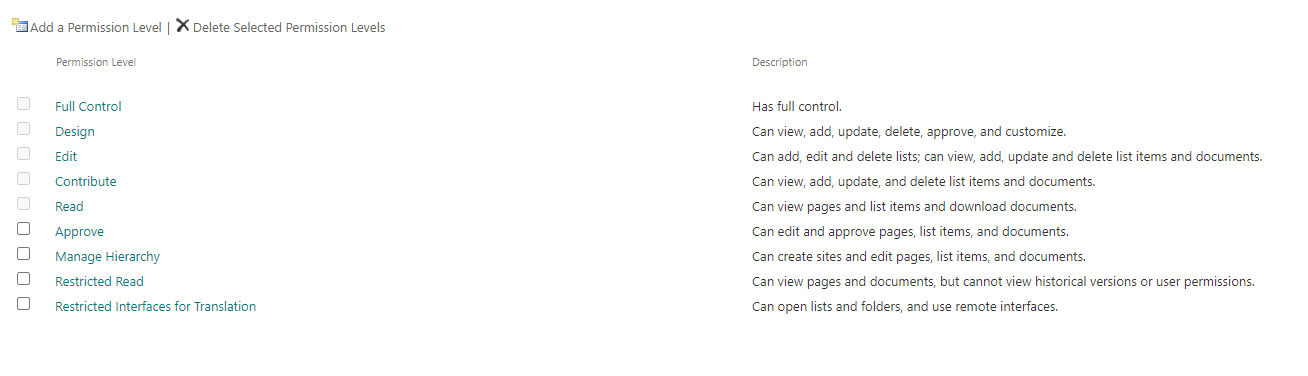
-
Tenant owner ID
-
Current job ID