
Home > Exchange Related Codes
Download this articleExchange Related Codes
EX-AccessDenied
Issue:
The mailbox failed in the migration with the following error:
- EX-AccessDenied
Details:
The error may occur when the connection account’s access to EWS in Exchange is denied.
Recommendations:
Check the client access settings and make sure the connection account can access the EWS in Exchange. Refer to the following links for more information on how to control access to EWS for users:
EX-AccessDeniedToOffice365Group
Issue:
The object failed in the migration with the following error:
- EX-AccessDeniedToOffice365Group
Details:
The error indicates that the destination service account or app profile does not have sufficient permissions to create the Microsoft 365 Group in the destination or migrate the object to the destination.
Recommendations:
Make sure the service account or app profile has sufficient permissions, and rerun an incremental migration job or a "Retry error objects" migration job.
-
If you use a service account for the destination, assign the Groups admin role to the service account.
-
If you use an application app profile for the destination, assign the Exchange administrator role to the app you use in the app profile.
-
If you use a delegated app profile for the destination, assign the Domain.Read.All and Group.ReadWrite.All permissions to the app you use in the app profile.
You can refer to Required Permissions for more details.
EX-ArchiveMailboxNotFound
Issue:
The mailbox failed in the migration with the following error:
- EX-ArchiveMailboxNotFound
Details:
The error may occur in the following situations:
-
When you migrate the source mailbox to the destination archive mailbox, the destination mailbox does not have the archive mailbox enabled.
-
When you configure the Exchange Online migration policy to migrate emails that were received before the specified date to the archive mailbox, the destination mailbox does not have the archive mailbox enabled.
Recommendations:
Make sure the archive mailbox is enabled for the destination mailbox. Refer to the Enable archive mailbox for information.
EX-ArchiveMailboxQuotaIsNotEnough
Issue:
The item failed in the migration with the following error:
- EX-ArchiveMailboxQuotaIsNotEnough
Details:
There is no available quota in the destination archive mailbox when migrating the archive mailbox.
Recommendations:
Enable auto-expanding archiving for additional storage space and run several incremental jobs. If the quota of the archive mailbox is not enough, manually delete some data in the destination archive mailbox to release the quota. Make sure the destination Retention policy is disabled during the migration.
EX-AzureADUnavailable
Issue:
The mailbox failed in the migration with the following error:
- EX-AzureADUnavailable
Details:
The error may occur when the Active Directory Domain Services (AD DS) of the Exchange server is unavailable.
Recommendations:
Make sure the Active Directory Domain Services (AD DS) of the Exchange server is available, and rerun the migration job later to migrate the failed mailbox.
EX-CalendarFolderNotFound
Issue:
The calendar permissions failed in the migration with the following error:
- EX-CalendarFolderNotFound
Details:
The calendar folder cannot be found in the destination.
Recommendations:
Check if the calendar folder exists in the destination:
-
If the calendar folder does not exist, manually create the folder in the destination and run an incremental or "Retry error objects" migration job.
-
If the calendar folder exists, run an incremental or "Retry error objects" migration job.
EX-CalendarICalUIdIncludeInvalidCharacter
Issue:
The event was skipped in the migration with the following error:
- EX-CalendarICalUIdIncludeInvalidCharacter
Details:
The iCalUID contains unsupported special characters.
EX-CalendarOccurenceOverlapped
This error code has been renamed to EX-CalendarOccurrenceOverlapped after the December 2025 release.
Issue:
The item failed in the Gmail migration job report with the following error:
- EX-CalendarOccurenceOverlapped
Details:
The error occurred when the occurrence duration of one recurring calendar item overlapped. For example, the duration of your recurring event is longer than one day, but the recurring frequency is Daily. This event is not supported in the destination Exchange.
Recommendations:
Check the source event, and if possible, shorten the duration for each occurrence to ensure that the duration does not overlap.
EX-CalendarOccurrenceOverlapped
Issue:
The item failed in the Gmail migration job report with the following error:
- EX-CalendarOccurrenceOverlapped
Details:
The error occurred when the occurrence duration of one recurring calendar item overlapped. For example, the duration of your recurring event is longer than one day, but the recurring frequency is Daily. This event is not supported in the destination Exchange.
Recommendations:
Check the source event, and if possible, shorten the duration for each occurrence to ensure that the duration does not overlap.
EX-CallsThrottled
Issue:
The item/folder failed in the migration with the following error:
- EX-CallsThrottled
Details:
The error may occur when you migrate many items, which makes the Exchange server busy. In this case, calls to the Exchange server are throttled by Microsoft 365.
Recommendations:
Rerun the incremental migration job later to migrate the failed item/folder.
EX-CanNotMigrateToHiddenFolder
Issue:
The folder failed in the Gmail migration report with the following error:
- EX-CanNotMigrateToHiddenFolder
Details:
The destination folder with the same name is hidden. In this case, the source folder cannot be migrated to the destination.
Recommendations:
Rename the source folder and run a "Retry error objects" migration job to resolve this issue.
EX-CanNotReplaceTeamsLink
Issue:
The item failed in the migration with the following error:
- EX-CanNotReplaceTeamsLink
Details:
This error occurs when the Teams meeting link in the item cannot be replaced with the destination information. It indicates that the source and destination meeting organizers configured in the user mapping or domain mapping are the same.
Recommendations:
In this case, you do not need to replace the meeting links, and you can deselect the Replace meeting links with the destination information in the migration policy, and rerun an incremental migration job or a "Retry error objects" migration job.
EX-CustomAddressHasBeenUsed
Issue:
The email address / mailbox alias failed in the migration with the following error:
- EX-CustomAddressHasBeenUsed
Details:
The source email address / mailbox alias is currently being used by another destination mailbox.
Recommendations:
Check if the destination user needs the email address / mailbox alias. If the user needs to use the email address / mailbox alias, ignore the error. If the user does not need to use the email address / mailbox alias, delete it from the user in the Microsoft 365 Exchange admin center and run a "Retry error objects" migration job to resolve the issue.
EX-DataCorruptionError
Issue:
The item failed in the migration with the following error:
- EX-DataCorruptionError
Details:
The error indicates that the source item is corrupted. Fly cannot migrate such items to the destination.
Recommendations:
Here are two options to resolve this issue:
-
If you want to migrate the source item, try to manually forward the item to the destination.
-
If you do not want to migrate the source item, you can ignore this error in later migration jobs by adding the IgnoredErrorList=EX-DataCorruptionError string to the Customized features section in the migration policy.
EX-DeleteItemsFailed
Issue:
The item failed with the following error:
- EX-DeleteItemsFailed
Details:
There is no available quota in the destination Recoverable Items folder, and Fly cannot migrate items in source Deletions folders to the destination mailbox.
Recommendations:
-
Refer to Increase the Recoverable Items quota to increase the destination Recoverable Items quota.
-
(Optional) Refer to Get-MailboxFolderStatistics to execute the Get-MailboxFolderStatistics cmdlet using PowerShell to view the capacity of the Recoverable Items folders.
Sample PowerShell Command for Primary Mailbox:
Get-MailboxFolderStatistics -Identity user@contoso.com -FolderScope RecoverableSample PowerShell Command for Archive Mailbox:
Get-MailboxFolderStatistics -Identity user@contoso.com -FolderScope Recoverable -Archive
EX-DestinationUserNotFound
Issue:
The item failed in the migration with the following error:
- EX-DestinationUserNotFound
Details:
This error occurs when the Teams meeting link in the item cannot be replaced with the destination information. The error indicates that the destination meeting organizer you configured in the user mapping or domain mapping does not exist.
Recommendations:
Check the user mapping/domain mapping configured for the destination meeting organizer. Make sure the mapping information is correct, and the destination organizer does exist in the destination.
EX-DifferentTenantInAttachmentLabel
Issue:
The email failed in the migration with the following error:
- EX-DifferentTenantInAttachmentLabel
Details:
The email attachment applies a sensitivity label that does not exist in the source tenant. In this case, Fly cannot remove the sensitivity label from the email attachment.
Recommendations:
Here are two options to resolve this issue:
-
Manually forward the email to the destination
-
Remove the MigrateLabelsForEmailAttachments customized feature from the migration policy, or change the customized feature string value to 0 to not manage sensitivity labels of attachments in source emails. Then, run an incremental or "Retry error objects" migration job to resolve this issue.
EX-EmailAddressHasSpecialCharacters
Issue:
The mailbox failed in the migration with the following error:
- EX-EmailAddressHasSpecialCharacters
Details:
The email address of the destination Microsoft 365 Group/distribution list/mail-enabled security group/shared mailbox/dynamic distribution list contains invalid characters or starts with a period. The invalid characters include: ~ ` ! @ $ % ^ & * ( ) + = [ ] {{ }} | \\ : ; " < > ? /. Note that if the destination is a shared mailbox, the email address cannot contain pounds (#) except for the above characters.
Recommendations:
Make sure the destination email address does not contain invalid characters and does not start with a period, and rerun the migration job.
EX-EmailAddressNotRecognized
Issue:
The rule failed in the migration with the following error:
- EX-EmailAddressNotRecognized
Details:
The error occurs when Fly cannot retrieve the source users’ email addresses in the rule since the users do not exist in the source.
Recommendations:
Generate the migration report for the mapping and download the report in Download center. These invalid source users will be reported in the comment of the downloaded report and separated by commas “,” (Example: shared30301_19 in the comment below).

Then configure user mappings in the migration policy to map these invalid users to existing destination users (Example mapping: shared30301_19 to user1@testdomain.com), and rerun an incremental or "Retry error objects" migration job.
EX-EncryptWithPassword
Issue:
The email failed in the migration with the following error:
- EX-EncryptWithPassword
Details:
The email contains an attachment encrypted with a password, and you configure the MigrateLabelsForEmailAttachments=1 or MigrateLabelsForEmailAttachments=2 customized feature string in the migration policy to manage the sensitivity label of the attachment. However, Fly cannot manage sensitivity labels of such email attachments due to Microsoft API limitations.
Recommendations:
Remove the MigrateLabelsForEmailAttachments customized feature from the migration policy, or change the customized feature string value to 0 to not manage sensitivity labels of attachments in source emails. Then, run an incremental or "Retry error objects" migration job to resolve this issue.
EX-ExportItemFailed
Issue:
The item failed in the migration with the following error:
- EX-ExportItemFailed
Details:
The error indicates that Fly fails to retrieve the source item.
Recommendations:
You can run an incremental migration job or Retry error objects.
EX-FailedAddLabel
Issue:
The email failed in the migration with the following error:
- EX-FailedAddLabel
Details:
This error indicates that the destination sensitivity label cannot be added to the email. It may occur in the following situations:
-
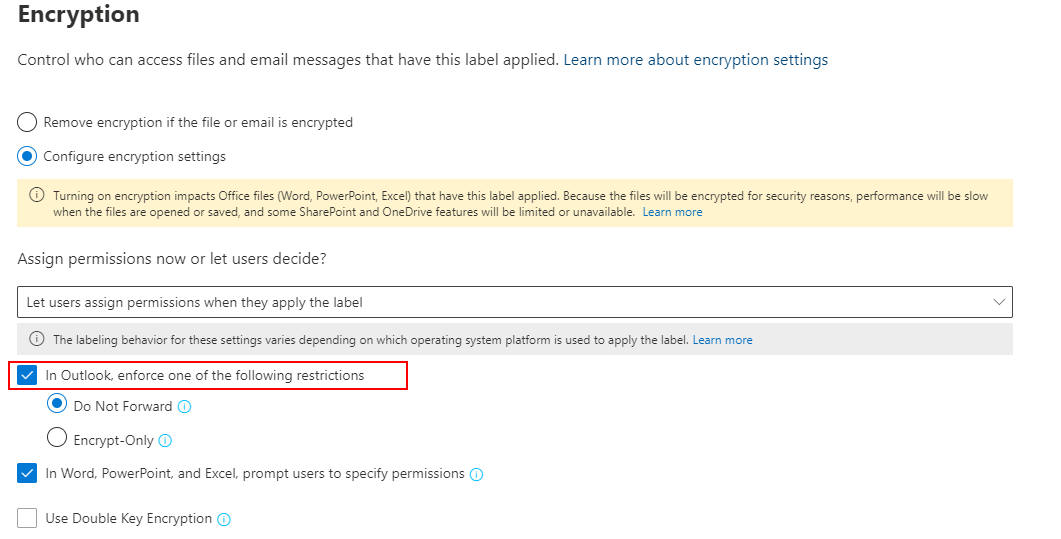
The destination label does not have the In Outlook, enforce on the following restrictions encryption setting selected.
-
The destination label does not have the Encrypt files and emails protection setting selected.
-
The destination connection uses the app profile, and the destination label has the Assign permissions now encryption setting configured, but the label has not been published to all.
Recommendations:
For the above situations 1 and 2, you can edit the label settings, and run an incremental migration job.
For situation 3, publish the destination label to all users/groups, or you can choose to use a service account only for the destination connection.
EX-FailedSetModerationEnabledOption
Issue:
The setting failed in the migration with the following error:
- EX-FailedSetModerationEnabledOption
Details:
Failed to migrate the Group moderators setting of the source object or the Group moderators setting is not configured for the source object. In this case, the Require moderator approval for messages sent to this group setting cannot be enabled for the destination mail-enabled security group.
Recommendations:
Check if the Group moderators setting is configured for the source distribution list.
-
If the setting is configured, make sure the setting has been migrated to the destination and run an incremental or "Retry error objects" migration job to resolve this issue.
-
If the setting is not configured, manually configure the Group moderators setting for the destination mail-enabled security group. Then, run an incremental or "Retry error objects" migration job to resolve this issue.
EX-FailedSetOwnerApprovalOption
Issue:
The setting failed in the migration with the following error:
- EX-FailedSetOwnerApprovalOption
Details:
Failed to migrate the owner of the source object or the source object does not have an owner. In this case, the Joining the group setting of the destination mail-enabled security group cannot be configured as Owner approval.
Recommendations:
Check if the source object has an owner.
-
If the object has an owner, make sure the owner has been migrated to the destination and run an incremental or "Retry error objects" migration job to resolve this issue.
-
If the object does not have an owner, manually add an owner to the destination mail-enabled security group. Then, run an incremental or "Retry error objects" migration job to resolve this issue.
EX-FolderNotFound
Issue:
The rule failed in the migration with the following error:
- EX-FolderNotFound
Details:
The error indicates that the folder in this rule cannot be found in the destination. This error may be caused by the following reasons:
-
The folder is filtered out in the migration based on the filter policy you configured.
-
The folder failed to be migrated in the migration.
Recommendations:
Here are two options to resolve this issue:
-
If the source folder in this rule is filtered out during the migration, you can ignore this rule when you do not need the folder. If the folder of this rule is a system folder and you want to keep the rule to the destination, make sure a system folder with the same name exists in the destination mailbox.
-
If the source folder in this rule failed to be migrated to the destination, run an incremental migration job to migrate the failed folder.
EX-FolderTypeMappedMismatch
Issue:
The object failed in the migration with the following error:
- EX-FolderTypeMappedMismatch
Details:
The source mail label is mapped to a different folder type in the destination mailbox. When migrating labels from Gmail to Exchange Online, if a label name matches a destination folder name but the label type does not match the mapped folder type, the migration from the label container to the folder container is blocked.
Recommendations:
To resolve this issue, rename the label so that it does not conflict with the destination special folder.
EX-GraphAccessDenied
Issue:
The object failed in the migration with the following error:
- EX-GraphAccessDenied
Details:
The error indicates that the source/destination service account / custom app profile / custom delegated app profile does not have sufficient permissions.
Recommendations:
Refer to Required Permissions to assign the required permissions to the service account / custom app profile / custom delegated app profile. Then rerun an incremental migration job or a "Retry error objects" migration job.
EX-GraphAttachmentSizeExceedLimit
Issue:
The object failed in the migration with the following error:
- EX-GraphAttachmentSizeExceedLimit
Details:
This error indicates that the attachment size exceeds 150 MB. Due to Exchange Online limitations, Fly cannot migrate items with attachments larger than this limit.
Recommendations:
For Gmail migrations, if the object is an event, use the customized feature FilterOutEventAttachmentSizeOver to migrate the event without migrating its attachments.
EX-GraphInternalServerError
Issue:
The item failed in the migration with the following error:
- EX-GraphInternalServerError
Details:
This error indicates that an internal server error occurred while migrating the object.
Recommendations:
Verify that the mailbox can be accessed successfully. Once access is confirmed, rerun an incremental migration job or a "Retry error objects" migration job.
EX-GraphNotSupportApplyLabel
Issue:
The object failed in the migration with the following error:
- EX-GraphNotSupportApplyLabel
Details:
The error indicates that applying destination labels is not supported when using the Microsoft Graph API.
Recommendations:
Select the second option, If a label exists, remove it during the migration, when configuring how sensitivity labels for emails are managed in the migration policy.
EX-GraphThrottled
Issue:
The object failed in the migration with the following error:
- EX-GraphThrottled
Details:
This error indicates that the application has exceeded its IncomingBytes limit and has been throttled by Microsoft Graph.
Recommendations:
Rerun an incremental migration job or a "Retry error objects" migration job.
EX-GroupNotDefaultDomain
Issue:
The group failed in the migration with the following error:
- EX-GroupNotDefaultDomain
Details:
The error appears when you migrate groups in the migration and the destination Microsoft 365 Group does not exist. This error indicates that the destination Group mailbox email domain is not the tenant's default domain and cannot be created.
Recommendations:
When you configure the destination group for the migration mapping, change the domain of the destination group to the tenant default domain.
EX-ImpersonatedUserMailboxNotFound
Issue:
The object failed in the migration with the following error:
- EX-ImpersonatedUserMailboxNotFound
Details:
The mailbox does not exist or cannot be connected to.
Recommendations:
Ensure the mailbox exists and the user has a valid Exchange Online license. Then, rerun the migration job.
EX-InboxRuleInvalidSourceName
Issue:
The inbox rule failed in the migration with the following error:
- EX-InboxRuleInvalidSourceName
Details:
The source rule name only consists of invalid characters. Such rules cannot be migrated to the destination.
Recommendations:
Manually create the rule in the destination.
EX-InboxRulesValidationError
Issue:
The mailbox rule failed in the migration with the following error:
- EX-InboxRulesValidationError
Details:
An error occurred while migrating the mailbox rule.
Recommendations:
Navigate to Projects > Project mappings > View mapping report > Migration error tab in Fly to check the error details of the rule in the comment of the Migration error section. Then, locate the corresponding rule in the source and manually fix the issue based on the error details. For example, in the case of the comment below, the rule failed in the migration because the property value exceeds the maximum allowed length. You need to reduce the property value length in the source.
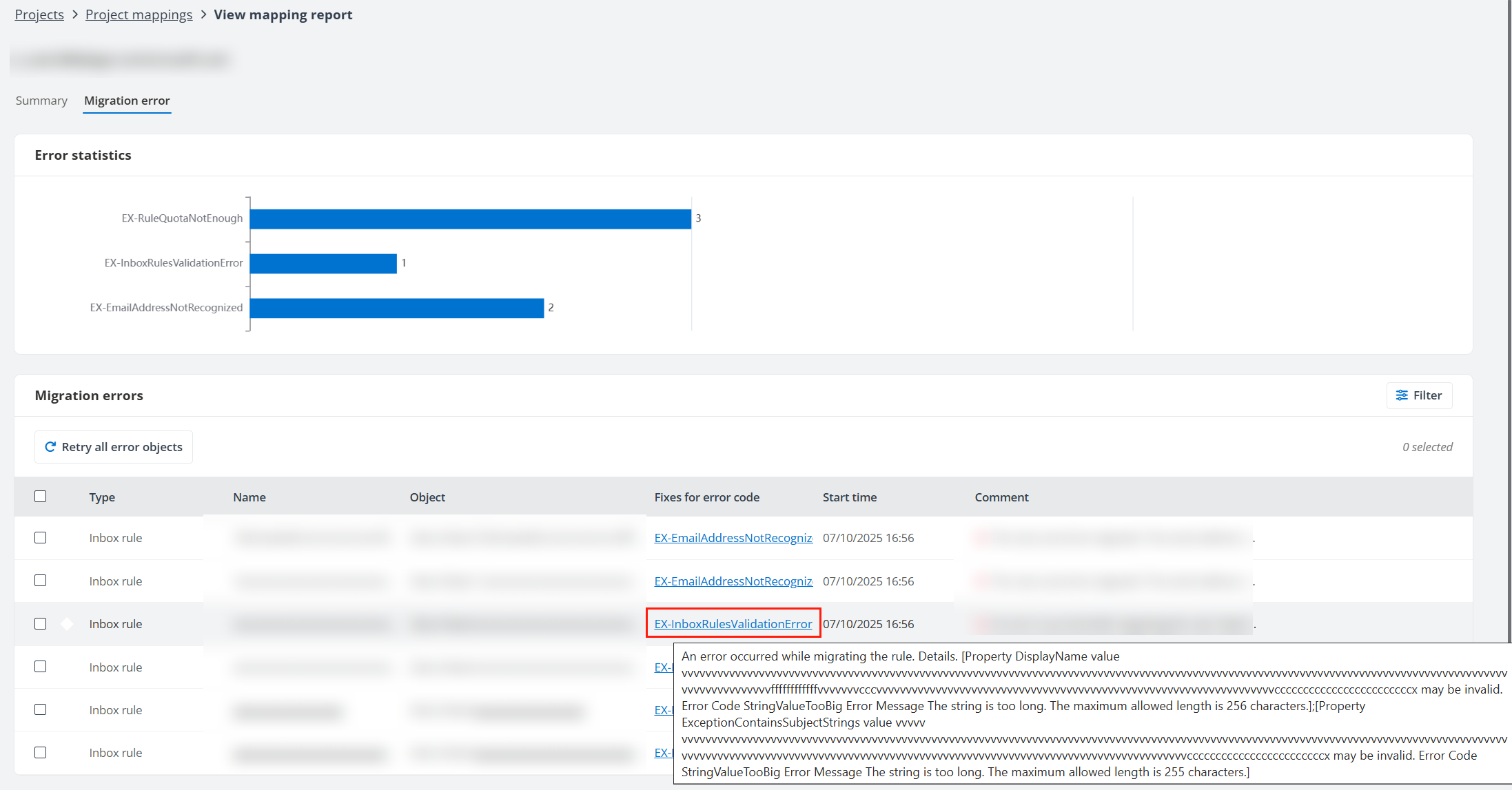
After fixing, run an incremental or "Retry error objects" migration job to resolve this issue. If this issue persists, contact Support, and provide the migration mapping information and job ID to analyze the error.
EX-IncorrectDomainName
Issue:
The object failed in the migration with the following error:
- EX-IncorrectDomainName
Details:
The error indicates that Fly fails to create the shared mailbox/mail-enabled security group/distribution list, or add the mailbox alias using the domain you configured in the migration mapping. The domain does not exist in the destination tenant.
Recommendations:
Correct the mapping in the migration project and run the migration again to resolve the error.
EX-IncorrectGroupMember
Issue:
The user/group failed in the migration with the following error:
- EX-IncorrectGroupMember
Details:
The error indicates that the user/group cannot be added to the destination group as a member. This error may occur when the user/group is already a member of the destination group.
Recommendations:
Configure a user mapping in the migration policy to map the source user/group to a valid destination user/group, and rerun an incremental migration job or a "Retry error objects" migration job.
EX-IncorrectGroupOwner
Issue:
The user/group failed in the migration with the following error:
- EX-IncorrectGroupOwner
Details:
The error indicates that the user/group cannot be added to the destination group as an owner. This error may occur when the source user/group is mapped to a distribution list, which cannot be added as the group owner.
Recommendations:
Configure a user mapping in the migration policy to map the source user/group to a valid destination user/group and rerun the migration job.
EX-IncorrectMailboxType
Issue:
The mailbox failed in the migration with the following error:
- EX-IncorrectMailboxType
Details:
The error indicates that the mailbox type you selected for the mailbox in the mapping is incorrect.
Recommendations:
Correct the mapping in the migration project and run the migration again to resolve the error.
EX-IncorrectPermissionUser
Issue:
The user/group failed in the migration with the following error:
- EX-IncorrectPermissionUser
Details:
The error indicates that the user/group cannot be added while migrating object permissions. This error may occur when the user/group is mapped to a contact, which cannot be granted the object permissions.
Recommendations:
Configure a user mapping in the migration policy to map the source user/group to a valid destination user/group, and rerun an incremental migration job or a "Retry error objects" migration job.
EX-InsufficientPermissionsForGroup
Issue:
The item failed in the migration with the following error:
- EX-InsufficientPermissionsForGroup
Details:
The service account or the consent user of the delegated app profile is not the owner of the Microsoft 365 Group. In this case, the item cannot be migrated.
Recommendations:
Add the service account or the consent user of the delegated app profile as the owner of the Microsoft 365 Group. Then, run an incremental or "Retry error objects" migration job to resolve this issue.
EX-InsufficientPermissionsForImpersonation
Issue:
The item/mailbox failed in the migration with the following error:
- EX-InsufficientPermissionsForImpersonation
Details:
The error indicates that the service account or app profile account does not have the ApplicationImpersonation role to impersonate the mailbox user.
Recommendations:
Make sure the accounts configured in the source and destination connections have the ApplicationImpersonation role. If you do not migrate Microsoft 365 Group mailboxes, distribution groups, or auto-complete lists in the migration, you can grant the Full Access permission to the source connection account without adding the ApplicationImpersonation role.
EX-InsufficientPrivileges
Issue:
The object failed in the migration with the following error:
- EX-InsufficientPrivileges
Details:
The error indicates that the source/destination service account / custom app profile / custom delegated app profile does not have sufficient permissions.
Recommendations:
Refer to Required Permissions to assign the required permissions to the service account / custom app profile / custom delegated app profile, and rerun an incremental migration job or a "Retry error objects" migration job.
EX-InternalServerError
Issue:
The item failed in the migration with the following error:
- EX-InternalServerError
Details:
The error indicates that an internal server error occurs while migrating the item.
Recommendations:
Try accessing the mailbox. Rerun an incremental migration job or a "Retry error objects" migration job when the mailbox can be accessed.
EX-InvalidCalendarFolderOrInsufficientPrivileges
Issue:
The calendar permissions failed in the migration with the following error:
- EX-InvalidCalendarFolderOrInsufficientPrivileges
Details:
The source service account does not have sufficient permissions, or the calendar folder name contains the following invalid characters: / or \.
Recommendations:
Here are two options to resolve this issue:
-
Make sure the calendar folder name does not contain invalid characters, and the source service account has sufficient permissions. Refer to Required Permissions to assign the required permissions to the service account. Then, you can run a "Retry error objects" migration job.
-
Manually create the calendar folder in the destination and assign the same permissions as the source to the calendar folder.
EX-InvalidGroupOwner
Issue:
The item failed in the Gmail or Exchange Online migration report with the following error:
- EX-InvalidGroupOwner
Details:
The source group owner is mapped to a destination distribution list/Microsoft 365 Group. Distribution list/Microsoft 365 Group cannot be added as distribution list/Microsoft 365 Group owners.
Recommendations:
Make sure the user mapped for the group owner is not a distribution list/Microsoft 365 Group and run a "Retry error objects" migration job to resolve this issue.
EX-InvalidLicense
Issue:
The migration failed with the following error:
- EX-InvalidLicense
Details:
The user does not have a valid license for this mailbox.
Recommendations:
Assign a valid license to the user and then rerun the migration job.
EX-InvalidSourceName
Issue:
The folder failed in the Gmail migration report with the following error:
- EX-InvalidSourceName
Details:
The characters of the source folder name are all invalid. In this case, Fly cannot migrate this folder to the destination.
Recommendations:
Modify the source folder name and run a "Retry error objects" migration job to resolve this issue.
EX-InvalidToken
Issue:
The folder failed in the incremental migration with the following error:
- EX-InvalidToken
Details:
The Microsoft changelog data used to retrieve the newly created or modified source data is corrupt or invalid. In this case, Fly cannot retrieve the updates in the folder.
Recommendations:
Run a full migration job to try again.
EX-ItemAlreadyHasAnID
Issue:
The item failed in the migration with the following error:
- EX-ItemAlreadyHasAnID
Details:
At least one item in the same package has already been migrated to the destination and has an ID. In this case, the item cannot be migrated.
Recommendations:
Run an incremental or "Retry error objects" migration job to resolve this issue.
EX-ItemBatchProcessingStopped
Issue:
The item failed in the migration with the following error:
- EX-ItemBatchProcessingStopped
Details:
The error may occur when you migrate multiple items in a migration job. If some items that are migrated before this item fail to be migrated due to an unknown error, the migration job will fail. In this case, this item cannot be migrated to the destination.
Recommendations:
Contact Support and provide the migration mapping information and job ID to analyze the error.
EX-LabelNotExist
Issue:
The email failed in the migration with the following error:
- EX-LabelNotExist
Details:
This error indicates that the email cannot be migrated since the source sensitivity label of the item cannot be found. It may occur in the following situations:
-
The label on the source email has been deleted from the organization.
-
The label on the source email is configured with the Let users assign permissions when they apply the label encryption setting and contains sublabels. This label is not supported.
Recommendations:
Contact Support and provide the migration mapping information and job ID to get the migration logs. Find the ID of the label in the logs if it has been deleted. Then, configure a label mapping in the migration policy using the label ID to map the source label to another label with the same Assign permissions now or let users decide? setting. Run an incremental migration job with the configured migration policy.
EX-LabelNotFound
Issue:
The email failed in the migration with the following error:
- EX-LabelNotFound
Details:
This error indicates that the email cannot be migrated since the destination sensitivity label cannot be found. It may occur in the following situations:
-
If you select the Apply same label in the destination option in the migration policy, there is no mapped label in the destination with the same name as the source label. If you select the Apply labels in the destination based on label mappings option in the migration policy, the destination label configured in the label mapping does not exist.
-
The destination label has not been published to the service account.
-
The destination label has the Let users assign permissions when they apply the label encryption setting selected and contains sublabels. This label is not supported.
-
The destination label does not have the File & emails scope configured.
-
If you select the Apply labels in the destination based on label mappings option in the migration policy, but the options selected for the Assign permissions now or let users decide? setting of the source and destination labels in the label mapping are different.
Recommendations:
Refer to the following methods to resolve this issue in different situations, and run an incremental migration job:
-
If you have selected the Apply same label in the destination option in the migration policy, make sure a label with the same name and the same Assign permissions now or let users decide? setting already exists in the destination. If you have selected the Apply labels in the destination based on label mappings option in the migration policy, make sure the destination label configured in the label mapping already exists.
-
Make sure the destination label has been published to the service account of the migrations.
-
Make sure the mapped destination label does not have sublabels.
-
Make sure the mapped destination label has the File & emails scope configured.
-
Make sure the option selected for the Assign permissions now or let users decide? setting of the source and destination labels are the same.
EX-LackExchangeAdminRole
Issue:
The migration failed with the following error:
- EX-LackExchangeAdminRole
Details:
The error indicates that Exchange Online PowerShell is unavailable since the app of the Fly app profile does not have the Exchange administrator role.
Recommendations:
You can refer to the instructions below to assign this role, and run the migration again to try again.
To assign the Exchange administrator role to the app, refer to the following steps:
-
Log in to Microsoft Entra admin center (or Azure portal) and navigate to Microsoft Entra ID.
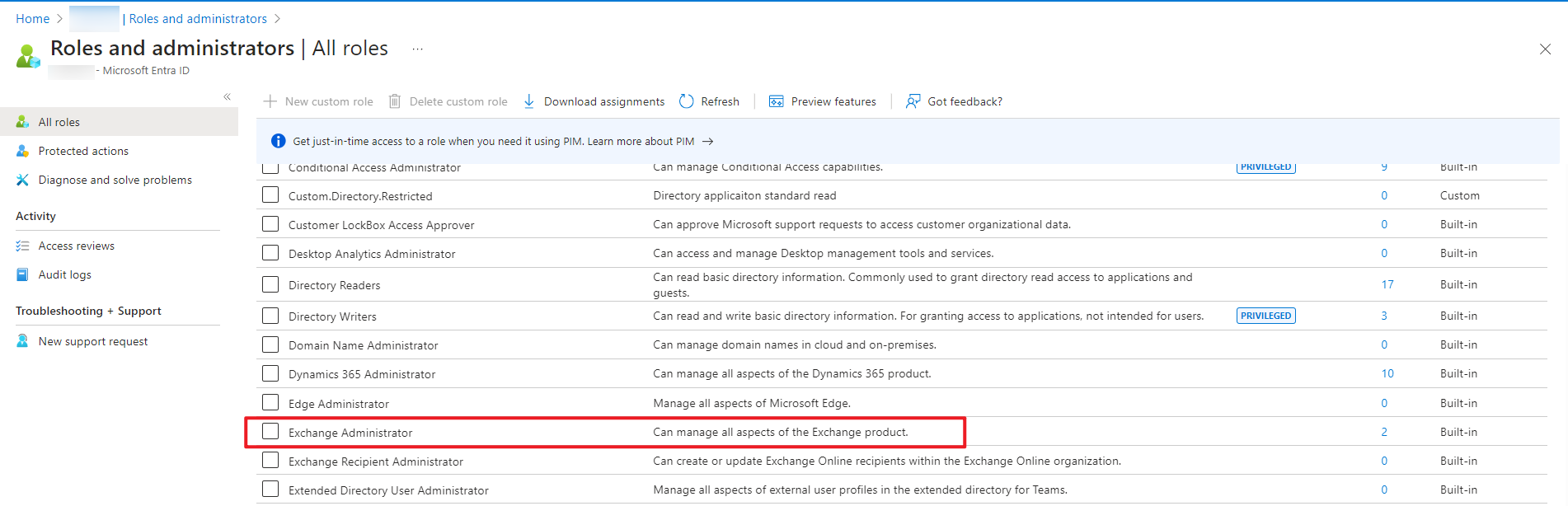
-
Click Roles & admins (or Roles and administrators) in the left pane, and click Exchange Administrator.
-
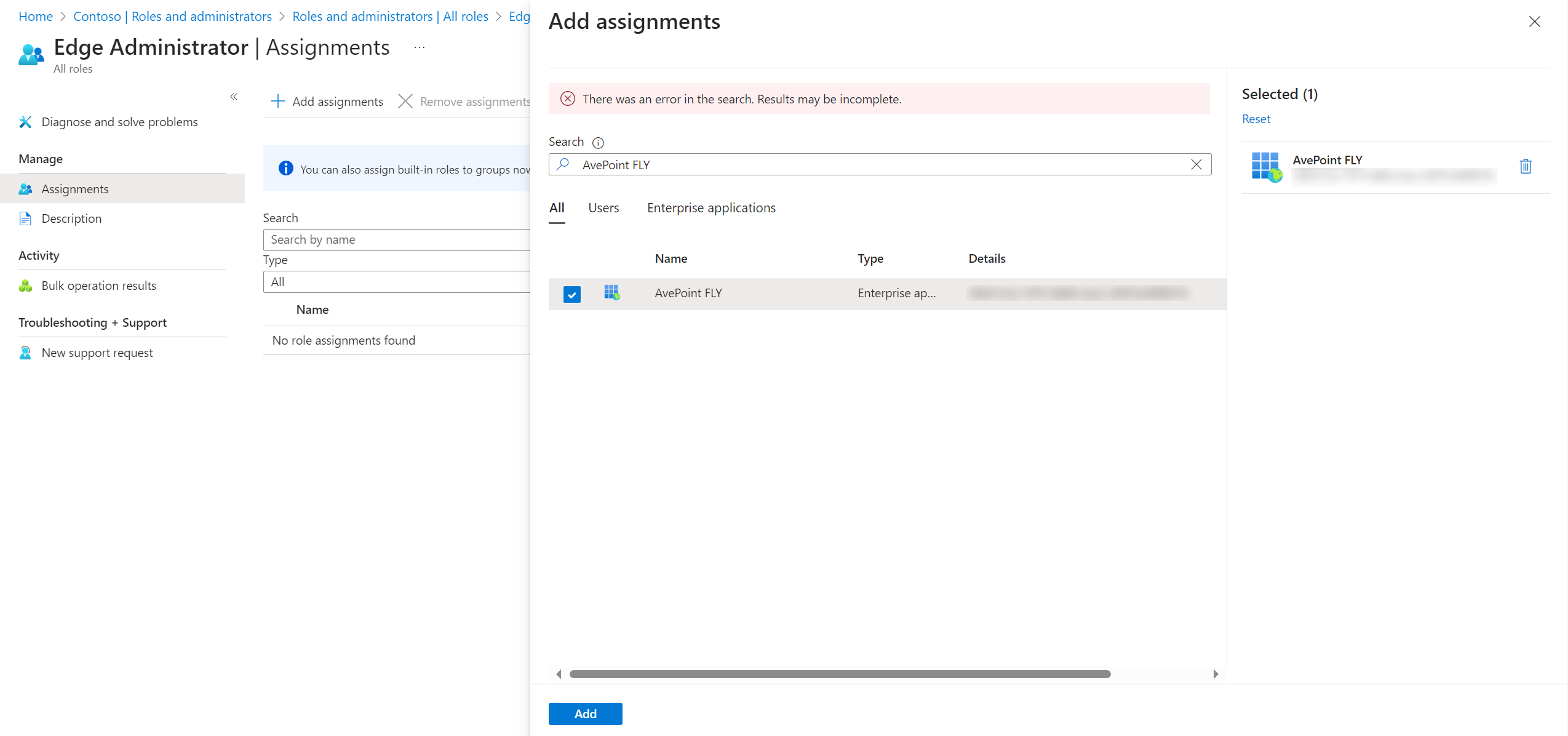
On the Assignments page, click Add assignments. The Add assignments panel appears.
-
Enter the app name in the search box to search for the app to which you want to assign the role. (The name of the Fly app is AvePoint FLY)
-
Select the app, and click Add to assign the role. Note that the assigned role will take effect in about 30 minutes.
EX-LackManageAsAppRole
Issue:
The object failed in the migration with the following error:
- EX-LackManageAsAppRole
Details:
The error indicates that the custom app you use in the destination app profile does not have the Office 365 Exchange Online API > Exchange.ManageAsApp permission to create the shared mailbox/Microsoft 365 Group/distribution list/mail-enabled security group in the destination or migrate the Send As, Send on Behalf, and Full Access permissions to the destination.
Recommendations:
Assign the Office 365 Exchange Online API > Exchange.ManageAsApp permission to the destination custom app, and rerun an incremental migration job or a "Retry error objects" migration job.
EX-LegacyExchangeDNHasBeenUsed
Issue:
The mailbox failed in the migration with the following error:
- EX-LegacyExchangeDNHasBeenUsed
Details:
The source X500 email address is currently being used by another destination user.
Recommendation:
Check which destination user occupies the source X500 email address, remove the occupied X500 email address from the destination user in the Exchange admin center, and rerun the migration job.
EX-LegacyExchangeDNIsEmpty
Issue:
The mailbox failed in the migration with the following error:
- EX-LegacyExchangeDNIsEmpty
Details:
The source mailbox does not have an X500 email address or the source tenant has expired.
Recommendation:
Make sure the source mailbox has an X500 email address and the source tenant is available. Then rerun the migration job.
EX-LocationCalendarIncludeInvalidCharacter
Issue:
The object failed in the migration with the following error:
- EX-LocationCalendarIncludeInvalidCharacter
Details:
The event location contains invalid characters.
Recommendations:
You can enable the EscapeInvalidCharactersInEventLocation=true customized feature in the migration policy to remove unsupported characters from the event location.
EX-MailboxMoveInProgress
Issue:
The mailbox failed in the migration with the following error:
- EX-MailboxMoveInProgress
Details:
The error indicates that the mailbox is being moved to a different mailbox store or server when Fly migrates it. This can also indicate that the mailbox is on another server or mailbox database.
Recommendations:
Run an incremental migration job later to migrate the failed mailbox.
EX-MailboxNotFound
Issue:
The mailbox/item failed in the migration with the following error:
- EX-MailboxNotFound
Details:
The error may occur in the following situations:
-
Situation 1: The source mailbox failed in the migration job since the source or destination mailbox does not exist.
-
Situation 2: The source item failed in the migration job since Exchange Online server is busy and cannot respond to your request.
Recommendations:
-
For situation 1, make sure the source and destination mailboxes in the migration exist before the migration.
-
For situation 2, rerun an incremental migration job or a "Retry error objects" migration job.
EX-MailboxStoreUnavailable
Issue:
The folder/item failed in the migration with the following error:
- EX-MailboxStoreUnavailable
Details:
The error indicates that the mailbox is unavailable due to the exception of the mailbox database. For example, the mailbox database is offline or shut down.
Recommendations:
Run an incremental or "Retry error objects" migration job to resolve this issue.
EX-MailSizeExceedLimit
Issue:
The item failed in the migration with the following error:
- EX-MailSizeExceedLimit
Details:
The error may occur in the following situations:
-
Situation 1: The email size, attachment size of the email, or attachment size of the calendar item exceeds the received messages maximum size of the destination mailbox.
-
Situation 2: The calendar item exceeds 150 MB. In this case, Fly cannot migrate the item due to Exchange Online limitations.
Recommendations:
-
For situation 1, increase the received messages maximum size of the destination mailbox to a larger value by accessing Exchange admin center > Recipients > Mailboxes, clicking the destination mailbox and clicking the Mailbox tab > Manage Size Restrictions > Received messages maximum size(KB).
-
For situation 2, manually forward this calendar item to the destination.
EX-MimeContentInvalid
Issue:
The item failed in the Gmail migration report with the following error:
- EX-MimeContentInvalid
Details:
The error occurs in the following situations:
-
Situation 1: The source mail contains more than 249 attachments, which cannot be migrated to the destination due to Exchange Online limitations. Refer to Message limits for details.
-
Situation 2: The mail contains content that is not supported by Exchange and cannot be migrated.
Recommendations:
For situation 2, manually forward the source mail to the destination.
EX-MIPAccessDeniedError
Issue:
The email failed in the migration with the following error:
- EX-MIPAccessDeniedError
Details:
The error may occur in the following situations:
-
Situation 1: The source service account/app profile does not have sufficient permissions to the email.
-
Situation 2: The sensitivity label applied to the source email does not exist in the source tenant.
Recommendations:
-
For situation 1, make sure the source service account/app profile has sufficient permissions to the email and rerun the migration job. Refer to Required Permissions for details.
-
For situation 2, select the No label in source, or migrate emails with source label to destination option in the migration policy to migrate the source label to the destination and run an incremental or "Retry error objects" migration job to resolve this issue.
EX-MIPLabelMismatchedWithTenant
Issue:
The item failed in the migration with the following error:
- EX-MIPLabelMismatchedWithTenant
Details:
The error occurs when the email cannot be decrypted by the source tenant since the sensitivity label of the email is applied by a user in another tenant, or the item is encrypted by a user in another tenant without a sensitivity label.
Recommendations:
-
If you want to view the email in the destination, refer to the following instructions to resolve this issue:
-
If the sensitivity label is of the Assign permissions now type, assign the label permissions to the mapped destination user in Microsoft Purview. Then, select to migrate the email with the source sensitivity label to the destination in the migration policy and rerun the migration job.
If you do not want to rerun the migration job, you can manually forward the source email to the destination, assign the label permissions to the destination user, and then view the email via Outlook.
-
If the sensitivity label is of the Let users assign permissions when they apply the label type, manually forward the source email to the destination.
-
If the item is encrypted without a sensitivity label, manually forward the source email to the destination.
-
-
If you only want to migrate the email to the migration, select to migrate the email with the source sensitivity label to the destination in the migration policy and rerun the migration job.
EX-MIPNoSuperUser
Issue:
The item failed in the migration with the following error:
- EX-MIPNoSuperUser
Details:
This error occurs when the source or destination service account does not have the super user role to manage sensitivity labels.
Recommendations:
Assign the super user role to both source and destination service accounts. Refer to Assign service account as super user for details.
EX-NoDestinationCASProcessRequest
Issue:
The item/folder failed in the migration with the following error:
- EX-NoDestinationCASProcessRequest
Details:
The error indicates that the item/folder cannot be migrated because there are no Client Access Servers in the destination to process the request.
Recommendations:
Run an incremental migration job later to migrate the failed item/folder.
EX-PermissionUserOrGroupTypeIsNotSupport
Issue:
The calendar permissions failed in the migration with the following error:
- EX-PermissionUserOrGroupTypeIsNotSupport
Details:
The error may occur in the following situations:
-
Situation 1: The destination user or group cannot be found.
-
Situation 2: The destination is not a user mailbox, mail user, room type resource mailbox, or mail-enabled security group.
-
Situation 3: The destination user is disabled in Active Directory.
Recommendations:
-
For situation 1, you can configure a user mapping for the source user or group in the migration policy to map the user or group to an existing destination user or group.
-
For situation 2, make sure the destination you configured in the user mapping is a user mailbox, mail user, room type resource mailbox, or mail-enabled security group, and run a "Retry error objects" migration job. If you want to map the source user or group to a destination user or group that is not a user mailbox, mail user, room type resource mailbox, or mail-enabled security group, you can manually assign the same permissions as the source user or group to the destination user or group.
EX-PrimaryMailboxQuotaIsNotEnough
Issue:
The item failed in the migration with the following error:
- EX-PrimaryMailboxQuotaIsNotEnough
Details:
The error may occur in the following situations:
-
Situation 1: Exchange Online enforces a limit of 1 million items per folder. The number of items in the destination folder exceeds the allowed maximum.
-
Situation 2: There is no available quota in the destination mailbox.
Recommendations:
-
For situation 1, if the issue is with a normal folder, move a few items from the affected destination folder to another folder to reduce the item count, then proceed with the incremental migration job. If the issue is with the Calendar folder, delete some unused calendar items in the destination mailbox before continuing with the incremental migration job.
-
For situation 2, increase the storage quota of the destination mailbox and make sure the source mailbox size does not exceed the destination available quota to contain the source data.
EX-PublishMeetingFailed
Issue:
The item failed in the migration with the following error:
- EX-PublishMeetingFailed
Details:
The meeting item has been migrated to the destination, but if the meeting participants contain external users, when the external user clicks the destination meeting link to attend the meeting, they will wait in the lobby until the meeting organizer allows them to enter the meeting.
This error indicates that the source meeting link failed to be published to everyone.
This error occurs when you do not select the Replace meeting links with the destination information option in the migration policy and you add the ChangeTeamsMeetingScopeAsEveryone=true customized feature string to publish the meeting link to everyone. However, you only use the service account authentication for the source tenant, or the source app profile does not have sufficient permissions, so the source meeting link cannot be published to everyone.
Recommendations:
Make sure you have configured an app profile for the source tenant, and the app has the permissions below to publish the source meeting link:
-
Make sure you have assigned the access policy for the AvePoint FLY app or custom app. Refer to access policy for details.
-
If you use a custom app, make sure you have assigned the Microsoft Graph API > OnlineMeetings.ReadWrite.All permission to the app.
EX-RecipientsAreIncorrect
Issue:
The recipients failed in the migration with the following error:
- EX-RecipientsAreIncorrect
Details:
The recipients do not exist in the destination tenant.
Recommendations:
Please correct the user mappings, then run the "Retry error objects" job.
EX-RecoverableFolderNotFound
Issue:
The folder failed in the migration with the following error:
- EX-RecoverableFolderNotFound
Details:
The error may occur in the following situations:
-
Situation 1: The Versions, Purges, and DiscoveryHolds folders cannot be found in the destination. It occurs when the In-Place Hold, Litigation Hold, or a Microsoft 365 or Office 365 Teams Chat retention policy is not enabled for the destination mailbox.
-
Situation 2: There is no custom folder with the same name as the source custom folder in the destination Recoverable Items folder. In this case, Fly cannot create the custom folder in the destination Recoverable Items folder due to Microsoft API limitations.
Recommendations:
-
For situation 1, make sure that you have enabled the In-Place Hold, Litigation Hold, or a Microsoft 365 or Office 365 Teams Chat retention policy for the destination mailbox, or filter out Versions, Purges, and DiscoveryHolds folders in the migration policy. Then, run a "Retry error objects" migration job to resolve this issue.
-
For situation 2, manually create a folder with the same name as the source custom folder in the destination Recoverable Items folder. Then, run a "Retry error objects" migration job to resolve this issue.
EX-RecoverableItemsFolderQuotaIsNotEnough
Issue:
The item failed in the migration with the following error:
- EX-RecoverableItemsFolderQuotaIsNotEnough
Details:
There is no available quota in the destination Recoverable Items folder. For example, after running a full migration job, you run multiple full migration jobs with the Overwrite conflict resolution, and the Single item recovery and/or In-Place Hold, and/or Litigation Hold settings are enabled in the destination. In this situation, the destination conflicting items in each job will be deleted and stored in the Recoverable Items folder, which may result in this issue.
Recommendations:
Refer to the following steps to resolve this issue:
-
Refer to Start-ManagedFolderAssistant to execute the Start-ManagedFolderAssistant cmdlet using PowerShell to release the quota of the specified folder in this cmdlet.
Sample PowerShell Command:
Start-ManagedFolderAssistant -Identity user@contoso.com -
Check if the capacity of the Recoverable Items folders has been released. If the capacity has been released, you can refer to the following instructions to rerun the migration job to resolve the issue:
-
If you do not need to use Overwrite conflict resolution for the migration, select Skip conflict resolution in the migration policy to avoid deleting the destination item to the Recoverable Items folders.
-
If you need to use Overwrite conflict resolution for the migration, we recommend that you disable both litigation hold and single item recovery on related destination mailboxes.
If litigation hold or single item recovery is enabled, when items are deleted or overwritten, Exchange will automatically move those items to the Recoverable Items folder and take up storage there. By default, litigation hold is disabled while single item recovery is enabled.
Refer to In-Place Hold and Litigation Hold in Exchange Online and Enable or disable single item recovery for a mailbox in Exchange Online for details.
Sample PowerShell Command:
Set-Mailbox -Identity user@contoso.com -SingleItemRecoveryEnabled $false -LitigationHoldEnabled $falseAfter running this command, if you want to clean up data immediately, run the following command again:
Start-ManagedFolderAssistant -Identity user@contoso.com
-
-
(Optional) Refer to Get-MailboxFolderStatistics to execute the Get-MailboxFolderStatistics cmdlet using PowerShell to view the capacity of the Recoverable Items folders.
Sample PowerShell Command for Primary Mailbox:
Get-MailboxFolderStatistics -Identity user@contoso.com -FolderScope RecoverableSample PowerShell Command for Archive Mailbox:
Get-MailboxFolderStatistics -Identity user@contoso.com -FolderScope Recoverable -Archive
EX-RequestTimeout
Issue:
The item/folder failed in the migration with the following error:
- EX-RequestTimeout
Details:
The error indicates that the request to the Exchange server is timed out because the Exchange server is busy or due to a bad network.
Recommendations:
Run an incremental migration job later to migrate the failed item/folder.
EX-ResourceMailboxUnresolved
Issue:
The item failed in the Gmail migration report with the following error:
- EX-ResourceMailboxUnresolved
Details:
The resource mailbox in the source event has been mapped to a resource mailbox that does not exist in the destination.
Recommendations:
Check the user mapping and make sure the resource mailbox exists in the destination, and run a "Retry error objects" migration job to resolve this issue.
EX-RuleNotEnoughMemory
Issue:
The inbox rule failed in the migration with the following error:
- EX-RuleNotEnoughMemory
Details:
Failed to create the rule in the destination mailbox due to insufficient memory on the Exchange server to complete the operation.
Recommendations:
Run an incremental or "Retry error objects" migration job to process the failed items again.
EX-RuleQuotaNotEnough
Issue:
The inbox rule failed in the migration with the following error:
- EX-RuleQuotaNotEnough
Details:
There is no available rule quota in the destination mailbox. In this case, the inbox rule cannot be created in the destination.
Recommendations:
Increase the rule quota of the destination mailbox or manually delete some inbox rule in the destination mailbox. Then, run an incremental or "Retry error objects" migration job to resolve this issue.
EX-SourceUserNotFound
Issue:
The item failed in the migration with the following error:
- EX-SourceUserNotFound
Details:
This error occurs when the Teams meeting link in the item cannot be replaced with the destination information. It indicates that the organizer of the source meeting does not exist in the source.
Recommendations:
Navigate to Projects > Project mappings > View migration report > Migration error tab in Fly to view the ID of the failed user in the Migration errors section. Then, configure a user mapping for the user using the user ID to map the user to a destination existing user, and rerun the migration job.
If you do not care about this issue, you can ignore the error.
EX-SubstrateHoldsNotFound
Issue:
The folder failed in the migration with the following error:
- EX-SubstrateHoldsNotFound
Details:
This error indicates that the SubstrateHolds folder cannot be found in the destination. It occurs when the In-Place Hold, Litigation Hold, or a Microsoft 365 or Office 365 Teams Chat retention policy is not enabled for the destination mailbox.
Recommendations:
Make sure that you have enabled the In-Place Hold, Litigation Hold, or a Microsoft 365 or Office 365 Teams Chat retention policy for the destination mailbox, or filter out the SubstrateHolds folder in the migration policy.
EX-UserNotInMapping
Issue:
The item failed in the migration with the following error:
- EX-UserNotInMapping
Details:
This issue may occur in the following situations when Fly attempts to replace the Teams meeting links in mails with the destination information:
-
There is no user mapping/domain mapping configured for the source meeting organizer.
-
The user mapping/domain mapping information configured for the source meeting organizer is incorrect.
Recommendations:
Before the migration, make sure you have correctly configured the user mapping/domain mapping for the meeting organizer to ensure the links can be replaced.
EX-UserRequestsExceedLimit
Issue:
The item failed in the migration with the following error:
- EX-UserRequestsExceedLimit
Details:
The error indicates that the number of concurrent requests to the Exchange server from the user exceeds the maximum number allowed for the user.
Recommendations:
Add additional connections using different users and split the mappings into multiple migrations.
EX-ValidateFailed
Issue:
The migration failed with the following error:
- EX-ValidateFailed
Details:
The mailbox cannot be connected to.
Recommendations:
Please verify that permissions are sufficient and that there are no networking issues. Then, rerun the migration job.
EX-WarnAbnormalSyncItemsProcess
Issue:
The folder failed in the migration with the following error:
- EX-WarnAbnormalSyncItemsProcess
Details:
The folder has been migrated to the destination, but an unknown error occurred while migrating the items in the folder.
Recommendations:
Try running the incremental jobs (it may require multiple runs) and then check the item count in the destination folder to ensure all data in the source folder has been migrated.