
Home > Tenant to Tenant Migration Process > Preparation > 2. Prepare the destination environment
Export to PDF2. Prepare the destination environment
2.1 Create a service account/app profile with required permissions
2.2 Create users in the destination tenant or sync AD users
Fly does not automatically create new users in Microsoft 365. To make sure that everything works as expected, all users need to be added to the destination tenant. There are different ways to add new Microsoft 365 users:
2.3 Create all necessary external users in the destination tenant
External users cannot be migrated in the migration. You can export external users and import them into the destination tenant before the migration. Refer to the following steps for details.
-
Make sure you have the Azure AD PowerShell Module installed before running the scripts. See instructions .
-
Run the PowerShell script to export the external users from the source tenant to a CSV file. (You can click the to download the script.)
-
Run the PowerShell script to import the users in the CSV file to the destination tenant. (You can click the to download the script.)
2.4 Assign licenses to destination users
For Exchange Online migrations, you can manually assign Microsoft 365 licenses to users that will be used as destination mailboxes before the migration. You can also use Fly to assign Microsoft 365 licenses to the users during the migration.
For SharePoint Online/OneDrive/ Microsoft Teams Chat migrations, manually assign Microsoft 365 licenses to all destination OneDrive users.
For Microsoft Teams migrations, if you want Fly to assign the Team Owner role to destination users in the migration, manually assign Microsoft 365 licenses to all destination users.
For Microsoft 365 Groups migrations, if you want Fly to assign the Group Owner role to destination users in the migration, manually assign Microsoft 365 licenses to all destination users.
2.5 Other preparations
You may also need to make the following preparations for your SharePoint Online / OneDrive / Exchange Online / Microsoft Teams Chat Migrations.
SharePoint Online/OneDrive Migration
Provision OneDrive in the destination tenant
Fly can create the destination OneDrive objects automatically in the migration if they do not exist before the migration. If you only use the app profile to connect to the destination or want to achieve a better migration performance, we recommend that you create the corresponding OneDrive objects before the migration. Refer to to pre-provision OneDrive via PowerShell.
Allow custom script on the destination SharePoint sites
In Microsoft 365, the script is not allowed on OneDrive or the root site for your organization. If you want to migrate pages to these sites, you need to allow custom script to run on personal sites and self-service created sites. Refer to for details.
Check destination retention policies
If retention policies are configured for the source data, check to make sure the destination retention policies are the same as the source retention policies. Otherwise, the destination data may be deleted due to different retention policies.
Deploy the Nintex workflow app in the destination tenant
If you want to migrate Nintex workflows to Microsoft 365, make sure the Nintex workflow app has been installed and trusted in a site of your destination tenant. Then, when you migrate Nintex workflows to this tenant, Fly can automatically install the Nintex workflow app to other destination sites.
Grant Term Store Administrator privilege to service account
To migrate managed metadata columns with terms, the source and destination service accounts must be added to Term Store Administrators before the migration.
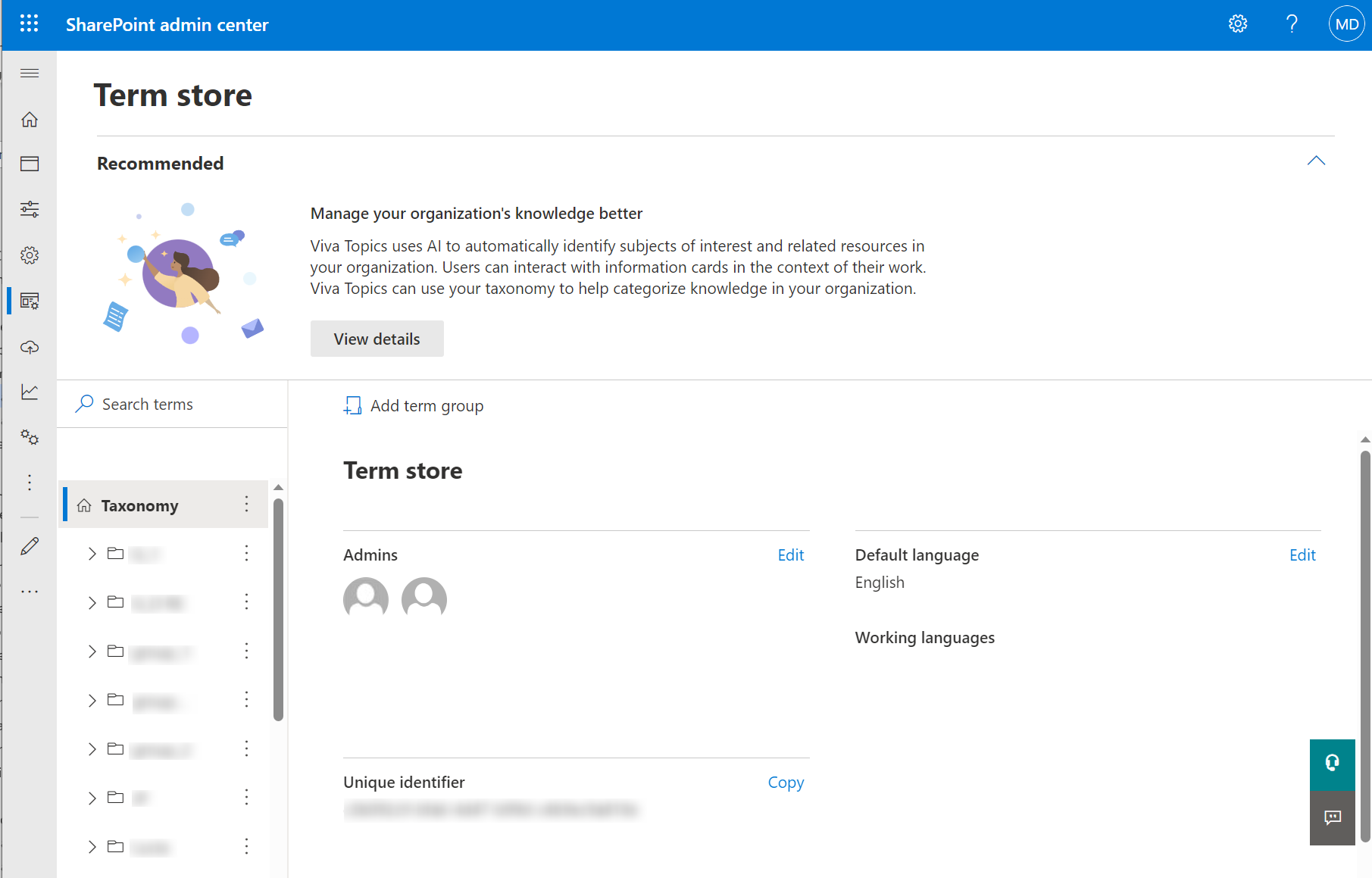
Go to the Term store page in SharePoint admin center and add the migration service account to the Admins.
Exchange Online Migration
Disable Litigation Hold and Single Item Recovery (Optional)
During migrations, if you need to repair the migrated data and overwrite many items, we recommend that you disable both litigation hold and single item recovery on related destination mailboxes. If litigation hold or single item recovery is enabled, when items are deleted or overwritten, Exchange will automatically move those items to the Recoverable Items folder and take up storage there.
Litigation hold is not enabled by default while single item recovery is.
Refer to and for details.
Sample PowerShell Command:
Set-Mailbox -Identity user@contoso.com -SingleItemRecoveryEnabled $false -LitigationHoldEnabled $false
Check destination retention policies
If retention policies are configured for the source data, check to make sure the destination retention policies are the same as the source retention policies. Otherwise, the destination data may be deleted due to different retention policies.
Handle large mail items for migration to destination mailboxes
Lift the EWS throttling restrictions
Microsoft 365 uses throttling to manage Microsoft 365 operations to ensure security and service availability. The throttling limits will affect migration performance. Go to the Microsoft 365 admin center to lift the EWS throttling restrictions.
-
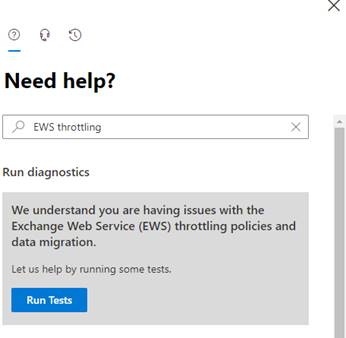
Go to the Help (?) section of the Microsoft 365 admin center.
-
Enter EWS throttling as the search phrase.
-
Click Run Tests when you are asked to check your environment. Essentially, the tests check what EWS throttling applies to the tenant.
-
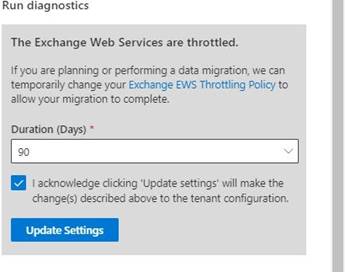
The support assistant checks the tenant settings and concludes that EWS is throttled (the normal situation). You will be offered the chance to update the settings to the tenant EWS policy to lift throttling for 30, 60, or 90 days.
-
Select the number of days to adjust the policy, and then click Update Settings.
-
After a short delay, the support assistant will confirm that the settings have been changed.
Microsoft Teams Chat Migration
Create a placeholder account in the destination tenant
Source chats will be converted to group chats due to API limitations. A placeholder account is required in the destination connection to create the group chats and must meet the following criteria: