Home > SharePoint Online Migration Process > Migration Execution > 1. Configure projects and mappings in Fly
Export to PDF1. Configure projects and mappings in Fly
To configure projects and mappings, refer to and for details.
If there are too many subsites and lists in your site collection, the migration job may fail. When the number of subsites and lists in your site collection exceeds 1000, we recommend that you split sites in the site collection. Fly provides a script for you to automatically split the sites. Refer to the following steps for details:
Click and find the SplitMappings.ps1 script.
Download the SplitMappings.ps1 script to the machine where you want to execute the script.
Open the SplitMappings.ps1 file, and configure the source and destination site collection URLs, and the directory where you want to store the Mapping.csv file generated after running the script. In the Mapping.csv file, URLs of source site collection and sites will be listed in the Source URL column, and their corresponding destination URLs will be listed in the Destination URL column based on the configured destination URL. The source site collection and sites will be migrated based on the file.
$SrcSiteUrl = " "
$DestSiteUrl = " "
$OutputFilePath = "C:***\Mapping.csv"

Save the SplitMappings.ps1 file.
Run the script with PnP PowerShell as administrator. After running the script, the Mapping.csv file will be generated and stored in the configured directory.
Import mappings in bulk to your project by importing the Mapping.csv file.
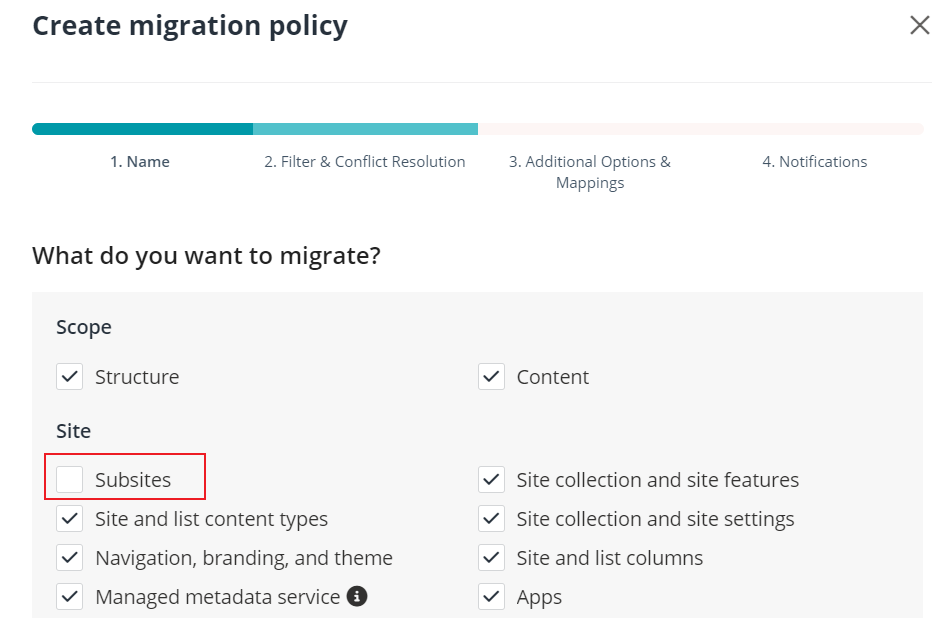
Deselect the Subsites checkbox in the migration policy. Then, you can refer to to run the migration job.
If there are too many subfolders in a folder, the migration job may fail. When the number of subfolders in the folder exceeds 500, we recommend you split subfolders in the folder. Fly provides a script for you to automatically split the subfolders. Refer to the following steps for details:
-
Click and find the SplitMappingForFolder.ps1 script.
-
Download the SplitMappingForFolder.ps1 script to the machine where you want to execute the script.
-
Open the SplitMappingForFolder.ps1 file, and configure the source and destination tenant domain and site collection URLs, the directory where you want to store the Mapping.csv file generated after running the script, and the relative URL of the folder/list you want to split. In the Mapping.csv file, URLs of source subfolders will be listed in the Source URL column, and their corresponding destination URLs will be listed in the Destination URL column. The source subfolders will be migrated based on the file.
-
$SourceTenantDomain = " "
-
$DestnationTenantDomain = " "
-
$SrcSiteUrl = " "
-
$DestSiteUrl = " "
-
$OutputFilePath = "C:***\Mapping.csv"
-
$FolderServerRelativeUrl=" "
-

-
Save the SplitMappingForFolder.ps1 file.
-
Run the script with PnP PowerShell as administrator. After running the script, the Mapping.csv file will be generated and stored in the configured directory.
-
Import mappings in bulk to your project by importing the Mapping.csv file.
-
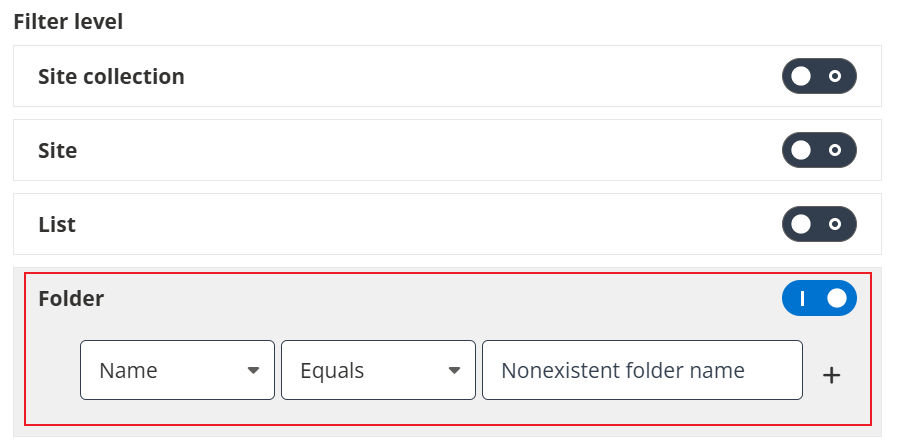
Configure a new project for the parent folder of the split subfolders. Then, configure a folder level filter policy to filter out the subfolders in the folder. Make sure the folder name you configured does not exist in the parent folder. Then, you can refer to to run the migration job.
-