
Home > Power Platform Migration Process > Preparation > 5. Set up required settings in your destination Power Platform environment
Export to PDF#5. Set up required settings in your destination Power Platform environment
#Flows
- To ensure a successful import and consistent Power Platform connection between the source and destination, use the destination service account or the consent user of Fly for Power Platform app profile to create connections in the destination with the same user and the same type as the source connections in advance. (You can refer to the **How to create an end user’s connection for the destination service account** **or the consent user of Fly for Power Platform app profile?** section below for detailed steps.)
For example, end user A creates a flow in the source using an Office 365 Outlook connection of the user A. You may get different migration results of the flow based on the following situations:
- If the destination service account or the consent user of Fly for Power Platform app profile has an Office 365 Outlook connection of user A, Fly will create the flow in the destination using that connection. The trigger and action parameters in the destination flow will be the same as the source flow.
- If the destination service account or the consent user of Fly for Power Platform app profile does not have any Office 365 Outlook connections of user A, Fly will create the flow in the destination using a connection of the destination service account or the consent user of Fly for Power Platform app profile. The trigger and action parameters in the destination flow will be different from the source flow.
- Refer to the following steps to solve this problem:
Go to the page using user A.
Edit the flow to change the connection of the destination service account or the consent user of Fly for Power Platform app profile to user A’s connection.


Change the parameters to the same as the source.


> ***Note**: In this way, the flow’s owner is the destination service account or the consent user of Fly for Power Platform app profile.
- Make sure the objects configured in the source trigger/action parameters can be found in the destination. For example:
- If the parameters are configured with a site collection and a list, the destination must have a site collection with the same relative URL as the source site collection and has a list with the same title as the source list.
> ***Note**: If the destination does not have a SharePoint site collection with the same relative URL, you can configure a site mapping for the source site collection in the migration policy.
- If the parameters are configured with a Team and a channel, the destination must have a Team with the same email address as the source Team and has a channel with the same name as the source channel.
> ***Note**: If the destination does not have a Team with the same email address, you can configure a Team mapping for the source Team in the migration policy.
- If the parameter is configured with an Exchange mailbox folder, the destination mailbox must have a folder with the same name as the source folder.
#Apps
- To ensure a successful import and consistent Power Platform connection between the source and destination, use the destination service account or the consent user of Fly for Power Platform app profile to create connections with the same user and same type as the source connections in advance. (You can refer to the **How to create an end user’s connection for the destination service account** **or the consent user of Fly for Power Platform app profile?** section below for detailed steps.)

	For example, if end user A creates an app in the source using a SharePoint Online connection of the user A and the destination service account or the consent user of Fly for Power Platform app profile has a SharePoint Online connection of user A, Fly will create the app in the destination using that connection. (After the migration, user A needs to manually allow the connection for the app in the destination if the app is accessed the first time. This is a requirement from Microsoft.)

- Make sure the objects configured in the source trigger/action parameters can be found in the destination.

	For example, if the parameters are configured with a site collection and a list, the destination must have a site collection with the same relative URL as the source site collection and has a list with the same title as the source list.

	> ***Note**: If the destination does not have a SharePoint site collection with the same relative URL, you can configure a site mapping for the source site collection in the migration policy.

- The destination Power Platform connection user must have permissions to the parameters configured in the app.

- If the apps are associated with flows, make sure your migration also meet the requirements mentioned in the **Flows** section.
#How to create an end user’s connection for the destination service account or the consent user of Fly for Power Platform app profile?
-
Log in to the Power Automate or Power Apps platform using the destination service account or the consent user of Fly for Power Platform app profile.
-
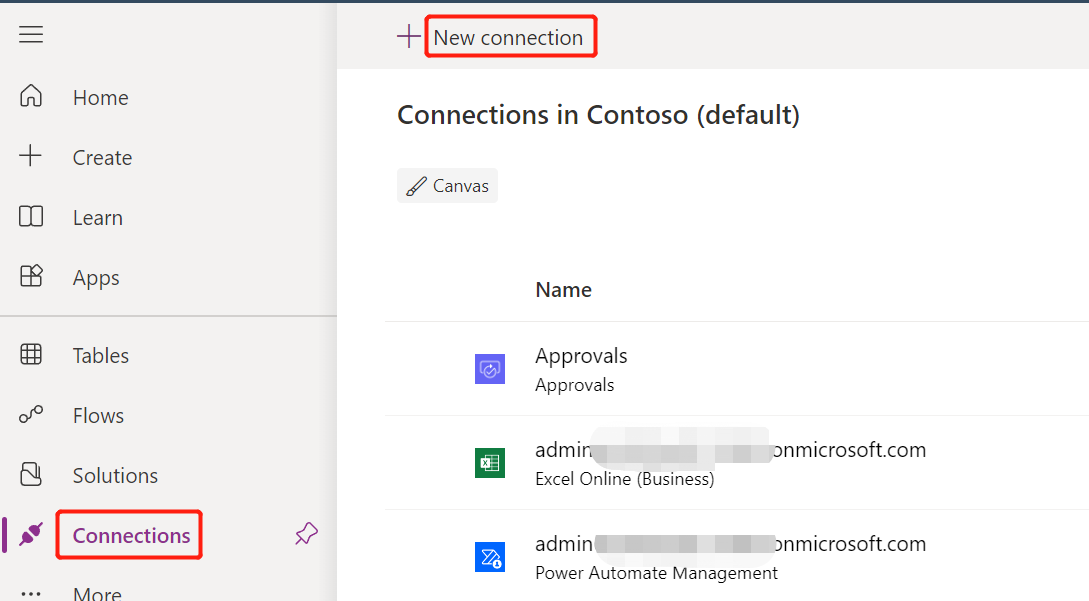
Click Connections in the left navigation, and click New connection.
-
Select a connection type.
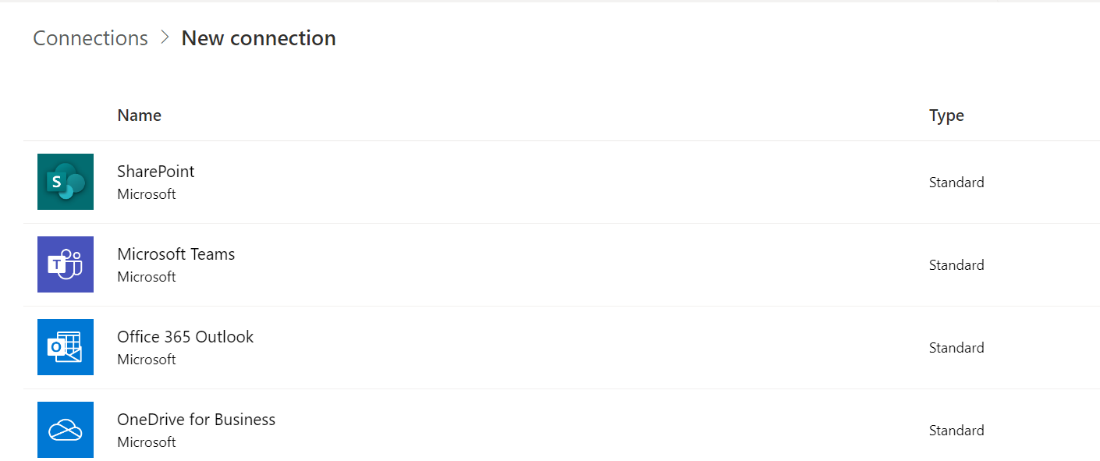
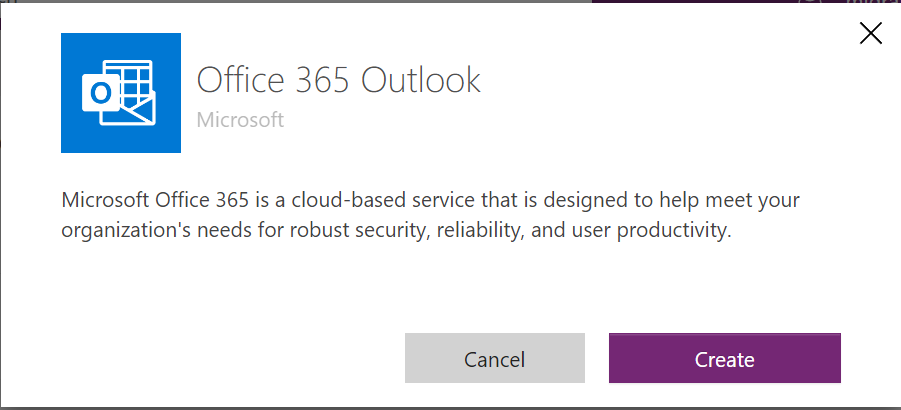
For example, Office 365 Outlook.
-
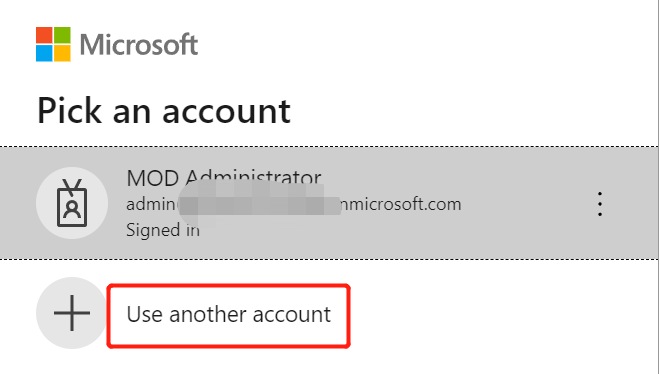
Select Use another account and sign in with the end user of the connection.
On this page