
Home > Manage Projects
Download this articleManage Projects
On the Projects page, you can have an overview of projects.
Overview
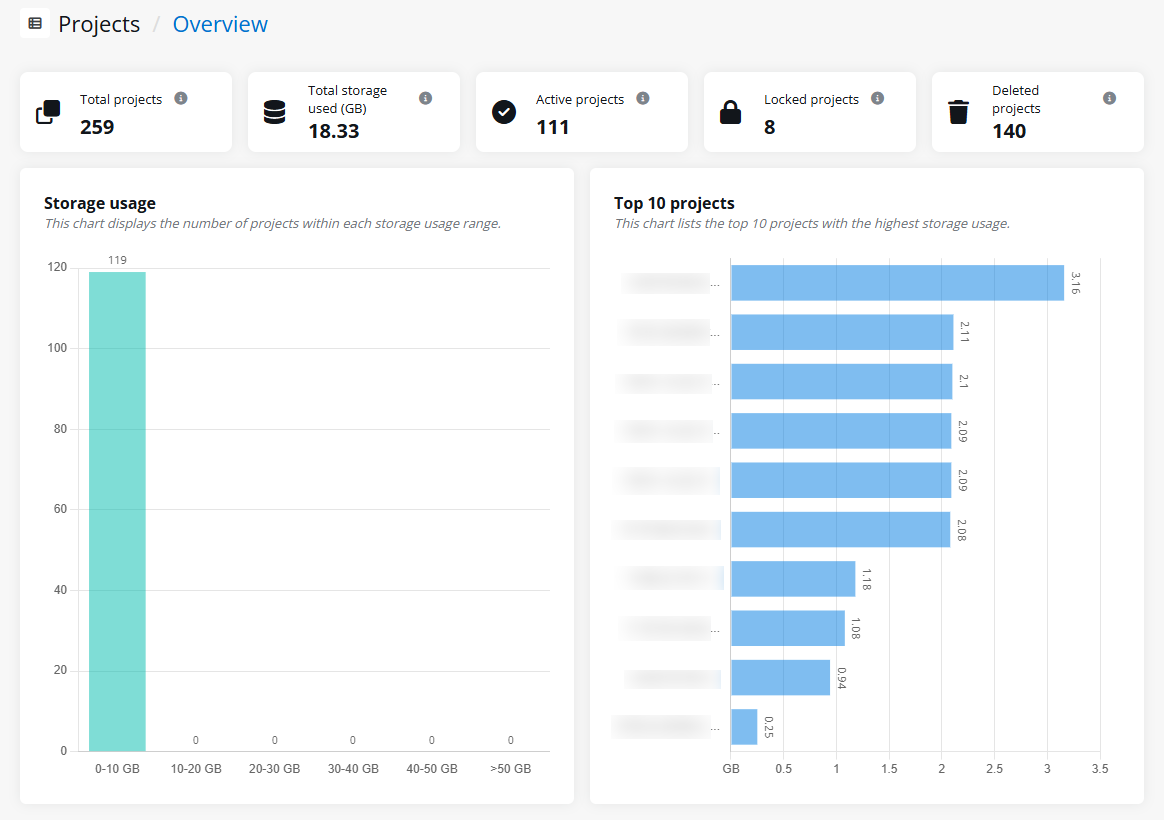
On the top of the Overview tab, you can view the number of total projects in your tenant, the total storage used by all projects, the number of active projects, the number of locked projects, and the number of deleted projects.
In the Storage usage section, the numbers of projects within storage usage ranges are displayed in the chart.
In the Top 10 projects section, you can view the top 10 projects that have the highest storage usage, as well as the storage used by each of these projects.
Details
Under the Details tab, projects in your tenant are categorized under the Active projects and Deleted projects tabs according to their statuses.
The following actions are available under both tabs:
-
Refresh – Click Refresh to refresh the project list.
-
Search – Enter the project name in the search box and click the magnifying glass button or press Enter to search for the specific project.
-
Manage columns – Click the Manage columns button in the upper-right corner of the table, and the drop-down list where all available columns are displayed appears. Select the columns that you want to display in the table and click Apply to apply the column selection. You can also choose Select all to show all columns in the table.
-
Filter – Click the Filter button in the upper-right corner of the table, and the Filter window appears in the right pane. All columns that are available for the filter are listed below. Click the down arrow button to the right of a column to show the text box or selectable options. Enter keywords in the text box and/or select desired options to define the filter conditions. Click Apply to filter projects displayed in the table.
Active Projects
You can view active projects under this tab and perform the following actions.
Click Project settings in the upper-right corner of the page, and make the following configurations for all projects:
-
Click the toggle button to the right of File version history to show file version history. Then, enter a number under Version count limit to define the maximum number of versions a file can have. Oldest versions of a file will be deleted when the number of versions exceeds this limit.
-
For Storage, you can choose to share storage among all projects, or control storage limits by project.
-
Automatic – Select Automatic to allow projects to use as much of your organization’s storage as they need.
-
Manual – Select Manual and enter a number to set the limit for each project.
To set a storage alert globally, select Storage alert and enter a number as the storage threshold. When this threshold is reached, Project Admins, primary contacts, and secondary contacts will be alerted via email notifications.
-
-
For User settings, you can set a limit on the user count for each project and choose whether to an inactivity period to auto delete inactive users.
-
User count limitation
-
Unlimited users in each project – Select this option to allow adding as many users as possible to each project.
-
Users in each project cannot exceed – Select this option and enter a number to set the user count limit for each project.
-
-
Delete inactive users
-
Delete users manually – Select this option to only manually delete users.
-
Auto delete users after the following period of inactivity – Select this option and set the inactive period. Users that have no activity after this period will be regarded as inactive users and will be automatically deleted from projects.
Select Send email notification upon deletion to send email notification to inactive users when they have been deleted.
-
-
Guest user invitation
-
Allow – Select this option to allow guest users to be added to the Administrators group of projects.
-
Block – Select this option to block guest users from being added to the Administrators group of projects.
-
-
-
For Retention policy, you can choose to allow users to manually delete projects and files or automatically delete projects and files after a retention period.
-
Project level retention
-
Delete projects manually without retention – Do not apply the retention policy and users can manually delete their projects.
-
Retain projects for a period before auto deletion – Apply the retention policy. When creating a project, users must configure a close date for it. After the close date, the projects will enter the retention period and will be automatically deleted once the retention period expires.
-
-
File level retention
-
Delete files manually without retention – Do not apply the retention policy and users can manually delete their files.
-
Enable retention for project files – Apply the selected retention policy for project files. For more information about retention policy, refer to Manage File Level Retention Policies.
-
-
To edit user settings for a project, select the project and click Edit user settings. In the Edit user settings window, the following settings are available. Click Save to save your changes.
-
Maximum user count – Enter a number to define the maximum user count for the project. Users will not be able to be added to the project when the user count limit is reached.
-
Delete inactive users – Select Auto delete users after the following period of inactivity and set the inactive period. Users that have no activity after this period will be regarded as inactive users and will be automatically deleted from the project.
Select Send email notification upon deletion to send email notification to inactive users when they have been deleted.
Alternatively, select Delete users manually to only manually delete users without auto deletion.
-
Guest user invitation – Select Allow to allow guest users to be added to the Administrators group of projects, or select Block to block guest users from being added to the Administrators group of projects. You can further select Remove existing guest users from project administrators to remove existing guest users from the Administrators group of projects when you block guest users.
Select a project and click Edit storage quota, Edit file version settings, Edit retention policy, IP address restriction, or Edit Business Owner to edit its storage quota, file version settings, project level and file level retention policies, IP address restriction, or Business and/or Project Lead individually.
With an available Cloud Governance subscription, the following actions are also available:
-
Apply renewal profile – Select one or multiple projects and click Apply renewal profile. In the prompted window, select a renewal profile from the drop-down list. Confide project renewal profiles created in Cloud Governance will be synchronized and displayed here. For more information, refer to Manage Profiles for Confide Projects.
Then, select how do you want to handle projects that have ongoing renewal tasks.
-
Do not apply the new profile to these projects
-
Cancel all ongoing renewal tasks and apply the new profile
Click Save to save the renewal profile for the projects.
-
-
Restart renewal – Select the project you would like to restart the renewal process, and click Restart renewal. If the project has a renewal task generated, you can choose whether to inform the task assignee about the task cancellation by selecting or deselecting the Send a cancellation email to the task assignees option.
In the confirmation window, click Restart. The process will start to restart the renewal process for the selected project.
-
Auto-complete renewal – Select the project in the following renewal status that you would like to auto-complete the renewal process, and click Auto-complete renewal: Renewal in progress, Renewal pending, Renewal overdue, or Renewal completed with exception.
In the Auto-complete window, select In compliance or Renewal canceled to indicate the phase status of the auto-completed renewal. You can choose whether to inform the task assignee about the auto-completed renewal by selecting or deselecting the Send a cancellation email to the task assignees option. Click Complete. The process will start to auto-complete the renewal process for the selected project.
For the projects that are managed by Cloud Governance, you can edit the primary contact and secondary contact of a project by selecting the project and click Edit contact.
Deleted Projects
You can view deleted projects under this tab, which can be restored within 30 days after their deletion. Click Refresh to view the latest deleted projects.
To restore a project, select it and click Restore.
Custom Project Properties
On the Custom project properties page, you can create custom project properties for users to use while creating new projects.
Refer to the following steps to create a project property:
-
Click New project property.
-
Enter a name and an optional description for the property.
-
Select Single line of text or Choice to indicate the property type.
If you select Choice, define each choice on a separate line in the text box.
-
Select the Required property box if the property value is mandatory for the project.
-
Click Save to create the project property
To edit an existing project property, select the property. Click the ellipsis button and click Edit.
To delete an existing project property, select the property. Click Delete, or click the ellipsis button and click Delete.
You can also search for the project properties by the property name and filter project properties by Type and Required property.