
Home > Get Started > Setup of AvePoint Cloud Index App in SharePoint Online Sites
Download this articleSetup of AvePoint Cloud Index App in SharePoint Online Sites
Site collection administrators can refer to the sections below to complete the setup in SharePoint Online sites.
Get the AvePoint Cloud Index App
Follow the steps below to get the AvePoint Cloud Index app.
-
Sign in to AvePoint Online Services.
-
Navigate to the AvePoint Cloud Index interface to download the AvePoint Cloud Index app file.
-
If this is the first time you are accessing AvePoint Cloud Index, or you have not configured Gateway Settings before, you will be brought to the Gateway Settings page directly. Click the download link to download the AvePoint Cloud Index app file.
-
If you have configured Gateway Settings, click the Settings (gear) button on the upper-right corner of the page and select Gateway Settings from the drop-down list to access the Gateway Settings page. Click the download link to download the AvePoint Cloud Index app file.
-
Create an App Catalog Site with the AvePoint Cloud Index App
Follow the steps below to create the App Catalog site.
-
Sign in to Microsoft 365 with the SharePoint Admin account.
-
Click the app launcher to select Admin in the Apps section to access the Admin Center.
-
On the left pane, click Admin centers to expand it and select SharePoint to access SharePoint admin center.
-
Click More features on the left pane, and click Open in the Apps section.
-
On the Manage apps page, click Upload.
-
Select the downloaded AvePoint Cloud Index app file and upload it.
-
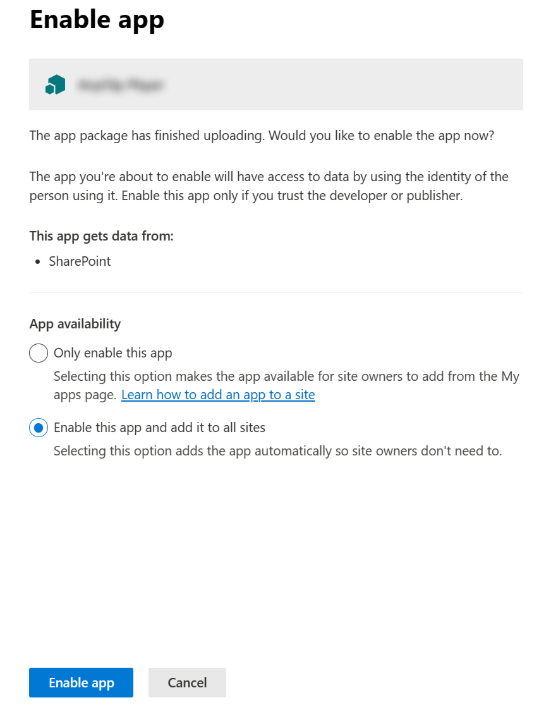
Once the app is successfully uploaded, the Enable app panel appears. In the App availability section on the Enable app panel, select a method from the following:
-
Only enable this app
-
Enable this app and add it to all sites
NOTEIf you select Only enable this app, you need to consent to the app when you Add the AvePoint Cloud Index App to a SharePoint Online Site. If you select Enable this app and add it to all sites, you can directly add the app to SharePoint Online sites.
-
-
Click Enable app.
-
In the Approve access so this app works as designed panel, click Go to API access page.
-
On the API access page, expand Pending requests and Organization-wide sections, select the AvePoint Cloud Index for M365 package, and click Approve.
-
In the Approve access panel, click Approve. The table below lists the required permissions for your review.
| Cloud Index Feature | API Name | Permission (description) | Type | Purpose |
|---|---|---|---|---|
| General Settings > Permission Management > Trim permissions from the SharePoint site where the Cloud Index App Part resides on the SharePoint side | SharePoint | AllSites.Read (Read items in all site collections) | Delegated | Retrieve information from all site collections to check if the current login user is the Site Administrator. |
-
On the authorization page, click Accept.
-
The admin consent is successful and you can close the page.
Add the AvePoint Cloud Index App to a SharePoint Online Site
Follow the steps below to add the AvePoint Cloud Index app to SharePoint Online site pages.
-
Log in to the SharePoint Online site where you want to add the AvePoint Cloud Index app with the site collection administrator account.
NOTEThe AvePoint Cloud Index app can only be deployed to Site pages. It is unsupported on pages of other types.
-
Click the Settings (gear) button on the upper-right corner of the site page and select Site contents from the drop-down menu. The Site contents page appears.
-
Click New > App, and the My apps page appears. Click From my organization on the left pane of the page.
-
Click the AvePoint Cloud Index app and then click Trust It in the pop-up window to add the app.