
Home > Configure Administration Settings > Settings in Microsoft Teams
Download this articleSettings in Microsoft Teams
Users who have the Allow members to add and remove apps permission can add the Cloud Index app and configure the settings in Teams.
Add the AvePoint Cloud Index App to Teams Channel
Complete the steps below to add the Cloud Index app to your team.
-
Sign in to Microsoft Teams.
-
Select a team, and then a channel under this team.
-
Click the Add a tab (plus) icon to add a tab.
-
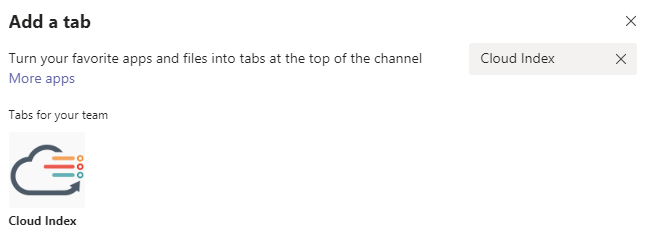
In the Add a tab window, enter Cloud Index in the Search box.
-
In the search results, click Cloud Index.
-
Read the app introduction and privacy and permissions thoroughly.
-
Click Install, and the page will differ according to the following cases.
-
If this is the first time you are using Cloud Index, it will bring you to the AvePoint Online Services login page. In this case, you must first sign up in AvePoint Online Services and set up the AvePoint Cloud Index Gateway Admin in your on-premises environment. Refer to Integration with AvePoint Online Services and Setup of AvePoint Cloud Index Gateway Admin in On-Premises Environments for details.
-
If you have already been invited into AvePoint Online Services and configured the AvePoint Cloud Index Gateway Admin, you will be brought to the Sign In page.
-
-
Click Sign In, and enter your credentials of AvePoint Online Services. The Cloud Index app would like to request your permissions listed in the pop-up window. Click Accept to empower the permission.
-
The Cloud Index settings page appears, choose a path, and then only the documents in the specified path will be displayed in the app.
-
Connection – Select a connection from the drop-down list. After you select a connection, the full path of the connection will be displayed next to the Path field.
If your desired path does not belong to any connection in the drop-down list, you can contact your IT administrator for assistance.
-
Path (Optional) – If you want to only display documents in a subset of a connection, you can detail the connection path down to a subfolder under it. Enter a subdirectory name of the path in the text box.
For example, if the connection path is \10.0.1.1\c$\US Technical Writing and the folder path you want to display in the App part is \10.0.1.1\c$\US Technical Writing\AvePoint Online Services\PDFs, you should enter AvePoint Online Services\PDFs in the text box.
-
-
Click Save to save your settings, or click Cancel to discard your settings without saving any changes. Then, the Cloud Index app will be added as a tab in your channel.
Configure Settings for Cloud Index App
Follow the steps below to reconfigure the settings of the Cloud Index app after you have added it into your channel.
-
In your Cloud Index app, locate the Cloud Index tab and click Tab options (down arrow) next to the tab name. The Tab options list appears.
-
Click Settings from the drop-down menu. The Settings page appears. You can change the connection and/or path for the app by the following guidance.
-
Connection – Select a connection from the drop-down list. After you select a connection, the full path of the connection will be displayed next to the Path field.
If your desired path does not belong to any connection in the drop-down list, you can contact your IT administrator for assistance.
-
Path (Optional) – If you want to only display documents in a subset of a connection, you can detail the connection path down to a subfolder under it. Enter a subdirectory name of the path in the text box.
For example, if the connection path is \10.0.1.1\c$\US Technical Writing and the folder path you want to display in the App part is \10.0.1.1\c$\US Technical Writing\AvePoint Online Services\PDFs, you should enter AvePoint Online Services\PDFs in the text box.
-
-
Click Save to save your settings, or click Cancel to discard your settings without saving any changes. Then, the Cloud Index app will be added as a tab in your channel.