Home > About MyHub > MyHub Teams App
Download this articleMyHub Teams App
MyHub can be used as a personal app in Microsoft Teams. End users can find MyHub in the Teams app store and add MyHub to their Teams client. As an administrator, you can pin MyHub to the app bar in Teams, so that end users do not need to manually add the app.
When the MyHub app is added to users’ Teams clients for the first time, they can receive notifications from MyHub automatically. If you want to manually turn on notifications for the existing users with the app added before, you can use PowerShell commands to turn on notifications for each user. When you loop through the second command, it will trigger an event from Microsoft to fetch each user's chat ID, and then the notification will be turned on automatically for each user. Refer to the instructions below.
-
Use the following HTTP GET request to get your MyHub app’s {teamsAppInstallationId}:
-
Use the {teamsAppInstallationId} you get from the above step and turn on the notification for a specific user using the following request (permission—TeamsAppInstallation.ReadWriteSelfForUser.All):
NOTEA Teams event will be triggered with this request and the MyHub server will get the user’s Chat ID through the process and turn on notification automatically for the user.
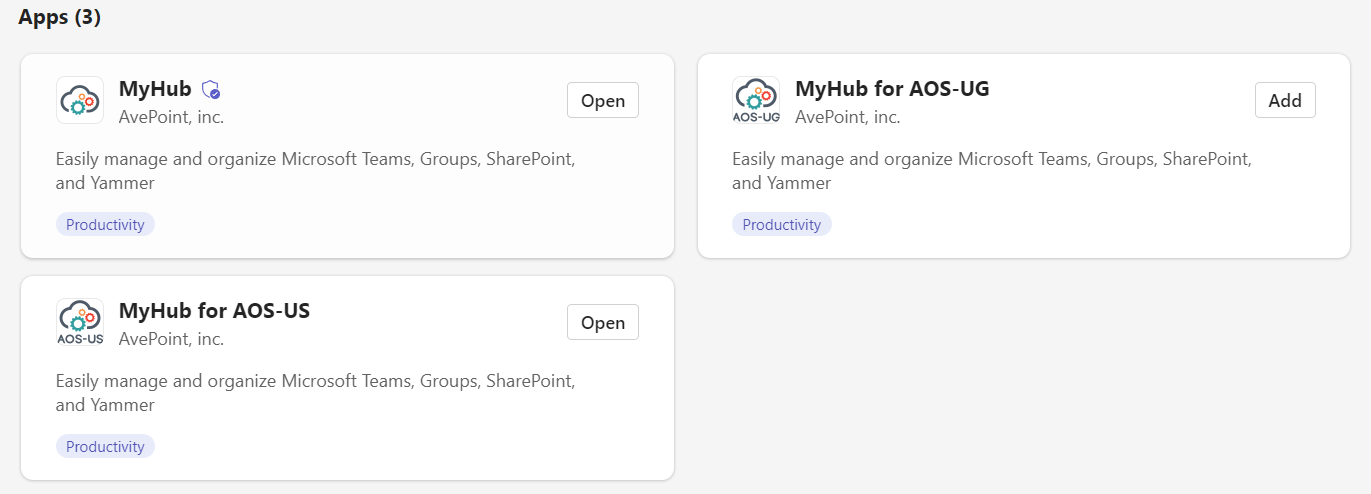
In the Microsoft Teams app store, the MyHub app is available for the MyHub commercial production environment and 21Vianet environment, the MyHub for AOS-US app is available for the MyHub US Government production environment, and the MyHub for AOS-CN app is available for the MyHub 21Vianet production environment.
If your tenant uses the MyHub Insider or or FedRAMP (Moderate) Authorized cloud environment, you need to manually publish the MyHub app to your tenant apps catalog. To obtain the link to the app package, you can Download the MyHub App Package based on your environment. The latest version of the MyHub Teams app is version 1.2.0. For FedRAMP environments, this is required due to Microsoft restrictions on the direct installation of third-party apps.
Preparations
To ensure your end users can successfully add the MyHub app to their Teams client, make sure the following configurations in the Teams admin center are in place:
-
Teams apps > Manage apps > Org-wide app settings – In the Third party apps section, make sure Third party apps option is turned on.
-
Teams app >Manage apps – Select the MyHub app and click Assign. Then, manage who can install the app in the Assign app panel.
-
Messaging policies > The Global (Org-wide default) policy – Make sure the Chat option is turned on.
Pin the App to the Teams App Navigation Bar
As a Microsoft 365 Global Administrator or Teams Service Administrator, you can configure the app setup policy to pin the MyHub app to the app bar in Teams. After you pin the app to the app bar, the app will be added to the Teams clients for all users who are assigned with the app setup policy.
-
Sign in to the Microsoft Teams admin center using your Global Administrator or Teams Service Administrator credentials.
-
Navigate to Teams apps > Setup policies.
-
If you want to pin the app for all users in your tenant, edit the Global (Org-wide default) policy. If you only want to pin the app for specific users, create a custom policy and assign them to a set of users. For details on how to assign a custom policy to users, see the Microsoft article Assign a custom app setup policy to users.
NOTEAfter you edit the Global (Org-wide default) policy or assign a policy, it can take up to 24 hours for changes to take effect.
-
In the Pinned apps section, complete the following steps:
-
Click Add apps.
-
In the Add pinned apps panel, enter MyHub in the search box, select the MyHub app, and then click Add.
-
Click Add at the bottom of the panel.
-
-
You can also set the order in which apps are pinned in the app bar. Select the app and click Move up or Move down.
-
Save the app setup policy.
Customize MyHub
As a Microsoft 365 Global Administrator or Teams Service Administrator, in the Teams admin center, you can customize the icon, name, or description of the app.
For more details about customizing the app, refer to Customize apps in Microsoft Teams.
-
Navigate to Teams apps > Manage apps.
-
Find the MyHub app.
-
Choose one of the following methods to customize the app.
-
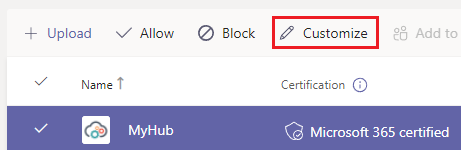
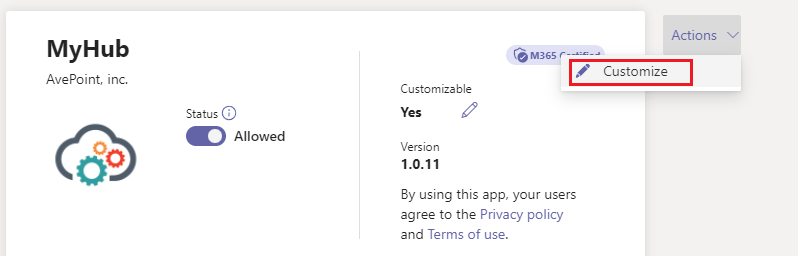
Select next to the app, and then click Customize.
-
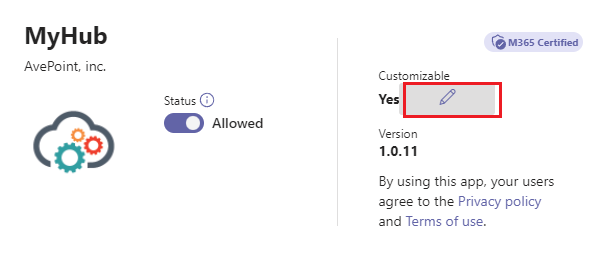
Select the app name and then Customizable.
-
Select the app name, and then select Customize from the Actions drop-down list.
-
-
The Customize pane will appear on the right, and you can customize the following details:
-
Short name
-
Short description
-
Full description
-
Color icon
-
Outline icon
-
Accent color
-
-
After you finish customizing the app, click Apply.
-
Click Publish to publish the customized app.
Consent Permissions Requested by MyHub Teams App
To enable single sign-on to the MyHub Teams app, the Microsoft 365 Global administrator can consent the permissions requested on behalf of your organization. Users in your organization will no longer be required to consent individually when they log in to the MyHub Teams app.
This is only required if you want to use the MyHub Teams app without a MyHub app profile configured in AvePoint Online Services.
-
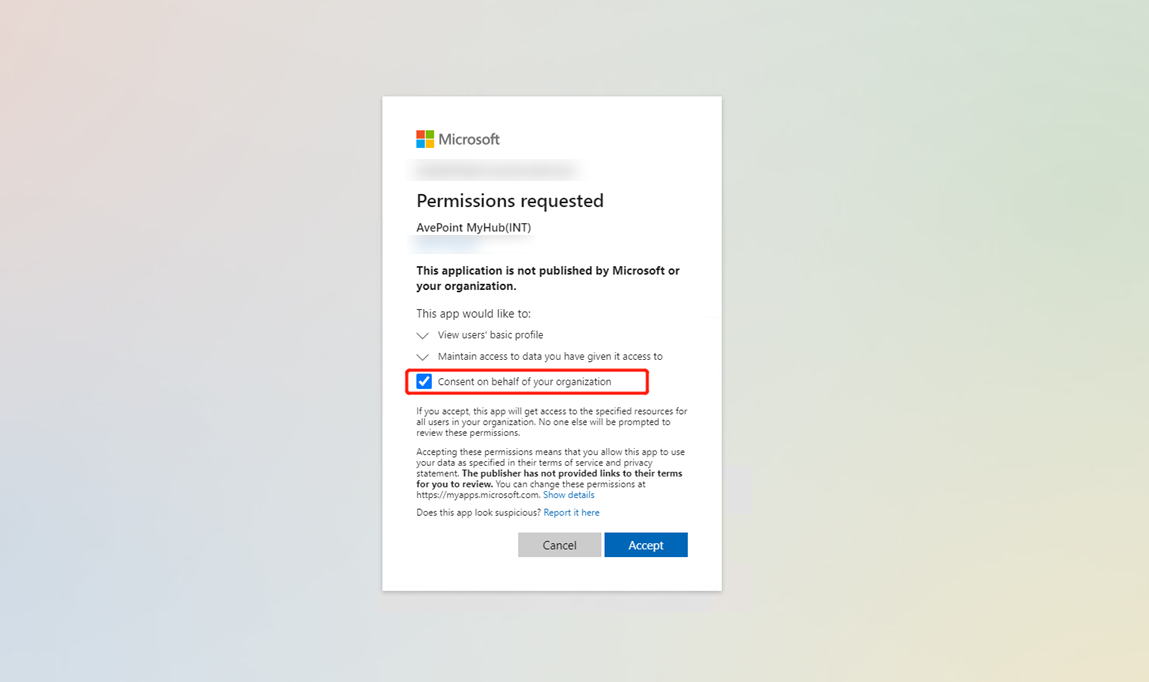
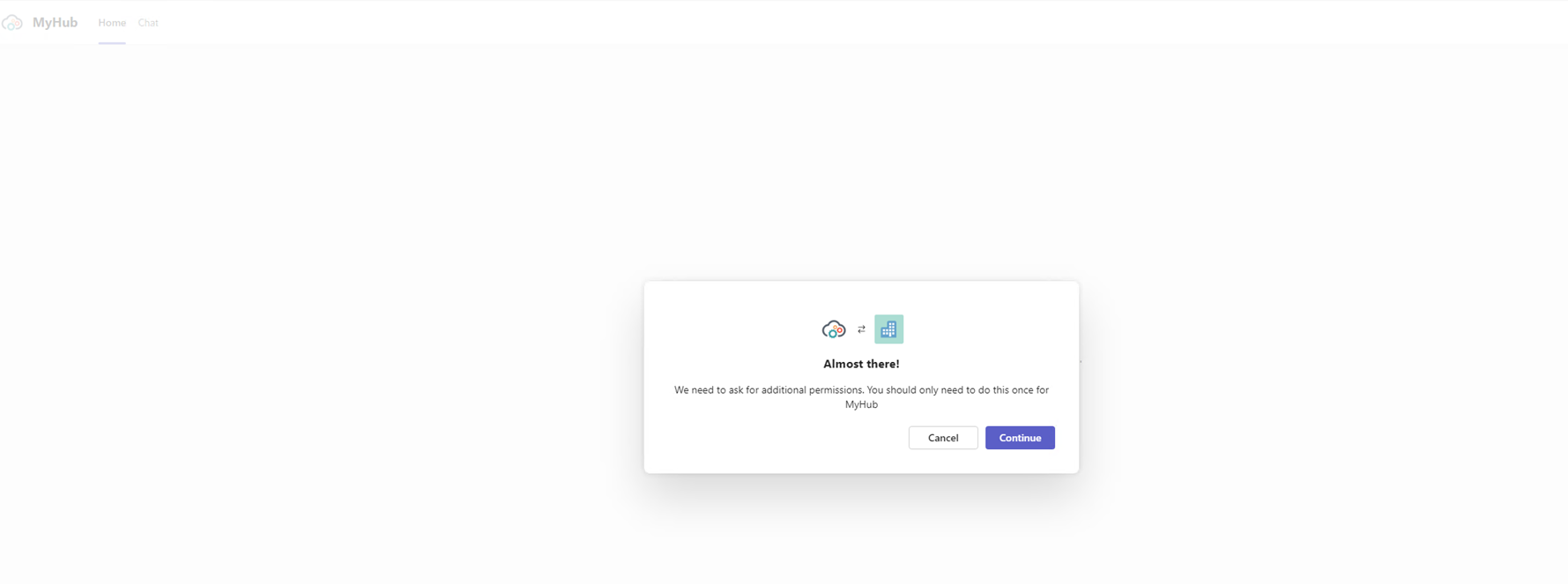
Upon your first login to the MyHub Teams app, the following message appears asking you to consent permissions requested by MyHub. Click Continue in the message.
-
Select Consent on behalf of your organization and click Accept. The following Microsoft Graph delegated API permissions will be consented: profile, offline_access, email, and openid.