
Home > Reports > View and Export License Reports > View AI License Report
この記事をダウンロードAI Agent Licenses and Usage
Copilot agent usage may incur pay-as-you-go charges when users interact with agents without a Microsoft 365 Copilot license. Although platform limitations prevent full agent-level cost calculations, Cense helps you identify strong candidates for Copilot licenses based on actual usage patterns.
To access the license report page where you can check AI agent licenses and usage, go to License report and then click the AI agents tab.
To enable the display of this tab:
-
A tyGraph subscription is required. For more details on AvePoint tyGraph, contact your sales representative.
-
Enable the Copilot adoption data display in Settings > General.
In this tab, the following sections are available:
-
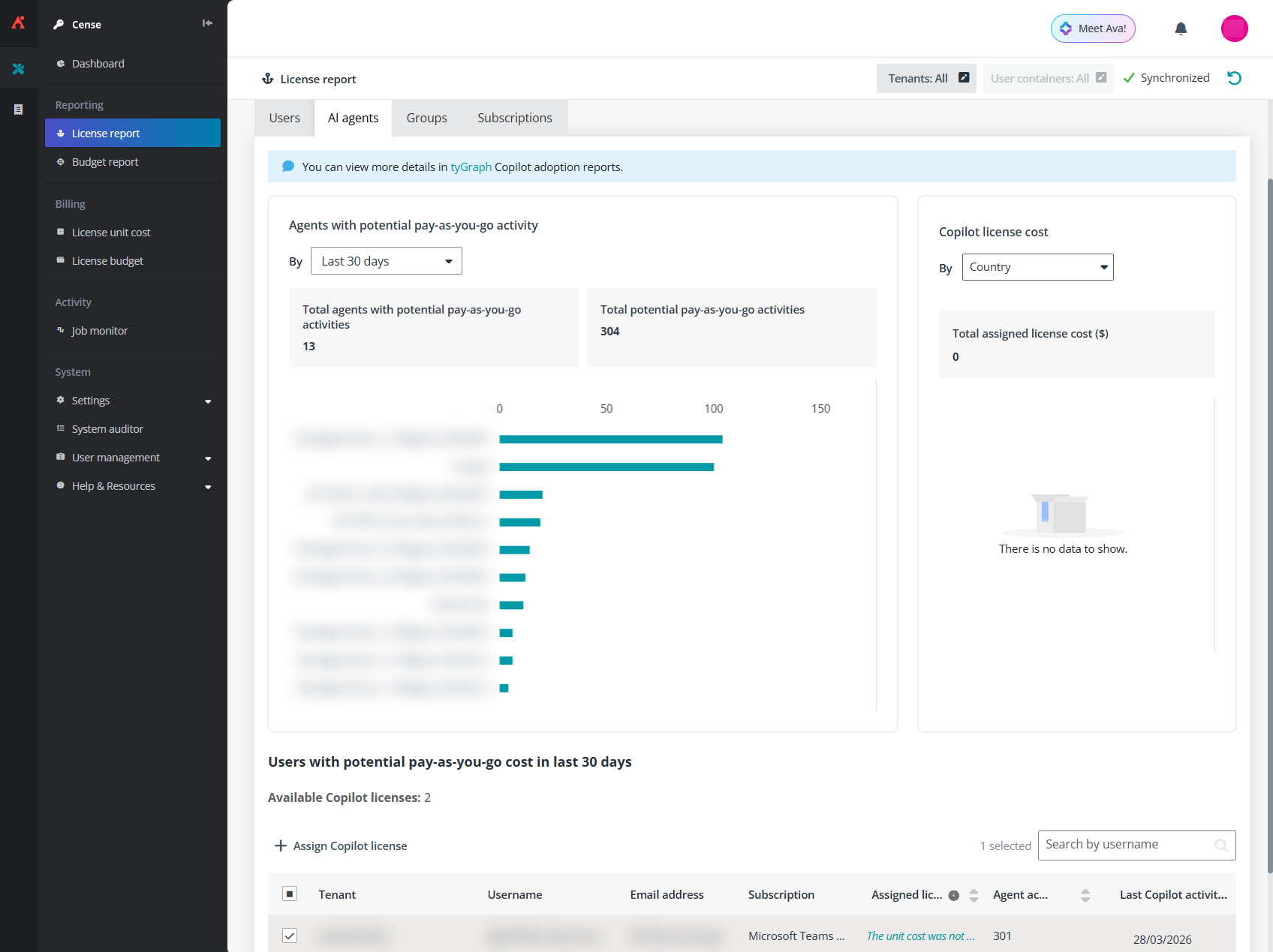
Agents with potential pay-as-you-go activity - This chart highlights agents that have activity from users without Copilot licenses, helping you identify where pay-as-you-go costs may occur.
On the top of the chart, Total agents with potential pay-as-you-go activities and Total potential pay-as-you-go activities are displayed.
In the bar chart, the x-axis displays the number of agent activities while the y-axis displays the agent names.
-
Use the date range filter above the chart to adjust the reporting period.
-
By clicking the agent name, you can go to tyGraph to check the agent details.
-
-
Copilot license cost - This chart shows how Copilot license costs are distributed across different user attributes.
On the top of the chart, Total assigned license cost is displayed.
Use the dropdown list above the chart to select the user property you want to use for the cost breakdown. The chart updates based on your selection.
-
Users with potential pay-as-you-go cost in last 30 days - This table lists users who interacted with agents without a Copilot license during the past 30 days.
You can also view the number of Available Copilot licenses in your tenant and select one or more users to assign Copilot licenses to them directly.
To assign licenses, follow the steps below:
-
Select one or more users in the table. The number of users selected cannot exceed the number of available Copilot licenses displayed above.
-
Click Assign Copilot license.
-
In the confirmation window, confirm the assignment.
-