
Home > Get Started > Create App Profiles or Microsoft 365 Service Account Profiles
この記事をダウンロードCreate App Profiles or Microsoft 365 Service Account Profiles
To use AvePoint Cense, you need to create app profiles for authentication and data collection.
Create App Profiles
For common functionalities in AvePoint Cense, app profiles are required for data retrieval and authentication. For the functionalities in Cense, you need to create one of the following apps in AvePoint Online Services:
-
Cense service app – The service app that includes all required permissions for AvePoint Cense. You can create this app in Modern mode in AvePoint Online Services > App management. If you have multiple app profiles created for Cense, this app profile is used by default.
The following service apps are now available for Cense:
-
Cense - This app is required for basic license management and data retrieval. For the list of permissions that require consent, refer to Permissions Required by Common License Management.
-
Cense Microsoft Foundry - This app is required for Microsoft Foundry budget management and reporting. For the list of permissions that require consent for this app, refer to Permissions Required by Microsoft Foundry Management.
NOTETo enable the service app to track the costs of Azure subscriptions and related agents, the AvePoint Cense Foundry app needs to be added to each Azure subscription and have the following roles assigned:
- Reader
- Azure AI Developer
- Foundry User
- Cost Management Reader
For detailed step on assigning the roles, refer to Assign Required Roles to Cense Microsoft Foundry App.
-
-
Microsoft 365 and Microsoft Entra ID apps – These apps include the permissions required for AvePoint Cense and other services that support this app type. Both the Microsoft 365 app and the Microsoft Entra ID app are required for Cense functionality if you are not using the Cense service app or a custom Azure app. They can be created in the Classic mode in AvePoint Online Services > App management.
-
Azure app – An app for which you can customize the granted permissions. You can use a custom Azure app to meet compliance requirements. This app can be created in the Custom mode in AvePoint Online Services > App management.
Assign Required Roles to Cense Microsoft Foundry App
After the Cense Microsoft Foundry app is configured with the required API permissions, an app named AvePoint Cense Foundry will be created in your environment. You need to assign the following roles to the app in order for it to access Microsoft Foundry license usage and cost data:
- Reader
- Azure AI Developer
- Foundry User
- Cost Management Reader
To assign roles to the app, complete the following steps:
-
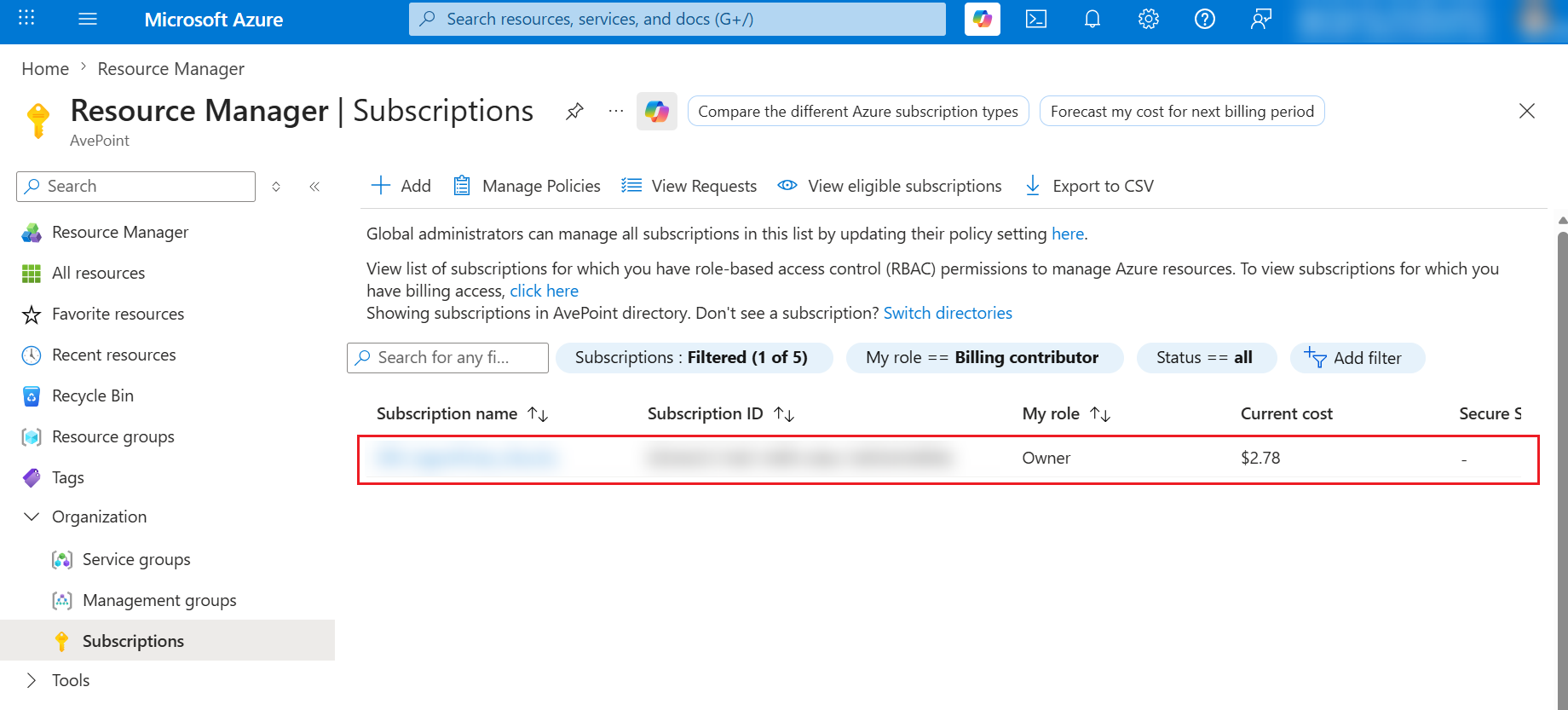
In the Azure portal, go to the Subscriptions page and click the subscription to track in Cense.
-
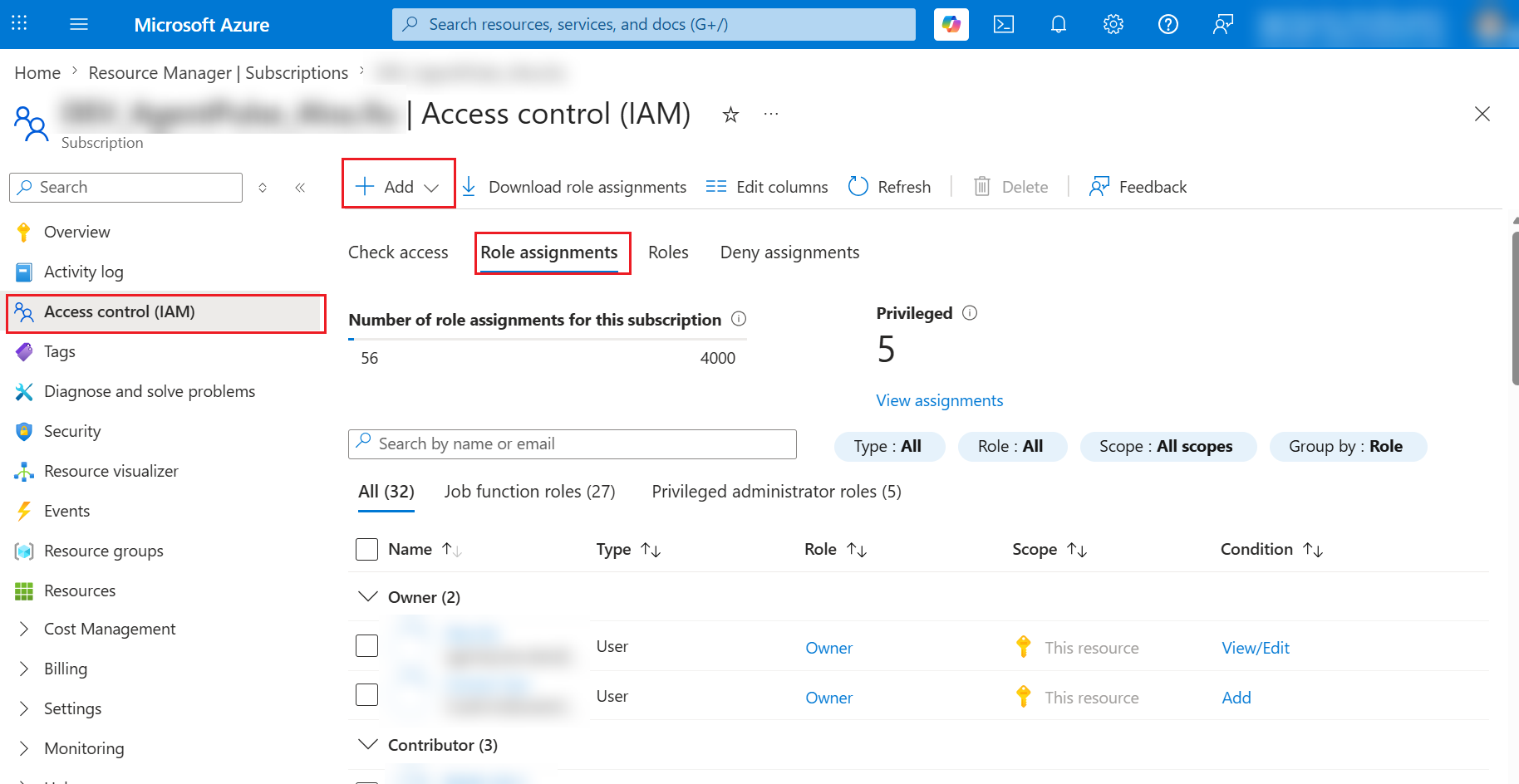
Click Access control (IAM) on the left pane.
-
In the Access control (IAM) > Role assignment tab, select the role to assign to the app and click Add.
-
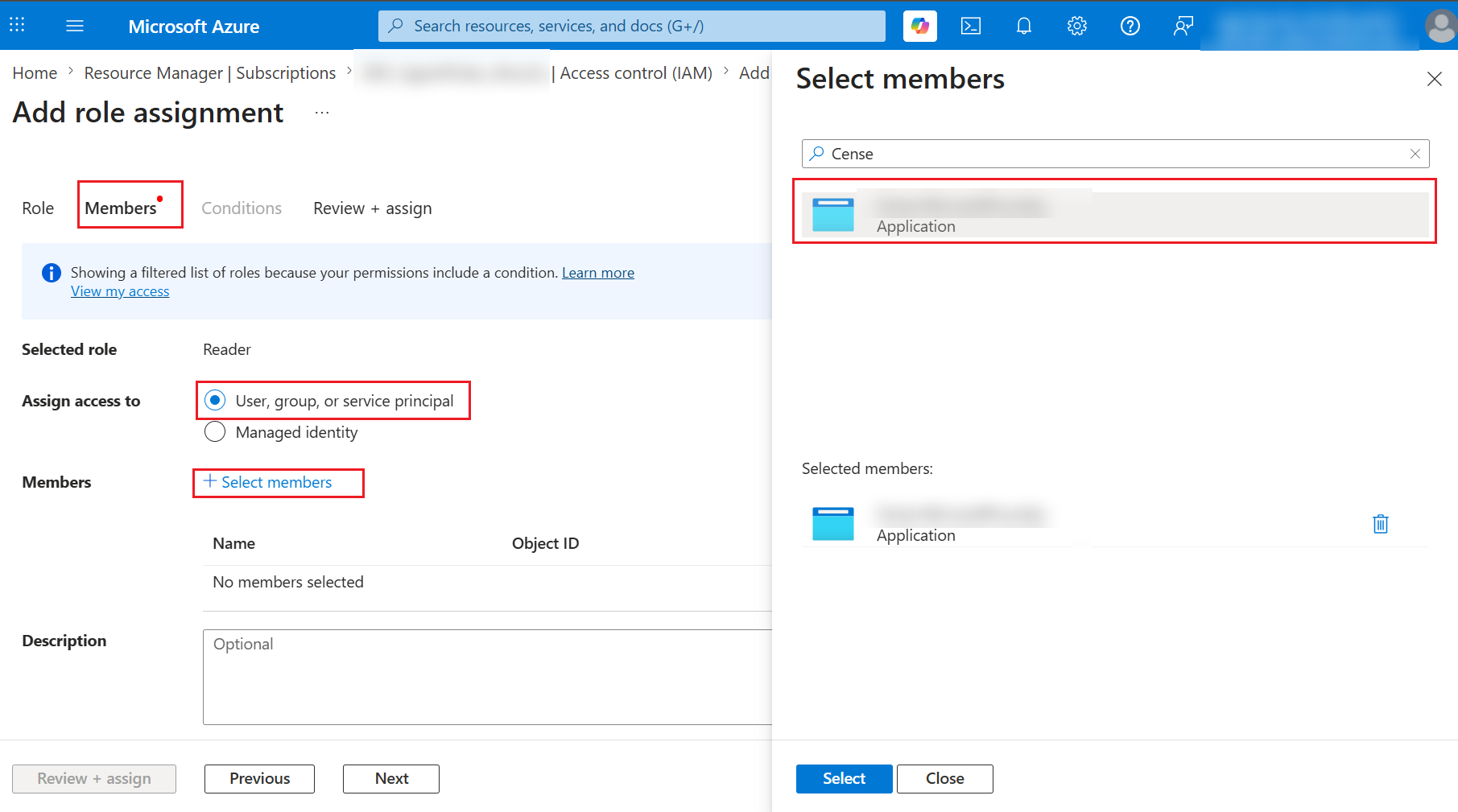
On the Add role assignment page, select User, group, or service principal option in the Assign access to field.
-
Click Select members in the Members field and then select the AvePoint Cense Foundry app in the member selection panel and click Select.
-
Repeat this process until the app is added as member of all four required roles.
Create Service Account Profiles
To include user properties related to mailbox usage in the exported license reports, such as mailbox size and mailbox archive status, you need to create a service account profile in AvePoint Online Services with the SharePoint Administrator and Exchange Administrator roles.
The Exchange Administrator role is required for retrieving mailbox-related user properties in the License report.
The SharePoint Administrator role is required by the scheduled export of license reports to the specified SharePoint library.
- Your service account configuration in AvePoint Online Services can only be retrieved and validated when you have configured an app profile in the same tenant.
- To retrieve users’ MFA status, the service account leveraged needs to have the Global Administrator role.