
Home > Role Management
この記事をダウンロードRole Management
Refer to the following sections to create and manage roles for workflows.
Create Roles
Refer to the following steps to create roles:
-
Click Role management on the left navigation to access the Role management page.
-
Click Create. The Create role panel appears.
-
Enter a name for the role.
-
Enter an optional department, job title, and description for the role.
-
Configure criteria for the role. Refer to Appendix - Supported Criteria for Roles to select criterion from the drop-down list, or manually enter the property and property value in the corresponding text box. Users whose properties in Microsoft Entra ID meet the configured criteria will be mapped to the role. Click Add criterion to add one more criterion. Click the Delete button next to a criterion to remove a criterion. You can also click Add criteria group to add a criteria group.
If you only configure one criteria group and configure multiple criteria in the group, you can define the criterion level condition for users who will be mapped to the role. By default, the condition is All of these criteria are true, which means only users who meet all criteria in the group will be mapped to the role. You can click All to change the condition to Any of these criteria are true. Then, users who meet any of the criteria in the group will be mapped to the role.
If you configure multiple criteria groups, in addition to criterion level condition, you can also define the group level condition for users who will be mapped to the role. By default, the condition is All of these groups are true, which means only users who meet all group criteria will be mapped to the role. You can click All to change the condition to Any of these groups are true. Then, users who meet any group criteria will be mapped to the role.
-
Click Save to save the role.
Manage Roles
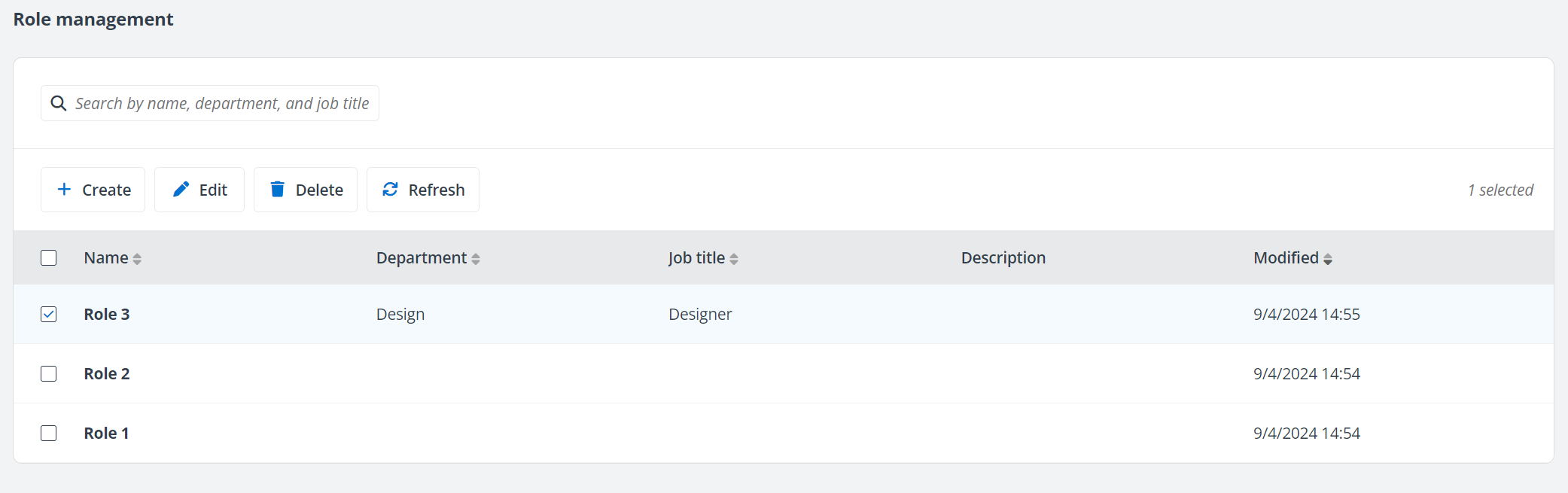
On the Role management page, you can perform the following actions to manage roles:
-
Search role – Search for a role by entering the name, department, or job title of a role in the search box.
-
Delete – To delete roles, select the desired roles and click Delete on the Role management page.
-
Refresh – Click Refresh on the Role management page to refresh the roles displayed in the list.
-
View role details – Click the role name to access the Role details panel to view the details of the role. On the panel, you can click Edit to edit the role.
-
Edit – Select a role and click Edit on the Role management page to edit the role.