
Home > Notification Templates
この記事をダウンロードNotification Templates
Refer to the following sections to create and manage templates used for email notifications and Microsoft Teams notifications.
Create Notification Templates
Refer to the following steps to create a notification template:
-
Click Notification templates on the left navigation to access the Notification templates page.
-
Click Create. The Create notification template panel appears.
-
Select a template type and enter a name for the template.
-
If you select Email template, refer to the following steps to create an email template:
-
Enter an optional description for the email template.
-
Enter a subject for the email template.
-
Configure the body for the email template. You can click Add reference to add references to customize the body. You can also click Add custom reference and enter a property name of an object that uses the workflow related to the current template. The property will be added as a reference to the text.
-
-
If you select Microsoft Teams template, refer to the following steps to create a Microsoft Teams template:
-
Enter a subject for the Teams template.
-
Configure the body for the Teams template. You can click Add reference to add references to customize the body. You can also click Add custom reference and enter a property name of an object that uses the workflow related to the current template. The property will be added as a reference to the text.
-
Click Add reference in the References section and select a reference from the Reference drop-down list to add a reference. The value of the reference will be automatically displayed in the Microsoft Teams template.
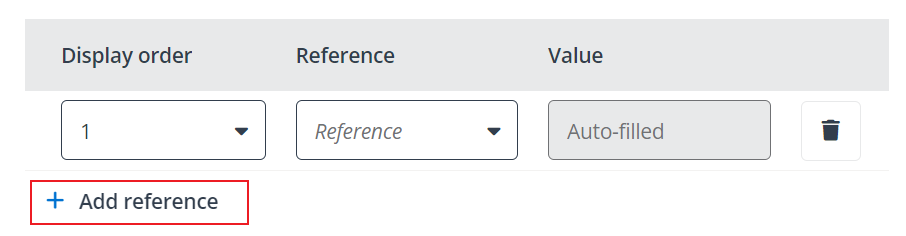
If you add multiple references, you can select a number from the Display order drop-down list to adjust the display order of the reference in the Microsoft Teams template.
To delete the added reference, click the Delete button next to the reference.
-
Configure the closing for the Teams template. You can click Add reference to add references to customize the closing. You can also click Add custom reference and enter a property name of an object that uses the workflow related to the current template. The property will be added as a reference to the text.
-
-
-
Click Preview to preview the template, or click Save to save the template.
Manage Notification Templates
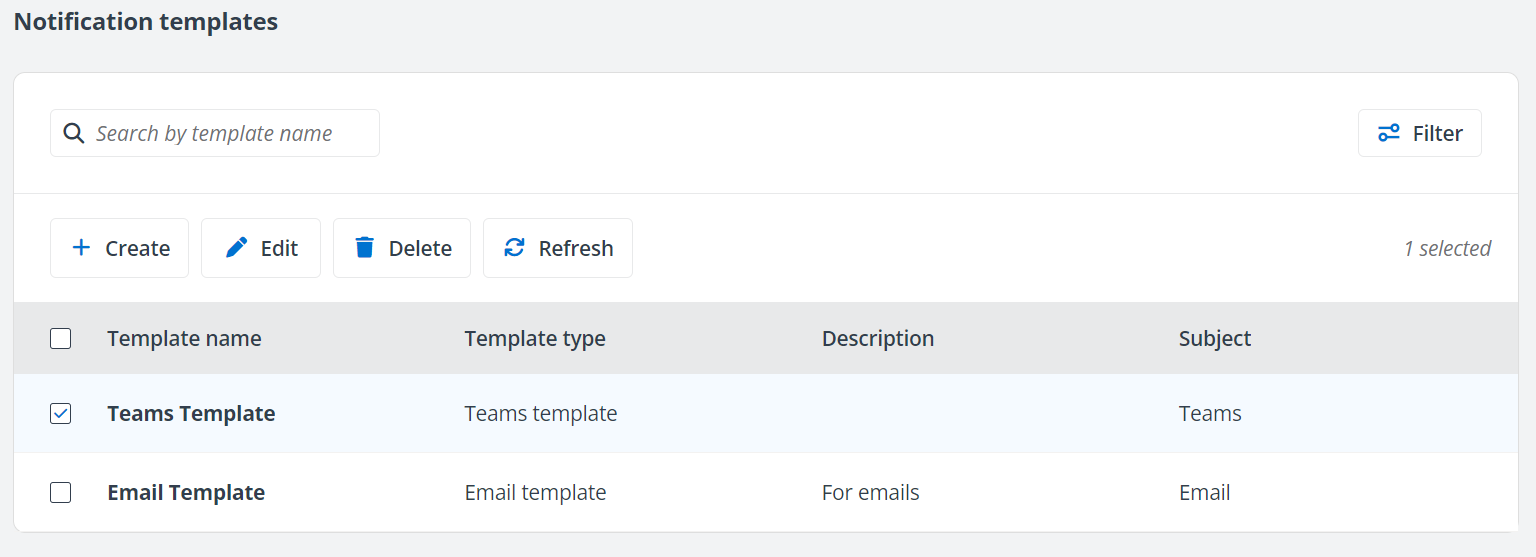
On the Notification templates page, you can perform the following actions to manage templates:
-
Search template – Search for a template by entering the name of the template in the search box.
-
Filter – Click Filter on the Notification templates page, select the template type, and click Apply to filter actions. You can also click Clear all to re-select the template types.
-
Delete – To delete templates, select the desired templates and click Delete on the Notification templates page.
-
Refresh – Click Refresh on the Notification templates page to refresh the templates displayed in the list.
-
View template details – Click a template name to access the Notification template details panel to view the details of the template. On the panel, you can click Edit to edit the template, or click Preview to preview the template.
-
Edit – Select a template and click Edit on the Notification templates page to edit the template.