
Home > Grant tyGraph Restricted Access to All or Some of Your Tenant
この記事をダウンロードGrant tyGraph Restricted Access to All or Some of Your Tenant
Some organizations have security, compliance, or governance requirements that prevent them from using the default tyGraph deployment model. This article provides guidance for common deployment scenarios and links to the related configuration articles. Use the scenarios below to identify the deployment option that best fits your organization's requirements.
-
Configure tyGraph with Read-Only Permissions.
-
Limit SharePoint Data Collection to Selected Sites.
-
Pages Engine Deployment Options.
Configure tyGraph with Read-Only Permissions
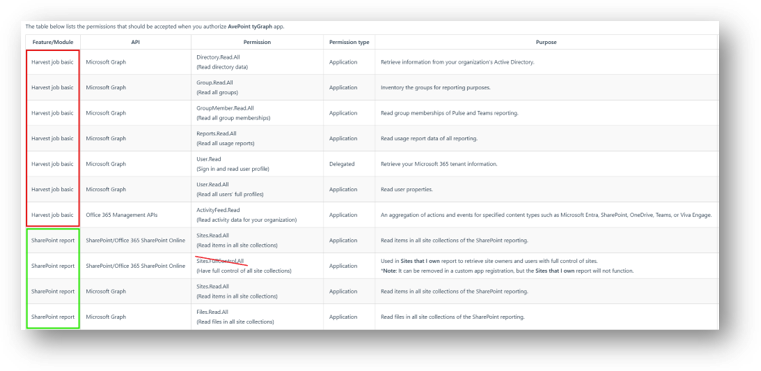
Some organizations do not allow granting Sites.FullControl.All or other FullControl permissions to applications. In this scenario, you can create a custom Azure Application and grant only the permissions required for the reports you plan to use.
Complete the following steps:
-
Create a Custom Azure App to connect the tyGraph solution to your Microsoft tenant.
-
Grant permissions to the newly created Azure App according to the report(s) you wish to use. Replace any FullControl or Write permissions with the equivalent Read permission. Please refer to this article for the permissions each report requires.
-
If the report you wish to use has permissions that are marked as delegated in the ‘Permission type’ column, please be sure to follow the instructions for Azure Apps with delegated permissions.
-
Create a custom App Profile in AvePoint Online Services and link the newly created Azure app.
-
To control which account is used for delegation, simply re-authorize the App Profile in AvePoint Online Services. The account that last authorised an App Profile will be used for delegated API calls.
Some reports may not function if specific permissions are removed. For example, the Sites that I Own report requires the Sites.FullControl.All permission to retrieve site owners and users with Full Control access. If this permission is removed, the report will not return data.
Limit SharePoint Data Collection to Selected Sites
By default, tyGraph collects SharePoint and Pages data from all sites in the tenant. If your organization only wants to collect data from specific SharePoint sites, you can configure site-scoped data collection and use the Microsoft Graph Sites.Selected permission model.
Complete the following steps:
-
Create a Custom Azure App to connect the tyGraph solution to your Microsoft tenant.
-
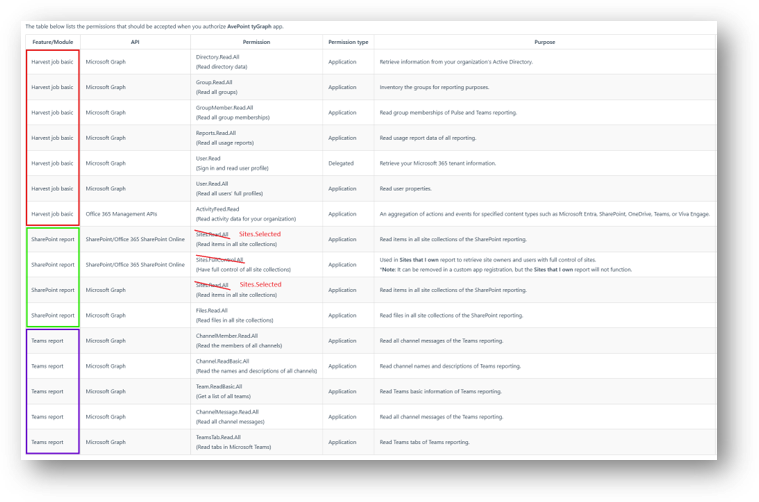
Grant the Sites.Selected permission instead of Sites.FullControl.All. The access must be granted for use as an Application in both the Graph and SharePoint APIs.
-
Grant the other required permissions as stated in the User Guide.
-
Add the Application (client) ID to the properties of each site you wish to report on. This can be done by using either the Microsoft Graph Explorer or via PowerShell or via PowerShell.
-
Create a custom App Profile in AvePoint Online Services and link the newly created Azure app.
-
Configure tyGraph to only collect data from nominated sites. Navigate to tyGraph > Data collection > Allow data collection on specific sites > add your site URL.
The sites configured in the tyGraph data collection settings must all have the custom Azure App ID added to their properties. Mismatches will result in harvesting failures.
If you are using the tyGraph reports for both SharePoint and Teams, then the custom App Reg will need all these API permissions:
Pages Engine Deployment Options
The tyGraph Pages Engine is designed to be deployed through the tenant-wide app catalog.
Although SharePoint provides site collection app catalogs, AvePoint does not recommend this deployment model because it introduces additional administrative complexity and often leads to data collection and support issues.
Please follow these instructions to install the tyGraph Pages Engine and Web Parts.
To limit data collection to specific sites, deploy the Pages Engine through the tenant-wide app catalog and then use one of the following methods mentioned above to control the scope of data collection:
-
Configure site inclusion or exclusion in Data Collection settings.
-
Use the Microsoft Graph Sites.Selected permission for SharePoint data collection.
The tenant-wide app catalog is the recommended deployment model for all tyGraph environments.