Home > Protected Data Size Calculation > Azure VMware
この記事をダウンロードAzure VMware
Follow the instructions below to extract the protected data size for Azure VMware:
-
Make sure you have downloaded the script package. Extract the package to locate the script for Azure VMware.
-
Open PowerShell and execute the command lines from the Azure VMware script to check the protected data size for Azure Vmware. For details on using the PowerShell, refer to Getting started with PowerShell.
Follow the steps below to execute the Azure VMware script:
NOTEYou must run the script on a Windows VM that can connect to the VMware vCenter.
-
Open the script and enter the PrivateCloudName (VMWare Solution Name) and ResourceGroupName for which you want to retrieve the Protected Size information.

-
Enter your username and password to connect to the vSphere to obtain the VM information.
-
-
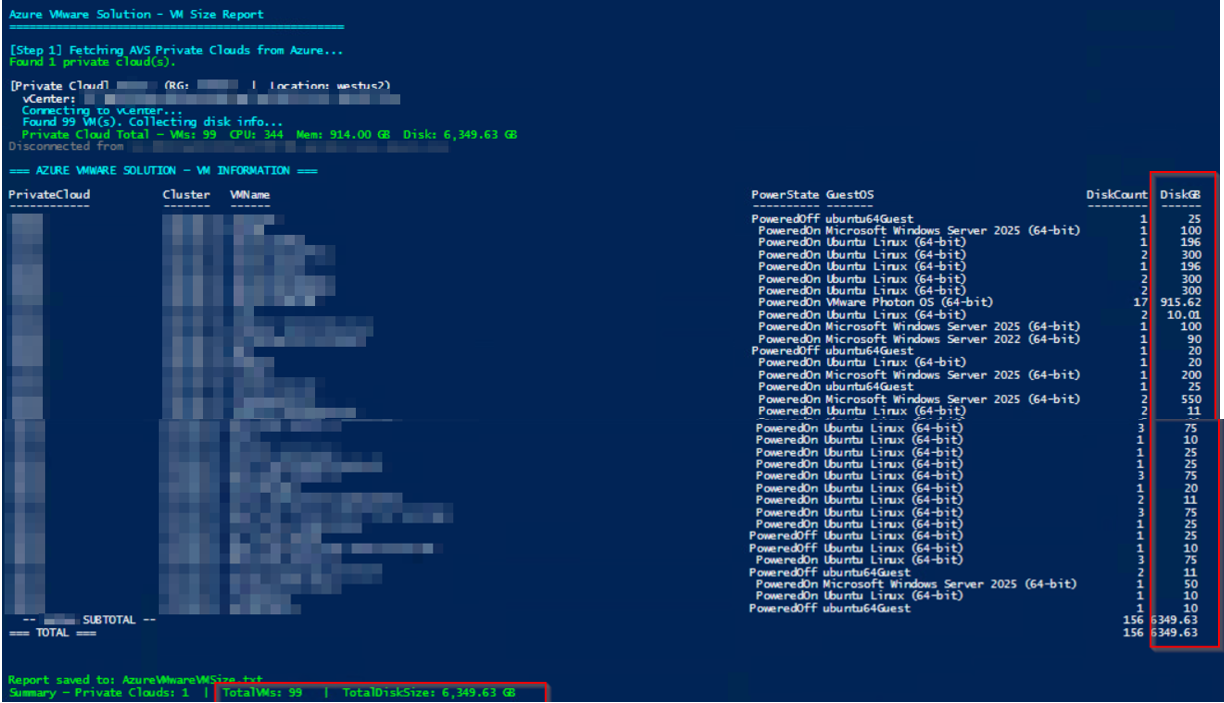
Upon execution, the protected size of each VM and disk in private clouds and the total protected size across the VMware will be listed. The script will automatically generate a results file named AzureVMwareVMSize.txt in the downloaded script package folder.