
Home > Monitor Your Backup
この記事をダウンロードMonitor Your Backup
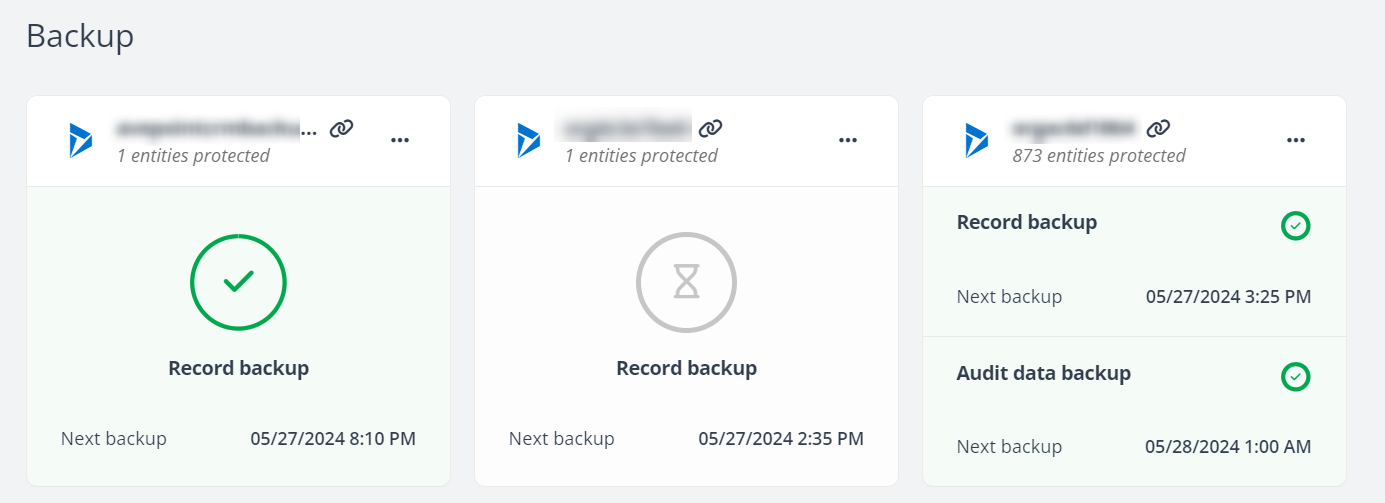
On the Backup page, you can view the backup status and details for each organization/environment through the corresponding tab. On each tile, you can find their current backup status and scope, and perform the following actions:
-
You can click the link button next to the organization/environment name to access the Dynamics 365 organization or the Power Platform environment.
-
Click the More actions (...) button for more settings and information. For details, refer to the following sections.
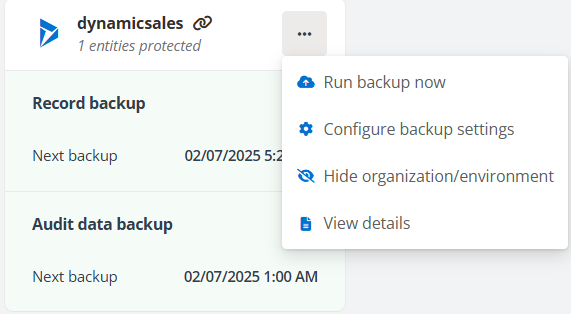
Run backup now
If you want to start a backup immediately for the organization/environment, you can click Run backup now from the list.
When you view the backup details, you can also use Run backup now option from the More actions list to start a backup immediately.
Configure backup settings
After you have enabled the backup for an organization/environment, you can still make changes to the backup scope and frequency.
You can select to include all entities for backup or only include the records in specific entities. In addition to the entity backup, you can also enable the Audit data backup, if your subscription supports audit data backup. The Audit data backup will capture the audit logs from your first backup onwards, empowering you with the capability to revert the records back to the state before a certain event during our backup period. Note that the entities for which you want to back up the audit data must have audit settings enabled.
By default, entity backup will run every six hours, four times a day. You can customize the backup frequency and schedule the entity data backups by setting up the backup frequency 1 to 4 times per day and defining the start time for each backup job. If you would like to run more entity backups a day, the backup frequency to run eight backups per day is now available. To enable this feature, contact AvePoint Support to enable it for your tenant and then update your backup frequency.
If you enable audit data backup, you can also configure the backup frequency for the audit data backup separately. The audit data backup jobs can be set up to twice a day.
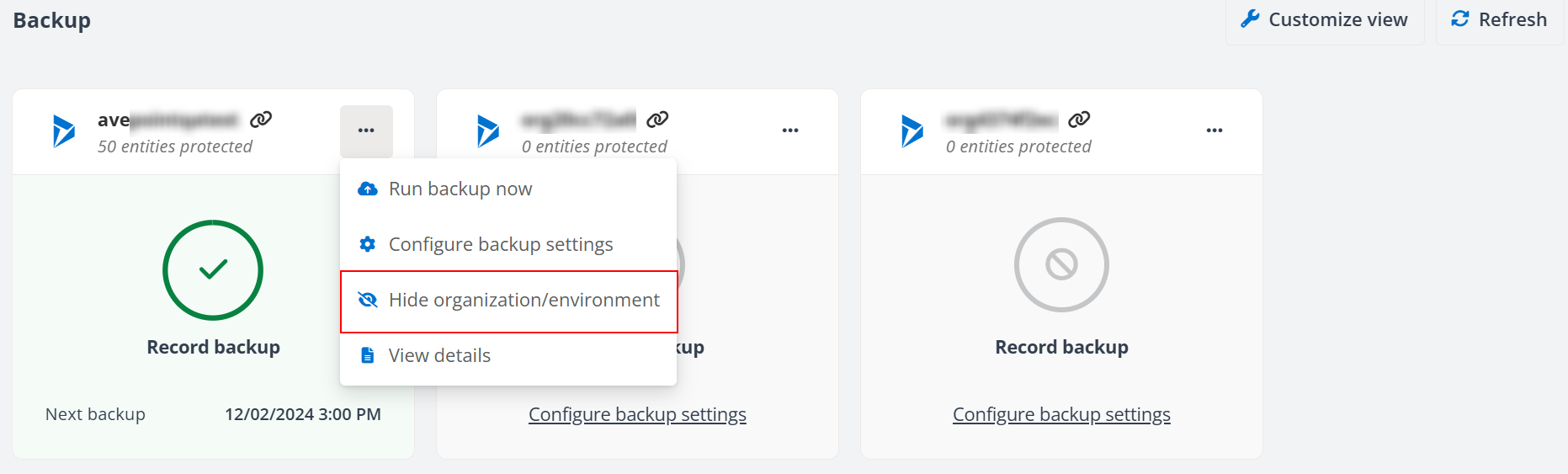
Hide organization/environment
If you do not want to display certain organization or environment on the Backup page, you can click Hide organization/environment to hide it. You can scroll down to the end of the Backup page and click Show hidden organizations/environments to expand the Hidden organizations/environments section to view all the hidden organizations/environments. You can click the Show organization/environment to remove it from the Hidden organizations/environments section.
View details
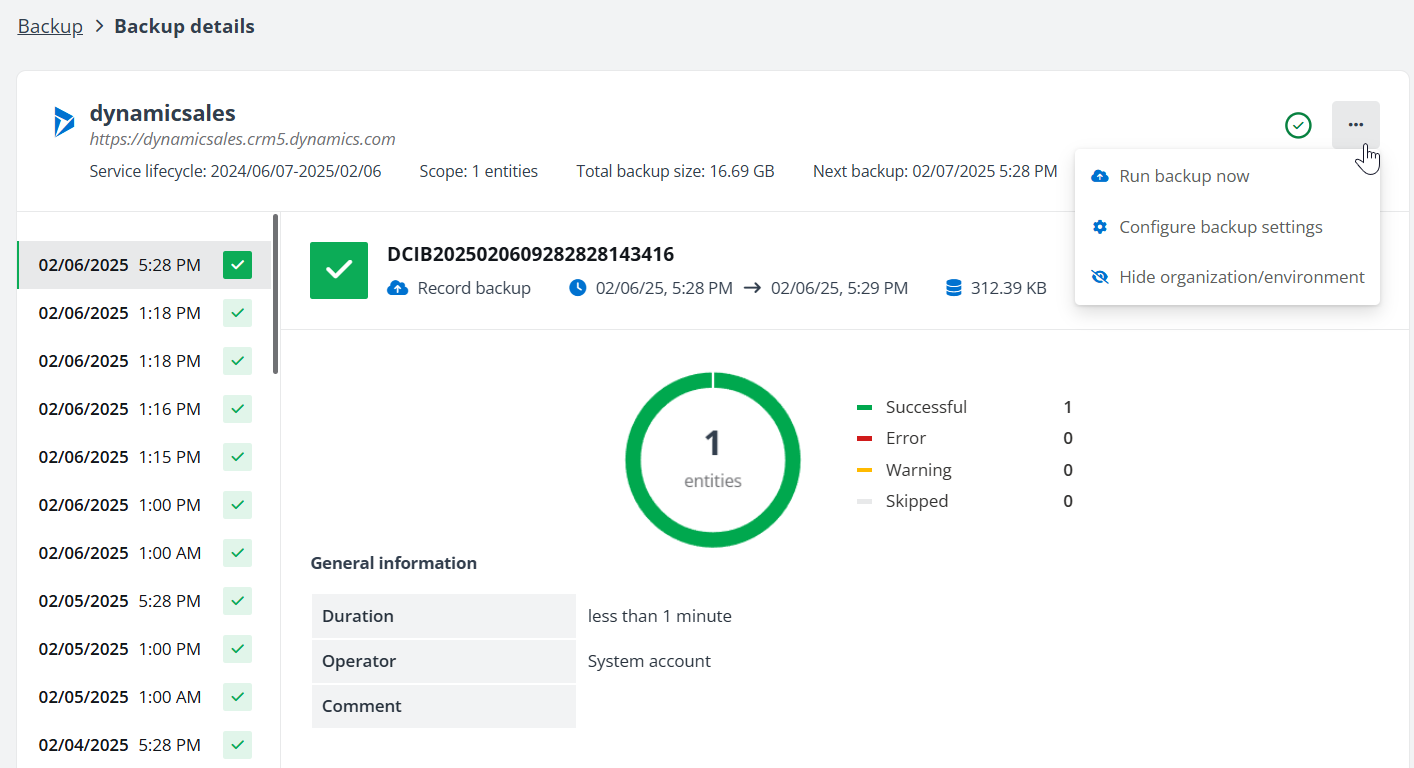
The Backup details page displays the service lifecycle of the organization/environment, the number of entities being protected, the total backup size, and the scheduled time for the next backup job.
You can click the backup job record on the left pane to view the details of each backup job, including the number of successful, skipped, warning, and error entities in each job or the progress of the running backup.
On the Backup details page, click the More actions (...) button and click Generate report from the list. After the report is generated, click the More actions (...) button and click Download report to download the job report to a local location.
The records with errors in the backup job will be backed up in the next backup job again if they are always in the backup scope.