Home > Download a Job Report
この記事をダウンロードDownload a Job Report
The Job monitor page displays the user activities for Backup & Restore, Dry run, Mapping, Retention, and Export. You can use the filters (Organization/Environment, Job Type (only available for Backup & Restore), Date range, and Status filter) or the Search box to search for the backup and restore jobs.
Through Job monitor, you can stop a running backup job through the Backup & Restore tab. The backup job will be set to Failed and you can also choose to generate and download the job report for details.
To view the job summary information on this page, you can click the Columns to choose the properties to display in the table, including Job ID, Job type, Status, Duration, Start time, Finish time, Operator, and Organization/Environment.
Note that the Dry Run job report will not display the real restore status for records. In the Dry Run job report, if the fields’ New Value is empty, it indicates the real restore job will not restore those fields. You can download reports for the completed backup or restore jobs to view the job summary, job settings, skipped objects, or objects with errors. In the reports for the restore jobs, the source and destination information can also be seen.
To generate and download a job report, follow the steps below:
-
Click the Backup & Restore tab, Dry Run tab, Mapping tab, Retention tab, or the Export tab to check the corresponding jobs.
-
You can use the Organization/Environment, Date range, Job type, and Status to filter the jobs or you can use the Search box to search the activities by operator or Job ID.
-
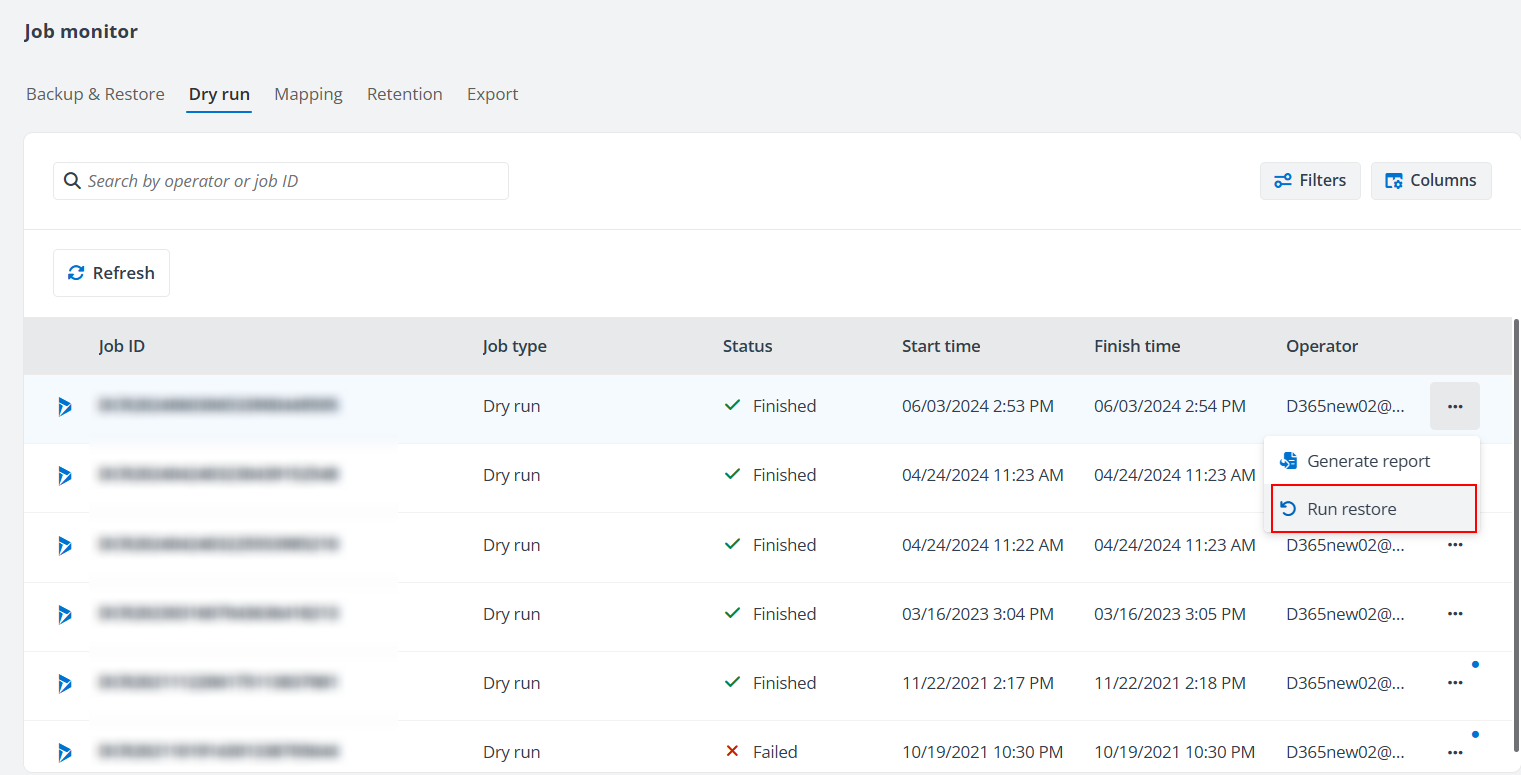
Click the More actions (...) button on the row of the job record and click Generate report to generate the job report and then click the Download report button to download the report.
-
For a Dry run job, if you want to execute the restore job with real data, click Run restore. A confirmation window will appear. Click OK to start the restore job.