Home > Sign in to Confide
Download this articleSign in to Confide
You can sign in to Confide with a local account or a Microsoft 365 account. Your account will be automatically signed out if there is no activity for 1 hour, and you can sign in again.
Sign in with Your Local Account
To sign in to Confide with a local account, complete the following steps:
-
Open the following URL in a browser: https://portal.confideshare.com.
-
On the sign-in page, enter your information as below:
-
Email Address – Enter the email address used as your local account in Confide.
-
Password – Enter your password.
-
-
Click Sign In.
Sign in with Your Microsoft 365 Credentials
To sign in to Confide with a Microsoft 365 account, complete the following steps:
-
Open the following URL in a browser: https://portal.confideshare.com.
-
On the sign-in page, click Sign in with Microsoft.
-
On the Microsoft 365 authentication page, enter an existing Microsoft 365 login ID and password.
NOTEWhen signing in to Confide for the first time or whenever there are updates to the application’s permissions, you must grant authorization to the AvePoint Confide application. Additionally, if a business user with the Microsoft 365 Global Administrator role selects the Consent on behalf of your organization option on the Permissions requested page during authorization, other business users will not be prompted to provide authorization.
If you are using the Microsoft 365 account to sign in to another app on the same browser, you will be automatically signed in to Confide.
-
Click Sign in.
Reset Your Local Account Password
Refer to the following steps to reset the password of your local account:
-
Navigate to the Confide sign-in page.
-
Click the Forgot Password link under the Sign In button.
-
Enter the email address, and then click Send Verification Code. The verification code is sent to the email address you specified. Click Send New Code if you want to send a new verification code.
-
Enter the verification code that you received, and then click Verify Code.
-
After the entered email address is verified, click Continue.
-
Enter a new password, enter the password again for confirmation, and then click Continue.
Sign in as an External User after Being Invited to Confide
As an external user, you can refer to the steps below to sign in to Confide after you have been invited to collaborate on a project or an object in the share center:
-
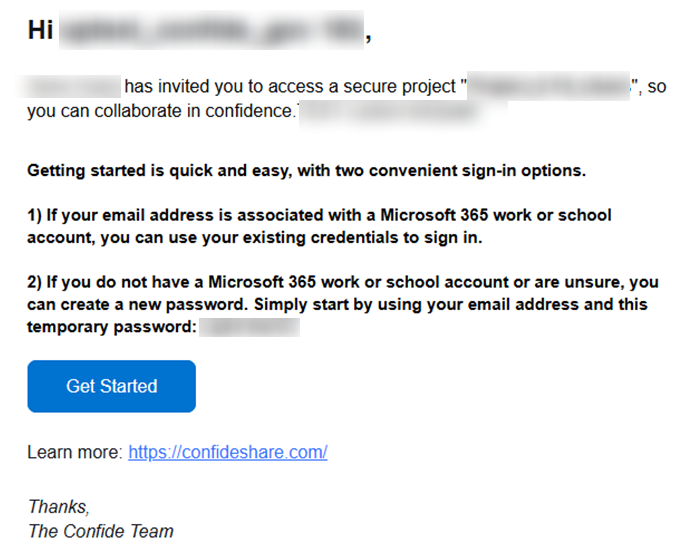
After being invited, you’ll receive a notification email from Confide.
-
Click Get Started or Go to share center in the received email to access the Confide sign in page.
-
If your email address is associated with a Microsoft 365 work or school account, you can use your existing credentials to sign in. For more information, refer to Sign in with Your Microsoft 365 Credentials.
-
If you do not have a Microsoft 365 work or school account or are unsure, you can use your email address and the temporary password provided in the email to sign in to Confide. Follow the steps below.
-
-
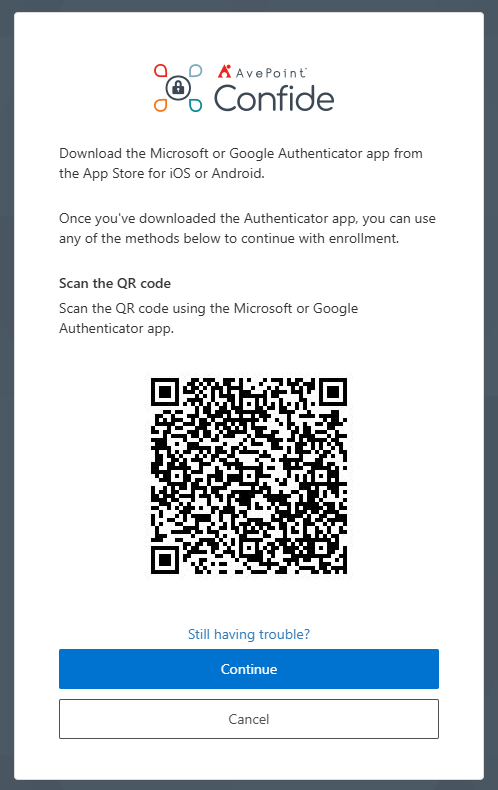
When you sign in to Confide using the temporary password, you’ll be redirected to the following page.
-
To increase account security, you must scan the QR code using your Microsoft or Google Authenticator app and click Continue.
If you have not yet installed the app, you can download the Microsoft or Google Authenticator app from the App Store for iOS or Android devices.
-
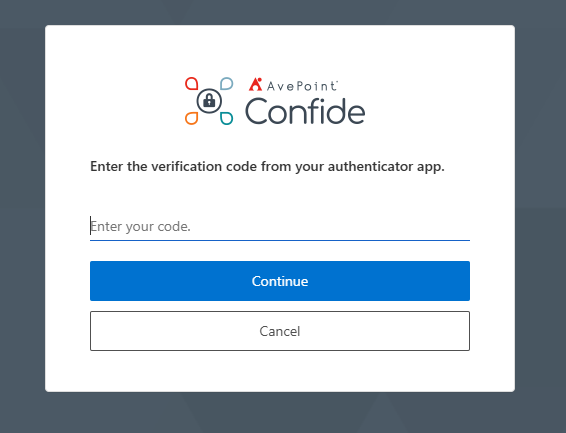
Enter the verification code from your authenticator app and click Continue.
-
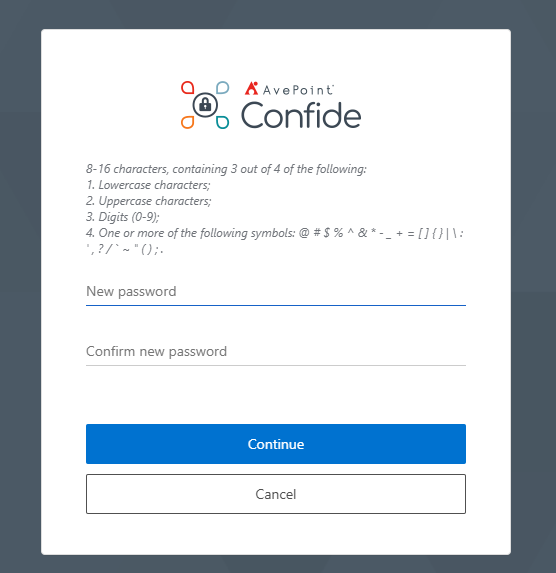
Enter a new password and confirm the password to set a new password for future sign-ins. Click Continue to sign in to Confide.