
Home > Sign in to Confide with SharePoint Embedded
Export to PDFSign in to Confide with SharePoint Embedded
You can sign in to Confide with a Microsoft 365 account. Your account will be automatically signed out if there is no activity for 1 hour, and you can sign in again.
Sign in with Your Microsoft 365 Credentials
To sign in to Confide with a Microsoft 365 account, complete the following steps:
-
Open the following URL in a browser: https://ent.confideshare.com.
-
On the sign-in page, click Sign in with Microsoft.
-
On the Microsoft 365 authentication page, enter an existing Microsoft 365 login ID and password.
NOTEIf you sign in with a local account, do not enter the account directly but proceed with the following steps:
-
Click Sign-in options.
-
Click Sign in to an organization.
-
Enter the domain name of your organization you’d like to sign in to.
-
Enter the email address.
-
Enter the code sent to your email.
NOTEWhen signing in to Confide for the first time or whenever there are updates to the application’s permissions, you must grant authorization to the AvePoint Confide with SharePoint Embedded application. Additionally, if a business user with the Microsoft 365 Global Administrator role selects the Consent on behalf of your organization option on the Permissions requested page during authorization, other business users will not be prompted to provide authorization.
The following permissions will be requested.
API Permission Type Purpose Microsoft Graph email
(View users' email address)Delegated Read users' primary email addresses. Microsoft Graph offline_access
(Maintain access to data you have given it access to)Delegated Read and update the data users have given the app access to and refresh the token. Microsoft Graph openid
(Sign users in)Delegated Sign users in and read basic user profile information. Microsoft Graph profile
(View users' basic profile)Delegated Read basic user profile information, including picture, username, and email address. Microsoft Graph User.Invite.All
(Invite guest users to the organization)Delegated Invite guest users to the current organization. Microsoft Graph User.Read
(Sign in and read user profile)Delegated Retrieve signed-in user information. Microsoft Graph User.Read.All
(Read all users' full profiles)Delegated Retrieve and display user information. SharePoint Container.Selected
(Access selected file storage containers)Delegated Manage containers. NOTEIf you are using the Microsoft 365 account to sign in to another app on the same browser, you will be automatically signed in to Confide.
-
-
Click Sign in.
Sign in with Local Account after Being Invited
As an external user, you can refer to the steps below to sign in to Confide with SharePoint Embedded after you have been invited to collaborate on a project or an object in the share center:
-
After being invited, you’ll receive a notification email from Confide. Click Get Started or Go to share center in the received email to access the sign-in page.
-
On the sign-in page, click Sign in with Microsoft.
-
If you access the sign-in page by navigating to the product URL in your browser, you will need to locate the organization to which you have been invited.
-
Click Sign-in options from the Sign in page.
-
Click Sign in to an organization.
-
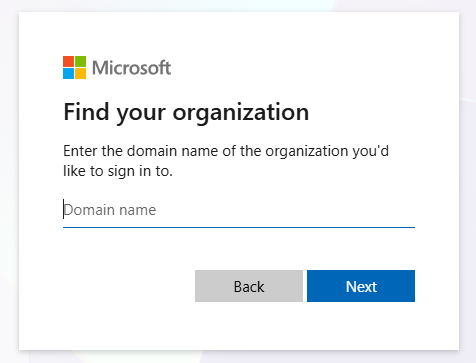
Enter the domain name of the organization you have been invited for collaboration and click Next.
-
-
Enter your email address and click Next.
-
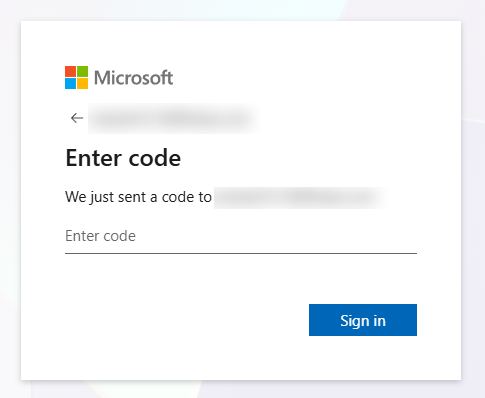
Enter the account verification code from the Microsoft email you received and click Sign in.
-
Click Accept to accept the required permissions and sign in to Confide with SharePoint Embedded.
NOTEThis is only required for your first sign-in.