
Home > What Can I Do as a User?
Download this articleWhat Can I Do as a User?
The following sections list the activities that a user can perform in Confide with SharePoint Embedded.
View My Projects
The My projects page displays the projects that you have access to. You can view all projects to which you have access in the All tab, view active projects in the Active tab, and view all locked projects in the Locked tab.
Clicking a project allows you to open that specific project. A project is accessible to you after you are invited to the project with permissions assigned.
To search for a project, folder, or file across all projects that you have permissions, click the search box in the upper-left corner, select Projects, Folders, or Files, enter keywords in the search box, the matched results are displayed below.
Alternatively, you can click Go to Global search. From the Global search page, enter keywords in the search box and click the search button to the right to start the global search. The search scope is all projects that you have permissions. The matched results are displayed under Projects, Folders, and Files tabs.
Dashboard
As Users, you can use the project dashboard to keep a close eye on changes to a project.
-
Completed tasks – Displays the percentage of completed tasks within all tasks assigned to you in this project.
-
Open tasks – Displays the number of open tasks assigned to you. You can click the arrow button next to the number to go to the My tasks page to view the task list.
-
New tasks – Displays the number of new tasks assigned to you, but that have not been processed yet. You can click the arrow button next to the number to go to the My tasks page to view the task list.
-
Due this week – Displays the number of tasks assigned to you and will be due this week. You can click the arrow button next to the number to go to the My tasks page to view the task list.
-
Recent activities – Displays the latest 10 activities that you have performed, including uploading files, viewing files, and downloading files.
-
Favorite files – Displays the latest 20 files you have added to favorites. If there are more than 20 favorite files, you can click View more to load another 20 files.
-
New files – Displays the 20 newly uploaded files that you have access to. If there are more than 20 new files, you can click View more to load another 20 files.
In the Your tasks list, all your open tasks are displayed by default. You can click the Open tasks drop-down list to view completed or all tasks in the current project. You can also click the Filter button to filter tasks. Configure request types, due date, requestors, categories, and priorities, and then click Apply. Tasks that meet the configured filter criteria are displayed.
You can find the following information of the tasks in the list:
-
Title – The title of the task. You can click the title link to view the task details.
-
Folder – The folder that is associated with this task.
-
Requestor – The requestor of the task.
-
Type – The type of the task.
-
Category – The category of the task.
-
Due date – The due date of the task.
-
Priority – The priority of the task.
-
File icon – Indicates if any file has been uploaded for this task.
-
Chat icon – Indicates if there is any chat for this task.
Manage Files in Project Library
Each project has a library which is a collection of folders and subfolders for storing files.
All files
Switch between Folder and Overview tabs on the All files page to find and manage the files detailed below:
-
Folder – Folder structure is displayed. Select a folder from the left pane, and then all files within this specific folder are displayed on the right pane.
-
Overview – All files within the project are displayed and grouped by file status. Select a group from the left pane, and then files that meet the specific status are displayed on the right pane.
You can locate and drag the middle section to adjust the width of the left and right panes.
To search for files, folders, or tasks by name, enter a keyword in the search text box, and then press Enter on your keyboard. Search results are displayed.
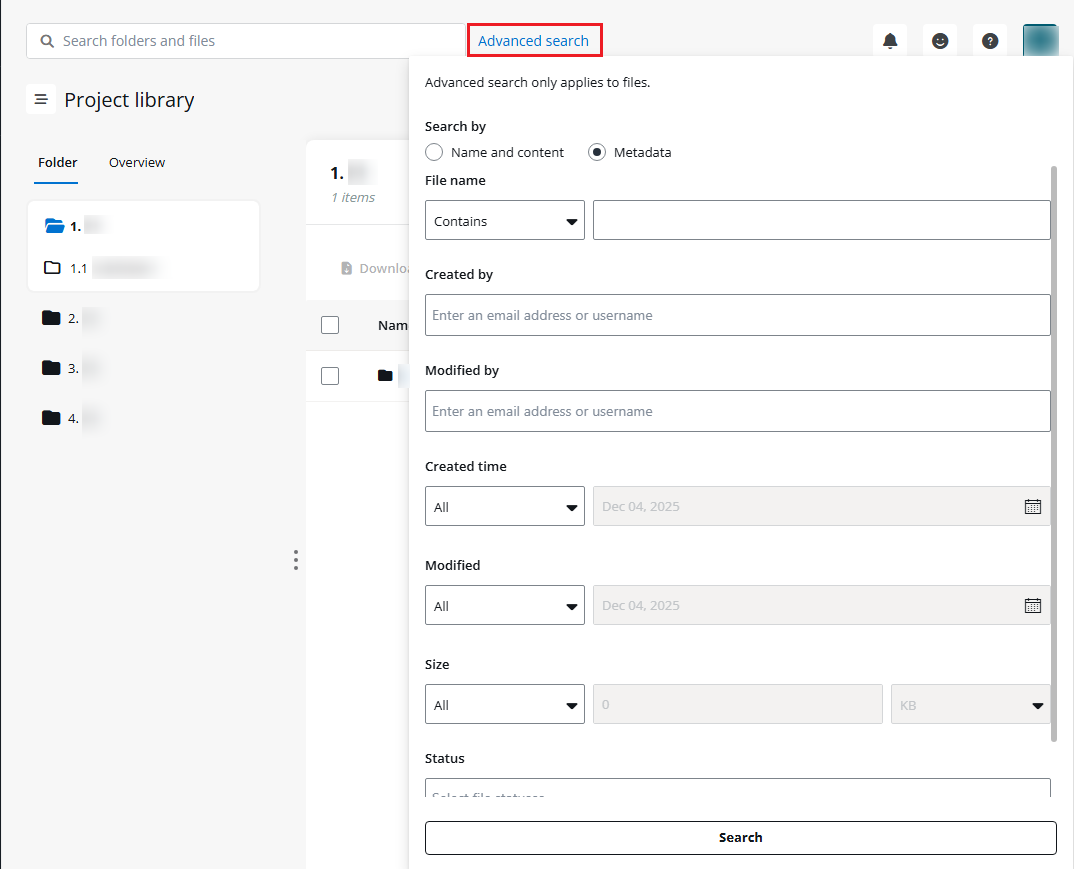
Alternatively, click Advanced search to the right of the search text box. You can choose to search by name and content or metadata.
-
Name and content – Select the Contains or Does not contain condition and enter a keyword to add a search condition. Multiple conditions can be added, and you can set the relationship of conditions. Click Search to start the search. Both file names and content will be searched for the keywords.
-
Metadata – All file properties that can be used for search are listed below. Configure the search conditions as required and click Search to start the search. You can click Clear all to remove all configured search conditions if needed.
Advanced search is available when advanced features have been authorized by the administrator.
To filter folders or files, click the Filter button. Configure item type, sensitivity label, owner, modified time, the user who modified the item, and/or status, and then click Apply. Folders or files that meet the configured filter criteria are displayed.
Under the Folder tab, you can click Alert me to stay updated for file changes in the project library. Configure the following settings in the Alert me window and click Save to save the alert.
-
Alert title – Enter a title for the alert.
-
Send alerts to – Select the recipients of the alert.
-
Send me an alert when – Configure how to trigger the alert. Anything changes, or someone else opens, edits, downloads, or deletes a file created by me.
-
When to send alerts – Choose to send notification immediately or send a daily summary at a specified time.
You can click Export file report to export the file report for this project. All folders and files in the project library to which you have permission will be exported along with their basic information.
Select a folder from the left pane, and all subfolders are displayed under the folder on the left pane. You can perform the following operations to manage subfolders and files in the selected folder or subfolder on the right pane. Note that what you can do depends on the permissions that you have on the specific folder and file.
-
Add subfolder – Click New in the upper-right corner, and then select Folder from the drop-down list. Enter a subfolder name, and then click Add to add the subfolder.
You can also drag and drop folders containing subfolders and files from your local drive to the right pane to add subfolders. The subfolders will be displayed in the left pane.
NOTETo add subfolders, make sure you have the Edit permission to the folder. If you are about to delete the subfolders you have added, contact the project administrator for assistance.
-
Drag and drop files – You can drag and drop files from your local drive to Confide.
-
New – Click New to create a new file. Select Word Document, Excel Worksheet, or PowerPoint Presentation, enter a name for this new file, and then click Create. You are redirected to a new tab to edit the file content.
-
Upload – Click Upload to upload folders or files. In the drop-down list, click File to only upload files or click Folder to upload folders and files within.
NOTEUploading folders require the Edit permission.
Uploading specific number files appears to the left of the Download drop-down list. Click to view the progress of the file upload. To cancel the upload of a file, click the cancel button to the right of the file size to cancel the upload.
Note the following:
-
The newly uploaded files are in the New status. The status will be automatically changed to Unopened after you sign out and sign in again and then open the folder again.
-
If a folder/file with the same name already exists, you can select to skip uploading the folder/file or keep both folders/files. If you select to keep both folders/files, the newly uploaded folder/file will be renamed by appending a sequential number in brackets to its name. For files, you can also choose to replace the existing file.
-
-
Alert me – Click the ellipsis button, and then select Alert me from the drop-down list to stay updated when a file in this folder changes. Alternatively, select a subfolder or file and click Alert me. You can also directly click Alert me after accessing the project library to configure the entire project library as the alert scope.
Configure the following settings in the Alert me window and click Save to save the alert.
-
Alert title – Enter a title for the alert.
-
Send alerts to – Select the recipients of the alert.
-
Send me an alert when – Configure how to trigger the alert. Anything changes, or someone else opens, edits, downloads, or deletes a file created by me.
-
When to send alerts – Choose to send notification immediately or send a daily summary at a specified time.
-
-
Rename – Click the ellipsis button, and then select Rename from the drop-down list. Enter a new name for the current folder/subfolder, and then click Save to save changes.
-
View – Click a file name to view the file online. You can view files of the following types online: .pdf, .ppt, .pptx, .xls, .xlsx, .xlsb, .xlsm, .doc, .docx, mp3, .mp4, .wma, .wmv, .gif, .jpeg, .jpg, .png, .zip, and .txt.
If you are shared with the Edit permission, you can access the Editing mode of a file by clicking the file name. You can edit files of the following types online: Word, Excel, and PPT.
NOTEIf you still use Office 2003 or an earlier version, you will be limited to viewing Word, Excel, or PPT files online, even if you are shared with the Edit permission.
-
Download – Select files, and then click Download to download the selected files. Files will be downloaded to the default download location of your current browser. If you select multiple files to download, a ZIP file containing all of the selected files will be downloaded.
You can also download folders together with files within the whole project or download a specific folder together with the files within.
-
To download folders together with files within the whole project, click Download above the files table and then select Download all files. Click OK in the confirmation window. A ZIP file named after the project name will be downloaded.
-
To download a specific folder together with the files within, click Download above the files table and then select Download main folder. Select a folder from the drop-down list, and then click Download. A ZIP file named after the folder name will be downloaded.
-
-
Change file status – Select files, and then click Change file status to change file status. Select a new status from the drop-down list, and then click Save.
Note the following:
-
All users in a project can change the file status of the files where they have access. File status is user-based. Your updated file status will not affect the status seen by other users.
-
The file status will be automatically changed from New or Unopened to Reviewing after users open or download a file.
-
-
Generate download link – With the generate anonymous download link in project permission granted, you can generate download links to the files and folders to which you have the View or Edit permission.
-
Select a file or folder, and click Generate download link to generate a link to the file or folder.
-
Select an expiration date for the link.
-
Select to generate a link with a random password or a reusable password.
-
Click Generate link, and the link and password are displayed below.
-
Click the Copy button next to the link or password to copy it to your clipboard. Then, you can share the link and password with others. Users can download the shared file or files in the shared folder via the link and password.
-
-
Generate upload link – With the generate anonymous upload link in project permission granted, you can generate upload links to the folders to which you have the Edit permission.
-
Select a folder and click Generate upload link to generate a link to the folder. Users can upload files to the folder via the link.
-
Select an expiration date for the link.
-
With the corresponding permission granted, you can select to enable anti-virus scan for all files or skip anti-virus scan for files that are greater than 2 GB.
-
Select to generate a link with a random password or a reusable password.
-
Click Generate link, and the link and password are displayed below.
-
Click the Copy button next to the link or password to copy it to your clipboard. Then, you can share the link and password with others. Users can upload files to the folder via the link and password.
-
-
Add to favorites – Select files, and then click Add to favorites to add the files to the Your favorite files list on your dashboard and the Favorite files folder in the project library. You can also hover your mouse over a file and click the gray star button next to the file name to add it to your favorites.
-
Remove from favorites – Select files, and then click Remove from favorites to remove the files from the Your favorite files list on your dashboard and the Favorite files folder in the project library. You can also hover your mouse over a file and click the yellow star button next to the file name to remove it from favorites.
-
Delete – Select folders or files, and then click Delete folder or Delete to delete the selected folders or files. Select Delete in the confirmation window. A progress bar appears above the table to indicate the progress. To permanently delete the folders or files, select the Permanently delete selected items checkbox in the confirmation window.
-
Version history – Select a file and click Version history to access the Project library / Version history page where you can view the version history of the file.
-
Restore – Select a history version and click Restore to restore the file to this version.
-
Save as copy – Select a version and click Save as copy, and the Save as copy window appears on the right. You can optionally change the file name, select a target folder for this new file, and click Save to save the file to the target folder.
-
Delete – Select a history version and click Delete to delete the version. The current version of the file cannot be deleted.
-
Delete all versions – Click Delete all versions to delete all versions of the file, except for the current version.
-
Deleted files
On the Deleted files page, folders and files manually deleted by users and files automatically deleted based on retention policies are all listed in the table. You can see the name, owner, modified date, last editor, deleted date, and user who deleted it for the folders and files to which you have Edit permission.
You can choose to restore desired folders and files within 30 days. Select the folders and files that you want to restore, and click Restore to restore them to their original locations.
To permanently delete folders and files, select them and click Delete. By default, folders and files on this page will be permanently deleted 30 days after they have been deleted.
Shared links
On the Shared links page, the files and folders for which you have generated anonymous links are listed in the table. You can view the file or folder name, path, the link to the file or folder, link type, password type, expiration date of the link, the user who generates the link, and the modified date of the link.
This page is only available when the anonymous link feature is enabled for the project by the Project Admin or Project Lead.
The following actions are available in this tab:
-
Search – The search box on the upper-right corner allows you to find your desired folder or file. Enter the partial or full text of the name, or the link of the object in the search text box, and then click the magnifying glass button. All matching items are displayed.
-
Filter – To filter items, click the Filter button. Configure the filter criteria, and then click Apply. Items that meet the configured filter criteria are displayed.
-
Manage shared link – Select a link record and click Manage shared link, and you can view the expiration date of the link.
-
Copy link and password – Select a link record and click Copy link and password to copy the link, as well as the password used to access the link.
-
Delete – Select one or multiple link records and click Delete to delete the links.
-
Generate download link – You can generate new download links to files or folders based on the existing links.
-
Select a link record, and click Generate download link to generate a new link to the file or folder.
-
Select an expiration date for the link.
-
Select to generate a link with a random password or a reusable password.
-
Click Generate link, and the link and password are displayed below.
-
Click the Copy button next to the link or password to copy it to your clipboard. Then, you can share the link and password with others. Users can download the shared file or files in the shared folder via the link and password.
-
-
Generate upload link – You can generate new upload links to folders based on the existing links.
-
Select a folder and click Generate upload link to generate a link to the folder. Users can upload files to the folder via the link.
-
Select an expiration date for the link.
-
With the corresponding permission granted, you can select to enable anti-virus scan for all files or skip anti-virus scan for files that are greater than 2 GB.
-
Select to generate a link with a random password or a reusable password.
-
Click Generate link, and the link and password are displayed below.
-
Click the Copy button next to the link or password to copy it to your clipboard. Then, you can share the link and password with others. Users can upload files to the folder via the link and password.
-
-
View – Click a file name to view the file online. You can view files of the following types online: .pdf, .ppt, .pptx, .xls, .xlsx, .xlsb, .xlsm, .doc, .docx, mp3, .mp4, .wma, .wmv, .gif, .jpeg, .jpg, .png, .zip, and .txt.
Submit Requests
On the Project library page and the My tasks page, you can submit the following requests:
-
Review request – Submit this request if you need someone to review files.
-
Document request – Submit this request if you need someone to provide files.
-
Other request – Submit this request if you have requirements other than those mentioned above.
Submit a Review Request
Refer to the following steps to submit a review request:
-
Click New request.
-
Complete the following information:
-
Request type – Select Review request from the drop-down list.
-
Request title – Enter a request title.
-
Category – Enter or select a request category.
-
Folder – Click the Select folder button to select a folder. Folders where you have at least the Request permission will be displayed.
NOTEIf you are on the Project library page, the currently selected folder is automatically filled in.
-
Related files – Click the Select files icon to select files.
NOTEFiles where you have at least the View permission will be displayed.
-
Assigned to – Select groups or individuals to assign this request to.
NOTEUsers and groups that have at least the View permission to the folder defined above will be displayed.
-
Due date – Click the Calendar button to configure a due date for this request. An email notification will be sent to the assignees you defined above 7 days, 3 days, and 1 day before the due date.
-
Workstream – Enter or select a workstream.
-
Preliminary request – Choose Yes or No.
-
Initial reviewer – Enter keywords to search for an individual user by username or email address.
-
Date requested – Click the Calendar button to configure a requested date.
-
Description – Explain what you want and why.
-
Additional information – Provide any additional information or remarks related to the request.
-
-
Click Submit to submit the request. A task of the Pending status is created and assigned to the assignee with an email notification.
Submit a Document Request
Refer to the following steps to submit a document request:
-
Click New request.
-
Complete the following information:
-
Request type – Select Document request from the drop-down list.
-
Request title – Enter a request title.
-
Category – Enter or select a request category.
-
Folder – Click the Select folder button to select a folder. Folders where you have at least the Request permission will be displayed.
NOTEIf you are on the Project library page, the currently selected folder is automatically filled in.
-
Assigned to – Select groups or individuals to assign this request to.
NOTEUsers and groups that have the Edit or Upload permission to the folder defined above will be displayed.
-
Due date – Click the Calendar button to configure a due date for this request. An email notification will be sent to the assignees you defined above 7 days, 3 days, and 1 day before the due date.
-
Workstream – Enter or select a workstream.
-
Preliminary request – Choose Yes or No.
-
Initial reviewer – Enter keywords to search for an individual user by username or email address.
-
Date requested – Click the Calendar button to configure a requested date.
-
Description – Explain what you want and why.
-
Additional information – Provide any additional information or remarks related to this request.
-
-
Click Submit to submit the request. A task of the Pending status is created and assigned to the assignee with an email notification.
Submit an Other Request
Refer to the following steps to submit another request:
-
Click New request.
-
Complete the following information:
-
Request type – Select Other request from the drop-down list.
-
Request title – Enter a request title.
-
Category – Enter or select a request category**.**
-
Folder – Click the Select folder button to select a folder. Folders where you have at least the Request permission will be displayed.
NOTEIf you are on the Project library page, the currently selected folder is automatically filled in.
-
Assigned to – Select groups or individuals to assign this request to.
NOTEUsers and groups that have at least the View permission to the folder defined above will be displayed.
-
Due date – Click the Calendar button to configure a due date for this request. An email notification will be sent to the assignees you defined above 7 days, 3 days, and 1 day before the due date.
-
Workstream – Enter or select a workstream.
-
Preliminary request – Choose Yes or No.
-
Initial reviewer – Enter keywords to search for an individual user by username or email address.
-
Date requested – Click the Calendar button to configure a requested date.
-
Description – Explain what you want and why.
-
Additional information – Provide any additional information or remarks related to the request.
-
-
Click Submit to submit the request. A task of the Pending status is created and assigned to the assignee with an email notification.
Manage My Tasks
On the My tasks page, you will find the tasks that have been assigned to you. On the Submitted requests page, your submitted requests are displayed. If you are a project administrator, you will be able to find all submitted requests within the project. A tag is displayed next to My tasks in the left navigation when there is a new task assigned to you that you have not opened yet.
Task-related updates will be collected and sent to you in email notifications every three hours.
You will find the following information on the My tasks & Submitted requests pages:
-
In the left pane, tasks are displayed in a list view in ascending order by the due date, with completed tasks displayed at the bottom.
For newly submitted tasks that you have not opened yet, there is a tag next to the task title. The tag will disappear once you open the task.
-
Select a task from the left pane. In the middle pane, details of the selected task are displayed.
-
Select a task from the left pane. In the right pane, the request title and request details of the selected task are displayed.
Below the request title and request details, you will find a group chat. To chat with others, enter a comment, and then click the Send button to send the comment. Within 5 minutes after your comment is sent, you can click the ellipsis button next to it and select to edit or delete the comment.
Based on urgency, the due date will be displayed in different colors as follows:
-
Red – The request is due today, or it has already been overdue.
-
Black – The request will be due later than today.
For requests you submitted, you can click Edit request in the upper-right corner to edit the request information and assignee.
Manage a Review Request
Refer to the following steps to manage a review request:
-
From the request list, search for the request that you want to manage.
-
Click the request to open it. The request details are displayed in the middle pane.
-
Click Accept. The request status is changed to Reviewing.
-
Find the files that you need to review in the Attached files field.
If you are the owner of the file or have the Edit permission to the file, you can click the Delete button to delete the file from the folder.
-
After your review, click Complete. The request status is changed to Completed.
After a request is completed, you can click Reopen to reopen the request. The request status is reverted to Pending.
If you are not the assignee of the request you submitted, you only need to complete or reopen the request.
Manage a Document Request
Refer to the following steps to manage a document request:
-
From the request list, search for the request that you want to manage.
-
Click the request to open it. The request details are displayed in the middle pane.
-
Click Accept. The request status is changed to In progress.
-
Find the related files in the Attached files field.
If you are the owner of the file or have the Edit permission to the file, you can click the Delete button to delete the file from the folder.
-
After preparing the files, click Provide files. The request status is changed to Reviewing.
-
Click Complete if no modification is required. The request status is changed to Completed.
After a request is completed, you can click Reopen to reopen the request. The request status is reverted to Pending.
If you are not the assignee of the request you submitted, you only need to complete or reopen the request.
Manage an Other Request
Refer to the following steps to manage another request:
-
From the request list, search for the request that you want to manage.
-
Click the request to open it. The request details are displayed in the middle pane.
-
Click Accept. The request status is changed to In progress.
-
After the request is completed, click Complete. The request status is changed to Completed.
After a request is completed, you can click Reopen to reopen the request. The request status is reverted to Pending.
If you are not the assignee of the request you submitted, you only need to complete or reopen the request.
Manage My Alerts
On the Settings / Alerts page, you can view and manage all alerts created by yourself within the project library. You can view the alert title, creator, created time, status, number of alert recipients, and the alert scope. Click the alert recipient number link to view the user list. Hover over the scope to view the relative path of the folder or file to which the alert applies.
The following actions are available on this page:
-
Search – The search box on the upper-right corner allows you to find the desired alert. Enter the partial or full text of the alert title in the search text box, and then click the magnifying glass button. All matching alerts are displayed.
-
Filter – To filter alerts, click the Filter button. Configure the filter criteria, and then click Apply. Alerts that meet the configured filter criteria are displayed.
-
Enable/Disable – Select one or multiple alerts and click Enable or Disable to update the status to Enabled or Disabled.
-
Edit – You can edit the alert settings by selecting it and clicking Edit.
-
Delete – Select one or multiple alerts and click Delete to delete the alerts if they are no longer needed.
Share Center
Share center is a central location for users to share files that are not associated with any projects. The files will reside in a secure location only available to Confide users and anyone that they share them with.
If you are a user with access to Share center, you can manage the content you want to share, share content with others and manage the sharing permissions, and view the content that is shared with you in Share center.
Manage Objects
On the My files page, you can manage your folders and files for sharing and collaboration. You can view their modified date, the user who modified them, and the sharing status.
-
Search – The search box on the upper-right corner allows you to find the desired folder or file. Enter the partial or full text of the name, or the link of the object in the search text box, and then click the magnifying glass button. All matching items are displayed.
-
New folder – Click New Folder, enter a name for the folder, and click Add to create a new folder.
-
Upload – Click Upload to upload folders or files. In the drop-down list, click File to only upload files or click Folder to upload folders and files within. Alternatively, you can upload files by dragging them from File Explorer and dropping them to the table.
Uploading specific number files appears to the upper-right corner of the page. Click it to view the progress of the file upload. To cancel the upload of a file, click the cancel button to the right of the file size to cancel the upload.
If a folder/file with the same name already exists, you can choose to skip uploading the folder/file or keep both folders/files. If you select to keep both folders/files, the newly uploaded folder/file will be renamed by appending a sequential number in brackets to its name. For files, you can also choose to replace the existing file.
-
Share – Select the files and/or folders that you want to share, and click Share. In the Share window, complete the following settings:
-
To invite an internal user, enter the partial or full email address or username in the text box, and then search results are displayed. Select the user that you want to add from the search results.
To invite an external user, enter the full email address of the user, and then click the Check button to confirm the entered email address. For the external user with whom you have shared permissions, the user will be displayed in the search results and you can select the user directly without having to confirm the email address.
-
Choose whether to send an invitation email to the user.
-
Select the permission that you want to grant to the user, View, Download, or Edit.
-
Select an expiration date from the calendar for the sharing permission.
-
Click Share to share the files and folders with the user.
-
-
Download – Select the files and folders that you want to download, and click Download to download them locally.
-
Rename – Select a folder and click Rename to rename the folder.
-
Delete – Select the files and folders that you want to delete and click Delete to delete them from this page. To permanently delete the folders or files, select the Permanently delete selected items checkbox in the confirmation window.
-
Version history – Select a file and click Version history to access the My files / Version history page where you can view the version history of the file.
-
Restore – Select a history version and click Restore to restore the file to this version.
-
Save as copy – Select a version and click Save as copy, and the Save as copy window appears on the right. You can optionally change the file name, select a target folder for this new file, and click Save to save the file to the target folder.
-
Delete – Select a history version and click Delete the delete the version. The current version of the file cannot be deleted.
-
Delete all versions – Click Delete all versions to delete all versions of the file, except for the current version.
-
-
Alert me – Select a folder or file and click Alert me to stay updated when a file in the folder or the selected file changes. Alternatively, click Alert me in the upper-right corner to configure all folders and file under My files as the scope.
Configure the following settings in the Alert me window and click Save to save the alert.
-
Alert title – Enter a title for the alert.
-
Send alerts to – Select the recipients of the alert.
-
Send me an alert when – Configure how to trigger the alert. Anything changes, or someone else opens, edits, downloads, or deletes a file created by me.
-
When to send alerts – Choose to send notification immediately or send a daily summary at a specified time.
-
-
Generate upload link – You can generate upload links to folders.
-
Select a folder and click Generate upload link to generate a link to the folder. Users can upload files to the folder via the link.
-
Select an expiration date for the link.
-
Select to allow users with the link to upload files to the current folder, or upload files to subfolders which will be named by their names.
-
With corresponding permission granted, you can select to enable anti-virus scan for all files or skip anti-virus scan for files that are greater than 2 GB.
-
Select to generate a link with a random password or a reusable password.
NOTEThe link password options are only available when administrators enable the Reusable password setting. Otherwise, the generated link uses a random password.
If you choose to generate a link with a reusable password, you can select an existing reusable password from the drop-down list. If you have no reusable password, click New password to create a new one. Complete the following information in the New password window, and click Save to create the reusable password.
-
Name – Enter a unique name for the reusable password.
-
Password – Click Auto generate to randomly generate a reusable password or manually enter a password. The password must be between 8 and 20 characters and use a combination of the following characters: uppercase letters, lowercase letters, numbers, and symbols.
Click the Show password icon to view the password, and then click the Hide password icon to obscure the password, replacing each character with a dot.
-
Description – Enter an optional description for the reusable password.
-
-
Click Generate link, and the link and password are displayed below.
-
Click the Copy button next to the link or password to copy it to your clipboard. Then, you can share the link and password with others. Users can upload files to the folder via the link and password.
-
-
Generate download link – You can generate a download link to files or folders.
-
Select a file or folder, and click Generate download link to generate a link to the file or folder.
-
Select an expiration date for the link.
-
Select to generate a link with a random password or a reusable password.
NOTEThe link password options are only available when administrators enable the Reusable password setting. Otherwise, the generated link uses a random password.
If you select to generate a link with a reusable password, you can select an existing reusable password from the drop-down list. If you have no reusable password, click New password to create a new one.
-
Click Generate link, and the link and password are displayed below.
-
Click the Copy button next to the link or password to copy it to your clipboard. Then, you can share the link and password with others.
Users can download the shared file or the content in the shared folder via the link and password, and view content of the following file types online: .pdf, .ppt, .pptx, .xls, .xlsx, .xlsb, .xlsm, .doc, .docx, mp3, .mp4, .wma, .wmv, .gif, .jpeg, .jpg, .png, .zip, and .txt.
-
-
View – Click a folder name to view all subfolders and files in the folder. Click a file name to view the file online. You can view files of the following types online: .pdf, .ppt, .pptx, .xls, .xlsx, .xlsb, .xlsm, .doc, .docx, mp3, .mp4, .wma, .wmv, .gif, .jpeg, .jpg, .png, and .txt.
Manage Sharing
On the Manage Sharing page, you can view all files and folders that you have shared permissions with others in the Shared permissions tab, view all files and folders to which you have generated links in the Shared anonymous links tab, and view all reusable passwords you generated in the Reusable passwords tab.
The Reusable passwords tab is only available when administrators enable the Reusable password setting. The Shared anonymous links tab is only available when you are assigned with the corresponding share center permissions.
Shared permissions
In the Shared permissions tab, the number of users with whom the file or folder is shared is displayed in the Shared with column and is clickable. Click a number link to view the user list.
The following actions are available in this tab:
-
Search – The search box on the upper-right corner allows you to find the desired folder or file. Enter the partial or full text of the name in the search text box, and then click the magnifying glass button. All matching items are displayed.
-
Filter – To filter items, click the Filter button. Configure the filter criteria, and then click Apply. Items that meet the configured filter criteria are displayed.
-
Manage sharing – Select a file or folder and click Manage sharing, and the Manage sharing window appears on the right pane with all shared users listed.
-
Add user – Click Add user to share the file or folder with a new user.
-
Edit – Click the Edit button to the right of a user to edit the shared permission and expiration date.
-
Delete – Click the Delete button to the right of a user to stop sharing with the user.
-
-
Download – Select the files and folders that you want to download, and click Download to download them locally.
-
Stop sharing – Select the files and folders that you want to stop sharing, and click Stop sharing to remove the user permissions to the files and folders.
-
Generate upload link – You can generate upload links to folders.
-
Select a folder and click Generate upload link to generate a link to the folder. Users can upload files to the folder via the link.
-
Select an expiration date for the link.
-
Select to allow users with the link to upload files to the current folder, or upload files to subfolders which will be named by their names.
-
With corresponding permission granted, you can select to enable anti-virus scan for all files or skip anti-virus scan for files that are greater than 2 GB.
-
Select to generate a link with a random password or a reusable password.
NOTEThe link password options are only available when administrators enable the Reusable password setting. Otherwise, the generated link uses a random password.
If you choose to generate a link with a reusable password, you can select an existing reusable password from the drop-down list. If you have no reusable password, click New password to create a new one. Complete the following information in the New password window, and click Save to create the reusable password.
-
Name – Enter a unique name for the reusable password.
-
Password – Click Auto generate to randomly generate a reusable password or manually enter a password. The password must be between 8 and 20 characters and use a combination of the following characters: uppercase letters, lowercase letters, numbers, and symbols.
Click the Show password icon to view the password, and then click the Hide password icon to obscure the password, replacing each character with a dot.
-
Description – Enter an optional description for the reusable password.
-
-
Click Generate link, and the link and password are displayed below.
-
Click the Copy button next to the link or password to copy it to your clipboard. Then, you can share the link and password with others. Users can upload files to the folder via the link and password.
-
-
Generate download link – You can generate download links to files or folders.
-
Select a file or folder, and click Generate download link to generate a link to the file or folder.
-
Select an expiration date for the link.
-
Select to generate a link with a random password or a reusable password.
NOTEThe link password options are only available when administrators enable the Reusable password setting. Otherwise, the generated link uses a random password.
If you choose to generate a link with a reusable password, you can select an existing reusable password from the drop-down list. If you have no reusable password, click New password to create a new one.
-
Click Generate link, and the link and password are displayed below.
-
Click the Copy button next to the link or password to copy it to your clipboard. Then, you can share the link and password with others.
Users can download the shared file or the content in the shared folder via the link and password, and view content of the following file types online: .pdf, .ppt, .pptx, .xls, .xlsx, .xlsb, .xlsm, .doc, .docx, mp3, .mp4, .wma, .wmv, .gif, .jpeg, .jpg, .png, .zip, and .txt.
-
-
Remove expired permissions – Click Remove expired permissions to remove the expired user permissions to the files and folders.
-
View – Click a folder name to access the My files page with all subfolders and files in the folder listed. Click a file name to view the file online. You can view files of the following types online: .pdf, .ppt, .pptx, .xls, .xlsx, .xlsb, .xlsm, .doc, .docx, mp3, .mp4, .wma, .wmv, .gif, .jpeg, .jpg, .png, .zip, and .txt.
Shared anonymous links
In the Shared anonymous links tab, you can view the link to each folder or file, the link type, password type, expiration date of the link, and the modified date of the folder or file.
The following actions are available in this tab:
-
Search – The search box on the upper-right corner allows you to find the desired folder or file. Enter the partial or full text of the name in the search text box, and then click the magnifying glass button. All matching items are displayed.
-
Filter – To filter items, click the Filter button. Configure the filter criteria, and then click Apply. Items that meet the configured filter criteria are displayed.
-
Manage shared link – Select a link record and click Manage shared link, and you can view and edit the expiration date of the link, the folder structure, and anti-virus scan settings if you select a folder link.
-
Copy link and password – Select a link record and click Copy link and password to copy the link to the folder or file, as well as the password used to access the link.
-
Delete – Select one or multiple link records and click Delete to delete the links.
-
Generate upload link – You can generate new upload links to folders based on the existing folder links.
-
Select a link record and click Generate upload link to generate a new link to the folder. Users can upload files to the folder via the link.
-
Select an expiration date for the link.
-
Select to allow users with the link to upload files to the current folder, or upload files to subfolders which will be named by their names.
-
With corresponding permission granted, you can select to enable anti-virus scan for all files or skip anti-virus scan for files that are greater than 2 GB.
-
Select to generate a link with a random password or a reusable password.
NOTEThe link password options are only available when administrators enable the Reusable password setting. Otherwise, the generated link uses a random password.
If you choose to generate a link with a reusable password, you can select an existing reusable password from the drop-down list. If you have no reusable password, click New password to create a new one. Complete the following information in the New password window, and click Save to create the reusable password.
-
Name – Enter a unique name for the reusable password.
-
Password – Click Auto generate to randomly generate a reusable password or manually enter a password. The password must be between 8 and 20 characters and use a combination of the following characters: uppercase letters, lowercase letters, numbers, and symbols.
Click the Show password icon to view the password, and then click the Hide password icon to obscure the password, replacing each character with a dot.
-
Description – Enter an optional description for the reusable password.
-
-
Click Generate link, and the link and password are displayed below.
-
Click the Copy button next to the link or password to copy it to your clipboard. Then, you can share the link and password with others. Users can upload files to the folder via the link and password.
-
-
Generate download link – You can generate new download links to files or folders based on the existing links.
-
Select a link record, and click Generate download link to generate a new link to the file or folder.
-
Select an expiration date for the link.
-
Select to generate a link with a random password or a reusable password.
NOTEThe link password options are only available when administrators enable the Reusable password setting. Otherwise, the generated link uses a random password.
If you choose to generate a link with a reusable password, you can select an existing reusable password from the drop-down list. If you have no reusable password, click New password to create a new one.
-
Click Generate link, and the link and password are displayed below.
-
Click the Copy button next to the link or password to copy it to your clipboard. Then, you can share the link and password with others.
Users can download the shared file or the content in the shared folder via the link and password, and view content of the following file types online: .pdf, .ppt, .pptx, .xls, .xlsx, .xlsb, .xlsm, .doc, .docx, mp3, .mp4, .wma, .wmv, .gif, .jpeg, .jpg, .png, .zip, and .txt.
-
-
View – Click a folder name to access the My files page with all subfolders and files in the folder listed. Click a file name to view the file online. You can view files of the following types online: .pdf, .ppt, .pptx, .xls, .xlsx, .xlsb, .xlsm, .doc, .docx, mp3, .mp4, .wma, .wmv, .gif, .jpeg, .jpg, .png, .zip, and .txt.
Reusable passwords
In the Reusable passwords tab, you can view all reusable passwords you created with their names, descriptions, and modified dates.
Click New password to create a new reusable password. Complete the following information, and click Save to create the reusable password.
-
Name – Enter a unique name for the reusable password.
-
Password – Click Auto generate to randomly generate a reusable password or manually enter a password. The password must be between 8 and 20 characters and use a combination of the following characters: uppercase letters, lowercase letters, numbers, and symbols.
Click the Show password icon to view the password, and then click the Hide password icon to obscure the password, replacing each character with a dot.
-
Description – Enter an optional description for the reusable password.
You have the option to modify or remove any existing reusable password.
If you update the reusable password used to generate anonymous links, you can select it and click Copy password to copy the new password to your clipboard for sharing with others. Users will only be able to access the links with this new password. If you delete the reusable password, the anonymous links will become inaccessible.
Shared With Me
On the Shared with me page, all folders and files shared with you are listed in the table. You can view by whom the file or folder is shared, the shared permission, the shared date, the expiration date, the date when the file or folder is modified, and the user who modified it.
Based on the shared permissions to the folders and files, the following actions are available:
-
Search – The search box on the upper-right corner allows you to find the desired folder or file. Enter the partial or full text of the name in the search text box, and then click the magnifying glass button. All matching items are displayed.
-
Filter – To filter items, click the Filter button. Configure the filter criteria, and then click Apply. Items that meet the configured filter criteria are displayed.
-
New folder – Click New folder, enter a name for the folder, and click Add to create a new folder.
NOTEThis action is only available in the shared folder to which you have Edit permission.
-
Rename – Select a folder and click Rename to rename the folder.
NOTEThis action is only available in the shared folder to which you have Edit permission.
-
Upload – Click Upload to upload folders or files. In the drop-down list, click File to only upload files or click Folder to upload folders and files within. Alternatively, you can upload files by dragging them from File Explorer and dropping them to the table.
NOTEThis action is only available in the shared folder to which you have Edit permission.
-
Download – Select files and folders, and click Download to download them locally.
-
Delete – Select files and folders, and click Delete to delete them from the share center.
-
Version history – Select a file and click Version history to access the Shared with me / Version history page where you can view the version history of the file.
-
Restore – Select a history version and click Restore to restore the file to this version.
-
Save as copy – Select a version and click Save as copy, and the Save as copy window appears on the right. You can optionally change the file name, select a target folder for this new file, and click Save to save the file to the target folder.
-
Delete – Select a history version and click Delete the delete the version. The current version of the file cannot be deleted.
-
Delete all versions – Click Delete all versions to delete all versions of the file, except for the current version.
-
-
View – Click a folder name to view all subfolders and files in the folder.
Click a file name to view the file online. You can view files of the following types online: .pdf, .ppt, .pptx, .xls, .xlsx, .xlsb, .xlsm, .doc, .docx, mp3, .mp4, .wma, .wmv, .gif, .jpeg, .jpg, .png, .zip, and .txt.
If you are shared with the Edit permission, you can access the Editing mode of a file by clicking the file name. You can edit files of the following types online: Word, Excel, and PPT.
Manage Alerts
On the Alerts page, you can view and manage all alerts within the share center. You can view the alert title, created date, status, number of alert recipients, and the alert scope. Click the alert recipient number link to view the user list. Hover over the scope to view the relative path of the folder or file to which the alert applies.
The following actions are available on this page:
-
Search – The search box on the upper-right corner allows you to find the desired alert. Enter the partial or full text of the alert title in the search text box, and then click the magnifying glass button. All matching alerts are displayed.
-
Filter – To filter alerts, click the Filter button. Configure the filter criteria, and then click Apply. Alerts that meet the configured filter criteria are displayed.
-
Enable/Disable – Select one or multiple alerts and click Enable or Disable to update the status to Enabled or Disabled.
-
Edit – You can edit the alert settings by selecting it and clicking Edit.
-
Delete – Select one or multiple alerts and click Delete to delete the alerts if they are no longer needed.
Manage Deleted Files
On the Deleted files page, folders and files manually deleted by users are listed in the table. You can see the name, owner, modified date, last editor, deleted date, and user who deleted the file.
The following actions are available on this page:
-
Search – The search box on the upper-right corner allows you to find the desired alert. Enter the partial or full text of the alert title in the search text box, and then click the magnifying glass button. All matching alerts are displayed.
-
Restore – You can choose to restore desired folders and files within 30 days. Select folders and files that you want to restore, and click Restore to restore them to their original locations.
-
Delete – To permanently delete folders and files from Confide, select them and click Delete.