
Home > Publish and Configure the MyHub Teams App
この記事をダウンロードPublish and Configure the MyHub Teams App
Complete the following steps to publish and configure the MyHub Teams app to your tenant apps catalog:
-
Customize MyHub (Optional)
Download the MyHub App Package
To publish the MyHub app in Teams, download an app package first, according to the table below:
Please note that the app package of the following versions is used only if you need to customize the full name (between 30 and 100 characters) of the MyHub Teams app:
-
Global Microsoft 365, including the following AvePoint Cloud Governance or MyHub versions:
-
The U.S. Government Public Sector version (in the US Gov Virginia data center)
-
Commercial version
-
-
Microsoft 365 U.S. Government GCC
-
Microsoft 365 U.S. Government GCC High
Customize MyHub
You can change the icon, name, or description of the MyHub Teams app by changing the corresponding attribute value in the manifest.
AvePoint does not suggest you change other attributes in the manifest. If the MyHub app does not work optimally and you believe that it may be caused by your changes, you can download the app package again and start over.
To change the icon, name, or description of the MyHub app, follow the steps below:
-
Download the app package with the link in the Download the MyHub App Package section. When you have the app package, extract the .zip file.
-
In the folder, locate the manifest.json file and open it with Notepad.
-
In the manifest.json file, you are allowed to change the icons, name, and description attributes. For details, refer to the table below:
Attribute Attribute Maximum Size Description Display Location icons color 192x192 pixels The color icon of the app.
Enter the file name of a full color 192x192 PNG icon. Make sure you have placed the icon in the folder where the manifest.json file resides.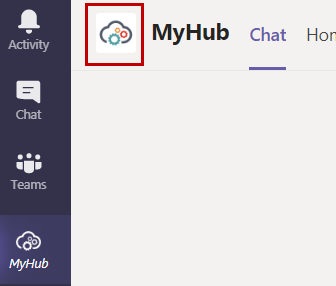
icons outline 32x32 pixels The outline icon of the app.
Enter the file name of an outline 32x32 PNG icon. Make sure you have placed the icon in the folder where the manifest.json file resides.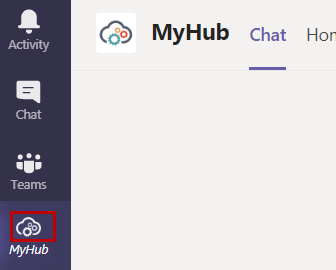
name short 30 characters The short display name of the app. 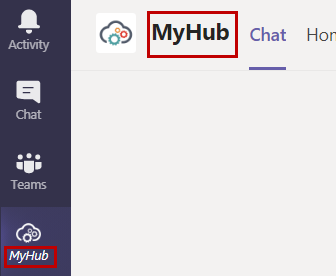
name full 100 characters The full name of the app, used if the full name exceeds 30 characters. description short 80 characters The short description of the app. 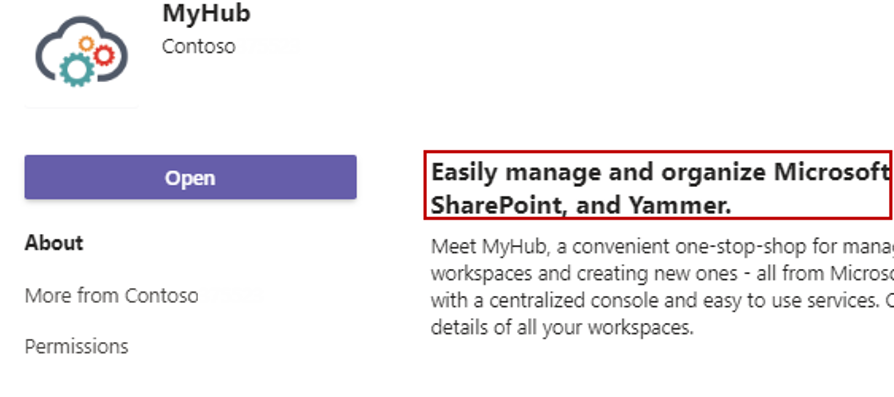
description full 4000 characters The full description of the app. 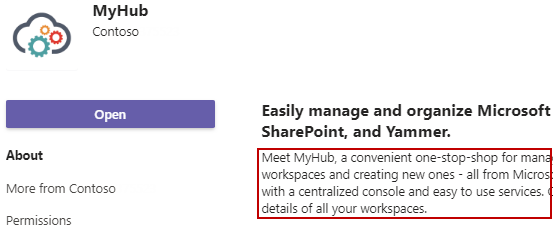
-
When you finish customizing the MyHub app, save and close the manifest.json file.
-
In the folder where the manifest.json file resides, select all files and compress them to a .zip file.
-
Follow the instructions in the Add MyHub to the Tenant Apps Catalog section to add the app to the app catalog.
After you complete the customization, users whose Teams client language is English can view the customized app name and description. For users whose Teams client language is not English, you must change the name.short, name.full, description.short, and description.full attribute values in the corresponding localization files. AvePoint localizes the MyHub app into the following languages:
| Language | File |
|---|---|
| German | de-de.json |
| French | fr-fr.json |
| Italian | it-it.json |
| Japanese | ja-jp.json |
| Portuguese | pt-br.json |
| Spanish | es-es.json |
| Chinese | zh-cn.json |
If you want to learn more about the manifest, read the following Microsoft article: Microsoft 365 app manifest schema reference.
Add MyHub to the Tenant Apps Catalog
Choose one of the following methods to add the MyHub Teams app to your tenant apps catalog:
Upload the App Package in Microsoft Teams Admin Center
Complete the following steps to upload the app package in Microsoft Teams admin center:
-
Sign in to Microsoft Teams admin center using your Global Administrator or Teams Service Administrator credentials.
-
Navigate to Teams apps > Manage apps.
-
Click Upload new app.
-
In the Upload a custom app window, click Upload.
-
Navigate to the app package and select it, and then click Open.
Upload the App Package in the Microsoft Teams Client
Complete the following steps to upload the app package to the Microsoft Teams client:
-
Start the Microsoft Teams client and sign in using your Global Administrator or Teams Service Administrator credentials.
-
Click Apps in the lower-left corner to go to the app store.
-
Click Manage your apps in the left navigation.
-
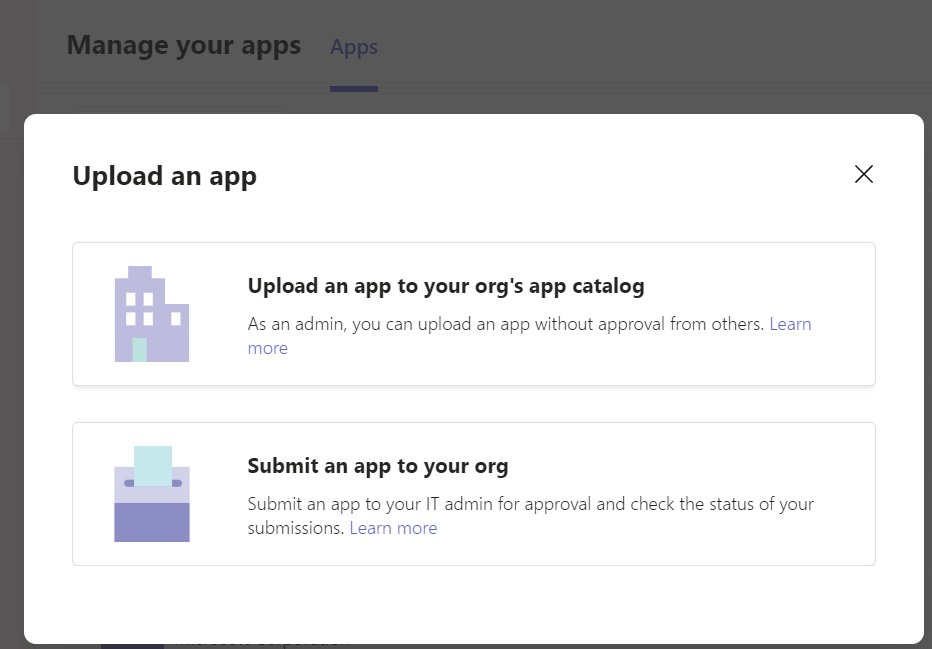
Click Upload an app, and then click Upload an app to your org’s app catalog.
-
In the pop-up window, navigate to the app package and select it, and then click Open.
When you go back to your tenant apps catalog, MyHub will appear.
Set Up MyHub
To ensure that MyHub works properly in the Teams client, sign in to Microsoft Teams admin center using your Global Administrator or Teams Service Administrator credentials, and then complete the following steps:
Allow Integration with MyHub
To ensure users can use MyHub, you must turn on the Allow interaction with custom apps org-wide custom app setting.
-
Navigate to Teams apps > Manage apps.
-
Click Org-wide app settings on the top. In the Custom apps section, make sure the Interaction with custom apps option is turned on.
Configure App Permission Policy
Configure the Global (Org-wide default) policy or create a custom app permission policy to control what apps are available to users in your tenant.
-
Navigate to Teams apps > Permission policies.
-
If you allow all users in your tenant to use MyHub, edit the Global (Org-wide default) policy. If you only allow specific users to use this app, create a custom app permission policy and assign the policy to a set of users. For details on how to create and assign a custom app permission policy, see the Microsoft article Manage app permission policies in Microsoft Teams.
-
In the Custom apps section, make sure the Allow all apps option is selected. If your tenant only allows users to use specific apps, select the Allow specific apps and block all others option, and then add MyHub to the app list.
-
Save the app permission policy.
Pin the MyHub App to the Teams App Navigation Bar
You can configure the app setup policy to pin MyHub to the app bar in Teams. MyHub will be added to the Teams clients for all users who are assigned the app setup policy.
-
Navigate to Teams apps > Setup policies.
-
If you want to pin the app for all users in your tenant, edit the Global (Org-wide default) policy. If you only want to pin the app for specific users, create a custom policy and assign it to a set of users. For details on how to create and assign a custom app setup policy, see the Microsoft article Manage app setup policies in Microsoft Teams.
-
In the Pinned apps section, complete the following steps:
-
Click Add apps.
-
In the Add pinned apps panel, enter MyHub in the search box, select the app, and then click Add.
-
Click Add at the bottom of the panel.
-
-
You can also set the order that apps are pinned in the app bar. Select the app and click Move up or Move down.
-
Save the app setup policy.
After you edit the Global (Org-wide default) policy or assign a policy, it can take up to 24 hours for changes to take effect.