
Okta Onboarding Process
This page provides an end-to-end onboarding flow to sign in with Okta in AvePoint Online Services.
- Account onboarding – Sign up, choose a data center, select services, and activate your account.
- Application connection – Connect application connection for Okta.
- Identity configuration – Configure identity providers to verify and connect Okta with AvePoint Online Services.
- User management – Add users and grant user permissions to AvePoint Online Services.
- Access setup – Sign in with an Okta account.
Sign up
AvePoint Online Services provides new tenants with a 30-day trial subscription for each online service. On the AvePoint Online Services environment for commercial use or the AvePoint Online Services environment for U.S. Government Public Sector, click Free Trial or Sign Up, and then complete the steps below:
-
Select your data center – Choose the primary residency for your data stored in AvePoint Online Services. For the best performance, select the data center closest to your tenant. Then, click Next.
Note the following:
-
After the signup is finished, you cannot change the data center.
-
For services not yet supported in your data center, you can select the services you're interested in to receive a notification email once they are supported.
-
-
Select your services – From the services that are available in your data center, select the services you want to use. Click Next.
-
Provide your information – Complete the required fields, read Preference and Consent terms, and select the I agree to the preference and consent checkbox. Then, click Submit.
-
The Check Email to Activate Your Account page will appear, and a confirmation email will be sent to your corporate email address. If you haven’t received the confirmation email, click the Resend a Confirmation Email button on the bottom of the Check Email to Activate Your Account page. Once you receive the email, click the supplied link to activate your account within one day. The link will be active for one day.
Connect applications for Okta
To connect Okta with AvePoint Online Services, you need to create and configure the following two applications in Okta:
-
Application for API service integration – Used for backend communication with Okta APIs to retrieve user, group, and organization data.
-
Application for login authentication – Used for frontend single sign-on (SSO) for user authentication.
API service integration
Follow the steps below to create an application for API service integration:
-
Sign in to Okta and navigate to Applications > Applications.
-
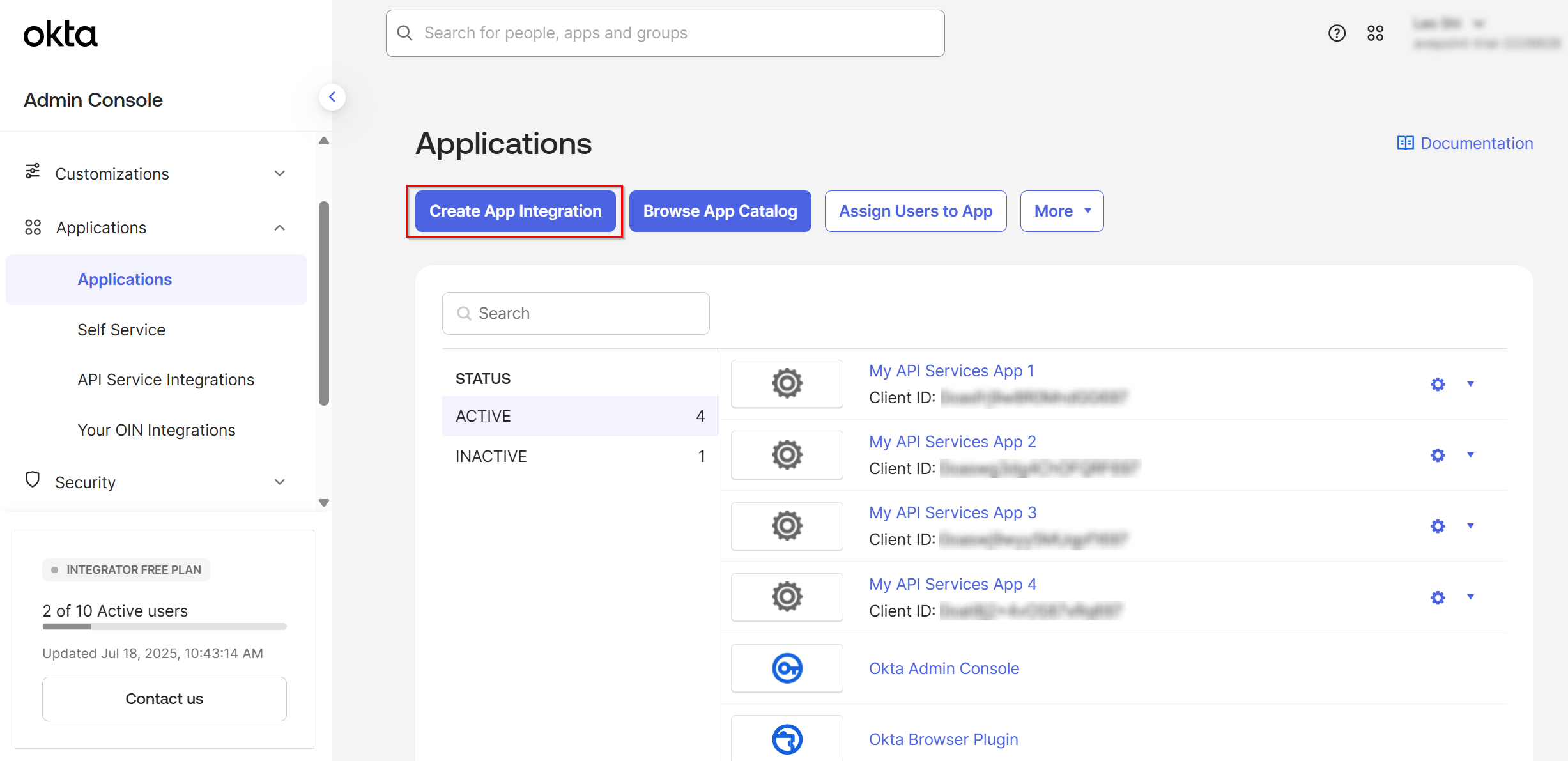
In the Applications page, click Create App Integration.
-
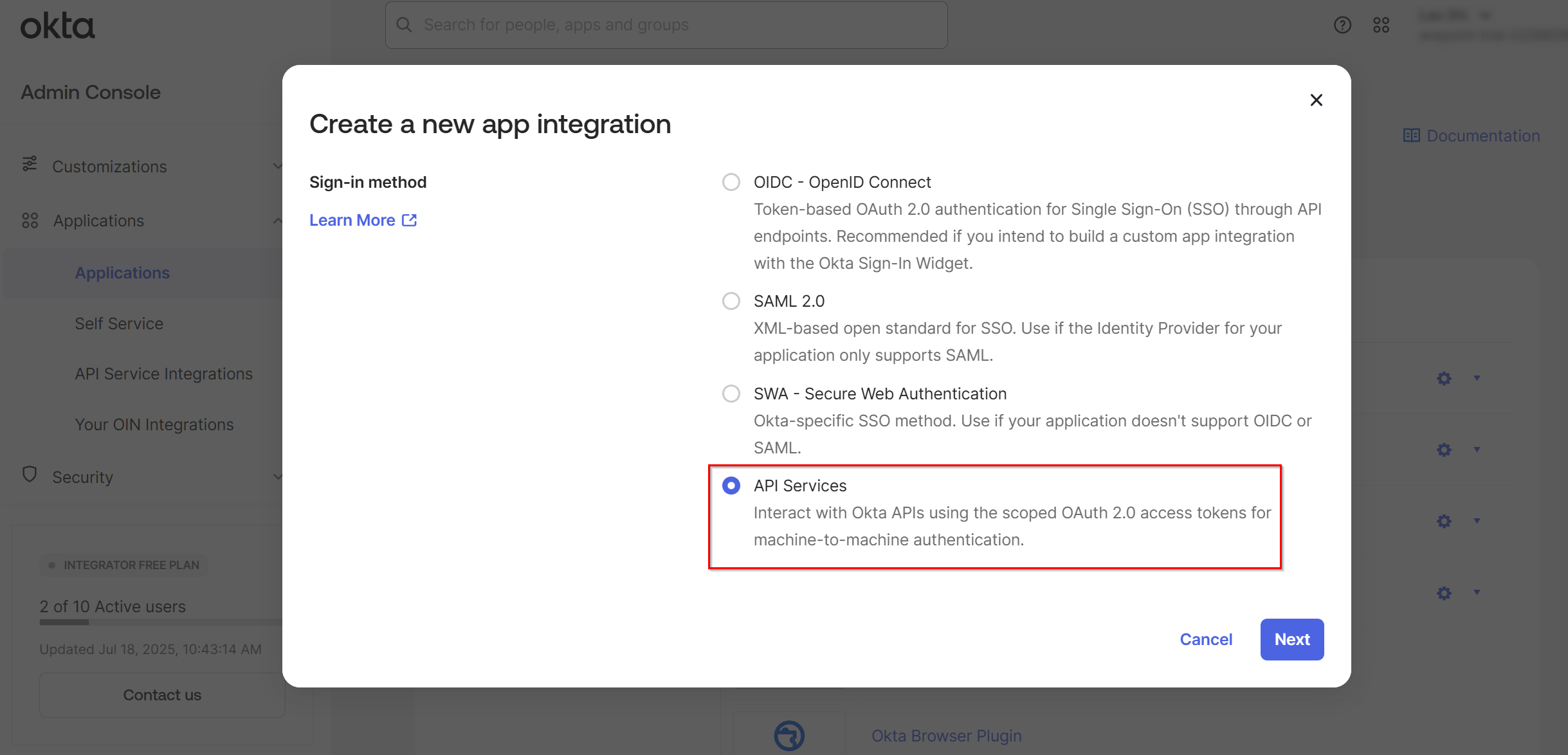
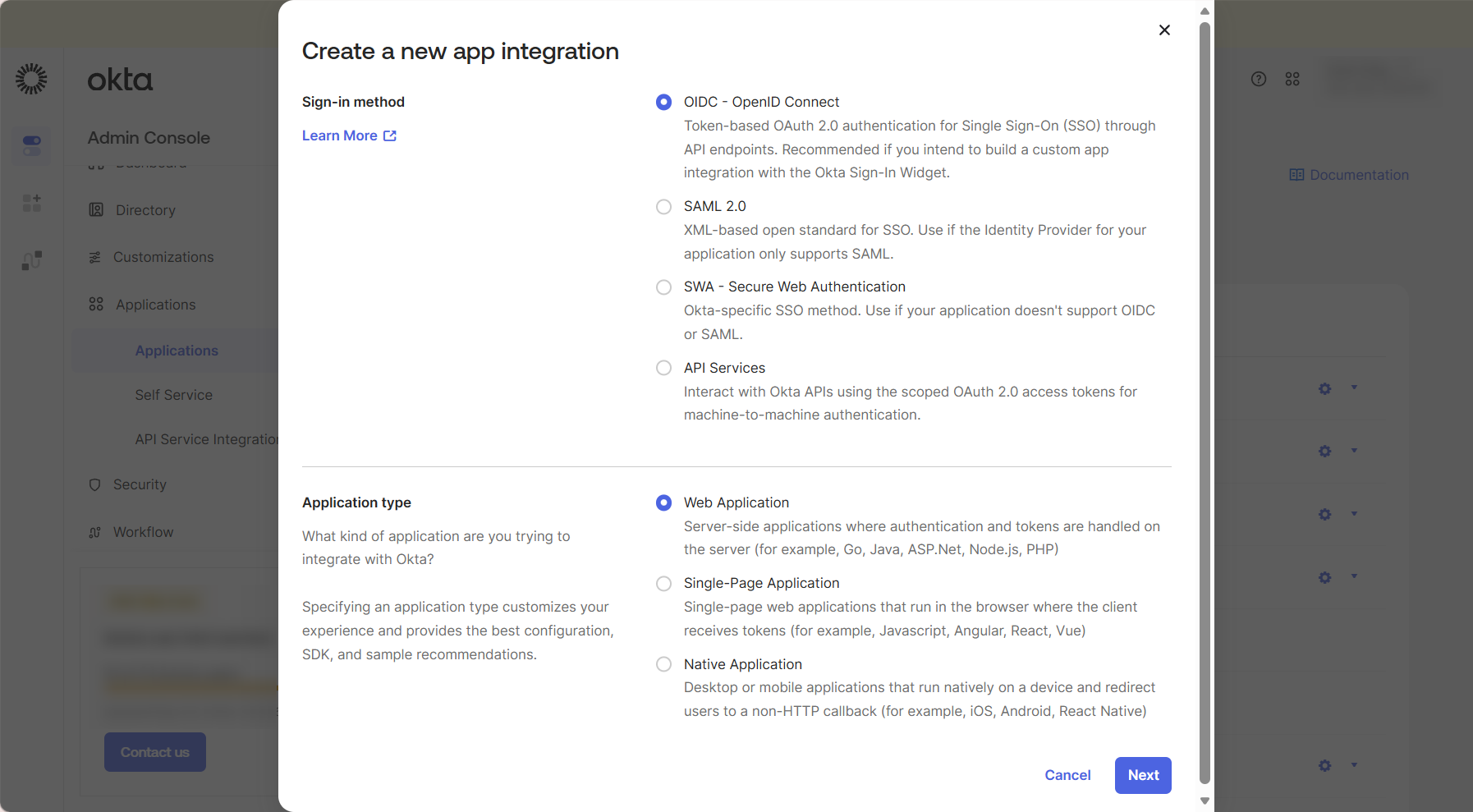
In the Create a new app integration window, select API Services and click Next.
-
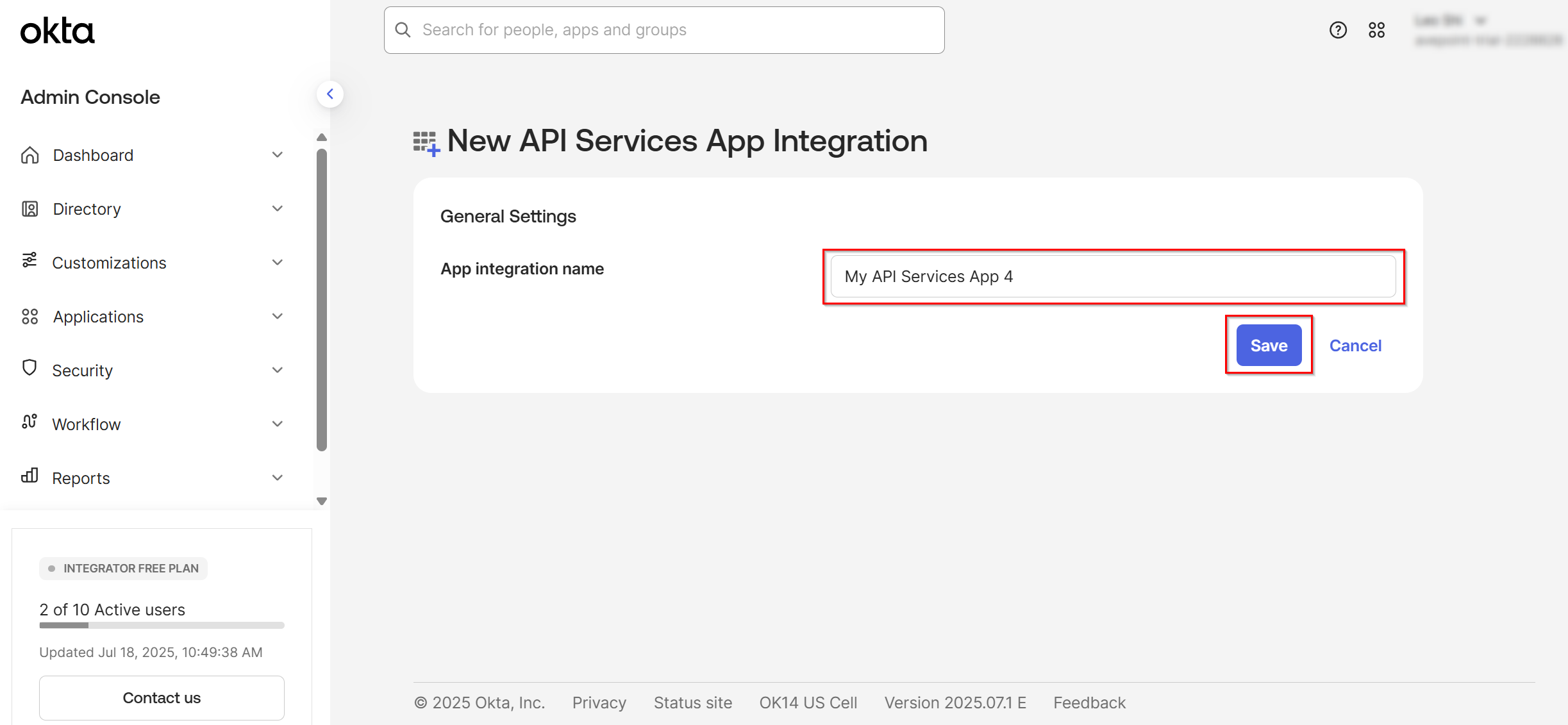
Enter a name for your App integration and click Save.
-
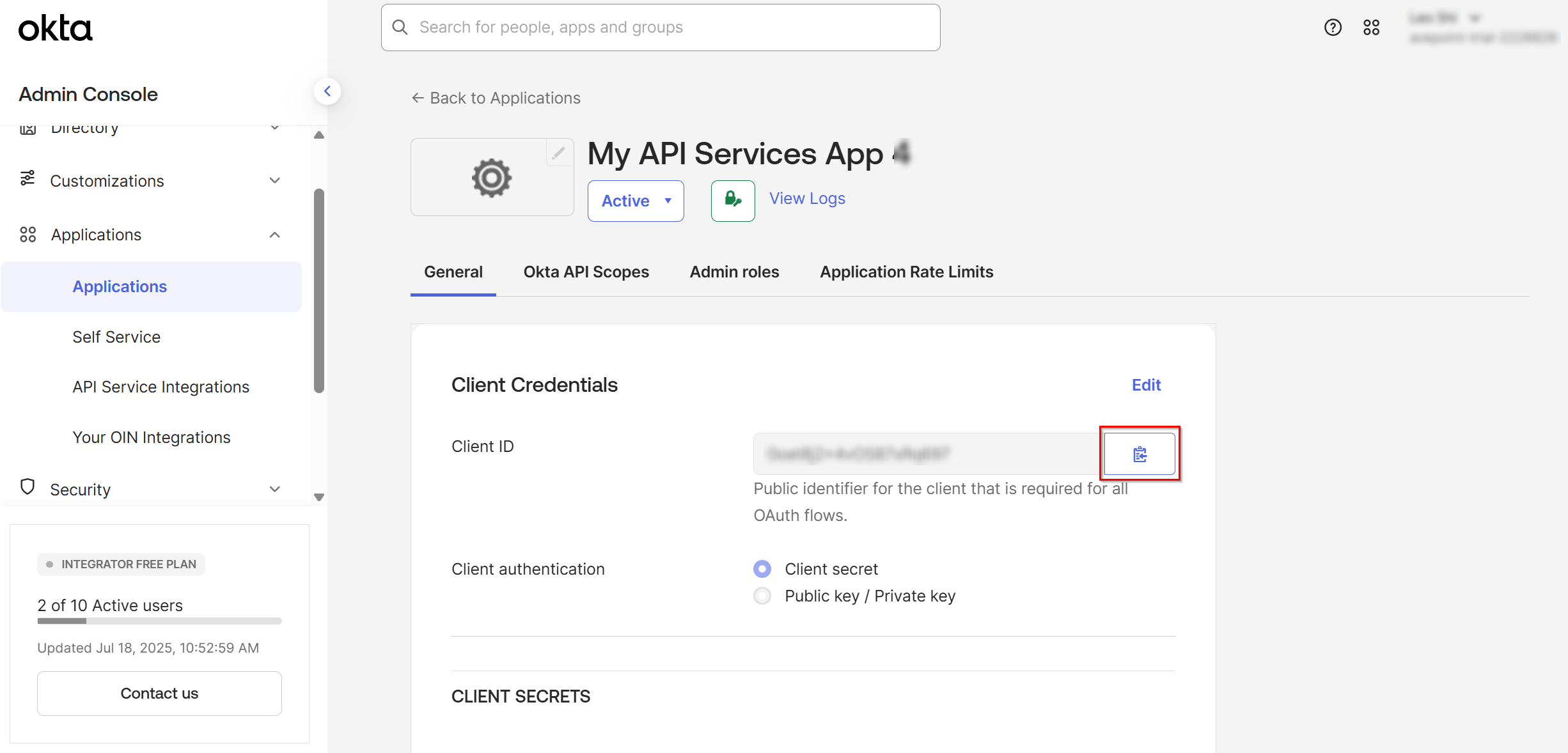
After saving the app, you will be directed to the service app details page. In General tab > Client Credentials section, click the Copy to clipboard button to copy the client ID and paste it into a safe location.
-
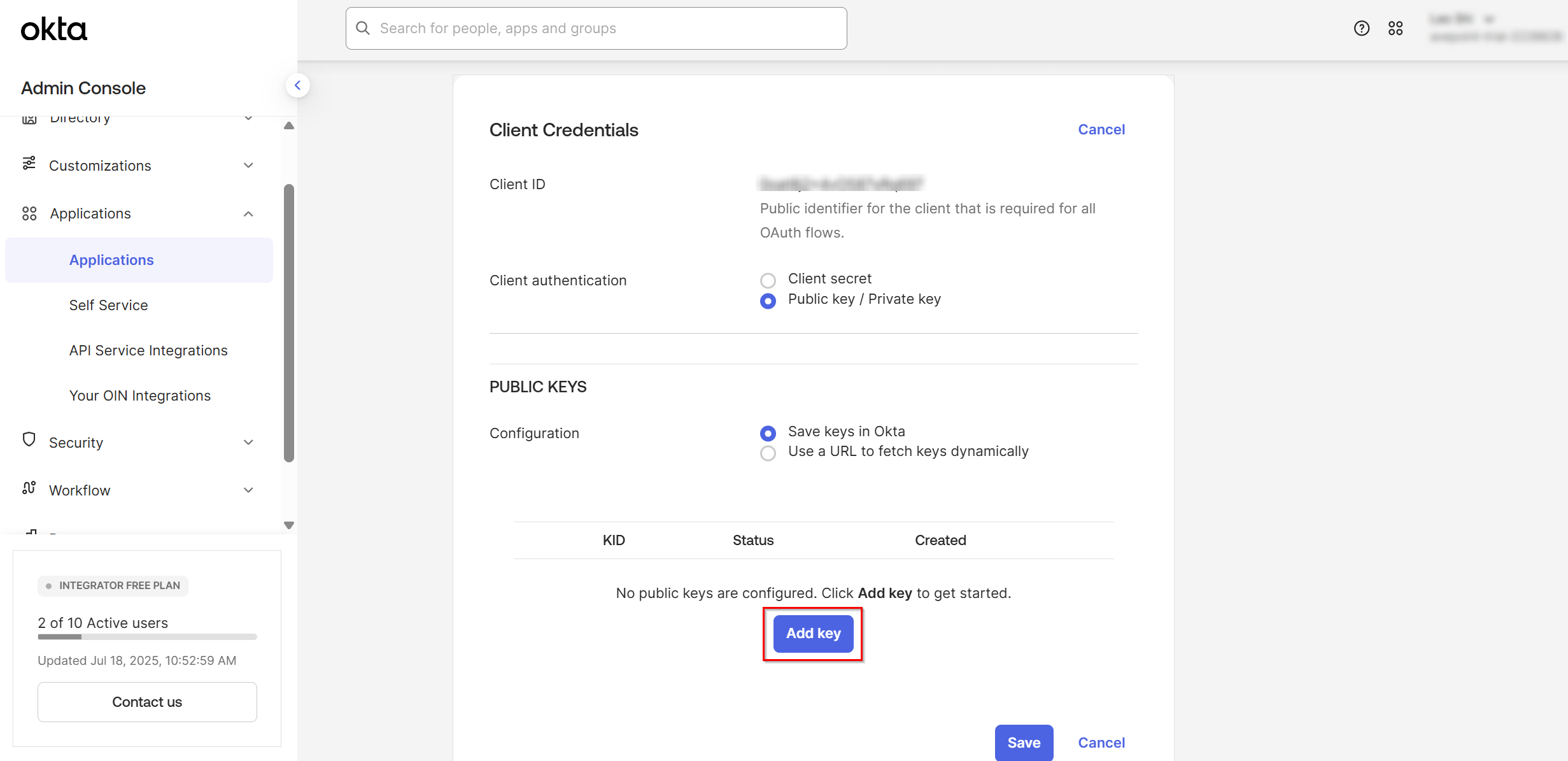
Click Edit in the Client Credentials section and select Public key / Private key as the client authentication method.
-
Click Add key in the PUBLIC KEYS section.
-
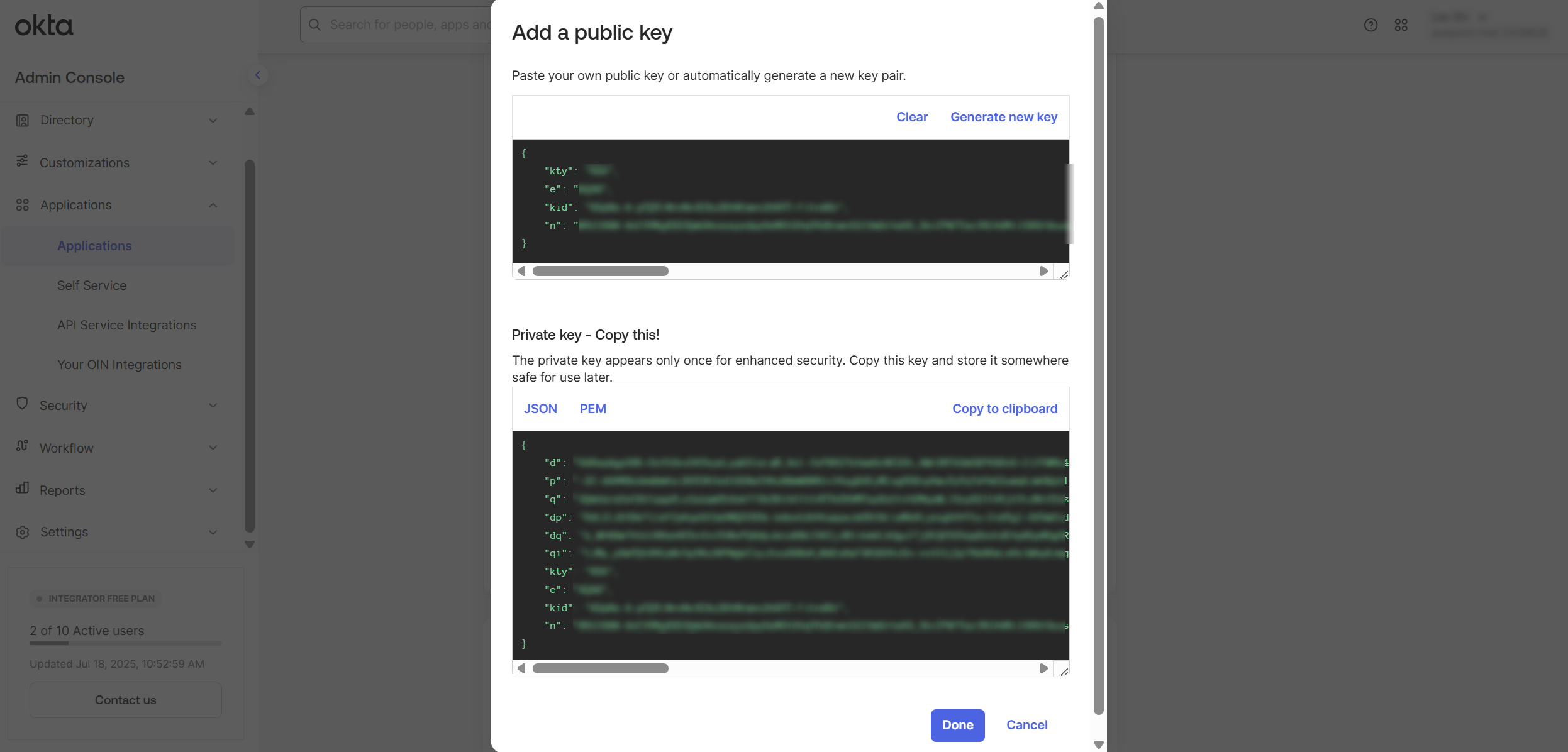
In the Add a public key window, click Generate new key to generate a new public key and then click Copy to clipboard to copy the private key.
NOTEThe private key is available in both JSON and PEM formats. You may copy either one as needed.
-
When you finish generating the public key and copying the private key, click Done.
-
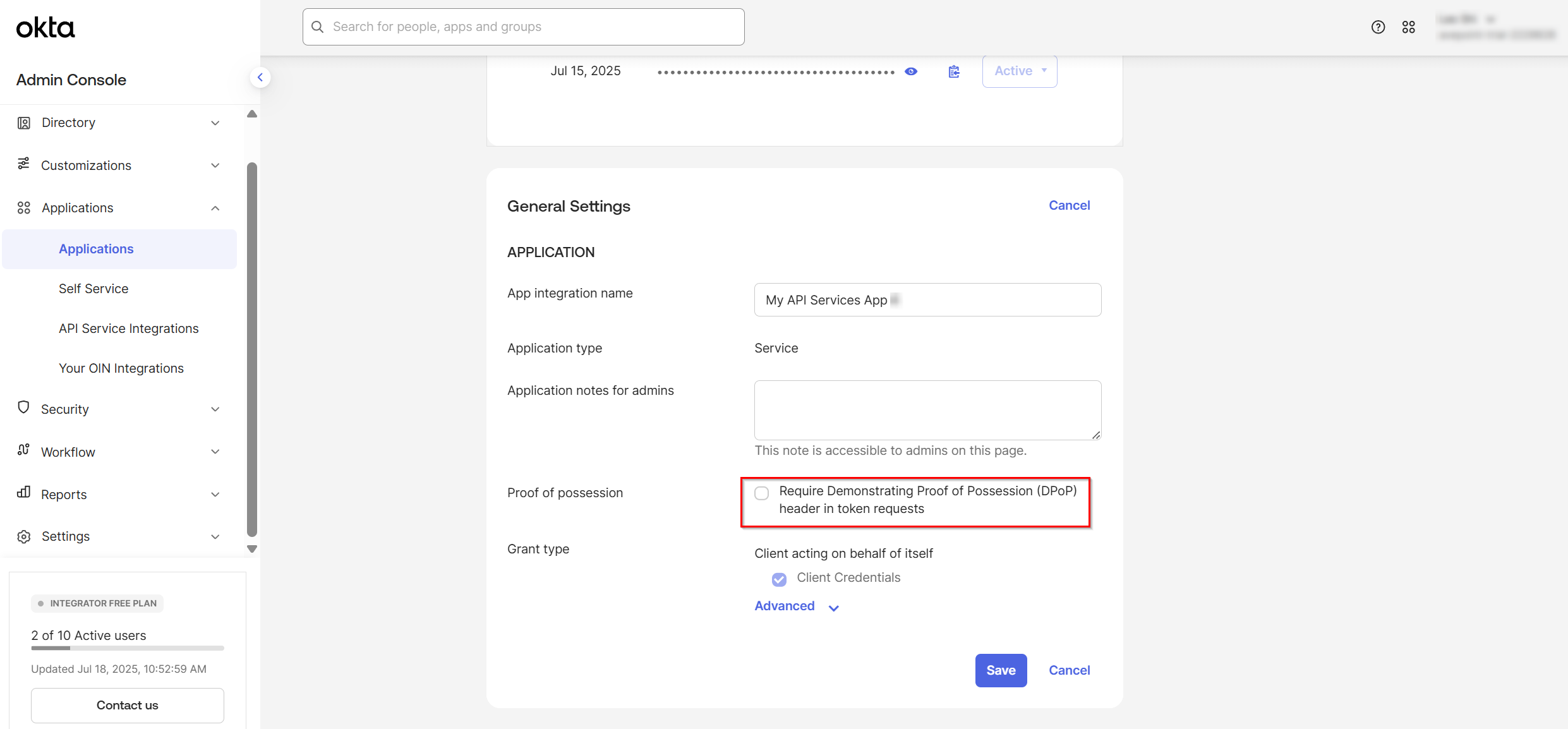
Under the General Settings section, click Edit, deselect the Require Demonstrating Proof of Possession (DPoP) header in token requests option in the Proof of possession field and click Save.
-
Navigate to the Okta API Scopes tab and grant the following permissions to your service app.
-
okta.users.read
-
okta.groups.read
-
okta.orgs.read
-
-
Navigate to the Admin roles tab and make sure the Super Administrator role is granted to the app.
NOTEThe Super Administrator role is required to enable backups for all Okta objects supported by Cloud Backup for SaaS Applications. All other administrative roles, including custom roles, have certain limitations when backing up specific objects.
Login authentication
Follow the steps below to create an application for login authentication:
-
Sign in to Okta and navigate to Applications > Applications.
-
In the Applications page, click Create App Integration.
-
In the Create a new app integration window, select OIDC - OpenID Connect and select Web Application as the application type.
-
Click Next.
-
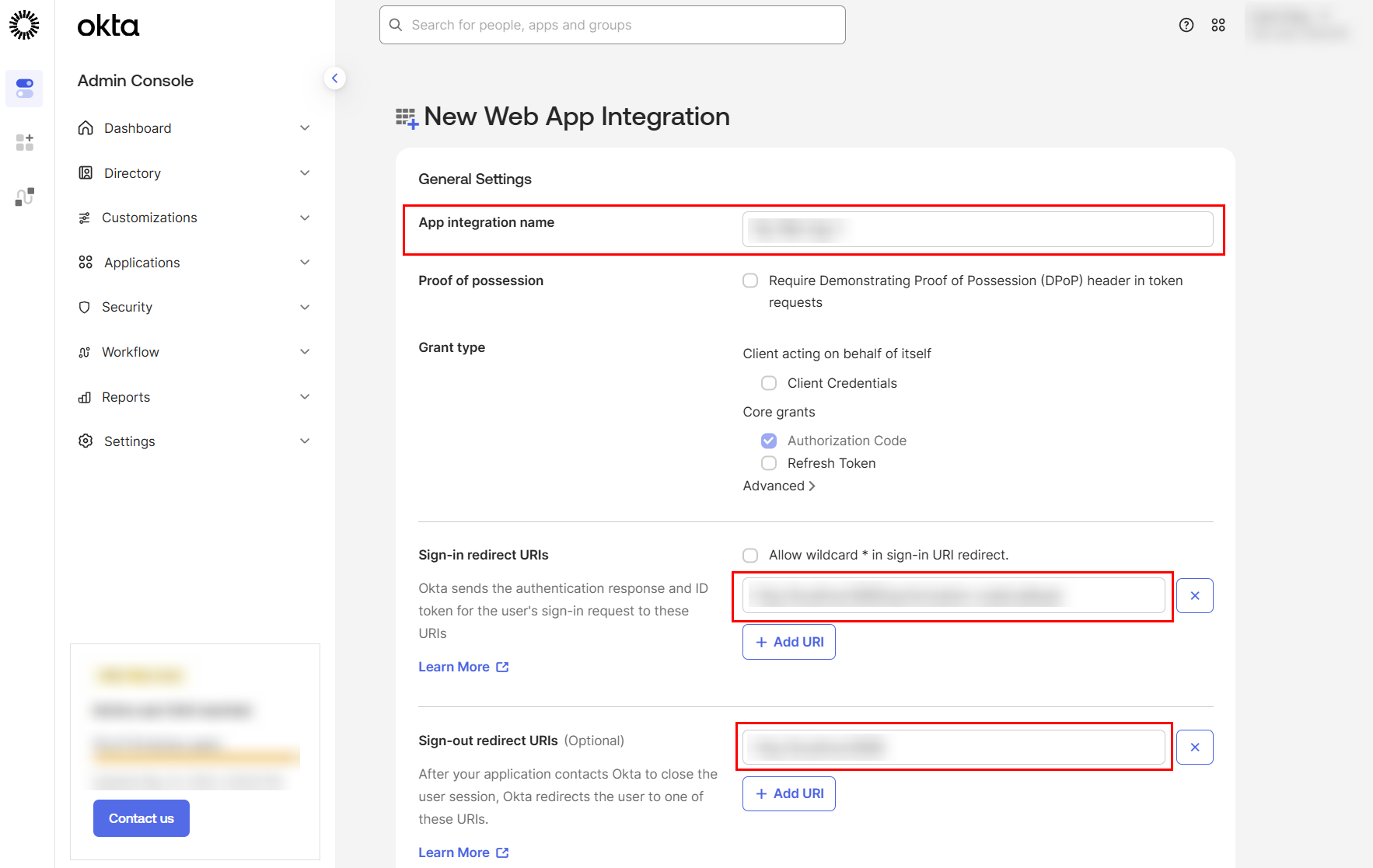
On the New Web App Integration page, complete the following configurations:
-
App integration name – Enter a name for the application.
-
Sign-in redirect URIs – Enter
https://identity-public.sharepointguild.com/sso/process/okta. -
Sign-out redirect URIs – Enter
https://identity-public.sharepointguild.com/sso/logout. -
Assignments – Select Skip group assignment for now.
-
-
Click Save.
-
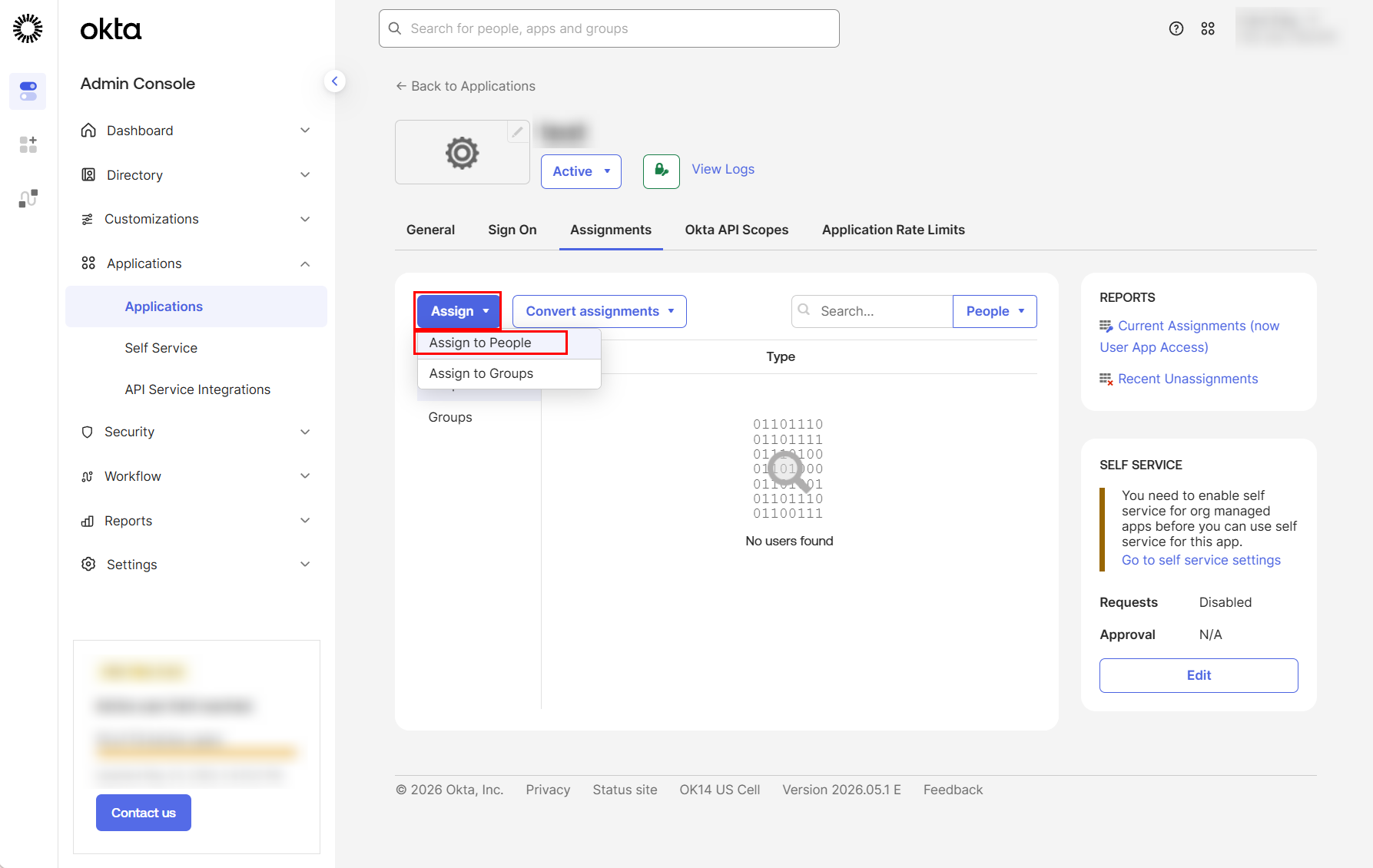
After saving the app, you will be directed to the service app details page. In Assignments tab, click Assign > Assign to People. Select the users who will sign in to AvePoint Online Services via this app and click Assign.
-
Click Done.
-
After saving the app, you will be directed to the service app details page. In General tab > Client Credentials section, click the Copy to clipboard button to copy the client ID and paste it into a safe location.
-
Click Edit in the Client Credentials section and select Public key / Private key as the client authentication method.
-
Click Add key in the PUBLIC KEYS section.
-
In the Add a public key window, click Generate new key to generate a new public key and then click Copy to clipboard to copy the private key.
NOTEThe private key is available in both JSON and PEM formats. You may copy either one as needed.
-
When you finish generating the public key and copying the private key, click Done.
-
Click Edit in the General Settings section, complete the following configurations, and click Save.
-
APPLICATION > Grant type – Complete the following configurations:
- Client acting on behalf of itself – Select Client Credentials.
- Core grants – Select Refresh Token.
- Advanced > Other grants – Select Implicit (hybrid) > Allow ID Token with implicit grant type.
-
LOGIN > Sign-in redirect URIs – Enter
https://identity-public.sharepointguild.com/sso/process/okta. -
LOGIN > Sign-out redirect URIs – Enter
https://identity-public.sharepointguild.com/sso/logout.
-
-
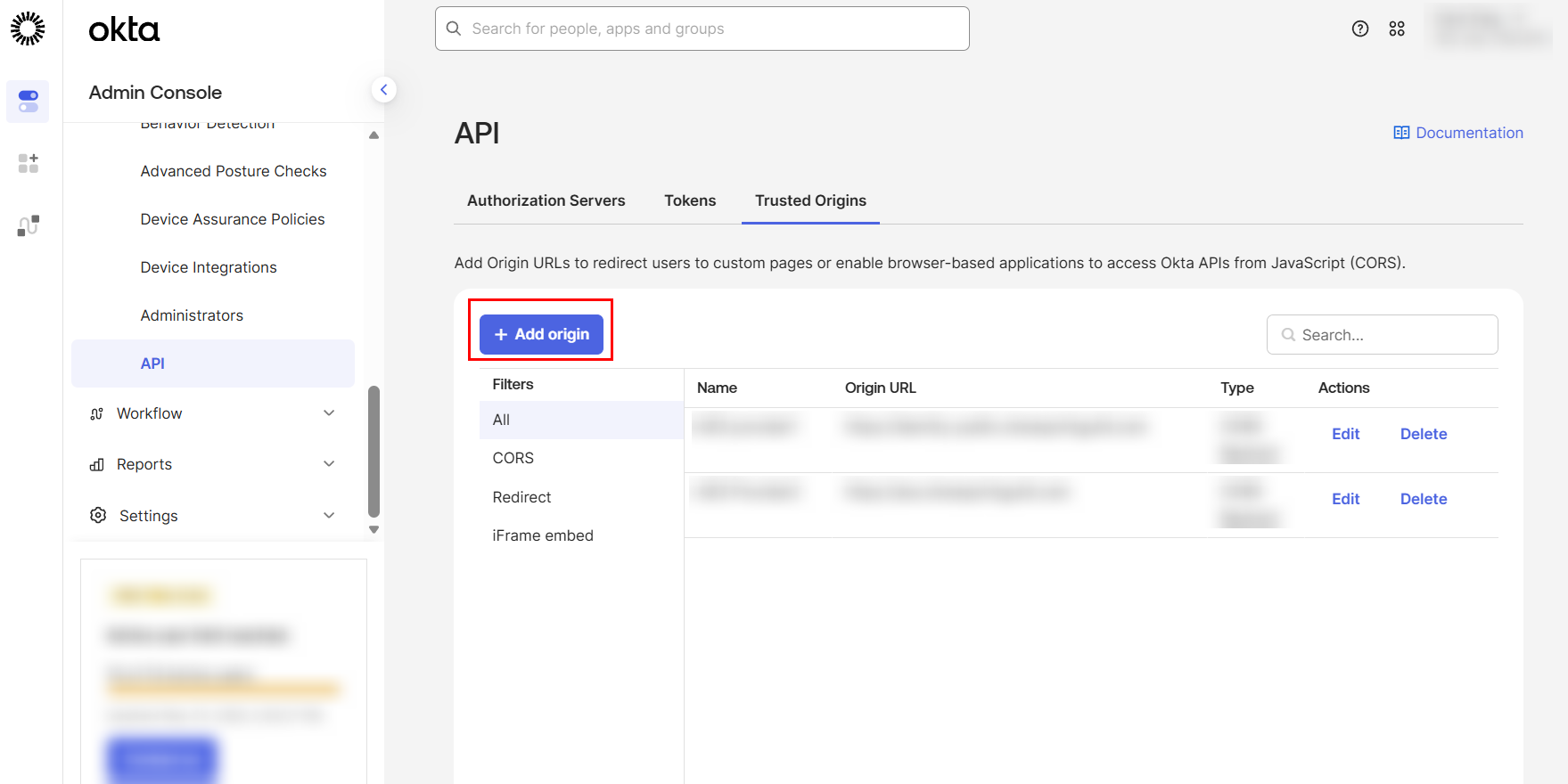
Click Security > API in the left navigation.
-
Under the Trusted Origins tab, click Add Origin. In the Add Origin window, enter the following information and click Save.
-
Name – Enter a name for the trusted origin.
-
Origin URL – Enter
https://identity-public.sharepointguild.com. -
Select the Cross-Origin Resource Sharing (CORS) and Redirect checkboxes.
-
-
Repeat the previous steps to add another origin with the following details and click Save.
-
Name – Enter a name for the trusted origin.
-
Origin URL – Enter
https://aos.sharepointguild.com. -
Select the Cross-Origin Resource Sharing (CORS) and Redirect checkboxes.
-
Configure Identity Providers
To allow users to sign in to AvePoint Online Services with their Okta account, you need to configure Okta as an identity provider in AvePoint Online Services. For detailed steps, see Configure identity providers for Okta.
Add users/groups
After configuring Okta as an identity provider, you can add users or groups from Okta and grant them permissions to access AvePoint Online Services. For detailed steps, see Add users.
Sign in with an Okta account
To sign in with an Okta account, complete the following steps:
-
On the sign-in page, click Okta.
NOTEIf you are using the Okta account to sign into another app on the same browser, you will be automatically signed into AvePoint Online Services.
-
In the pop-up window, enter your Okta account and click Continue.
-
On the Okta login page, enter an Okta username.
-
Click Next.
-
Enter your password, then click Verify to sign in.
Supported environments
Signing in with Okta is supported in the following environments:
- Commercial Production Environment
- U.S. Government Production Environment
- 21Vianet