
Home > App Management > Manage Connections for SaaS Applications > Connect an Application for ServiceNow ITSM
この記事をダウンロードConnect an Application for ServiceNow ITSM (Private Preview)
The ServiceNow service is currently in private preview. If you want to try this service, contact your AvePoint representative for assistance.
To connect an application for ServiceNow, complete the following configurations.
Step 1: Create an Inbound Connected App
Follow the steps below to create an inbound connected app:
-
Sign in to ServiceNow.
-
Click All tag, search for Application Registry and then click it.
-
Click to switch to the New Inbound Integration Experience.
NOTEFor the old instance without New Inbound Integration Experience, please refer to Add the OAuth Application User.
-
Click New integration to create a new app.
-
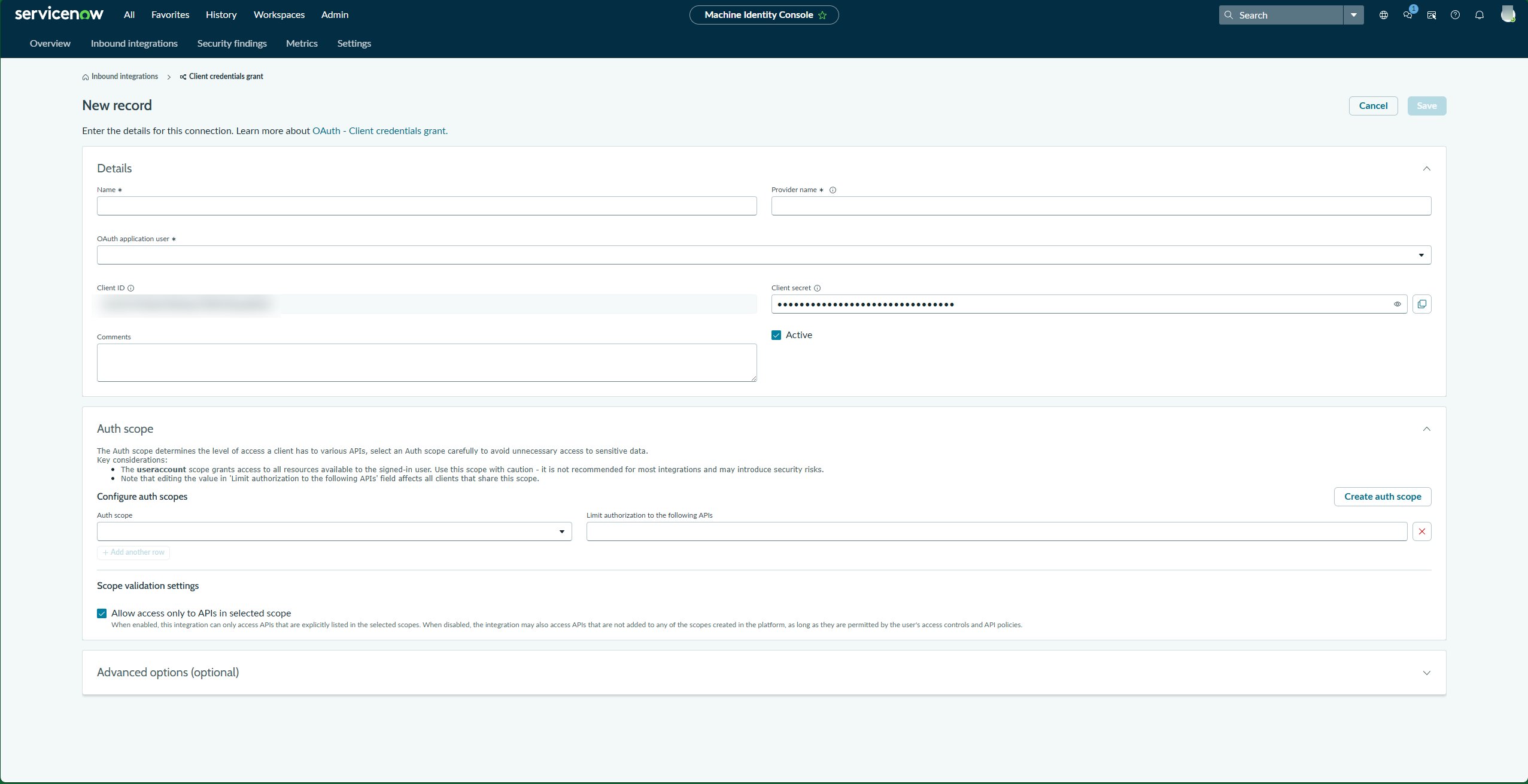
Select OAuth - Client credentials grant as the connection type, and then the New Record page will display automatically.
-
In the New record page, configure the following details in Details section:
-
Name – Enter a unique name for the integration.
-
Provider name – Enter the name of service provider.
-
OAuth application user – Select the user used for authentication from the dropdown list.
NOTEYou can copy and save the Client ID and Client secret of the app. It will be used in later steps.
-
-
In the Auth scope section, configure auth scopes.
-
In the Advanced options section, configure Access token lifespan.
-
Click Save.
NOTEBy default, client credential is not enabled. To enable it, create the
glide.oauth.inbound.client.credential.grant_type.enabledsystem property. Refer to Client Credentials for details.
Step 2: Create a Dedicated API User (Service Account)
Follow the steps below to create a dedicated API user:
-
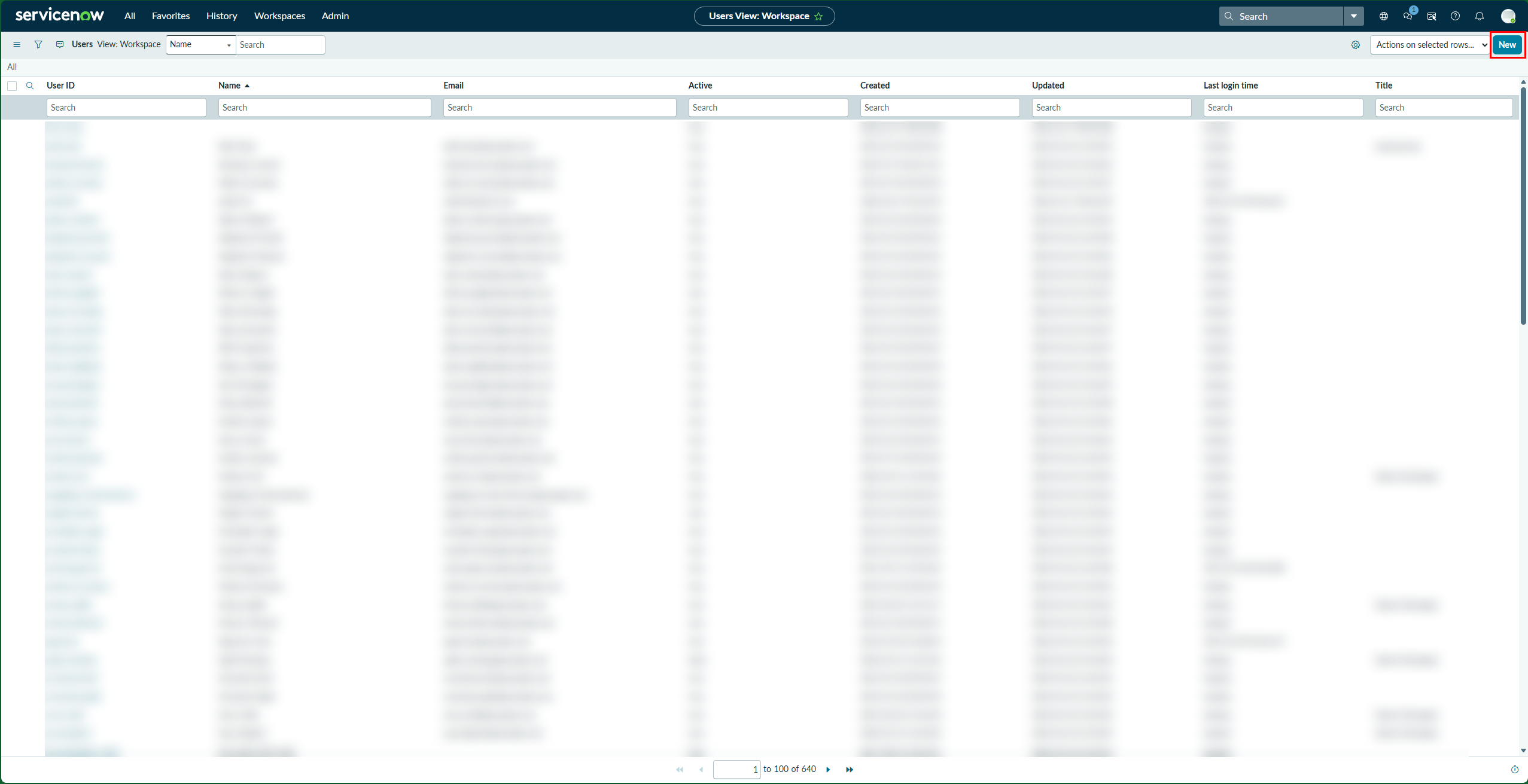
Click All tag in ServiceNow, navigate to Organization > Users.
-
Click New in the upper-right corner.
-
Enter the User ID, First name and Last name, and select the checkbox of Active.
-
Click Submit in the upper-right corner.
-
After creating the user, click the user ID of the required user in Users page.
-
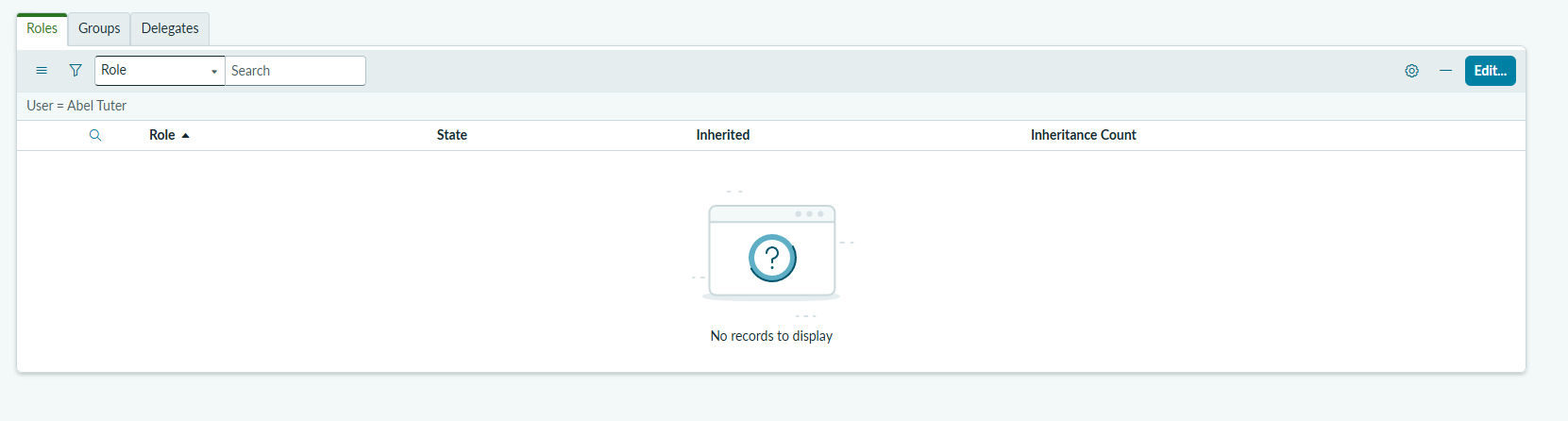
In the Roles section, click Edit to assign required roles.
-
Add rest_service, soap_query and rest_api_explorer to the Roles list. You can search with keywords in the search bar.
-
Click Save.
Step 3: Create an application connection in AvePoint Online Services
Follow the steps below to create an application connection in AvePoint Online Services:
-
In AvePoint Online Services, navigate to Management > App management > Application connection, and then click Create on the action bar.
-
In the Create application connection panel, complete the following settings:
-
Profile name – Enter a name for your connection profile.
-
Description – Enter a description for the connection for future reference. This field is optional.
-
Select application – Select ServiceNow from the drop-down list.
-
Instance connection – Enter the URL copied from ServiceNow. For example, https://dev123.service-now.com.
-
Client ID – Enter the client ID copied from ServiceNow.
-
Client secret - Enter the client secret copied from ServiceNow.
-
-
Click Save.
Once you have created the connection profile, it will appear on the Management > App management > Application connection tab. Your application will now be connected. If needed, you can select a connection profile to Edit or Delete it.